How to Add a Signature to a PDF on iPhone — Complete Free Guide (2026)
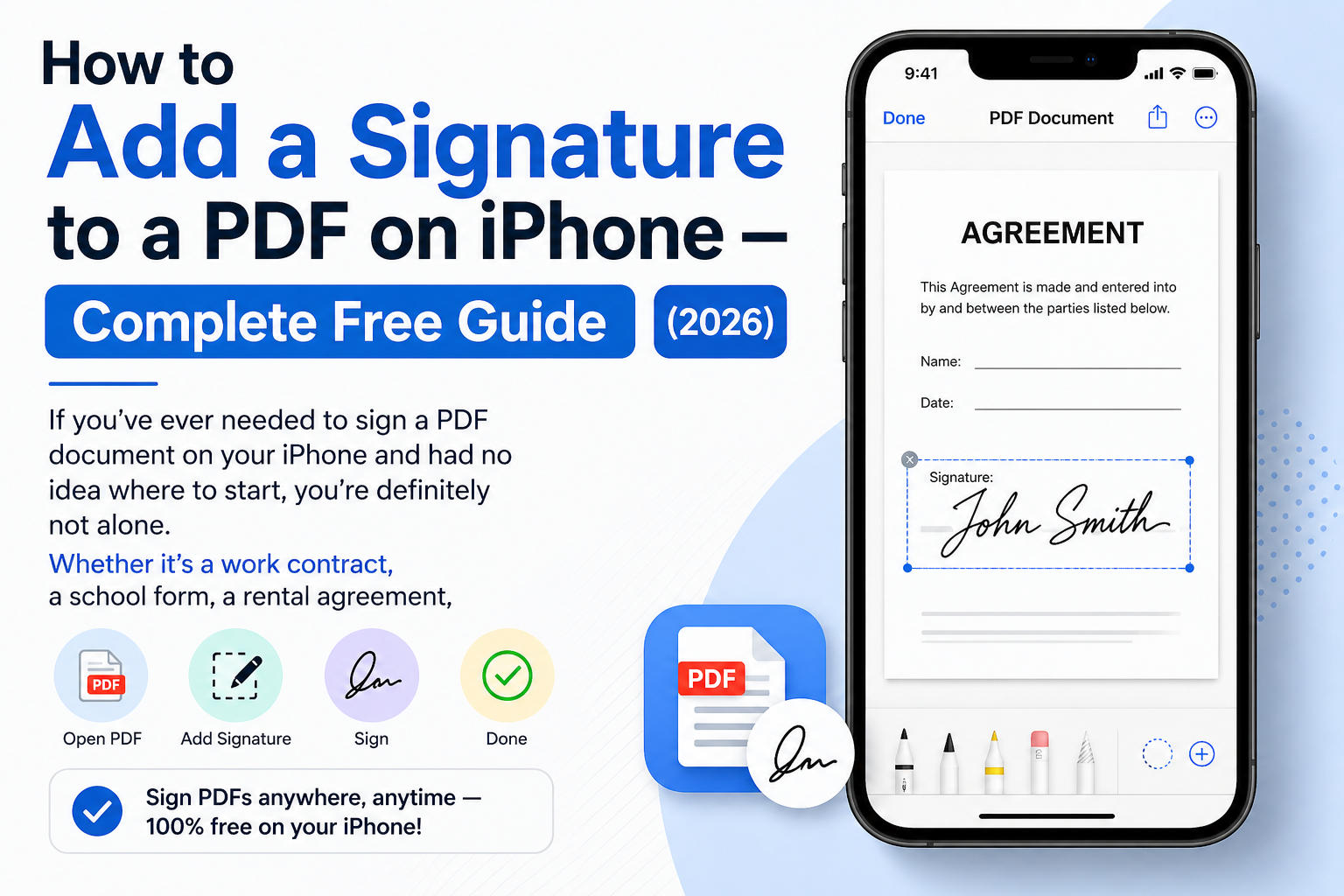
If you've ever needed to sign a PDF document on your iPhone and had no idea where to start, you're definitely not alone. Whether it's a work contract, a school form, a rental agreement, or any other document, signing PDFs on your phone has become something millions of people need to do every single day.
The great news is that you don't need Adobe Acrobat, you don't need a printer, and you don't need a scanner. In 2026, adding a signature to a PDF on iPhone is easier than ever — and completely free. This guide will walk you through every method available, step by step, so you can sign any PDF document right from your iPhone in just a few minutes.
Why Add a Signature to a PDF on iPhone?
Before we get into the how, let's quickly talk about why so many people are looking for this solution:
- You received an important document by email and need to sign and return it fast
- You work remotely and need to approve documents digitally
- You want to add a digital signature to a PDF without printing anything
- You need to add a signature block or signature field to a PDF you're sending to someone else
- You want to create an electronic signature and save it for future use
Whatever your reason, signing PDFs on iPhone is a completely legal, professional, and widely accepted practice in 2026. Electronic signatures carry the same legal weight as handwritten ones in most countries.
Method 1 — How to Add a Signature to a PDF on iPhone Using ComfortablePDF (Easiest Method)
The fastest and most reliable way to add a signature to a PDF on your iPhone is by using ComfortablePDF.com. It works directly in your Safari or Chrome browser — no app download needed, no signup required, and completely free.
Step-by-Step Guide:
Step 1: Open Safari or Chrome on your iPhone and go to ComfortablePDF.com
Step 2: Tap on the Sign PDF tool from the homepage or tools menu
Step 3: Tap the Upload button and select your PDF file. You can upload from your Files app, iCloud Drive, or directly from an email attachment
Step 4: Once your PDF loads, tap on the area where you want to place your signature
Step 5: You'll see options to draw your signature with your finger, type your name as a signature, or upload an image of your signature
Step 6: Draw or type your signature, then resize and position it exactly where you need it on the document
Step 7: Tap Apply and then tap Download to save the signed PDF back to your iPhone
Your signed PDF is ready to share, email, or upload — instantly and for free. No watermark, no account needed, and no software to install.
This is by far the best method for most iPhone users because it's simple, fast, and works perfectly on mobile screens.
Method 2 — How to Add a Signature to a PDF on iPhone Using the Markup Tool
Your iPhone actually has a built-in feature for adding signatures to PDFs called Markup. It's part of the Files app and Mail app, and most people don't even know it exists.
How to Sign a PDF Using iPhone Markup (Files App):
Step 1: Open the Files app on your iPhone and locate your PDF document
Step 2: Tap on the PDF to open it
Step 3: Tap the Markup icon — it looks like a pencil tip and is usually found in the top right corner of the screen
Step 4: Once Markup opens, tap the plus (+) button in the bottom right corner
Step 5: Select Signature from the popup menu
Step 6: If you've never created a signature before, you'll be prompted to draw one with your finger. Draw your signature on the screen and tap Done
Step 7: Your signature will appear on the PDF as a moveable element. Drag it to the correct position and resize it if needed
Step 8: Tap Done in the top right corner to save your signed PDF
How to Sign a PDF Directly from Mail App:
If someone sends you a PDF via email and you need to sign it and send it back, here's the quickest way:
Step 1: Open the email and tap on the PDF attachment to open it
Step 2: Tap the Share icon and then tap Markup
Step 3: Follow the same steps as above — tap the plus button, select Signature, draw or choose your saved signature, and position it on the document
Step 4: Tap Done, then tap Save File To or share the signed PDF directly back via email
This method is incredibly convenient because you never have to leave the Mail app. It's perfect for quick document signing on the go.
Method 3 — How to Add a Digital Signature to a PDF on iPhone
A digital signature is slightly different from a regular electronic signature. A digital signature uses cryptographic technology to verify the identity of the signer, making it more secure and legally robust for business and legal documents.
If you need to add a digital signature to a PDF on iPhone specifically for professional or legal purposes, here's what you should know:
Using ComfortablePDF for E-Signatures:
ComfortablePDF.com allows you to add an electronic signature to a PDF that looks professional and is suitable for most business documents. While it's an e-signature rather than a cryptographically verified digital signature, it is legally accepted in most situations including contracts, agreements, and consent forms.
For Certified Digital Signatures:
For documents that specifically require a certified digital signature — such as government forms or highly sensitive legal documents — you may need a service like DocuSign or Adobe Sign. However, for the vast majority of everyday documents, a standard electronic signature created on ComfortablePDF.com is completely sufficient and legally valid.
Method 4 — How to Add a Signature Block to a PDF on iPhone
A signature block is more than just your name — it typically includes your full name, title, company, date, and sometimes your contact information. If you need to add a signature block to a PDF on iPhone, here's how to do it:
Using ComfortablePDF.com:
Step 1: Upload your PDF to the Edit PDF or Sign PDF tool at ComfortablePDF.com
Step 2: Use the text tool to add your name, title, date, and other details as separate text elements
Step 3: Use the signature tool to add your actual handwritten signature above or within the block
Step 4: Arrange all elements neatly in the appropriate position on the document
Step 5: Download your completed PDF with the full signature block included
This gives you a clean, professional-looking signature block on any PDF document without needing any desktop software.
Method 5 — How to Add a Signature Box to a PDF on iPhone
If you're creating a PDF that other people need to sign — such as a form or contract — you may want to add a signature box or signature field to the document before sending it out.
Step 1: Open your PDF in the Edit PDF tool at ComfortablePDF.com on your iPhone
Step 2: Use the drawing or shape tool to create a rectangular box in the area where the signature should go
Step 3: Add a text label below or inside the box, such as "Signature" or "Authorized Signature"
Step 4: Add a line for the date next to the signature box if needed
Step 5: Download the updated PDF and send it to whoever needs to sign it
This is a common need for business owners, HR professionals, teachers, and anyone who sends forms to multiple people for signing.
How to Remove a Signature from a PDF on iPhone
Made a mistake with your signature? Need to remove or replace it? Here's how to remove a signature from a PDF on your iPhone:
Using ComfortablePDF.com:
Step 1: Upload the signed PDF to the Edit PDF tool at ComfortablePDF.com
Step 2: Click on the signature element on the page
Step 3: Select it and press delete, or use the eraser tool to remove it
Step 4: Download the updated PDF without the signature
Using iPhone Markup:
If you signed the PDF using iPhone's Markup tool and haven't saved it yet, simply tap the Undo button (the curved arrow) to remove the signature before saving.
If the signature has already been saved and flattened into the PDF, you'll need to use an online editing tool to remove it.
How to Copy a Signature from a PDF on iPhone
Sometimes you need to extract or copy a signature from one PDF and use it in another. Here's the simplest way to do this on iPhone:
Step 1: Take a screenshot of the page containing the signature on your iPhone
Step 2: Open the screenshot in the Photos app and use the crop tool to isolate just the signature
Step 3: Save the cropped signature image
Step 4: When adding a signature to a new PDF using ComfortablePDF.com, choose the option to upload an image instead of drawing your signature
Step 5: Upload your saved signature image and position it on the new document
This is a great time-saving trick if you sign documents frequently and want to reuse your signature without drawing it every time.
How to Save Your Signature for Future Use on iPhone
If you sign PDF documents regularly, you'll want to save your signature so you don't have to draw it from scratch every single time.
Using iPhone Markup: When you draw a signature in the Markup tool for the first time, iPhone saves it automatically. The next time you go to add a signature using Markup, your previously saved signatures will appear as options to choose from.
Using ComfortablePDF.com: You can save your drawn signature as an image file on your iPhone. Next time you need to sign a PDF, simply upload that image file as your signature instead of drawing it again.
Tips for a Better Signature on iPhone
Here are some practical tips to make your electronic signature look more professional on any PDF document:
Use your finger slowly and carefully. The touchscreen is sensitive, and drawing your signature too quickly can make it look messy. Take your time and draw it just like you would with a pen on paper.
Use Apple Pencil if you have an iPad. If you're signing on an iPad Pro with an Apple Pencil, the signature quality is significantly better and looks almost identical to a real pen signature.
Keep your signature consistent. Use the same signature every time to maintain professionalism and ensure your signature is recognizable across different documents.
Check the document before signing. Always read through the PDF carefully before adding your signature. Once a document is signed and sent, it can be difficult to make changes.
Use a white background image. If you're uploading a photo of your handwritten signature, make sure the background is clean and white so it blends naturally into the PDF document.
Frequently Asked Questions
Is it legal to add an electronic signature to a PDF on iPhone? Yes. In most countries including the United States, UK, Canada, and Australia, electronic signatures are legally valid under laws like the ESIGN Act and eIDAS regulation. They carry the same legal weight as handwritten signatures for most document types.
Can I add a signature to a PDF on iPhone for free? Absolutely. Using ComfortablePDF.com or the built-in iPhone Markup tool, you can sign any PDF completely free of charge with no subscription required.
Do I need an app to sign a PDF on iPhone? No. You can use ComfortablePDF.com directly in your browser without downloading any app. The iPhone's built-in Markup tool also requires no additional apps.
Can I add a digital signature to a PDF on iPhone without Adobe? Yes. Adobe Acrobat is not needed to sign PDFs on iPhone. ComfortablePDF.com and the built-in Markup tool both work perfectly without Adobe.
How do I add a signature field to a PDF for someone else to sign? Use the Edit PDF tool at ComfortablePDF.com to add a signature box and label to your document before sending it to the other person.
Final Thoughts
Adding a signature to a PDF on iPhone has never been easier. Whether you use the free ComfortablePDF.com online tool, the built-in Markup feature in your Files or Mail app, or a combination of both, you can sign any document professionally and legally — right from your iPhone, in just a couple of minutes.
You don't need Adobe. You don't need a printer. You don't need a computer. Everything you need is already in your pocket.
From adding a digital signature block to removing a signature you made by mistake, from copying a signature between documents to saving your signature for future use — all of it is possible on iPhone, completely free.
Next time someone sends you a PDF that needs your signature, don't panic. Just open your browser, head to ComfortablePDF.com, and get it done in minutes.
👉 Sign your PDF for free right now at ComfortablePDF.com — no signup, no watermark, works perfectly on iPhone