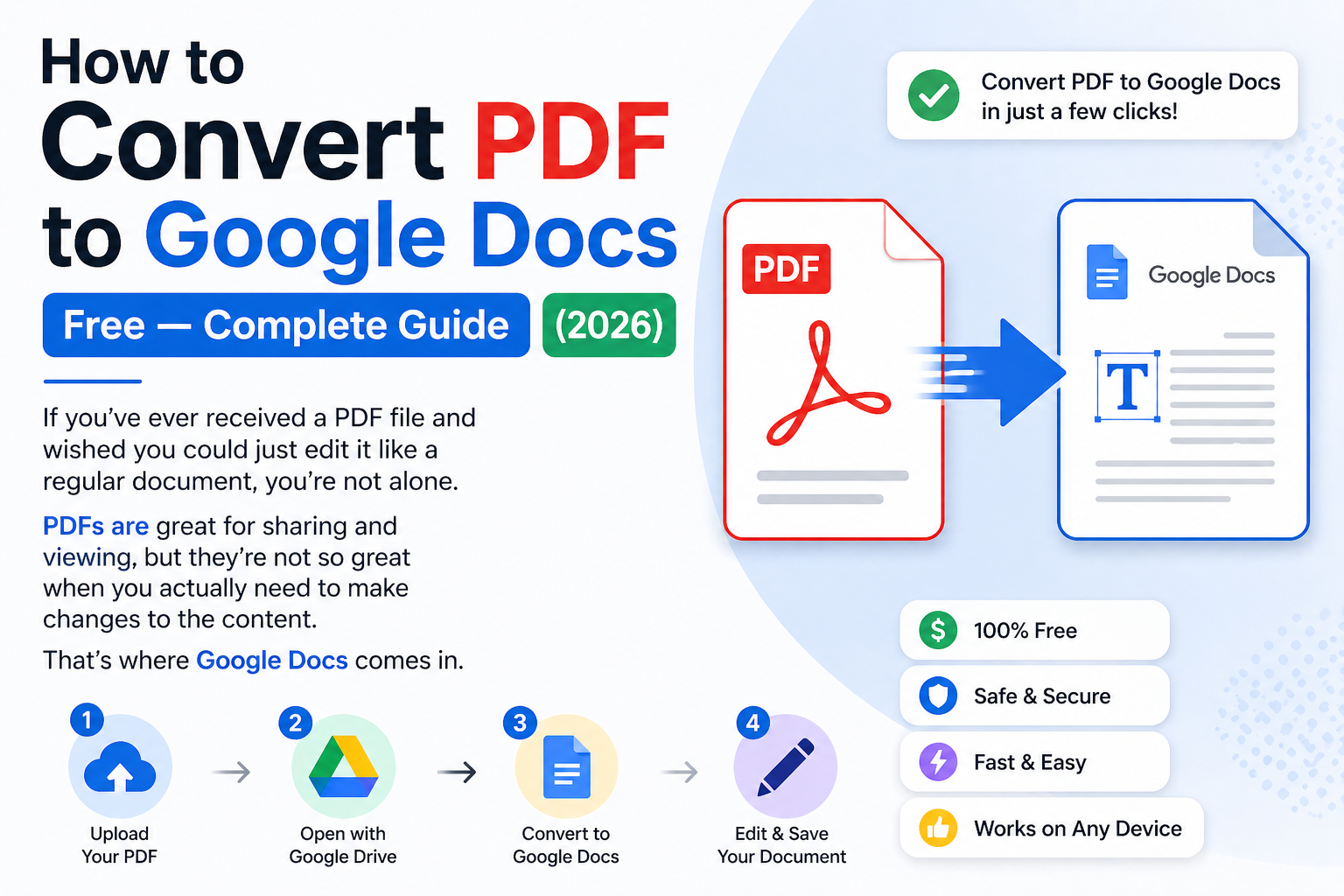
How to Convert PDF to Google Docs Free — Complete Guide (2026)
If you've ever received a PDF file and wished you could just edit it like a regular document, you're not alone. PDFs are great for sharing and viewing, but they're not so great when you actually need to make changes to the content. That's where Google Docs comes in.
Converting a PDF to Google Docs is one of the smartest ways to turn a locked, uneditable file into something you can fully work with — add text, change formatting, update information, and collaborate with others in real time. And the best part? You can do it completely free.
In this complete 2026 guide, you'll learn how to convert a PDF to a Google Doc using multiple methods — on desktop, iPhone, iPad, and Android — step by step, with no paid software required.
Why Convert a PDF to Google Docs?
Before we get into the methods, let's quickly talk about why you'd want to convert a PDF to Google Docs in the first place:
- You need to edit the content of a PDF document
- You want to collaborate with teammates on a document in real time
- You need to copy text from a scanned or protected PDF
- You want to reformat a document without starting from scratch
- You need to translate the content of a PDF into another language
- You want to convert PDF to Word using Google Docs as the middle step
Whatever your reason, converting a PDF to a Google Doc gives you full control over the content — something a regular PDF simply doesn't allow.
Can You Convert a PDF to a Google Doc for Free?
Yes, absolutely. Google Docs itself has a built-in feature that lets you open and convert PDF files directly — completely free. You don't need Adobe, you don't need any paid software, and you don't even need to download anything. All you need is a free Google account, which most people already have.
Additionally, tools like ComfortablePDF.com make the process even smoother by letting you convert and prepare your PDF before bringing it into Google Docs.
Method 1 — How to Convert a PDF to Google Docs Using Google Drive (Best Free Method)
This is the most popular and reliable method for converting a PDF to a Google Doc. It uses Google Drive, which is free for everyone with a Google account.
Step-by-Step Guide:
Step 1: Open your browser and go to drive.google.com. Sign in with your Google account if you haven't already.
Step 2: Click the New button in the top left corner of Google Drive, then click File upload
Step 3: Select your PDF file from your computer and upload it to Google Drive. Wait for the upload to complete — this usually takes just a few seconds.
Step 4: Once the PDF appears in your Google Drive, right-click on the file
Step 5: From the dropdown menu, hover over Open with and then click Google Docs
Step 6: Google Docs will automatically open the PDF and convert it into an editable Google Doc. This may take a moment depending on the size and complexity of your PDF.
Step 7: Your PDF content is now fully editable inside Google Docs. You can edit text, change formatting, add or remove content, and collaborate with others.
Step 8: To save it as a Word document, go to File > Download > Microsoft Word (.docx). To keep it as a Google Doc, simply leave it in Google Drive.
That's it. This method is completely free, requires no extra software, and works perfectly for most text-based PDFs.
Method 2 — How to Convert a Google Doc to a PDF (Reverse Process)
Many people also need to go the other direction — converting a Google Doc to a PDF. This is even simpler and is something you'll likely need to do regularly when sharing documents professionally.
Step-by-Step Guide:
Step 1: Open your document in Google Docs
Step 2: Click on File in the top menu
Step 3: Hover over Download
Step 4: Click PDF Document (.pdf) from the dropdown list
Step 5: Your Google Doc will automatically download as a PDF file to your computer
Your document is now a professional PDF file ready to share, email, or upload anywhere. This method preserves all your formatting, fonts, images, and layout perfectly.
Method 3 — How to Convert PDF to Google Docs on iPhone
Converting a PDF to a Google Doc on iPhone is very easy using the Google Docs app. Here's how:
Step-by-Step Guide (iPhone):
Step 1: Download and open the Google Drive app on your iPhone. Sign in with your Google account.
Step 2: Tap the plus (+) button at the bottom of the screen
Step 3: Tap Upload and select your PDF from your Files app or iCloud Drive
Step 4: Wait for the upload to finish
Step 5: Once uploaded, tap on the PDF file in Google Drive to open it
Step 6: Tap the three dots (...) menu icon next to the file name
Step 7: Tap Open with and select Google Docs
Step 8: Google Docs will convert the PDF into an editable document on your iPhone
You can now edit the document, share it, or download it in any format directly from your iPhone. The Google Docs app is free to download and use.
Alternative iPhone Method — Convert Google Doc to PDF on iPhone:
If you want to convert a Google Doc to a PDF on iPhone:
Step 1: Open the document in the Google Docs app
Step 2: Tap the three dots (...) menu in the top right
Step 3: Tap Share & export
Step 4: Tap Save as and choose PDF Document
Step 5: Save it to your Files app or share it directly
Method 4 — How to Convert Google Doc to PDF on iPad
The process on iPad is almost identical to iPhone. Here's a quick rundown:
Step 1: Open Google Drive on your iPad
Step 2: Upload your PDF by tapping the plus (+) button and selecting Upload
Step 3: Once uploaded, tap and hold the PDF file
Step 4: Tap Open with > Google Docs
Step 5: Google Docs will convert and open your PDF as an editable document
For converting a Google Doc to PDF on iPad:
Step 1: Open your document in Google Docs
Step 2: Tap the three dots menu
Step 3: Select Share & export > Save as > PDF
Step 4: Save or share the PDF file
iPad users with a keyboard and Apple Pencil will find this process especially smooth and productive.
Method 5 — How to Convert PDF to Word Using Google Docs
Many people use Google Docs as a free tool to convert PDF to Word. This is a smart two-step approach that works really well:
Step 1: Upload your PDF to Google Drive and open it with Google Docs as described in Method 1
Step 2: Once the PDF is open in Google Docs and fully converted to editable text, go to File > Download > Microsoft Word (.docx)
Step 3: Your PDF is now a fully editable Word document saved to your computer
This is one of the most popular free methods for converting PDF to Word without any paid software. It works especially well for text-heavy documents like reports, essays, and articles.
Alternatively, if you want a more accurate conversion — especially for PDFs with complex formatting, tables, or images — you can use the dedicated PDF to Word tool at ComfortablePDF.com, which often preserves layout better than Google Docs alone.
Limitations of Converting PDF to Google Docs
While converting a PDF to Google Docs is a great free option, it's important to be aware of some limitations:
Formatting may not be perfect. Google Docs does its best to recreate the original layout, but complex formatting, columns, and special fonts may not convert perfectly. You may need to do some manual cleanup after conversion.
Images and graphics may shift. If your PDF contains lots of images or diagrams, their positioning may change after conversion. You'll need to adjust them manually inside Google Docs.
Scanned PDFs are harder to convert. If your PDF is a scanned image rather than a text-based document, Google Docs will attempt OCR (optical character recognition) to extract the text. The results can vary depending on the scan quality.
Tables may lose structure. Complex tables in PDFs sometimes lose their formatting when converted to Google Docs. You may need to rebuild them.
For better results with complex PDFs, consider using the OCR PDF or PDF to Word tool at ComfortablePDF.com first to get a cleaner, more accurate conversion before editing in Google Docs.
Tips to Get the Best Results When Converting PDF to Google Docs
Here are some practical tips to improve the quality of your PDF to Google Docs conversion:
Use text-based PDFs when possible. PDFs that were created from Word documents or typed digitally convert much better than scanned paper documents. If your PDF is scanned, use an OCR tool first at ComfortablePDF.com to make it text-searchable before converting.
Check the formatting after conversion. Always review the converted document before using or sharing it. Look for spacing issues, font changes, and missing elements.
Use ComfortablePDF.com for pre-processing. If your PDF is large, complex, or has unusual formatting, try converting it to Word first using ComfortablePDF.com, then opening the Word file in Google Docs. This two-step approach often gives cleaner results.
Keep your original PDF. Always keep a copy of the original PDF before converting. This way, if the conversion doesn't look right, you still have the original to reference or try again.
Use Google Chrome for best results. Google Drive and Google Docs work best in Chrome, so make sure you're using Chrome as your browser for the smoothest experience.
Converting PDF to Google Docs vs Using ComfortablePDF.com — Which is Better?
Both options are free, but they serve slightly different purposes:
Google Docs is best when:
- You want to edit the document content in a collaborative environment
- You need to share the document with others for real-time editing
- You want to convert a simple, text-heavy PDF to an editable format
- You need to convert PDF to Word using a free method
ComfortablePDF.com is best when:
- You need to convert PDF to Word with better formatting accuracy
- You want to compress, merge, split, or edit the PDF before converting
- Your PDF is scanned and needs OCR processing first
- You want a quick, no-login conversion without opening Google Drive
For most people, the best workflow is to use ComfortablePDF.com to prepare and clean up the PDF first, then upload it to Google Drive and open it with Google Docs for editing.
Frequently Asked Questions
Can I convert a PDF to a Google Doc for free? Yes. Using Google Drive's built-in "Open with Google Docs" feature, you can convert any PDF to an editable Google Doc completely free.
How do I convert a Google Doc to a PDF? In Google Docs, go to File > Download > PDF Document (.pdf). Your document will download instantly as a PDF.
Can I convert a PDF to a Google Doc on iPhone? Yes. Upload the PDF to Google Drive using the app, then tap the three-dot menu and select Open with Google Docs. The PDF will convert to an editable document on your iPhone.
Why does my PDF look different after converting to Google Docs? Some formatting, fonts, and layout elements may shift during conversion. This is normal. You may need to adjust formatting manually after the conversion is complete.
Can I convert a scanned PDF to Google Docs? Yes. Google Docs uses OCR to read and convert scanned PDFs. However, for better accuracy, use the OCR tool at ComfortablePDF.com first before uploading to Google Drive.
How do I convert PDF to Word using Google Docs? Upload the PDF to Google Drive, open it with Google Docs, then go to File > Download > Microsoft Word (.docx). Your PDF is now a Word document.
Is converting PDF to Google Docs safe? Yes. Your files are stored in your own Google Drive account and are protected by Google's security. Files uploaded to ComfortablePDF.com are automatically deleted after processing.
Final Thoughts
Converting a PDF to Google Docs is one of the most useful free skills you can have in 2026. Whether you're a student editing lecture notes, a professional updating a contract, or someone just trying to copy text from a locked PDF, the methods in this guide will help you get the job done quickly and for free.
The easiest method remains uploading your PDF to Google Drive and opening it with Google Docs — it takes less than two minutes and costs absolutely nothing. For more complex PDFs or better formatting accuracy, pair this with the free tools at ComfortablePDF.com for the best possible results.
Stop struggling with uneditable PDF files. Convert your PDF to Google Docs today and take full control of your documents — completely free, on any device, anywhere in the world.