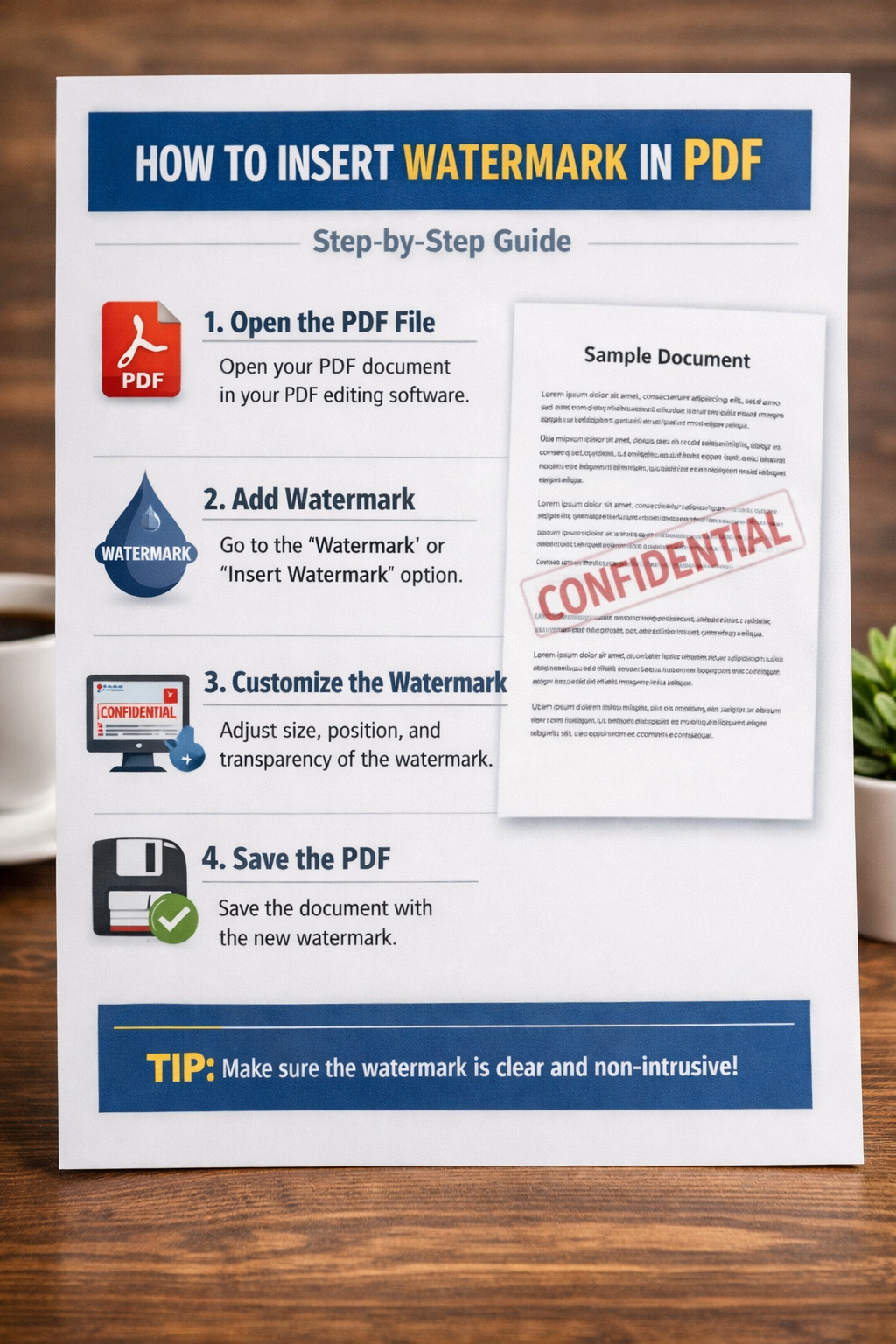
How to Add a Watermark to a PDF – Free, Fast, and No Software Required
Last updated: March 2026 | 6 min read | Works on Windows, Mac, iPhone, Android
You've spent hours on a proposal, a contract, or a report. Before you send it out, you want to brand it — add your company name, slap on a "CONFIDENTIAL" label, or stamp every page with "DRAFT" so it's clear this isn't the final version. That means you need to add a watermark to your PDF.
The good news: you don't need Adobe Acrobat Pro or any desktop software to do it. In 2026, adding a watermark to a PDF takes less than a minute using free online tools — and the result looks completely professional.
This guide walks you through every method: free online tools, Adobe Acrobat, Mac Preview, and mobile. By the end, you'll know exactly how to insert a watermark in a PDF the way that fits your workflow.
What Is a PDF Watermark and When Should You Use One?
A watermark is text or an image that appears overlaid on a PDF page — usually semi-transparent, often diagonal, and repeated across every page. It communicates something important about the document's status or ownership without altering the actual content.
Common reasons to watermark a PDF:
• DRAFT or CONFIDENTIAL: Signal document status to readers before formal approval
• Branding: Add your company logo or name to proposals and reports before sharing
• Copyright protection: Deter unauthorized copying or redistribution of your work
• Sample marking: Add "SAMPLE" to documents shared with prospective clients before payment
• Version control: Mark internal review copies to distinguish them from the final release
Watermarks are non-destructive — they sit on top of your content as a separate layer, which means they can be added, edited, or removed without changing the underlying document.
Method 1: Add Watermark to PDF Free Online (Fastest — No Download Needed)
For most people, this is the best option. It works on any device, requires no installation, and produces professional results in seconds.
Step-by-step: Using ComfortablePDF
1. Open your browser and go to comfortablepdf.com/watermark-pdf
2. Click "Upload PDF" and select the file you want to watermark
3. Choose your watermark type: Text (e.g., "CONFIDENTIAL", "DRAFT", your company name) or Image (your logo)
4. Customize the settings — font, size, color, opacity, rotation angle, and position on the page
5. Preview how the watermark looks on your document before applying
6. Click "Apply Watermark" to process all pages
7. Click "Download" to save your watermarked PDF
What you can customize:
• Text content: Type anything — DRAFT, CONFIDENTIAL, your company name, a copyright notice
• Font and size: Match your brand or document style
• Opacity: Light enough to read the document through it, visible enough to be noticed
• Rotation: Diagonal (45°) is the classic watermark angle; horizontal works for header/footer-style marks
• Color: Grey for subtle marks, red for urgent labels like CONFIDENTIAL, custom hex for brand colors
• Position: Center, corner, or tiled across the full page
No signup required. Your file is processed securely and not stored after download.
Method 2: Add Watermark to PDF Using Adobe Acrobat
Adobe Acrobat Pro gives you the most control over watermark appearance and behavior, including the ability to set watermarks that only appear when printing, or that fade based on page position. The tradeoff is cost — Acrobat Pro runs around $20/month.
Steps in Adobe Acrobat Pro:
8. Open your PDF in Adobe Acrobat Pro
9. Go to the top menu: Tools → Edit PDF
10. In the Edit PDF panel on the right, click Watermark → Add
11. In the Add Watermark dialog, choose Text or File (for an image/logo)
12. If using text: type your watermark content, set font, size, color, and opacity
13. Set rotation (45° is standard for diagonal watermarks)
14. Under Appearance, set scale relative to the target page if needed
15. Under Page Range Options, choose All Pages or a specific range
16. Click OK — Acrobat applies the watermark to all selected pages
17. Save your file: File → Save As
Adobe also lets you apply watermarks conditionally — for example, only when the document is printed, or only on specific pages. This is useful for legal or compliance documents where the watermark shouldn't appear in the digital version.
Method 3: Add a Text Watermark on Mac Using Preview
Mac's built-in Preview app doesn't have a dedicated watermark feature, but you can add a text annotation that functions as a visible watermark. It's not as clean as a purpose-built watermark tool — the text sits as an annotation rather than a true embedded watermark layer — but it works for simple use cases without any software cost.
Steps:
18. Open the PDF in Preview
19. Show the Markup Toolbar: View → Show Markup Toolbar
20. Click the Text tool (the "T" icon)
21. Click anywhere on the page and type your watermark text (e.g., "DRAFT")
22. Select the text box, then adjust font, size, and color using the format controls
23. Rotate the text box by holding Command and dragging the rotation handle
24. Adjust opacity using the color picker to make it semi-transparent
25. You'll need to manually copy this to each page — Preview doesn't apply annotations across all pages automatically
26. Save: File → Export as PDF
The limitation is clear: for multi-page documents, this becomes tedious fast. If your PDF has more than 2-3 pages, use Method 1 instead.
Method 4: Add Watermark to PDF on iPhone or Android
There's no built-in watermark tool in iOS or Android. The fastest mobile approach is the same browser-based method from Method 1 — it works identically on mobile.
On iPhone (Safari):
27. Open Safari and go to comfortablepdf.com/watermark-pdf
28. Tap "Upload PDF" — you can select from Files, iCloud Drive, or your Downloads folder
29. Set your watermark text and style options
30. Tap Apply Watermark, then Download
31. The file saves to your Downloads folder in the Files app
On Android (Chrome):
32. Open Chrome and go to comfortablepdf.com/watermark-pdf
33. Tap Upload PDF and select your file from storage
34. Configure your watermark settings
35. Tap Apply, then Download — the file saves to your Downloads folder
The full customization options (opacity, rotation, color, font size) are all available on mobile — the interface adapts to touchscreen use automatically.
Text Watermark vs. Image Watermark: Which Should You Use?
Both types are available in most watermark tools, but they serve different purposes:
Text watermarks
• Best for: Status labels (DRAFT, CONFIDENTIAL, SAMPLE, COPY)
• Pros: Instantly editable, always sharp at any zoom level, easy to customize
• Cons: Less brand impact than a logo; can't convey complex visual identity
Image watermarks
• Best for: Company logos, copyright symbols, brand marks
• Pros: Strong brand presence, can include complex graphics
• Cons: Requires a clean PNG with transparent background for best results; may look cluttered if the image is too detailed
For most business use cases, a text watermark is the practical choice. For proposals, portfolios, or brand-sensitive documents, an image watermark with your logo adds a more professional finish.
Best Practices for PDF Watermarks
A watermark should protect or inform — not obscure. Here are the settings that strike the right balance:
• Opacity between 20–40%: Visible enough to notice, light enough to read the content underneath. Anything above 50% starts to interfere with readability.
• 45° diagonal rotation: This is the standard for a reason — it covers the page evenly and is visually distinct from the document content.
• Grey or light color for neutral marks: Use red or orange for urgent labels like CONFIDENTIAL or VOID to grab attention.
• Center position for single marks: Tiled repeat works well for copyright protection where you want coverage across the entire page.
• Use all-caps text: DRAFT reads more clearly as a watermark than Draft — the visual weight is more consistent.
• Test on one page first: Apply to a single-page test version before watermarking a 50-page document.
Frequently Asked Questions
Can I add a watermark to a password-protected PDF?
Not directly — you'll need to unlock or remove the password first, then add the watermark. Most tools, including ComfortablePDF, will alert you if you try to edit a protected PDF.
Will the watermark print?
Yes. Watermarks added as embedded layers print along with the document. If you want a watermark that only appears on screen but not in print, you'll need Adobe Acrobat Pro, which has a print-only watermark option.
Can the watermark be removed by someone else?
A standard watermark layer can be removed by anyone with a PDF editing tool. If tamper-resistance is important, consider adding password protection after watermarking, which prevents editing. For truly secure documents, a burned-in watermark (flattened into the page) is harder to remove but also harder to add cleanly.
Does adding a watermark change the file size significantly?
Minimally. A text watermark adds virtually nothing to file size. An image watermark adds the size of the image file itself, which is usually under 100KB for a clean logo PNG.
Can I watermark multiple PDFs at once?
ComfortablePDF supports batch watermarking — you can upload multiple files and apply the same watermark settings to all of them in one step, saving time on large document sets.
The Bottom Line
Adding a watermark to a PDF used to require Acrobat Pro or a clunky desktop application. In 2026, it takes less than a minute online — no software, no account, and no cost.
For most users, a free browser-based tool covers everything: custom text, opacity control, rotation, positioning, and image watermarks. If you need advanced behavior like print-only watermarks or page-range-specific marks, Adobe Acrobat adds that layer of control.
Start with ComfortablePDF's free watermark tool — it handles the most common use cases cleanly, works on any device, and gets the job done in seconds.