How to Merge PDF Files on Mac — 3 Free Methods (2026)
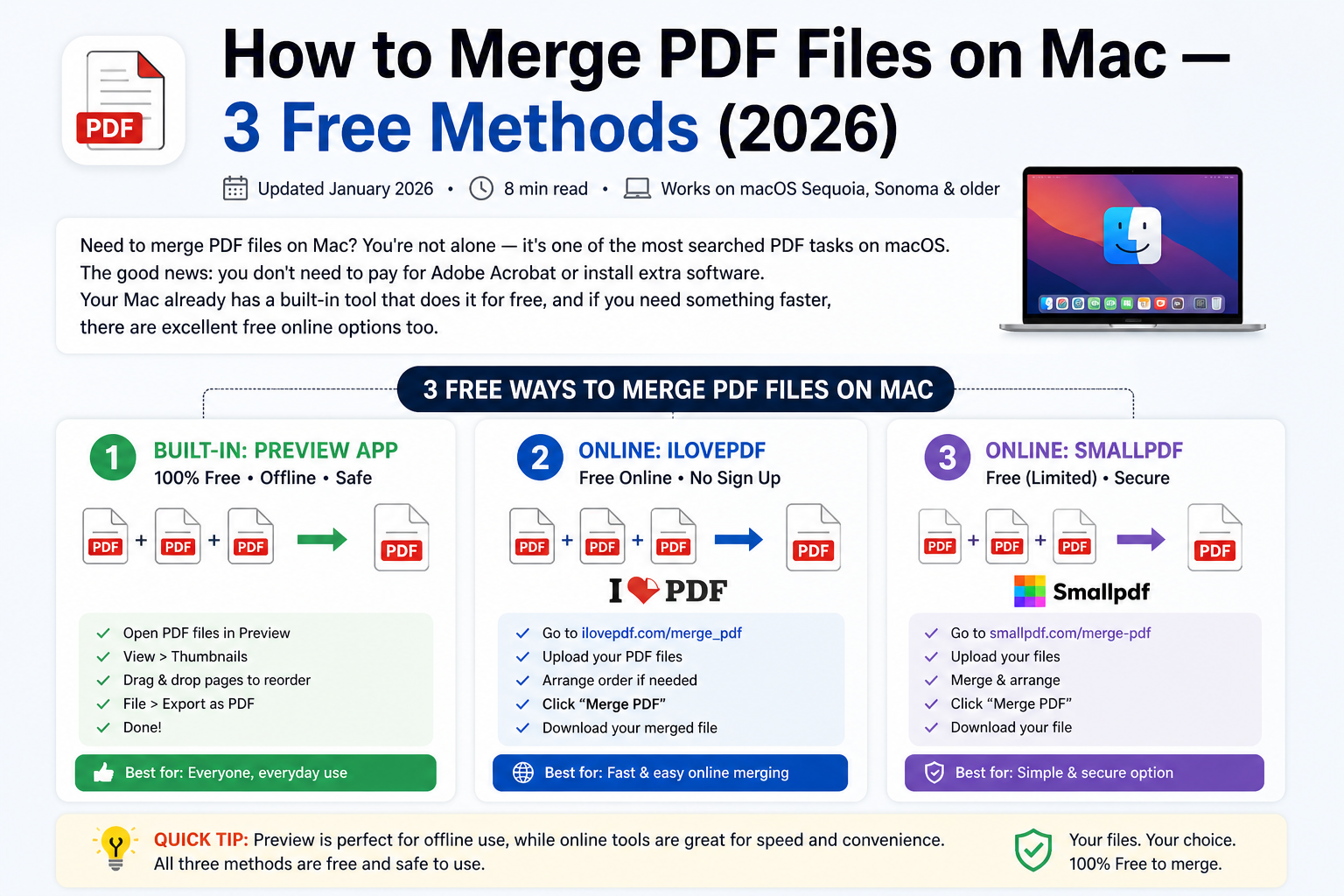
Updated January 2026 · 8 min read · Works on macOS Sequoia, Sonoma & older
Need to merge PDF files on Mac? You're not alone — it's one of the most searched PDF tasks on macOS. The good news: you don't need to pay for Adobe Acrobat or install extra software. Your Mac already has a built-in tool that does it for free, and if you need something faster, there are excellent free online options too.
In this guide, we'll walk through 3 proven methods to merge PDF files on Mac in 2026 — using Preview, comfortablepdf.com, and Foxit Reader — with step-by-step instructions for each.
Quickest method: Use comfortablepdf.com/merge-pdf — no download, no account needed. Upload, merge, download in under 30 seconds.
What Does It Mean to Merge PDF Files on Mac?
Merging PDF files means combining two or more separate PDF documents into a single, unified file. For example, you might have a multi-page contract split across 3 PDFs, or a report with separate appendix files — merging puts them all into one file that's easier to share and manage.
On Mac, you have several paths to accomplish this without spending a penny.
Method 1: Merge PDF Files on Mac Using comfortablepdf.com (Fastest)
This is the easiest way to merge PDF files on a Mac — no software to install, works in Safari, Chrome, or Firefox, and takes about 30 seconds.
Step 1 — Go to the Merge PDF tool Visit comfortablepdf.com/merge-pdf in any browser on your Mac.
Step 2 — Upload your PDF files Click "Choose Files" or drag and drop your PDFs onto the page. You can add multiple files at once.
Step 3 — Arrange the order Drag the files into the order you want them to appear in the final merged PDF.
Step 4 — Click "Merge PDF" Hit the merge button and wait a few seconds while the tool processes your files.
Step 5 — Download your merged file Click the download button. Your combined PDF saves directly to your Mac's Downloads folder.
Why this method wins: it works on any Mac — MacBook Air, MacBook Pro, Mac Mini, or iMac — and requires zero configuration. Files are processed securely and not stored permanently.
How to Merge PDF Files on Mac Preview (Built-In, Free)
Preview is the built-in PDF viewer on every Mac, and it has a hidden superpower: you can use it to merge PDF files without installing anything. This method works on macOS Sequoia, Sonoma, Ventura, Monterey, and older versions.
Step-by-Step: Merging Two PDFs in Mac Preview
Step 1 — Open your first PDF in Preview Double-click the first PDF file. It will open in Preview automatically.
Step 2 — Show the Thumbnail sidebar Go to View → Thumbnails (or press ⌘ + Option + 2). You'll see small previews of each page on the left side.
Step 3 — Open the second PDF Open Finder, find your second PDF, and drag it into the thumbnail panel in Preview — drop it where you want the pages to appear (beginning, middle, or end).
Step 4 — Check the page order You'll see all pages from both documents in the thumbnail panel. Drag individual thumbnails to rearrange if needed.
Step 5 — Export as a new PDF Go to File → Export as PDF. Do not just press Save — that only saves changes to the original first PDF. Use "Export as PDF" to create a brand new merged file.
Common mistake: Many people press ⌘+S (Save) thinking it saves the merged file — but this only saves the original first document. Always use File → Export as PDF to create a new merged file.
How Do I Merge Two PDF Files on Mac Without Preview?
If Preview isn't working correctly, or you're on an older macOS that behaves differently, the fastest alternative is comfortablepdf.com — no installation needed, just open your browser and upload your files.
How to Merge PDF Files in Foxit Reader on Mac
Foxit Reader is a popular free PDF application that also works on Mac. It offers more advanced features than Preview, including the ability to merge PDF files directly within the app.
Steps to Merge PDFs in Foxit Reader
Step 1 — Download and install Foxit Reader Go to foxit.com/pdf-reader and download the free Mac version.
Step 2 — Open Foxit Reader Launch the app after installation.
Step 3 — Go to PDF Editor tools Click Tools → PDF Editor or look for the "Combine Files" option in the toolbar. Note: some merge features require Foxit PDF Editor (paid). For fully free merging, use Method 1 above.
Step 4 — Add your files Click "Add Files" and select the PDFs you want to combine. Arrange their order using the up/down arrows.
Step 5 — Click Combine and save Click "Combine" and choose where to save the merged PDF on your Mac.
Foxit vs Preview: Preview is faster and requires no installation. Foxit Reader is better if you regularly work with PDFs and want extra tools like annotation, form filling, and digital signatures in one app.
Mac PDF Merge Methods Compared
| Method | Free? | Install Required? | Works Offline? | Best For |
|---|---|---|---|---|
| comfortablepdf.com | Yes | No | No | Quick one-off merges |
| Mac Preview | Yes | Built-in | Yes | Regular offline use |
| Foxit Reader | Limited | Yes | Yes | Advanced PDF workflows |
Tips for Merging PDF Files on MacBook and Mac
Whether you're on a MacBook Pro, MacBook Air, or desktop Mac, these tips will make PDF merging faster and cleaner.
Tip 1 — Rename your files before merging
If your PDFs are named document1.pdf, scan2.pdf, etc., rename them in the order you want them merged (e.g., 01-cover.pdf, 02-body.pdf). This makes arranging them much faster in any tool.
Tip 2 — Check page orientation before merging
If one PDF is landscape and another is portrait, your merged file will have mixed orientations. Rotate pages in Preview before merging: select the thumbnail, then go to Tools → Rotate Left/Right.
Tip 3 — Reduce file size after merging
Merged PDFs can get large. After merging, use the free compress PDF tool at comfortablepdf.com to reduce the file size without losing quality — great for emailing.
Tip 4 — Use keyboard shortcuts in Mac Preview
Once the thumbnail panel is open in Preview, select multiple page thumbnails with ⌘+Click and drag them as a group into their new position. This saves significant time when merging large multi-page documents.
Frequently Asked Questions
How do I merge PDF files on a Mac for free? The easiest free method is using comfortablepdf.com/merge-pdf in your browser — no install needed. Alternatively, use the built-in Mac Preview app: open the first PDF, show the thumbnail panel (View → Thumbnails), drag the second PDF into it, then export via File → Export as PDF.
How do I merge PDF files in Mac Preview? Open your first PDF in Preview. Go to View → Thumbnails. Then drag your second PDF from Finder into the thumbnail sidebar. Once done, go to File → Export as PDF to save the combined file. Do not use regular Save (⌘+S) as this won't create a new merged document.
Can I merge PDF files on Mac without Preview? Yes — the fastest alternative is comfortablepdf.com. Open your browser, upload your PDFs, arrange them, click Merge, and download. No software installation required.
How to merge PDF files on Mac with Preview and keep the original files? Always use File → Export as PDF instead of Save. This creates a brand new merged file and leaves your original PDFs completely untouched.
How to merge PDF files in Foxit Reader on Mac? Open Foxit Reader, go to Tools → PDF Editor → Combine Files, add your PDFs, arrange the order, and click Combine. Note that some combine features require the paid version. For fully free merging, use comfortablepdf.com or Mac Preview.
Does merging PDFs on Mac reduce quality? No. Merging PDFs does not reduce image or text quality. The pages are simply combined into one file. Quality is only affected if you also compress the PDF, which is a separate optional step.
Conclusion: Best Way to Merge PDF Files on Mac in 2026
The best method depends on your situation. For a quick one-time merge, comfortablepdf.com is the fastest — open your browser, upload, and done in under a minute. For regular offline use, Mac Preview is already installed and works perfectly. And if you handle PDFs daily and need extra tools, Foxit Reader gives you a full-featured free desktop app.
Whichever method you choose, merging PDF files on Mac is free and straightforward — no Adobe Acrobat subscription required.
Ready to merge? Head to comfortablepdf.com/merge-pdf — free, fast, no sign-up required. Also try our free PDF compressor, PDF splitter, and PDF to Word converter.