How to Merge PDF Files on iPhone Free — No App Needed 2026
Updated May 2026 · 8 min read · Works on iOS 16, iOS 17, iOS 18 — iPhone 13, 14, 15, 16 & older
Want to merge PDF files on iPhone for free? You are in the right place. Whether you need to combine two PDFs, merge multiple files into one, or join a PDF with a scanned document — your iPhone can do all of this for free in 2026 without paying for any app or subscription.
In this guide we cover 4 completely free methods to merge PDF files on iPhone — using comfortablepdf.com in Safari, the iPhone Files app, the Shortcuts app, and the Books app — with step-by-step instructions for each.
Fastest method: Open Safari on your iPhone and go to comfortablepdf.com/merge-pdf — upload, merge, download in under 60 seconds. No app install needed.
Can You Merge PDF Files on iPhone for Free?
Yes — completely free. You do not need Adobe Acrobat, a paid app, or a subscription. Your iPhone has built-in tools that can merge PDFs, and free online tools like comfortablepdf.com work perfectly in Safari without installing anything at all.
Method 1: Merge PDF Files on iPhone Using comfortablepdf.com (Fastest — Safari Only)
This is the easiest and fastest way to merge PDF files on iPhone for free. No app download. Works in Safari, Chrome, or any browser on iOS 16, 17, and 18.
Step 1 — Open Safari on your iPhone Tap the Safari icon and go to comfortablepdf.com/merge-pdf.
Step 2 — Tap Choose Files Tap the upload button. Your iPhone will ask where to get the files. Choose Files to browse your iCloud Drive or On My iPhone storage, or choose Photos if your PDF was saved there.
Step 3 — Select your PDF files Tap the first PDF, then tap the second PDF. You can select multiple files at once by holding and tapping each one.
Step 4 — Arrange the order Drag the file thumbnails up or down to set the order you want in the final merged PDF.
Step 5 — Tap Merge PDF Hit the Merge button. The tool processes your files in seconds.
Step 6 — Download the merged PDF Tap Download. iOS will ask where to save the file. Choose Save to Files to store it in iCloud Drive or On My iPhone, or tap Share to AirDrop, email, or send it directly to another app.
Works on iPhone 13, 14, 15, 16, iPad, and all models running iOS 16 or later. Files are deleted from the server automatically after your session.
Method 2: Merge PDF Files on iPhone Using the Files App (No Internet Needed)
The iPhone Files app has a hidden built-in feature that lets you merge PDF files without any internet connection and without installing any extra app. This works on iOS 16, iOS 17, and iOS 18.
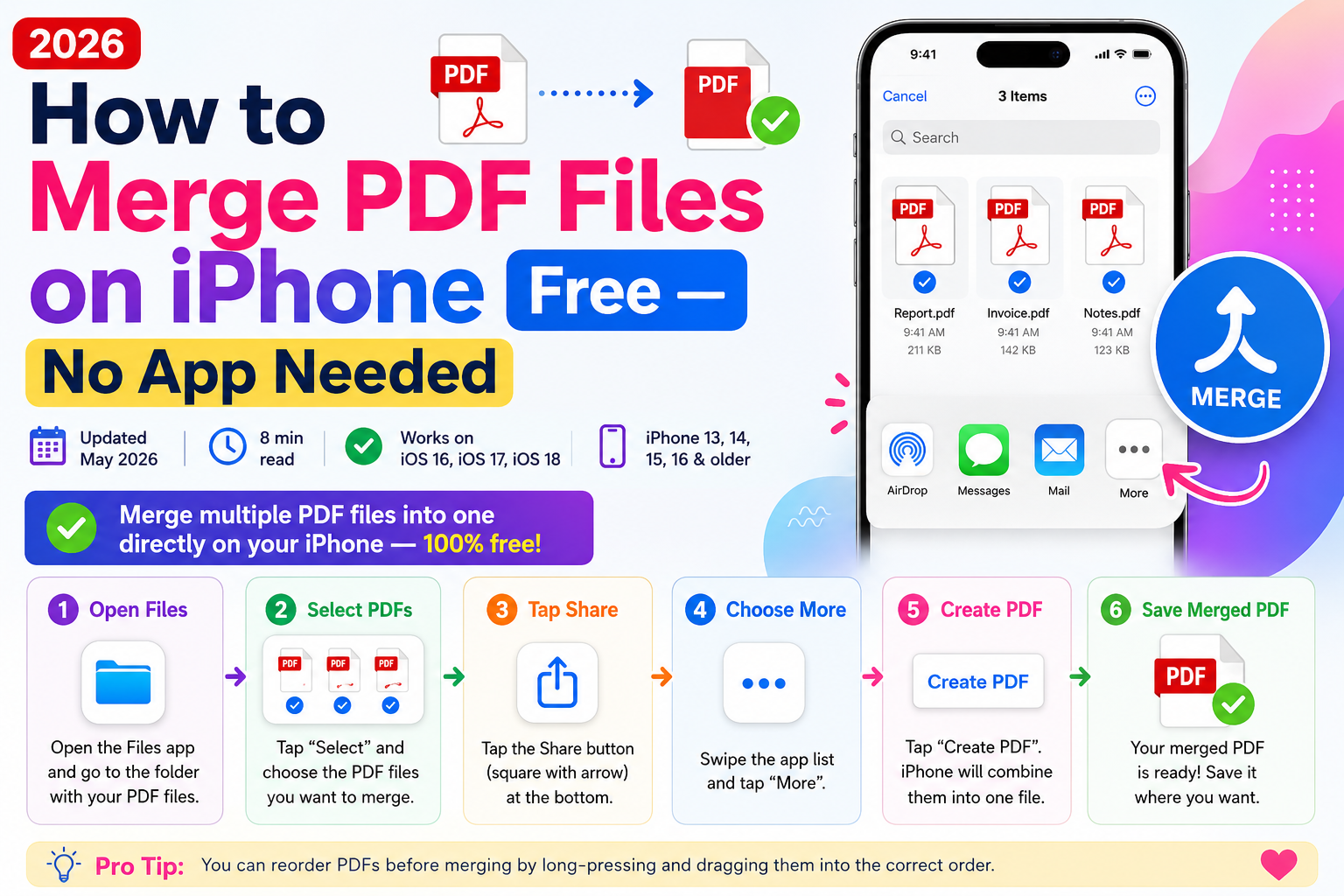
Step-by-Step: How to Merge PDF on iPhone Without App Using Files
Step 1 — Open the Files app Tap the Files app on your iPhone home screen or find it in your App Library.
Step 2 — Locate your PDF files Navigate to the folder where your PDFs are stored — either iCloud Drive or On My iPhone.
Step 3 — Select both PDF files Tap the three-dot menu (…) in the top right corner and tap Select. Tap each PDF you want to merge to select them. They will get a blue checkmark.
Step 4 — Tap the Share button With your files selected, tap the Share icon at the bottom left of the screen.
Step 5 — Create a PDF In the share sheet, scroll down and look for the Create PDF option. Tap it.
Important note: The Files app Create PDF feature works well for merging image files and simple documents. For merging two existing multi-page PDF files with full page fidelity, comfortablepdf.com gives more reliable results — especially for PDFs with complex layouts, forms, or embedded images.
Step 6 — Save the merged PDF The merged PDF will open in Preview. Tap the Share icon and choose Save to Files to save it wherever you want on your iPhone.
Method 3: Merge PDF Files on iPhone Using the Shortcuts App (Automation)
If you regularly merge PDFs on iPhone and want a one-tap solution, the built-in Shortcuts app lets you create an automation that merges PDFs with a single tap. This method is great for power users.
Step 1 — Open the Shortcuts app Find the Shortcuts app on your iPhone. It comes pre-installed on iOS 13 and later.
Step 2 — Create a new shortcut Tap the + button in the top right corner to create a new shortcut.
Step 3 — Add a Get File action Tap Add Action and search for Get File. Add it. This action will let you pick files from the Files app when the shortcut runs.
Step 4 — Add a Combine PDFs action Tap the + button to add another action. Search for Combine PDF and add it. This is the built-in iOS action that merges PDF files.
Step 5 — Add a Save File action Add one more action: Save File. Set the destination to iCloud Drive or On My iPhone depending on where you want the merged file saved.
Step 6 — Name and save the shortcut Tap the shortcut name at the top, give it a name like Merge PDFs, and tap Done.
Step 7 — Run the shortcut Tap your new shortcut. It will ask you to select the PDF files you want to merge, combine them, and save the result automatically.
You can also add this shortcut to your iPhone home screen for one-tap access.
Method 4: How to Merge PDF Files on iPhone Using Books App
The Books app on iPhone can be used as a basic workaround to view and organize PDFs, though it does not merge them natively. For actual merging, Methods 1, 2, and 3 are your best options.
If you have PDFs saved in Books and want to merge them, the simplest path is to share them from Books to the Files app first, then use the Files method or comfortablepdf.com.
Step 1 — Open Books on your iPhone Tap the Books app.
Step 2 — Find your PDF Tap Library at the bottom and find the PDF you want.
Step 3 — Share to Files Tap the three-dot menu on the PDF and tap Share → Save to Files. Repeat for each PDF.
Step 4 — Merge using comfortablepdf.com Now that your PDFs are in the Files app, open Safari and go to comfortablepdf.com/merge-pdf to merge them easily.
How to Merge PDF Files on iPhone Without App — Summary
You do not need to download any paid app to merge PDFs on iPhone. Here are your three best free options without installing anything:
Using Safari — go to comfortablepdf.com/merge-pdf, upload, merge, download. Fastest option.
Using Files app — select PDFs, tap Share, tap Create PDF. Best for simple files, works offline.
Using Shortcuts — set up once, then merge with one tap any time. Best for regular use.
How to Merge Multiple PDF Files Into One on iPhone
The steps are the same as merging two PDFs — comfortablepdf.com lets you upload as many files as you need in one session. Just tap Choose Files, select all the PDFs you want to combine, arrange their order, and tap Merge. The result is one single PDF containing all pages from all files.
The Files app method also supports selecting more than two files — just tap Select and tap each PDF before hitting Share → Create PDF.
Comparison: Best Free Methods to Merge PDF on iPhone 2026
Method — Free? — App Install? — Works Offline? — Best For
comfortablepdf.com — Yes — No — No — Fastest, any iPhone, any iOS Files App — Yes — Built-in — Yes — Quick offline merge Shortcuts App — Yes — Built-in — Yes — Power users, automation Books App — Yes — Built-in — Partial — PDFs stored in Books only
Tips for Merging PDF Files on iPhone
Save PDFs to Files app first
Before merging, make sure all your PDFs are saved to the Files app — either in iCloud Drive or On My iPhone. This makes them accessible to both comfortablepdf.com and the Files merge method.
Use iCloud Drive for easy access
If you store your PDFs in iCloud Drive, you can access and merge them from any iPhone, iPad, or Mac without emailing files to yourself.
Check page order before merging
Always preview the page order before clicking Merge. On comfortablepdf.com you can drag thumbnails. In the Files app, the order depends on which files you select first.
Compress after merging
Merged PDFs can get large. After merging, open Safari and go to comfortablepdf.com/compress-pdf to reduce the file size — great before sharing over email or WhatsApp.
Merge PDFs on iPhone and iPad the same way
All methods above work identically on iPhone and iPad. There is no difference between iOS and iPadOS for these tools.
Frequently Asked Questions
How do I merge PDF files on iPhone for free? The fastest free method is comfortablepdf.com/merge-pdf — open it in Safari, upload your PDFs, tap Merge, and save the result to your Files app. No app download or account needed.
How to merge PDF on iPhone without app? Open Safari and go to comfortablepdf.com/merge-pdf. Upload your files, set the order, tap Merge, and download. This works completely in the browser without installing any app.
How to combine PDF files on iPhone using the Files app? Open the Files app, tap the three-dot menu and tap Select, choose your PDFs, tap the Share icon, then tap Create PDF. The merged file will open for you to save.
How to merge multiple PDF files into one on iPhone? Go to comfortablepdf.com/merge-pdf in Safari, tap Choose Files, select all the PDFs you want to combine, arrange them in the correct order, and tap Merge. All pages will be combined into one PDF.
Does iPhone have a built-in PDF merger? iPhone does not have a dedicated PDF merge tool, but the Files app has a Create PDF option that can combine selected files. For more reliable multi-PDF merging, comfortablepdf.com gives better results.
How to merge PDF files on iPhone iOS 17 and iOS 18? All four methods in this guide work on iOS 17 and iOS 18. The Files app method and Shortcuts method both work natively. comfortablepdf.com works in Safari on any iOS version.
Can I merge PDF files on iPhone without WiFi? Yes — the Files app Create PDF method and the Shortcuts app Combine PDF method both work offline without any internet connection.
How to merge PDF and image on iPhone? First convert the image to PDF using comfortablepdf.com/jpg-to-pdf or comfortablepdf.com/png-to-pdf in Safari. Then merge the converted PDF with your other file using comfortablepdf.com/merge-pdf.
How to merge PDF files on iPad free? The same methods work on iPad. Open Safari on your iPad, go to comfortablepdf.com/merge-pdf, and follow the same steps. The Files app and Shortcuts methods also work identically on iPadOS.
Does merging PDF files on iPhone reduce quality? No. Merging PDFs only combines the pages. It does not affect image quality, text, fonts, or formatting in any way.
Conclusion: Best Way to Merge PDF Files on iPhone Free in 2026
For most iPhone users, comfortablepdf.com is the fastest and easiest free option — open Safari, upload your files, tap Merge, save to Files. No app download, no account, no watermark. For offline use, the built-in Files app Create PDF feature works well for simple documents. And if you merge PDFs regularly, the Shortcuts app lets you do it with a single tap.
All methods are completely free. No Adobe Acrobat. No subscription.
Ready to merge? Open Safari on your iPhone and visit comfortablepdf.com/merge-pdf — free, no signup, no watermark. Also explore comfortablepdf.com/compress-pdf, comfortablepdf.com/split-pdf, comfortablepdf.com/jpg-to-pdf, and comfortablepdf.com/pdf-to-word.