How to Merge PDF Files on Windows 11 — Free & Easy 2026
Updated May 2026 · 9 min read · Works on Windows 11 Home, Pro & Enterprise
Need to merge PDF files on Windows 11? Good news — you don't need Adobe Acrobat or any paid software. Windows 11 users have several completely free options to combine PDF files into one, whether you prefer working in a browser, using a built-in feature, or installing a lightweight free app.
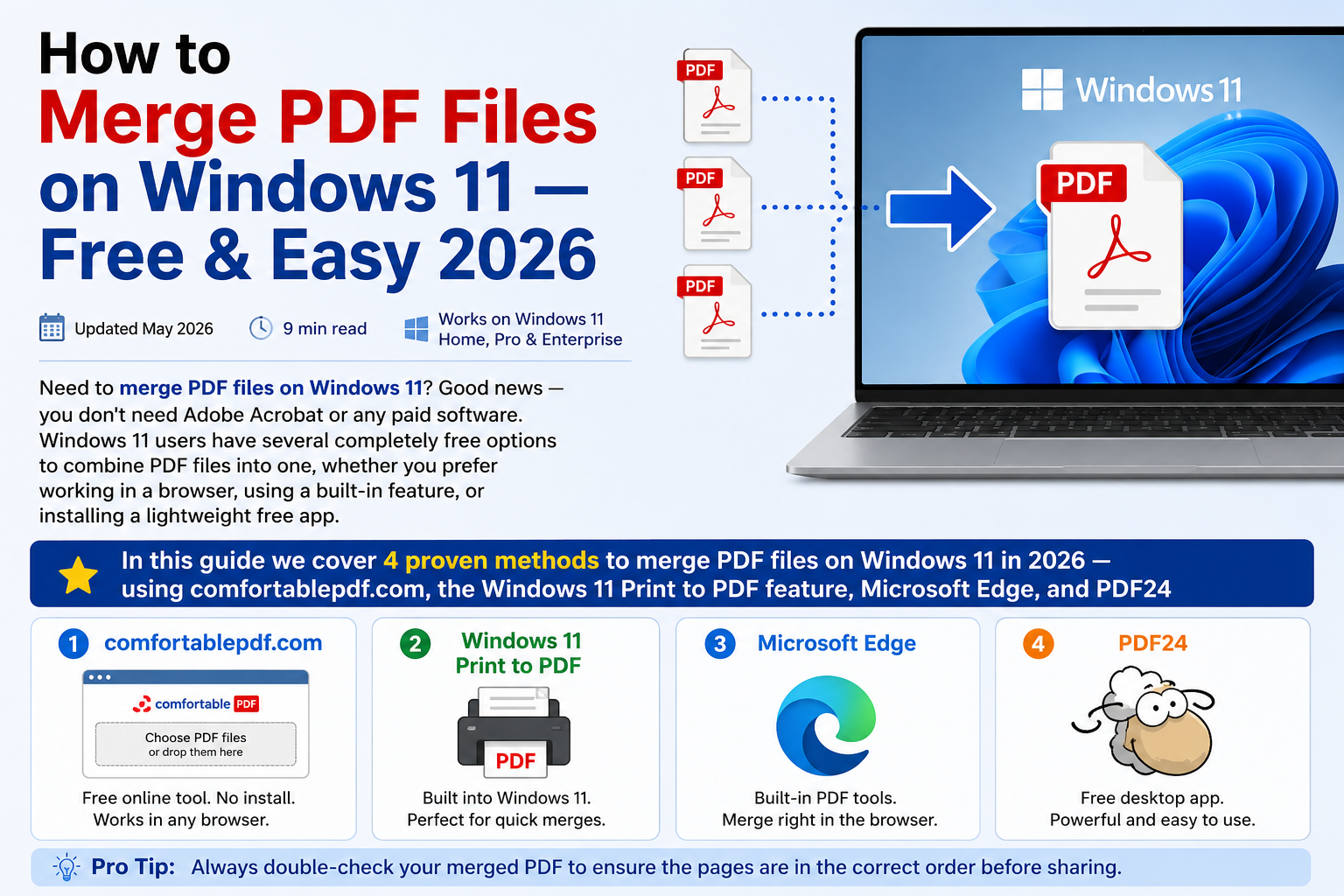
In this guide we cover 4 proven methods to merge PDF files on Windows 11 in 2026 — using comfortablepdf.com, the Windows 11 Print to PDF feature, Microsoft Edge, and PDF24 — with clear step-by-step instructions for each.
Fastest method: Go to comfortablepdf.com/merge-pdf — no account, no install, done in under 30 seconds.
Does Windows 11 Have a Built-In PDF Merger?
This is the most common question Windows 11 users ask. The short answer: Windows 11 does not have a dedicated PDF merge tool built in. However, it does have a Print to PDF feature and Microsoft Edge PDF viewer that can help in certain situations. For the fastest and most reliable free merging, an online tool like comfortablepdf.com is the easiest path.
Method 1: Merge PDF Files on Windows 11 Using comfortablepdf.com (Fastest)
No software to install. Works in Microsoft Edge, Chrome, or Firefox on Windows 11. Takes under 30 seconds.
Step 1 — Open the Merge PDF tool Go to comfortablepdf.com/merge-pdf in any browser on your Windows 11 PC or laptop.
Step 2 — Upload your PDF files Click Choose Files or drag and drop your PDFs directly onto the page. You can upload multiple files at once.
Step 3 — Set the order Drag the file thumbnails to arrange them in the exact order you want in the final merged PDF.
Step 4 — Click Merge PDF Hit the Merge button. The tool combines your files in seconds.
Step 5 — Download Click Download. The merged PDF saves to your Windows 11 Downloads folder automatically.
Works on Windows 11 Home, Pro, and Enterprise. Works on any brand — Dell, HP, Lenovo, ASUS, Microsoft Surface. Files are processed securely and deleted after the session.
Method 2: Merge PDF Files on Windows 11 Using Microsoft Edge (Built-In, No Install)
Windows 11 comes with Microsoft Edge as the default PDF viewer, and with a small workaround you can use it alongside the Windows Print to PDF feature to combine files. This method works without installing anything extra.
Note: This method works best when combining just 2-3 PDFs. For larger merges, Method 1 is much faster.
Step 1 — Open the first PDF in Microsoft Edge Right-click your first PDF file → Open with → Microsoft Edge.
Step 2 — Print to PDF Press Ctrl+P to open the print dialog. Set the printer to Microsoft Print to PDF.
Step 3 — Open the second PDF and repeat This method works by printing pages selectively. For a proper multi-file merge, use comfortablepdf.com instead as Edge does not natively combine multiple separate PDF files into one document.
Method 3: Merge PDF Files on Windows 11 Using PDF24 (Free Desktop App)
PDF24 is a free desktop application for Windows 11 that lets you merge PDF files offline. It is completely free with no watermarks and no page limits.
Step 1 — Download PDF24 Go to pdf24.org and download the free Windows installer.
Step 2 — Install PDF24 Run the installer. The installation takes about a minute.
Step 3 — Open PDF24 Creator Launch PDF24 from your desktop or Start menu.
Step 4 — Select Merge PDF Click the Merge PDF tool from the main dashboard.
Step 5 — Add your files Click Add Files and select the PDFs you want to combine from your Windows 11 computer. You can also drag and drop files directly into the window.
Step 6 — Arrange the order Drag the files up or down to set the correct page order.
Step 7 — Merge and save Click Merge and choose where to save the final merged PDF on your Windows 11 PC.
PDF24 is a good option if you frequently merge PDFs offline and don't want to use a browser each time.
Method 4: Merge PDF Files on Windows 11 Using Print to PDF (No Extra Software)
Windows 11 has a built-in virtual printer called Microsoft Print to PDF. While it is designed for creating PDFs, you can use it in combination with a PDF reader to merge files page by page.
Step 1 — Open all PDF files Open each PDF you want to merge in a PDF viewer such as Adobe Reader (free), Foxit Reader, or any app that lets you print.
Step 2 — Print the first PDF to a new file In your first PDF, press Ctrl+P, select Microsoft Print to PDF as the printer, and click Print. Save it as merged-part1.pdf.
Step 3 — This method has limits Print to PDF creates individual files, not a combined document. To truly merge multiple PDFs into one on Windows 11, this approach requires a proper tool. Use comfortablepdf.com or PDF24 for reliable multi-file merging.
How to Merge Multiple PDFs Into One on Windows 11 — Quickest Way
If you just want the fastest answer with no steps to skip: go to comfortablepdf.com/merge-pdf, upload your files, click Merge, download. That is it. No account. No watermark. No file limit on standard use.
How to Combine PDF Files on Windows 11 Without Adobe
Adobe Acrobat is expensive — the standard subscription costs over $20 per month. You do not need it to merge PDFs on Windows 11. Every method in this guide is completely free and produces the same result: a clean merged PDF with no watermarks.
Best free alternatives to Adobe for merging PDFs on Windows 11:
comfortablepdf.com — online, no install, fastest PDF24 — free desktop app, works offline Foxit Reader — free with some advanced limits Microsoft Edge — basic viewing, limited merge capability
Comparison: Best Methods to Merge PDF Files on Windows 11
Method — Free? — Install Required? — Works Offline? — Best For
comfortablepdf.com — Yes — No — No — Fastest, any browser PDF24 — Yes — Yes — Yes — Regular offline use Foxit Reader — Limited — Yes — Yes — Power users Microsoft Edge + Print to PDF — Yes — Built-in — Yes — Very basic, limited use
Tips for Merging PDF Files on Windows 11
Rename files before uploading
Rename your PDFs as 01-document.pdf, 02-attachment.pdf before uploading. This makes arranging them much faster regardless of the tool you use.
Check file size after merging
Large merged PDFs can be slow to email. After merging, run your file through comfortablepdf.com/compress-pdf to reduce the size without losing quality.
Merging password-protected PDFs on Windows 11
If any of your PDFs are password protected, you need to unlock them before merging. Use comfortablepdf.com/unlock-pdf to remove the password first, then merge.
Merge PDFs on Windows 11 from a Surface or laptop
All methods above work on any Windows 11 device — Microsoft Surface, Dell, HP, Lenovo ThinkPad, ASUS, and Acer. No special setup needed.
Frequently Asked Questions
How do I merge PDF files on Windows 11 for free? The fastest free method is comfortablepdf.com/merge-pdf — open it in any browser, upload your PDFs, click Merge, and download. No account needed. Alternatively, install the free PDF24 desktop app for offline merging.
Does Windows 11 have a built-in PDF merger? No. Windows 11 does not include a dedicated PDF merge tool. It has Microsoft Print to PDF for creating PDFs, but for combining multiple PDFs into one you need a free tool like comfortablepdf.com or PDF24.
How to merge PDF files on Windows 11 without Adobe Acrobat? Use comfortablepdf.com — it's completely free, works in any browser, and produces a clean merged PDF with no watermarks. Adobe Acrobat is not needed.
How to combine multiple PDF files into one on Windows 11? Go to comfortablepdf.com/merge-pdf, upload all your PDF files, drag them into the correct order, click Merge, and download the single combined PDF. You can merge as many files as needed.
How to merge PDF files on Windows 11 using Microsoft Edge? Microsoft Edge can view PDFs but does not natively merge multiple separate PDF files into one. For merging on Windows 11, use comfortablepdf.com or PDF24.
Is PDF24 free on Windows 11? Yes. PDF24 is completely free for Windows 11 with no watermarks, no page limits, and no subscription. Download it from pdf24.org.
How to merge PDF files on Windows 11 offline? Install PDF24 (free from pdf24.org) for a fully offline PDF merger on Windows 11. It works without an internet connection.
Does merging PDF files reduce quality on Windows 11? No. Merging PDFs only combines the pages into one file. It does not affect image quality, text, or formatting. Quality only changes if you separately choose to compress the file.
How to merge a PDF and a Word document on Windows 11? First convert the Word document to PDF using comfortablepdf.com/word-to-pdf or File → Save As → PDF in Microsoft Word. Then merge the two PDF files using comfortablepdf.com/merge-pdf.
What is the best free PDF merger for Windows 11 in 2026? comfortablepdf.com is the best option for most users — no install, no account, works in any browser. PDF24 is the best free desktop app for offline merging on Windows 11.
Conclusion: Easiest Way to Merge PDF Files on Windows 11 in 2026
Windows 11 does not come with a built-in PDF merger, but that is not a problem. comfortablepdf.com lets you merge PDF files on Windows 11 in seconds from any browser — no software, no account, no cost. For regular offline use, PDF24 is the best free desktop app. Neither requires Adobe Acrobat.
Ready to merge? Visit comfortablepdf.com/merge-pdf — free, fast, no signup required. Also explore comfortablepdf.com/compress-pdf, comfortablepdf.com/split-pdf, comfortablepdf.com/word-to-pdf, and comfortablepdf.com/pdf-to-word.