How to Make a Fillable PDF for Free – No Adobe Acrobat Needed (2026)
Whether you're creating an employee onboarding form, a client intake sheet, or a digital contract, a fillable PDF lets anyone type directly into the document — no printing required. The problem? Most tutorials tell you to buy Adobe Acrobat Pro, which costs $19.99/month or more.
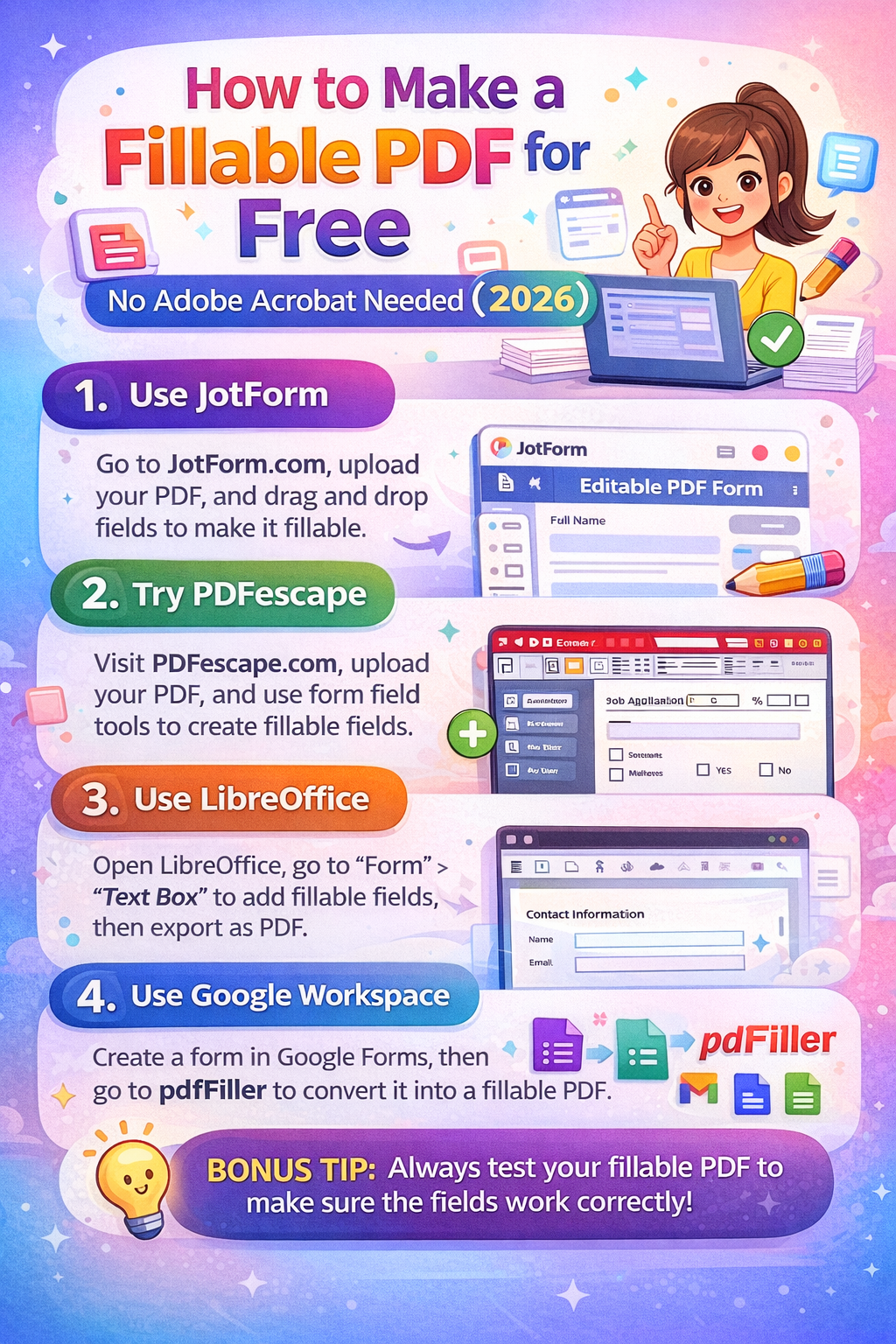
The good news: you don't need it. In this guide, you'll learn exactly how to make a fillable PDF in Word, using free online tools, and even from scratch — step-by-step, no software purchase required.
What You'll Learn
• How to create a fillable PDF from a Word document (free)
• How to make a fillable PDF online without any software
• How to convert a Word form to a fillable PDF form
• How to edit and add fields to an existing PDF
• Common mistakes and how to fix them
What Is a Fillable PDF?
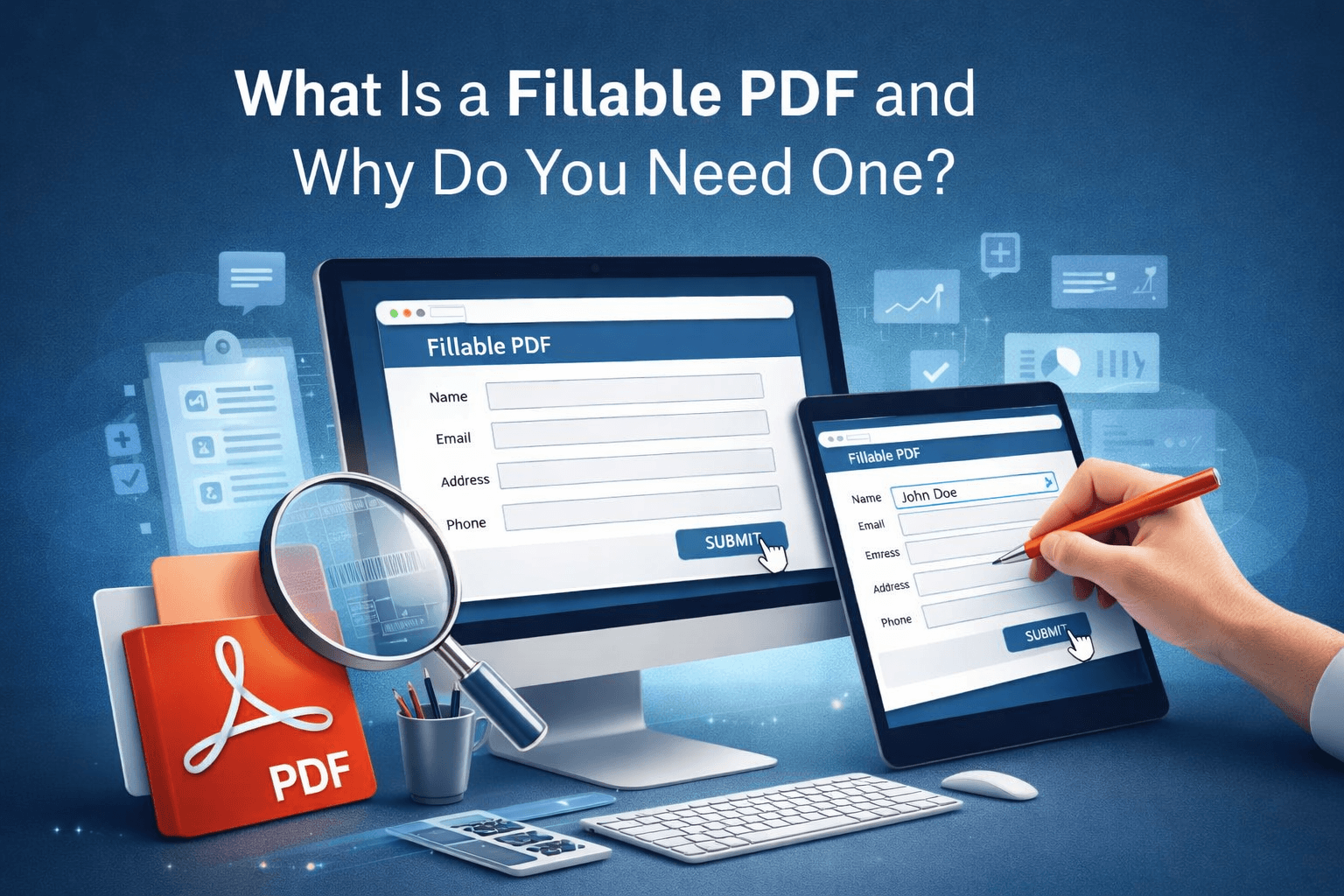
A fillable PDF (also called an interactive PDF or PDF form) is a PDF file that contains form fields — text boxes, checkboxes, dropdown menus, and signature fields — that users can click and fill in without altering the rest of the document.
Unlike a static PDF, a fillable PDF preserves your layout and branding while collecting structured data. They're widely used for:
• Job applications and HR forms
• Medical intake forms and patient questionnaires
• Real estate contracts and lease agreements
• Tax forms and legal documents
• Surveys, feedback forms, and event registrations
Method 1: How to Make a Fillable PDF from Word (Free, Desktop)
This is the most popular method. You design the form layout in Microsoft Word, then convert it to a fillable PDF. Here's how to do it properly.
Step 1: Enable the Developer Tab in Word
The Developer tab gives you access to form controls — the building blocks of fillable PDFs.
1. Open Microsoft Word
2. Go to File → Options → Customize Ribbon
3. In the right column, check the box next to Developer
4. Click OK — the Developer tab now appears in your ribbon
Step 2: Design Your Form Layout
Create the visual structure of your form first. Use tables to align labels and input areas. For example:
• First Name: [text field]
• Date of Birth: [text field]
• Gender: [checkbox] Male [checkbox] Female [checkbox] Other
💡 Pro Tip: Use a 2-column table — labels on the left, form fields on the right. This keeps your form clean and aligned when converted to PDF.
Step 3: Insert Form Controls from the Developer Tab
Click in the cell or area where you want a form field, then go to Developer → Controls and insert:
• Rich Text Content Control — for long text answers
• Plain Text Content Control — for names, dates, single-line inputs
• Check Box Content Control — for yes/no or multiple choice options
• Drop-Down List Content Control — for predefined option lists
• Date Picker Content Control — for calendar-style date selection
Step 4: Set Field Properties (Optional but Recommended)
Right-click any control and select Properties to:
• Add placeholder text like 'Enter your full name here'
• Lock the content to prevent users from deleting the field structure
• Set a specific date format or dropdown values
Step 5: Save as PDF
Go to File → Save As → select PDF from the format dropdown. Make sure the option 'Best for electronic distribution' is selected to maintain interactive form fields.
Alternatively, go to File → Export → Create PDF/XPS Document for more export options.
💡 Pro Tip: Do NOT use 'Print to PDF' — this flattens the form and removes all interactivity. Always use File → Save As → PDF.
Method 2: How to Make a Fillable PDF Online for Free
No Word? No problem. Several free online tools let you create or convert fillable PDFs directly in your browser — no installation needed.
Option A: ComfortablePDF (Recommended for Quick Conversions)
ComfortablePDF.com offers a free PDF editing tool that lets you add text fields, checkboxes, and signatures to any existing PDF. It works entirely in your browser — no signup, no watermark, no file size tricks.
5. Go to ComfortablePDF.com and open the PDF editor tool
6. Upload your existing PDF or start from a blank template
7. Click 'Add Field' and drag text boxes onto the document
8. Position and resize each field to match your form layout
9. Download your fillable PDF — ready to send
Option B: PDF24 Tools
PDF24.org is a free, browser-based PDF form creator that requires no account. It supports text fields, checkboxes, radio buttons, and dropdown lists. Files are processed locally in many cases, making it privacy-friendly.
Option C: Sejda PDF Editor
Sejda.com allows you to upload any PDF and add form fields visually. The free plan supports up to 3 tasks per hour and 200 pages per document — enough for most use cases.
💡 Pro Tip: For sensitive documents (medical, legal, financial), always use a tool that processes files in-browser or deletes uploaded files within 1 hour.
Method 3: How to Convert a Word Form to a Fillable PDF Form
If you already have a Word document with a form layout but no interactive fields, you can convert it properly using this workflow:
10. Open the existing Word document
11. Enable the Developer tab (see Method 1, Step 1)
12. Replace any underlines or blank spaces used for 'fill-in' areas with proper Content Controls
13. Check that all form labels have matching field controls beside them
14. Save as PDF using File → Save As → PDF (not Print to PDF)
15. Test the PDF by opening it in Adobe Reader or a browser and clicking each field
This approach is especially useful for converting existing HR templates, intake forms, or legal documents into interactive fillable PDFs without redesigning from scratch.
Method 4: Add Fields to an Existing PDF (Without Word)
Already have a finalized PDF and just need to add form fields? You don't need to go back to the source document.
Here's how using free online tools:
16. Go to ComfortablePDF.com or Sejda.com
17. Upload your existing PDF
18. Use the 'Add Text Field' button to place input boxes over blank areas
19. Add checkboxes over any yes/no options in your existing layout
20. Download and test the result
💡 Pro Tip: If your PDF was created from a scanned document, you may need to run it through an OCR tool first to make text selectable before adding form fields.
Common Mistakes When Creating Fillable PDFs
1. Using Print to PDF Instead of Save As PDF
This is the #1 mistake. Print to PDF flattens everything — your form fields become static images. Always use File → Save As → PDF in Word, or export using a proper PDF creation tool.
2. Not Testing the Form After Creation
Always open your fillable PDF in Adobe Acrobat Reader (free) or a browser before sending it. Check that every field is clickable, tabbing between fields works in order, and the document doesn't allow editing outside form fields.
3. Forgetting Tab Order
Tab order determines the sequence users move through fields when pressing the Tab key. In Adobe Acrobat, you can set tab order under Form → Edit Fields → Set Tab Order. Without this, users may jump between fields randomly.
4. Inconsistent Field Sizes
Misaligned or differently-sized text fields make forms look unprofessional. In Word, use tables to enforce consistent alignment. In online tools, use the snap-to-grid feature if available.
5. Not Flattening Before Final Distribution
If your form has been filled in and you want to send a completed, non-editable version, 'flatten' the PDF first. This merges the form data into the document permanently. Most PDF tools including ComfortablePDF.com support flattening.
Frequently Asked Questions
Can I make a fillable PDF for free?
Yes. You can create fillable PDFs for free using Microsoft Word (if you already have it), free online tools like ComfortablePDF.com, PDF24, or Sejda. None of these require Adobe Acrobat.
How do I create a fillable PDF without Adobe?
Use Microsoft Word's Developer tab to add form controls, then export to PDF. Or use a free browser-based tool like ComfortablePDF.com or Sejda to add fields directly to an existing PDF — no software installation required.
Why can't I type in my PDF form?
If a PDF form isn't fillable, it was likely saved as a flat PDF without interactive fields. You'll need to add fields using a PDF editor. Upload the file to ComfortablePDF.com and use the field editor to make it interactive.
How do I make a fillable PDF on Mac?
On Mac, you can use Preview to add basic text fields to a PDF. For more advanced fillable forms, use Pages (Apple's free Word alternative) to design the form, export to PDF, and then add interactive fields using a free online tool like PDF24 or ComfortablePDF.com.
Can I save a filled-in PDF?
Yes. In Adobe Acrobat Reader (free), you can save a filled-in form using File → Save As. Most modern browsers also allow you to save filled PDFs directly. If the form doesn't allow saving, try printing it to PDF to preserve your entries.
What's the difference between a fillable PDF and an editable PDF?
A fillable PDF has specific form fields (text boxes, checkboxes) that users interact with. An editable PDF allows changing any text in the document. Fillable PDFs are better for forms because they restrict editing to designated areas only, preserving your original design.
Final Thoughts
Creating a fillable PDF doesn't require expensive software. Whether you're building a new form from scratch in Word or adding fields to an existing PDF online, the tools are free and the process takes under 10 minutes once you know the steps.
The key points to remember:
• Use File → Save As → PDF in Word — never Print to PDF
• Enable the Developer tab in Word to access form controls
• Test your form in Adobe Reader before sending
• For quick online conversions, ComfortablePDF.com is free and requires no signup
Ready to create your fillable PDF right now? Head to ComfortablePDF.com — no account, no watermark, no cost.