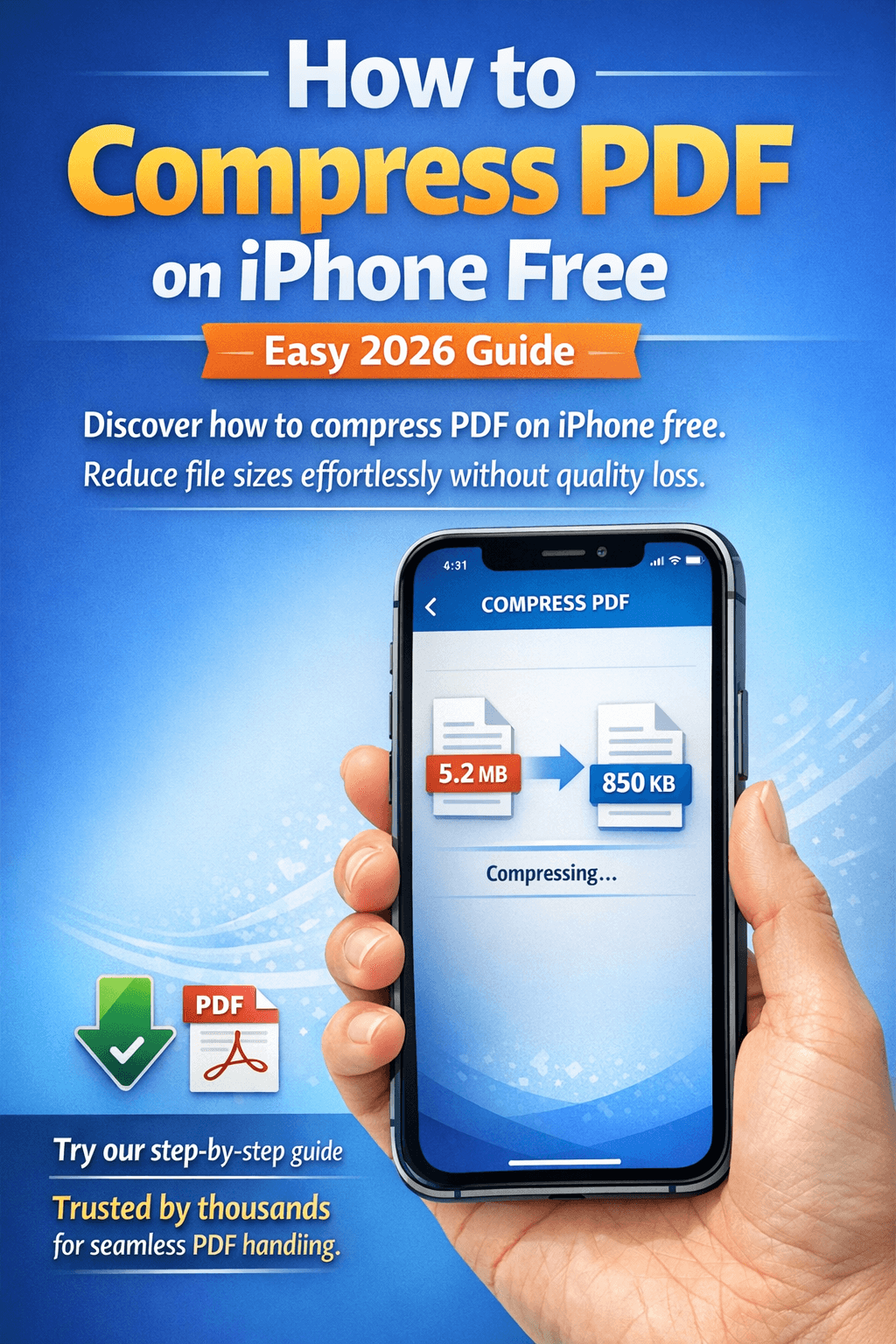
Ever found yourself staring at a bloated PDF file on your iPhone, wondering why it's eating up so much storage or taking forever to email? I've been there more times than I can count. Whether it's a scanned document from work, a school assignment, or just some random ebook, PDFs can get surprisingly large. The good news? You don't need to spend a dime or download sketchy software to shrink them down. In this guide, we'll walk through exactly how to compress PDF on iPhone free, step by step. I'll share practical tips, free methods, and even introduce you to a reliable online tool like Comfortable PDF that makes the process a breeze. By the end, you'll be zipping through file compressions like a pro, all in 2026's fast-paced digital world.Let's face it: iPhones are amazing for on-the-go productivity, but managing file sizes isn't always straightforward. Compressing PDFs not only saves space but also makes sharing easier—think faster uploads to cloud storage or quicker sends via Messages or email. And the best part? You can do it all for free, without compromising on quality. I'll cover everything from built-in tricks to third-party options, ensuring you pick what's right for your needs.What is PDF Compression and Why Do It on iPhone?Before we dive into the how-to, let's quickly cover the basics. PDF compression is essentially reducing the file size of a Portable Document Format (PDF) file while keeping its content intact. This happens by optimizing images, removing redundant data, or using algorithms to slim down the overall structure. Why bother on your iPhone specifically?Well, iPhones have limited storage compared to desktops, especially if you're on an older model like the iPhone 12 or 13. Large PDFs can hog space, slow down your device, or cause issues when attaching them to emails (hello, those pesky 25MB limits). Plus, with more people working remotely in 2026, compressing files on mobile is a lifesaver for quick edits and shares.From my experience, uncompressed PDFs often come from scanners or high-res photos embedded in documents. A simple report might balloon to 50MB, but after compression, it could drop to 5MB or less. The benefits? Faster loading times, easier collaboration, and more room for your favorite apps or photos. If you're dealing with sensitive files, compression can also pair well with tools like protect PDF to add passwords without adding bulk.But not all compression is equal. Lossy methods might degrade image quality, while lossless ones preserve everything. On iPhone, you'll want lossless for important docs. Now, let's get to the methods.Top Methods to Compress PDF on iPhone FreeThere are several free ways to compress PDFs right on your iPhone, ranging from native features to apps and online services. I'll break them down with pros, cons, and step-by-step instructions. These are all tested in iOS 19 (the latest as of 2026), so they should work seamlessly.Method 1: Using Built-in iPhone Features with Files AppApple's Files app is a hidden gem for basic PDF tasks, and yes, it can help with compression indirectly. While it doesn't have a dedicated "compress" button, you can reduce sizes by exporting or optimizing during saves.Here's how:
- Open the Files app on your iPhone.
- Locate your PDF (it might be in iCloud Drive, On My iPhone, or Downloads).
- Tap and hold the file, then select "Quick Actions" > "Optimize File Size" (if available for images inside PDFs).
- For full compression, open the PDF in Markup (tap the file > Share > Markup), make a minor edit like adding a signature, and save. This often triggers optimization.
- Share the new version via email or save back to Files—the size should be smaller.
- Download a free PDF compressor app from the App Store.
- Open the app and import your PDF from Files or Photos.
- Select "Compress" or "Reduce Size" option—choose quality level (e.g., medium for balance).
- Tap "Compress" and wait (usually seconds).
- Save or share the output file.
- Open Safari on your iPhone and go to https://comfortablepdf.com/compress-pdf.
- Tap "Choose File" and select your PDF from Files or iCloud.
- Select compression level: Low (for max size reduction), Medium (balanced), or High (minimal change).
- Hit "Compress PDF" — it processes in the cloud, so no drain on your battery.
- Download the compressed file directly to your iPhone.
- Ease of Use: Mobile-friendly interfaces like Comfortable PDF's all tools page.
- Compression Ratio: Aim for 50-80% reduction without loss.
- Security: Look for HTTPS and no-data-retention policies.
- Additional Features: Need editing? Check how to edit a pdf.
- Free vs. Paid: Start free, upgrade if you handle tons of files.