How to Extract Pages from PDF Free — Complete 2026 Guide
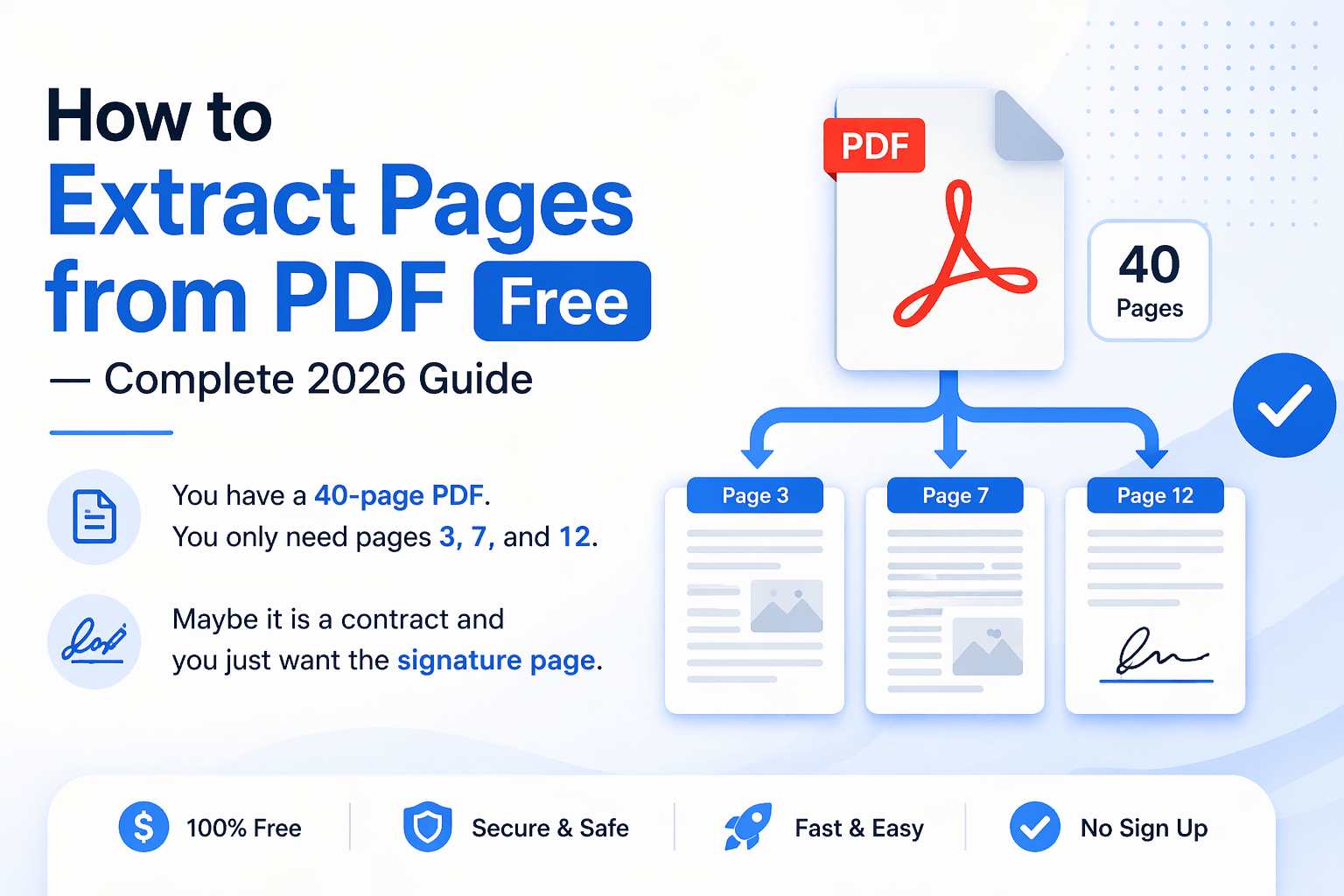
You have a 40-page PDF. You only need pages 3, 7, and 12. Maybe it is a contract and you just want the signature page. Maybe it is a report and you need one specific section. Whatever the reason, pulling individual pages out of a PDF is one of the most common tasks people need to do — and most people have no idea how easy it actually is.
The good news is you do not need Adobe Acrobat Pro, you do not need to pay for anything, and you do not need to install complicated software. In this guide, you will learn exactly how to extract pages from a PDF for free, on any device, in just a few clicks.
What Does Extracting Pages from a PDF Mean?
Extracting pages from a PDF means taking one or more specific pages out of a PDF file and saving them as a new, separate PDF. You are not deleting those pages from the original. You are copying them into a fresh file.
For example, if you have a 20-page business proposal and you want to pull out page 5 (the pricing page) and send it to a client separately, that is page extraction. The original file stays exactly as it was. You just get a clean new file with only the page you need.
This is different from splitting a PDF, where you divide the whole file into multiple parts. Extraction is more surgical — you pick exactly which pages you want.
How to Extract Pages from a PDF Free Online (Easiest Method)
The fastest way to extract pages from a PDF in 2026 is to use a free online tool. No installation, no signup, no watermark. Here is how to do it using ComfortablePDF:
Step 1 — Go to comfortablepdf.com and click on the Split PDF or Organize PDF tool. Both tools let you extract specific pages.
Step 2 — Upload your PDF file. You can drag and drop it directly onto the page or click the upload button to browse your files.
Step 3 — Select the pages you want to extract. You will see a visual preview of each page. Click on the ones you want to pull out.
Step 4 — Click Extract or Download. The tool will process your PDF and give you a new file with only the pages you selected.
Step 5 — Download your new PDF. It saves directly to your device. No email required, no account needed.
The whole process takes under a minute for most files. It works on any browser — Chrome, Safari, Firefox, Edge — and on any device including phone and tablet.
How to Extract Pages from a PDF on Mac
Mac users have a secret weapon that most people completely overlook: Preview. It is built right into macOS and it is actually very capable when it comes to PDF tasks.
Here is how to extract pages from a PDF on Mac using Preview:
Step 1 — Open your PDF in Preview. You can do this by double-clicking the file, or right-clicking and selecting Open With then Preview.
Step 2 — Open the thumbnail sidebar. Go to View in the top menu and click Thumbnails. This shows you a small preview of every page on the left side of the screen.
Step 3 — Select the pages you want to extract. Click on one thumbnail to select it. To select multiple pages, hold the Command key and click each one you want.
Step 4 — Drag the selected pages to your desktop or to a folder. This automatically creates a brand new PDF containing only those pages.
That is it. No third-party software, no cost, nothing extra to install. This method works on Mac running macOS Ventura, Sonoma, Sequoia, and most older versions too.
If you want more control — like choosing a specific page range rather than clicking individual thumbnails — you can also use File then Print, and in the print dialog box change the Pages field to a custom range, then save as PDF.
How to Extract Pages from a PDF on Mac Using Chrome
If for some reason Preview is not cooperating, there is another quick method using just Google Chrome.
Step 1 — Open your PDF in Chrome. You can drag the file straight into a Chrome window.
Step 2 — Click the print icon (or press Command + P).
Step 3 — Under the Pages section, type in the specific page numbers you want to extract. For example, type 3, 7, 12 to get those three pages only.
Step 4 — Change the destination from your printer to Save as PDF.
Step 5 — Click Save and choose where to save the file.
Chrome will create a new PDF with only those pages. It is not the most polished method but it works perfectly well for quick jobs.
How to Extract a Page from a Word Document
A lot of people ask about this too. If your file is a Word document rather than a PDF, extracting individual pages works a bit differently.
The simplest method is this:
Step 1 — Open the Word document.
Step 2 — Go to the page or pages you want to extract. Select all the content on those pages by clicking and dragging your cursor, or use Ctrl + A to select everything then manually deselect what you do not want.
Step 3 — Copy the selected content with Ctrl + C.
Step 4 — Open a new blank Word document.
Step 5 — Paste the content with Ctrl + V.
Step 6 — Save the new document.
If you want to extract pages from a Word document and save them as a PDF, follow the steps above then go to File, Save As, and choose PDF as the file format.
Alternatively, you can convert your Word document to PDF first using a free tool like comfortablepdf.com/word-to-pdf, and then use the extract pages method described earlier.
"Page Extraction Is Not Allowed in the Source PDF Documents" — What Does This Mean?
If you have ever tried to extract pages from a PDF and got an error saying page extraction is not allowed, this means the PDF has security restrictions applied by whoever created it.
PDF owners can lock their files to prevent certain actions, including printing, copying, and page extraction. This is common with legal documents, e-books, and official forms.
There are a few things you can try:
First, if you own the document or have the password, you can unlock it. Go to comfortablepdf.com/unlock-pdf, upload the file, enter the password, and download the unlocked version. Once it is unlocked, you can extract pages freely.
Second, if you do not have the password and you do not own the document, you should respect those restrictions. Bypassing security on PDFs you do not own raises serious legal and ethical issues.
Third, if the restriction is a permissions password (rather than an open password), some tools can remove it if you can demonstrate ownership. Check with the document creator if you are unsure.
How to Extract a Single Page from a PDF
Sometimes you do not need multiple pages — you just need one. Maybe page 1 is a cover letter and you want to send it separately. Maybe page 9 has a diagram you need to share.
Extracting a single page from a PDF is even simpler:
Using ComfortablePDF — Upload your file, select just one page from the thumbnail view, and download it. Done.
Using Mac Preview — Open the file, click on one thumbnail in the sidebar, and drag it to your desktop.
Using Chrome — Open the PDF, press Ctrl + P (or Command + P on Mac), type the single page number you want in the Pages field, save as PDF.
Any of these three methods takes less than 30 seconds.
How to Extract Pages from a PDF on iPhone or Android
Mobile users can extract PDF pages too. You do not need an app for this.
On iPhone — Open Safari, go to comfortablepdf.com, tap the Split PDF tool, upload your PDF from your Files app, select the pages you need, and download the result. The file saves to your Files or Downloads folder.
On Android — Same process. Open Chrome, visit comfortablepdf.com, use the Split PDF or Organize PDF tool, upload your file from local storage, select pages, and download.
iPhone users can also use the built-in Files app. Open a PDF in Files, tap the Share button, then tap Create PDF. This creates a new file, though the page selection is more limited compared to an online tool.
Best Free Tools to Extract PDF Pages in 2026
Here are the top free options depending on your situation:
ComfortablePDF — Best overall. Free, no signup, no watermark, works on all devices, handles large files well.
Mac Preview — Best for Mac users who want zero browser involvement. Built-in and reliable.
Google Chrome print-to-PDF — Best quick and dirty method on any computer that has Chrome.
Adobe Acrobat online (free tier) — Works but requires a free Adobe account and has file size limits. More steps involved.
For most people, an online tool like ComfortablePDF is the easiest and fastest option because it requires nothing except a browser and your PDF file.
Tips for Extracting PDF Pages Like a Pro
Know your page numbers before you start. Open the PDF, scroll through it, and write down the page numbers you need. This saves time when you are in the tool.
Check the page count first. Some PDFs have a cover page or blank pages that shift the numbering. Page 3 in the PDF viewer might actually be labeled as page 2 in the document itself. Double-check before extracting.
Use the organize tool for complex jobs. If you need to extract multiple non-consecutive pages and reorder them, the Organize PDF tool gives you full drag-and-drop control over every page.
Rename your output file immediately. When you download the extracted pages, rename the file right away so you know exactly what is in it. Do not leave it as something vague like "download (3).pdf."
Frequently Asked Questions
Can I extract multiple pages at once? Yes. All the methods described in this guide let you select multiple pages at the same time. You are not limited to one page per extraction.
Does extracting pages change the original PDF? No. Extracting pages creates a new separate file. Your original PDF stays exactly as it was.
Is it free to extract pages from a PDF? Yes, using the methods in this guide. ComfortablePDF is free with no signup. Mac Preview is free. Chrome print-to-PDF is free.
Why can't I extract pages from my PDF? The most likely reason is that the PDF has security restrictions. Look for the error message "page extraction is not allowed." You will need to unlock the PDF first using the password from whoever created it.
Can I extract pages from a scanned PDF? Yes, you can extract pages from a scanned PDF the same way. If you need the text to be editable after extracting, you will want to run it through an OCR tool first at comfortablepdf.com/ocr-pdf.
Final Thoughts
Extracting pages from a PDF does not need to be complicated or expensive. Whether you are on a Windows PC, a Mac, an iPhone, or an Android phone, you have free options available to you right now. The online method at ComfortablePDF is the simplest for most people — upload, select, download, done.
If you hit the "page extraction is not allowed" error, remember that means the file is protected. Unlock it with the right password and you are good to go.
Bookmark this guide for next time, and check out the other free PDF tools at comfortablepdf.com for everything else you might need — compressing, merging, converting, signing, and more.