PDF to JPG High Quality Converter Free Online 2026
Converting a PDF to a high-quality JPG image used to require expensive desktop software. In 2026, you can do it in seconds — completely free, no email required, and without losing quality. Whether you're on Windows, Mac, iPhone, or Android, this guide covers everything you need to know about converting PDF to JPG at the highest possible resolution.
What Is a PDF to JPG Converter?
A PDF to JPG converter is a tool that extracts each page of a PDF document and saves it as a separate JPG (or JPEG) image file. This is useful when you need to share a document as an image, embed PDF content into a website, presentation, or email, or when a recipient can't open PDFs but can view images.
The key difference between converters is output quality. A low-quality converter compresses the image aggressively, resulting in blurry text and pixelated graphics. A high-quality converter preserves the original resolution of your PDF — so text stays sharp, logos stay crisp, and charts stay readable.
ComfortablePDF's free online PDF to JPG converter outputs images at 300 DPI by default — the same resolution standard used for professional printing.
H2: How to Convert PDF to JPG for Free Online (Step-by-Step)
Converting your PDF to JPG takes under 30 seconds on ComfortablePDF. Here's how:
Step 1: Go to comfortablepdf.com/pdf-to-jpg
Step 2: Click "Upload PDF" or drag and drop your file onto the page. Files up to 100MB are supported.
Step 3: Choose your quality setting — Standard (150 DPI), High (300 DPI), or Ultra (600 DPI). For most uses, High (300 DPI) is perfect.
Step 4: Click "Convert to JPG". Processing takes a few seconds.
Step 5: Download your JPG files. Each PDF page becomes its own high-resolution JPG image. You can also download all pages as a ZIP file.
No login. No watermark. No file size tricks. Just clean, high-quality output.
H2: How to Convert JPG to PDF on Windows (2026 Guide)
If you want to go the other direction — turning JPG images into a PDF — here's how to do it directly on Windows without any third-party software.
H3: Method 1 — Windows 10 & 11 Built-In Print to PDF
- Open your JPG image in Photos or Windows Photo Viewer
- Press Ctrl + P to open the print dialog
- Select "Microsoft Print to PDF" as your printer
- Click Print and save the file
This is fast and free, but it gives you limited control over quality and page margins.
H3: Method 2 — ComfortablePDF Online (Recommended)
For better quality and multiple images in one PDF:
- Go to comfortablepdf.com/jpg-to-pdf
- Upload one or multiple JPG files
- Arrange the order of pages
- Click "Convert to PDF" and download
This method supports batch conversion — great when you need to combine multiple JPGs into one PDF.
H3: How to Convert JPG to PDF on Windows 10 Specifically
Windows 10 users can also use the Photos app:
- Open the JPG > Click the three-dot menu > Select "Print"
- Choose Microsoft Print to PDF
- Set orientation (Portrait/Landscape) and paper size
- Save your PDF
For high-volume or professional use, ComfortablePDF's online converter is faster and produces cleaner output.
H2: How to Convert PDF to JPG on Mac (2026)
Mac users have a built-in advantage — macOS includes powerful PDF tools in Preview that many users never discover.
H3: Using Preview to Convert PDF to JPG on Mac
- Open your PDF in Preview
- Go to File > Export
- In the Format dropdown, select JPEG
- Adjust the quality slider (move it to the right for maximum quality)
- Click Save
This works well for single-page PDFs. For multi-page files, Preview exports only the currently visible page.
H3: How to Convert PDF to JPG on MacBook Air
MacBook Air users sometimes wonder if their device can handle large file conversions. The answer is yes — both the M1 and M2/M3 MacBook Air models handle PDF conversions effortlessly via Preview or any online tool.
If you need to convert a multi-page PDF to individual JPG files, ComfortablePDF is the easier route — it processes all pages at once and lets you download a ZIP of all JPG images.
H3: How to Convert JPG to PDF on MacBook Air
Reverse conversion (JPG → PDF) is equally simple:
- Select all your JPG files in Finder
- Right-click > Quick Actions > Create PDF
- macOS creates a multi-page PDF instantly
Alternatively, open the JPGs in Preview, select all thumbnails in the sidebar, then go to File > Print > PDF > Save as PDF.
H2: How to Change PDF to JPG on iPhone (2026)
Converting PDFs on iPhone is now easier than ever thanks to the Files app and free web tools.
H3: Using Files App on iPhone
- Locate your PDF in the Files app
- Long-press the file > tap Share
- Scroll down and tap "Create PDF" — wait, this doesn't apply here
For iPhone, the cleanest method is to use Safari and ComfortablePDF:
- Open Safari and go to comfortablepdf.com/pdf-to-jpg
- Tap Upload PDF and choose your file from Files
- Select your quality and tap Convert
- Tap Download — your JPG(s) will save to your Photos or Downloads folder
H3: How to Change JPG to PDF on iPhone
- Open the Photos app and select the image(s)
- Tap the Share button > Print
- Pinch outward on the print preview — this creates a PDF
- Tap the Share icon that appears and save the PDF to Files
This is a handy native trick that most iPhone users don't know about. For more reliable results with multiple images, use ComfortablePDF on Safari.
H2: How to Convert JPG to PDF on Android
Android handles file conversions a bit differently since there's no unified "Print to PDF" shortcut built into the OS itself.
H3: Method 1 — Google Drive (Free)
- Open Google Drive on your Android device
- Tap the + button > Upload > select your JPG
- Once uploaded, tap the three-dot menu > Open with > Google Docs
- In Google Docs, go to the three-dot menu > Share & export > Save as — select PDF
H3: Method 2 — ComfortablePDF Mobile Browser
- Open Chrome on your Android phone
- Visit comfortablepdf.com/jpg-to-pdf
- Upload your JPG files
- Convert and download your PDF directly to your device
This is the fastest method on Android for both single and multi-page conversions.
H2: How to Combine Multiple JPGs into One PDF
This is one of the most common use cases — scanning a multi-page document with your phone and needing all JPGs merged into one PDF file.
H3: How to Put Multiple JPGs into One PDF (Desktop)
On ComfortablePDF:
- Go to comfortablepdf.com/jpg-to-pdf
- Click Upload and select multiple JPG files at once (or drag and drop them)
- Drag to reorder the pages as needed
- Click "Convert to PDF"
- Download your single, combined PDF
H3: How to Combine Multiple JPGs into One PDF on Mac
Using Preview:
- Open the first JPG in Preview
- Show the sidebar (View > Thumbnails)
- Drag additional JPG files into the sidebar to add them as pages
- Go to File > Export as PDF
H3: How to Combine Multiple JPGs into One PDF on Windows
The easiest free method on Windows:
- Select all JPG files in File Explorer
- Right-click > Print
- Choose Microsoft Print to PDF
- Set page size and print — all images become pages in one PDF
For better control over page order and size, ComfortablePDF is more reliable.
H2: Does Converting PDF to JPG Reduce Quality?
This is an important question — and the honest answer is: it depends on the tool and settings you use.
PDF is a vector-based format (in most cases), which means it stores text and graphics as mathematical instructions rather than pixels. When you convert to JPG, you're essentially "rasterizing" the PDF — converting those instructions into a fixed pixel grid.
Here's what affects quality:
DPI (Dots Per Inch): The most important factor. At 72 DPI, text will look blurry on screen. At 150 DPI, it's acceptable for web use. At 300 DPI, it's print-ready. ComfortablePDF defaults to 300 DPI.
JPG Compression: JPG is a "lossy" format, meaning some image data is discarded during compression. High-quality settings (90–100% quality) preserve nearly all detail. Lower settings create smaller files but more visible artifacts.
Source PDF Quality: If your PDF was created from a low-resolution scan, the resulting JPG will also be low resolution. No converter can add detail that wasn't there.
Best practice: Always use the highest quality setting your file size allows, and verify the output before sharing it professionally.
H2: Foxit PDF to JPG — What You Need to Know
Foxit Reader is a popular PDF application, and many users search for "Foxit PDF to JPG" or "Foxit Reader PDF to JPG" conversions. Here's how it works and what the alternatives look like.
H3: How to Export PDF to JPG in Foxit Reader
In Foxit Reader (free version):
- Open your PDF
- Go to File > Export to > Image > JPEG
- Choose your quality settings and save
Note: The free version of Foxit Reader has limited export options. Some features require Foxit PDF Editor Pro, which is a paid product.
H3: ComfortablePDF vs Foxit for PDF to JPG
| Feature | ComfortablePDF | Foxit Reader (Free) |
|---|---|---|
| Cost | 100% Free | Free (limited export) |
| No Signup | ✅ | ✅ |
| Watermark | None | None |
| Batch Conversion | ✅ | Limited |
| 300 DPI Output | ✅ | Depends on version |
| Works on Mobile | ✅ | ❌ |
For most users, ComfortablePDF is the simpler and more capable free option for PDF to JPG conversion.
H2: PDF to JPG API — For Developers
If you're a developer who needs to automate PDF to JPG conversion in your application, you'll want a PDF to JPG API.
Key things to look for in a PDF to JPG API:
- REST API with JSON responses
- DPI control — ability to set output resolution
- Page range selection — convert specific pages, not the whole document
- Format options — JPG, PNG, TIFF output
- Rate limits and pricing that matches your volume
Popular options include Adobe PDF Services API, ILovePDF API, and PDF.co. ComfortablePDF is focused on the free online converter experience, making it ideal for individual users rather than API integration needs.
For developers, always check whether the API returns base64-encoded images or file URLs, as this affects how you handle the response in your backend.
H2: PDF to JPG Reddit — What the Community Recommends
If you search "PDF to JPG Reddit" or "JPG to PDF Reddit", you'll find threads in communities like r/techsupport, r/software, and r/mac recommending various tools.
The most commonly praised features across Reddit discussions:
- No watermark — users hate tools that add branding to their output
- No signup required — friction kills conversions
- High DPI output — 300 DPI is the benchmark users mention most
- Offline alternatives — many Redditors suggest Preview on Mac and Photos on Windows as free offline options
ComfortablePDF was designed with exactly these community preferences in mind: no watermark, no signup, high quality, and accessible on any device.
H2: PDF to JPG on MacBook — Full Guide Summary
For MacBook users (Air, Pro, or standard), here's a quick summary of all your options:
Native (Preview App):
- Great for single-page, quick conversions
- File > Export > JPEG
- Limited for batch/multi-page work
Online (ComfortablePDF):
- Best for multi-page PDFs
- Works on Safari without any installs
- 300 DPI output, ZIP download for multiple pages
Command Line (for developers):
sips -s format jpeg input.pdf --out output.jpgNote: macOS's sips command works on images but has limitations with multi-page PDFs. For PDF conversion on command line, pdftoppm (via Homebrew) is more reliable.
H2: Why ComfortablePDF Is the Best Free PDF to JPG Converter in 2026
Here's what sets ComfortablePDF apart from the dozens of free online converters available today:
No Watermark — Ever. Many "free" converters stamp their logo on every output image. ComfortablePDF doesn't add watermarks to any converted file, period.
No Signup Required. You don't need to create an account, verify your email, or start a trial. Just upload and convert.
High-Quality Output by Default. The default output is 300 DPI — professional-grade resolution — not a compressed thumbnail.
All Devices Supported. Whether you're on a Windows PC, MacBook, iPhone, or Android tablet, ComfortablePDF works through your browser without installing anything.
Fast Processing. Most PDFs convert in under 10 seconds, even for multi-page documents.
Privacy-First. Uploaded files are automatically deleted from servers after processing. Your documents stay private.
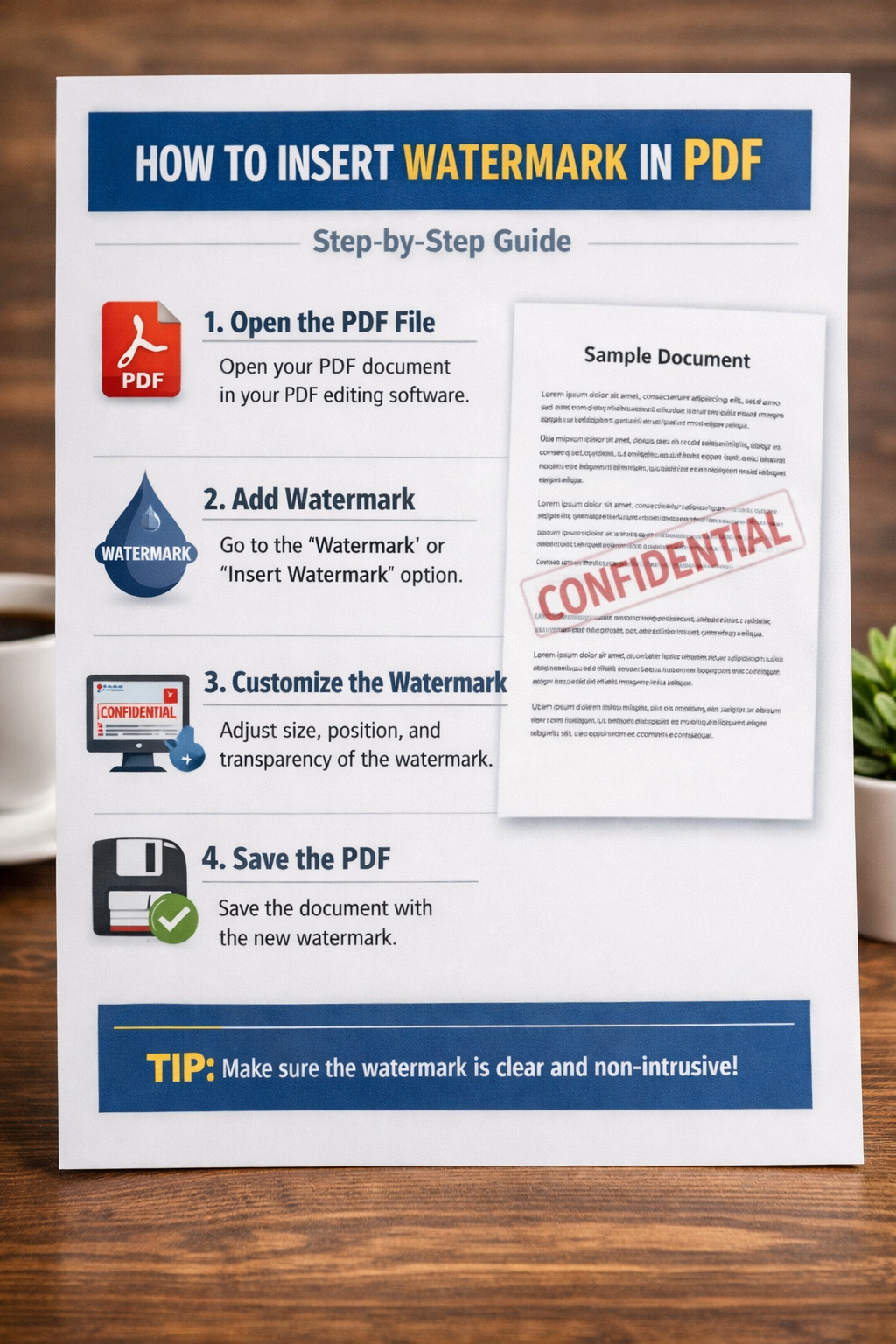
Multiple Tools, One Platform. Once you've converted your PDF, you can also compress it, merge it, split it, watermark it, or convert it to Word — all from the same site.
H2: Common PDF to JPG Use Cases
Understanding why people convert PDF to JPG helps choose the right settings:
Sharing on Social Media: Use Standard quality (150 DPI) to keep file sizes manageable. Social platforms compress images anyway.
Website & Blog Images: High quality (300 DPI) ensures crisp display on retina/HiDPI screens.
Print Materials: Use Ultra quality (600 DPI) if the JPG will be used in print layouts.
Email Attachments: Standard (150 DPI) works well and keeps email size reasonable.
Archiving Documents: High (300 DPI) strikes the best balance between quality and file size.
Legal & Medical Records: Always use High or Ultra — these documents require readable text and clear detail.
H2: Troubleshooting PDF to JPG Conversion Issues
Problem: Output JPG is blurry Solution: Increase the DPI setting. If the source PDF itself was scanned at low resolution, try using the OCR PDF tool first to enhance the document.
Problem: File too large to upload Solution: Use ComfortablePDF's Compress PDF tool first to reduce the PDF size, then convert to JPG.
Problem: Colors look different in the JPG Solution: PDFs can use CMYK color profiles (for print), while JPGs use RGB (for screens). This color shift is normal and expected when converting print-intended PDFs to screen images.
Problem: Multi-page PDF only exports one page Solution: Make sure you're using a tool that supports multi-page batch export. ComfortablePDF converts all pages and packages them in a ZIP download.
Problem: PDF is password protected Solution: Use the Unlock PDF tool on ComfortablePDF to remove the password, then proceed with the JPG conversion.
H2: Frequently Asked Questions
Q: Does ComfortablePDF PDF to JPG converter work on mobile? A: Yes. The tool is fully responsive and works on iPhone, iPad, Android phones, and Android tablets through any modern browser — no app required.
Q: How many pages can I convert at once? A: ComfortablePDF handles PDFs with up to 200 pages. Each page is exported as a separate JPG, and all files are packaged in a ZIP download.
Q: Is there a file size limit? A: Files up to 100MB are supported for free.
Q: Can I convert just one page of a multi-page PDF? A: Yes — after conversion, you can choose to download individual pages rather than the full ZIP.
Q: Does converting PDF to JPG lose text quality? A: At 300 DPI or higher, text remains very readable. At lower DPI settings (72–96 DPI), text may appear blurry, especially at small font sizes.
Q: Is the Tungsten Automation JPG to PDF tool any good? A: Tungsten Automation (formerly Kofax) offers enterprise-grade tools that are powerful but expensive — pricing is typically per user per year and designed for large organizations. For individual or small-team use, ComfortablePDF is significantly more accessible.
Conclusion: Convert PDF to JPG in High Quality — Free & Instant
Whether you're on Windows, Mac, iPhone, or Android — whether you need 300 DPI professional output or a quick web image — ComfortablePDF's free PDF to JPG converter has you covered.
No software to install. No account to create. No watermarks on your files. Just clean, high-resolution JPG output in seconds.
👉 Convert PDF to JPG for Free — comfortablepdf.com/pdf-to-jpg