Convert Multiple JPG Images to One PDF Free | 2026 Guide
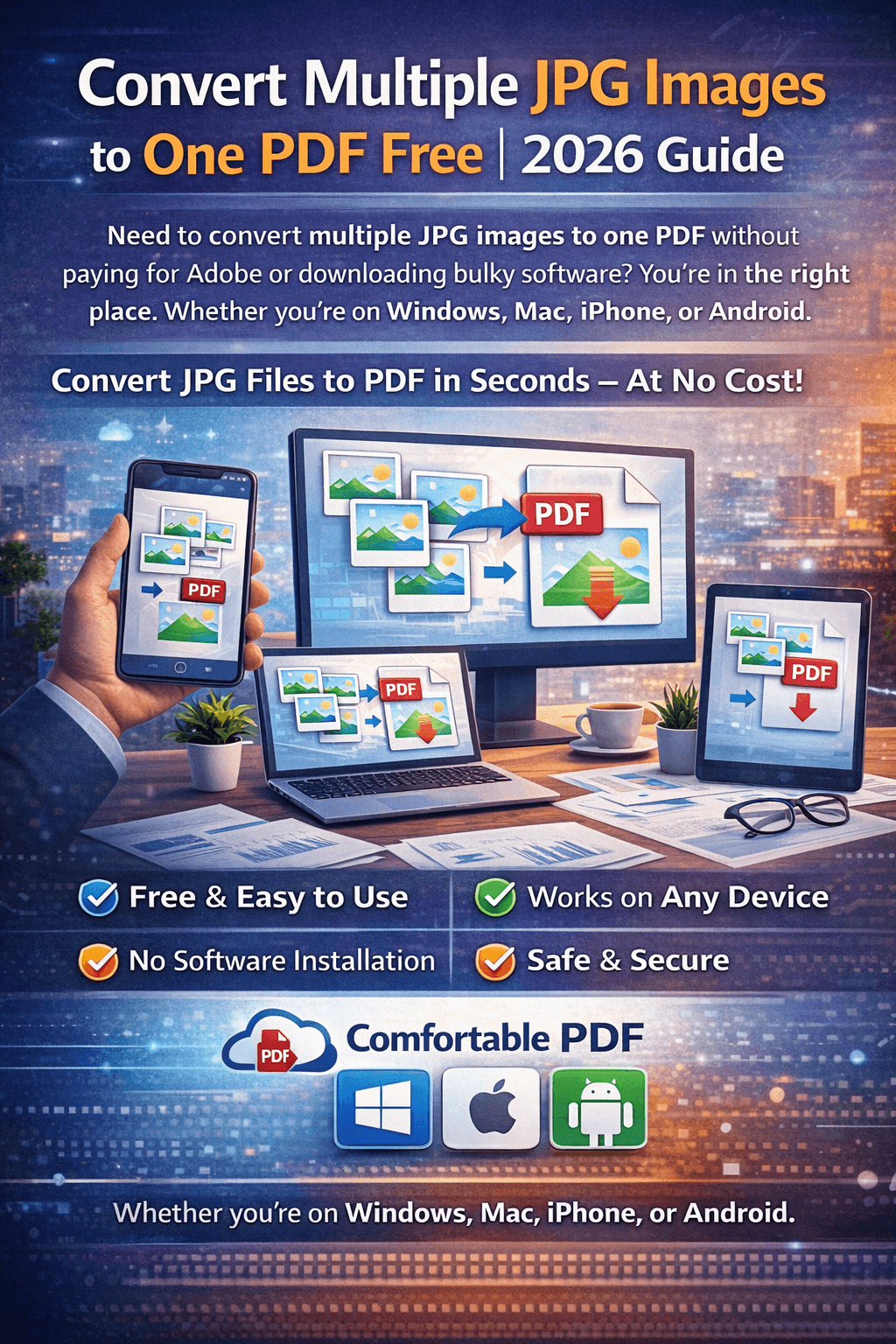
Need to convert multiple JPG images to one PDF without paying for Adobe or downloading bulky software? You're in the right place. Whether you're on Windows, Mac, iPhone, or Android — this step-by-step 2026 guide shows you the fastest, easiest ways to combine JPG files into a single PDF, completely free.
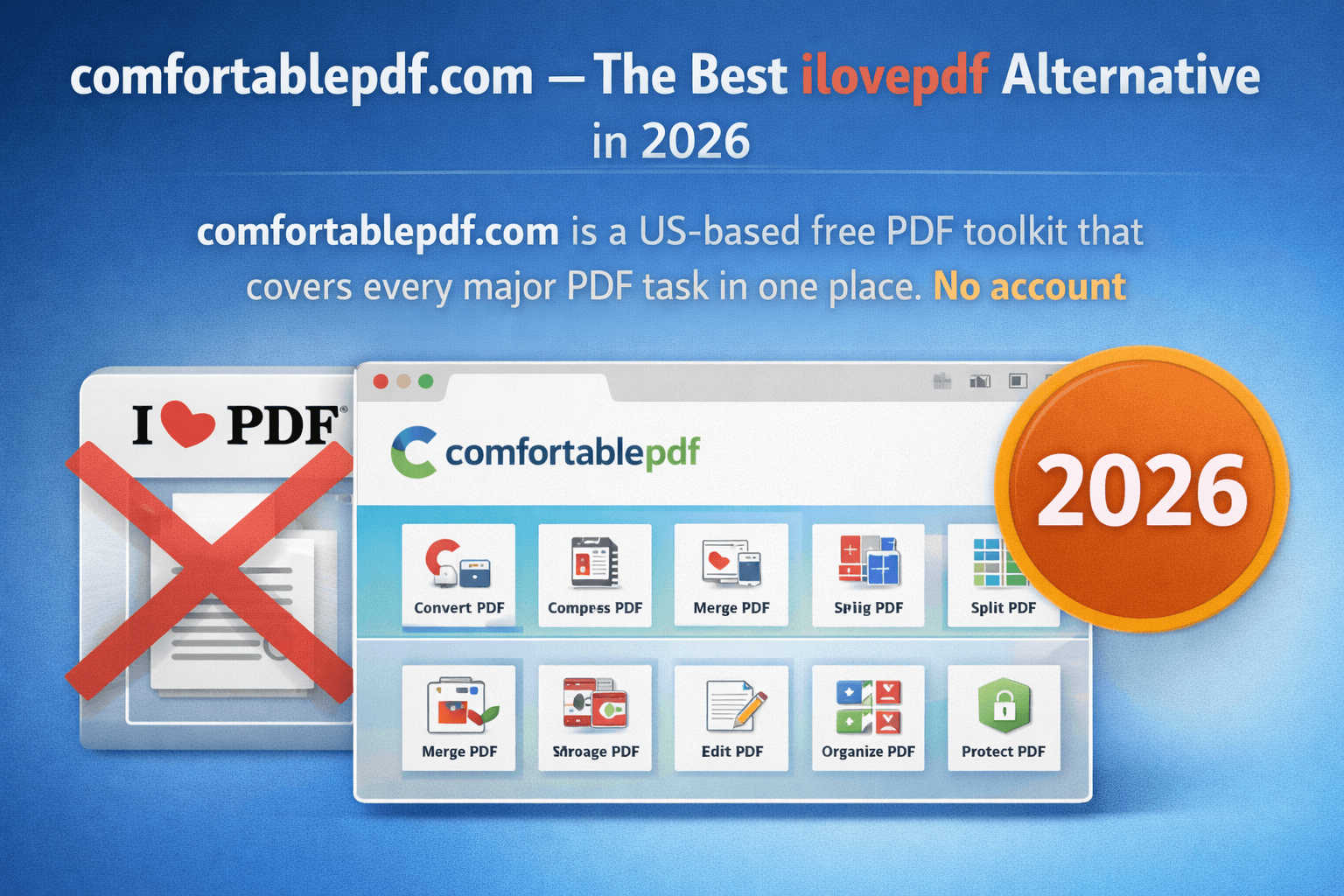
Sending a stack of photos separately is messy. Uploading dozens of JPGs to an email or form is frustrating. Combining them into one professional PDF is the smarter move — and ComfortablePDF's JPG to PDF tool makes it instant, free, and requires zero signup.
Why Combine Multiple JPG Images Into One PDF?
Before we jump into the how-to, here's why this matters:
• Easier sharing: One PDF instead of 20 separate image files
• Better organization: Combine scanned documents, receipts, or photos into a single file
• Universal compatibility: PDFs open on every device — no image viewer needed
• Professional presentation: Submit portfolios, reports, or applications cleanly
• Smaller footprint: Often results in a more compressed, manageable file
Method 1: Convert Multiple JPG to One PDF Free Online (All Devices)
The easiest, fastest, and most universal method — works on Windows, Mac, iPhone, Android, and any browser. No download, no signup, no watermark.
Step-by-Step: Using ComfortablePDF JPG to PDF Tool
1. Go to: comfortablepdf.com/jpg-to-pdf
Click "Upload JPG Files" and select all the images you want to combine
Drag and drop to reorder them however you like
Click "Convert to PDF"
Download your merged PDF — done in seconds
✓ Free ✓ No signup ✓ No watermark ✓ Works on all devices
You can also batch-convert and then merge PDFs if you've already converted individual JPGs and now need to combine them into one document.
Method 2: How to Convert JPG to PDF on Windows (Free)
Best for: Windows 10 and Windows 11 users who prefer working offline
Option A: Print to PDF (Built-in, No Software Needed)
Windows has a free built-in "Microsoft Print to PDF" feature:
2. Open your first JPG in the Photos app or File Explorer
Press Ctrl + P to open Print dialog
3. Select "Microsoft Print to PDF" as the printer
Click Print and save the PDF
Limitation: This only works for one image at a time. To combine multiple JPGs into one PDF this way, you'd need to use a tool like ComfortablePDF instead.
Option B: How to Convert JPG to PDF on Windows 10 & 11 Online
For combining multiple JPG files on Windows, the online method is still the cleanest option:
4. Open your browser and visit comfortablepdf.com/jpg-to-pdf
Upload all your JPG files at once
Rearrange pages as needed
Convert and download your PDF
Method 3: How to Convert JPG to PDF on MacBook Air & Mac
Best for: macOS users — works on MacBook Air, MacBook Pro, iMac, and Mac Mini
Option A: Using Preview (Built-in Mac App)
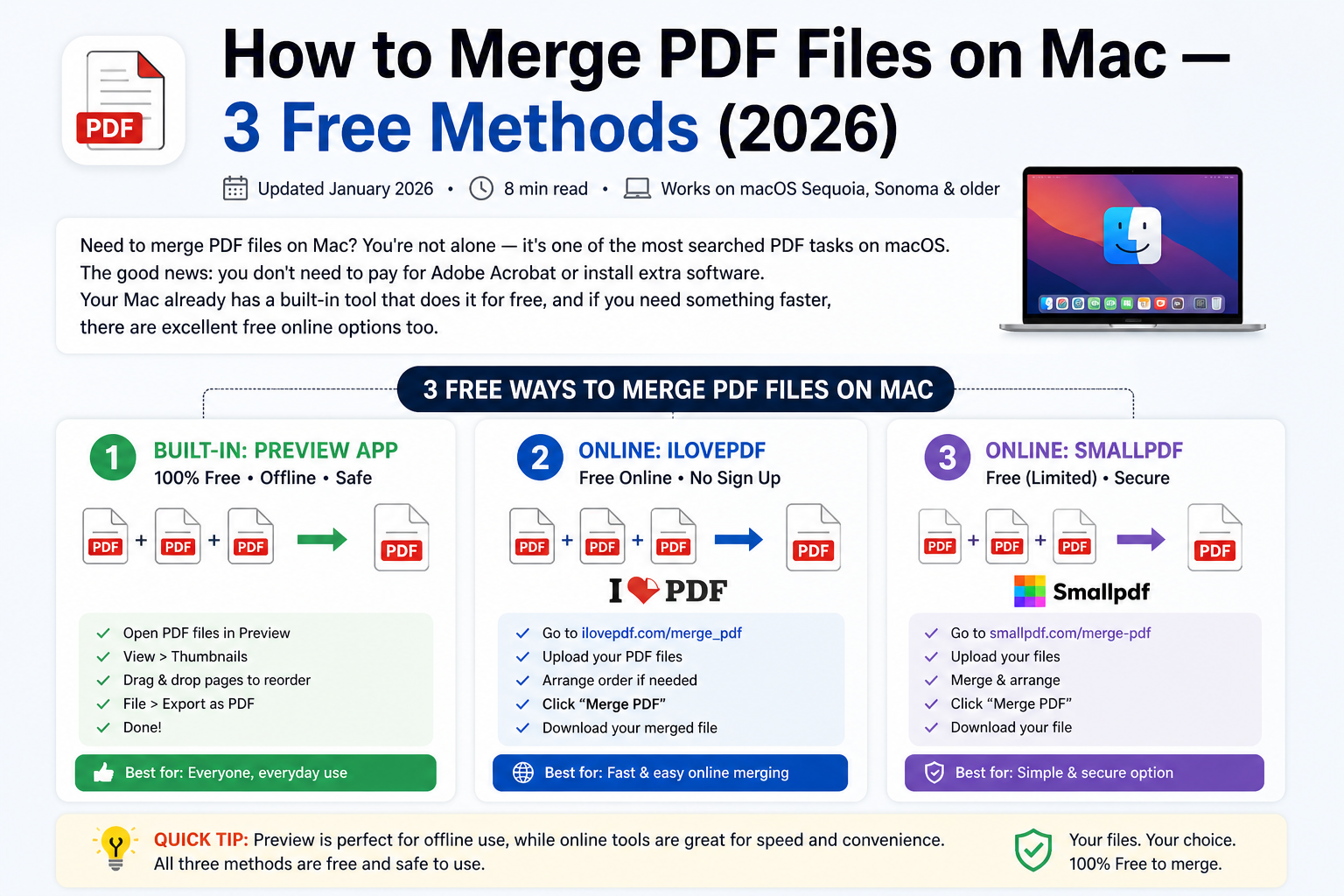
Mac's Preview app can combine images into a PDF natively:
Select all your JPG files in Finder
5. Right-click → Open With → Preview
All images open as a sidebar in Preview
6. Go to File → Export as PDF
Name your file and save
Tip: You can reorder images in the Preview sidebar before exporting. Drag thumbnails up or down to set the page order.
Option B: Convert JPG to PDF on MacBook Air via Browser
If Preview doesn't give you the control you need, or if you're on a shared Mac without full permissions, use ComfortablePDF on your MacBook — no installation required, works instantly in Safari or Chrome.
Method 4: How to Change JPG to PDF on iPhone (Free)
Best for: iOS users on iPhone or iPad — no app download needed
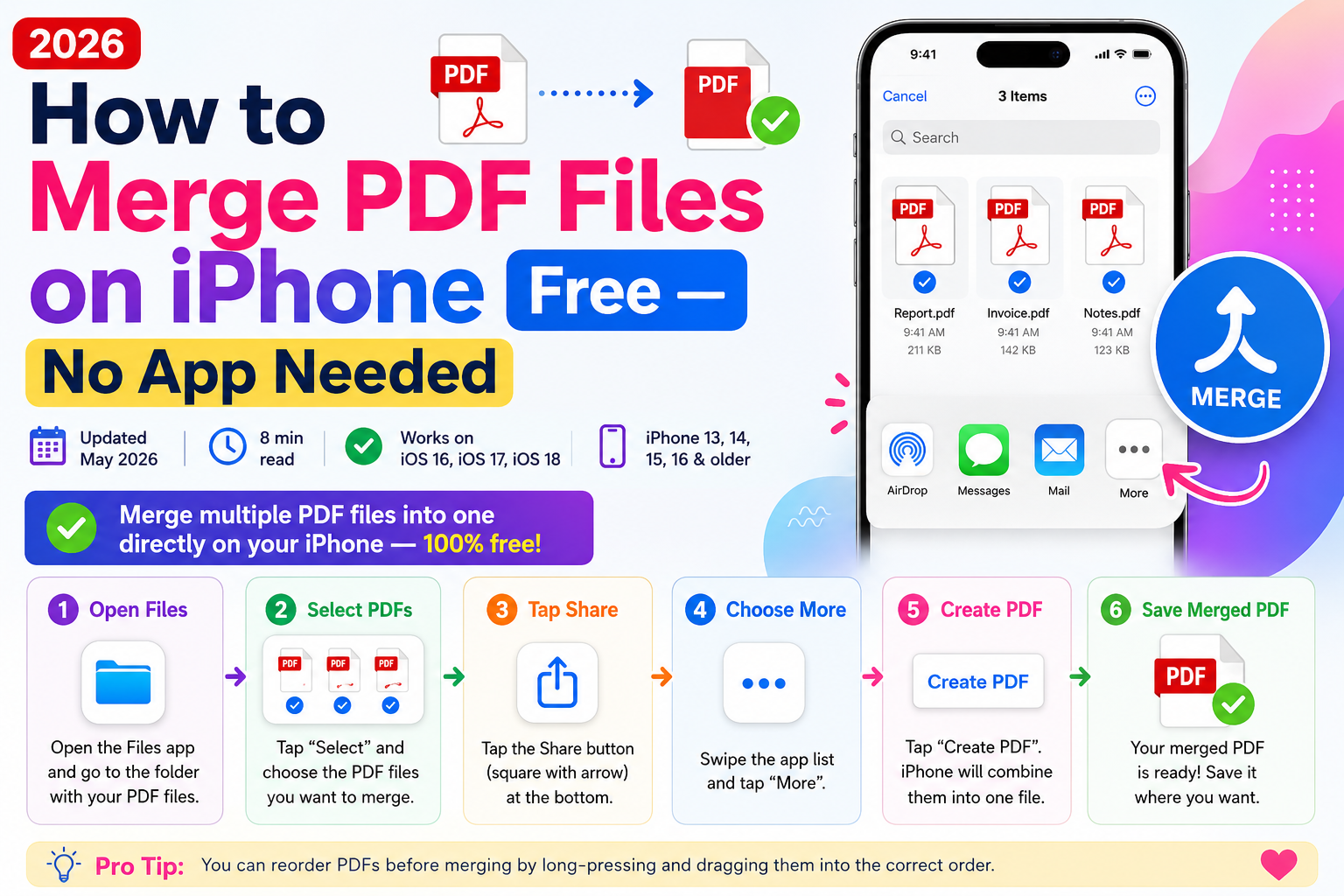
Option A: Use the Files App (Quick Method)
Open the Photos app and select the JPG images you want
7. Tap the Share button → "Print" (don't tap Print yet)
Pinch out on the preview thumbnail to create a PDF
Tap the Share icon and save to Files as PDF
Note: This method only works for one photo at a time. For combining multiple JPGs on iPhone, use the online method below.
Option B: Convert Multiple JPGs to One PDF on iPhone Online
Open Safari or Chrome on your iPhone
8. Go to comfortablepdf.com/jpg-to-pdf
Tap "Upload" and select photos from your camera roll
Reorder images if needed, then convert
Download the PDF to your iPhone
Method 5: How to Convert JPG to PDF on Android (Free)
Best for: Android phone and tablet users
Android doesn't have a native multi-image to PDF export built into stock apps like iOS does. The easiest free method on Android is to use a browser-based tool:
9. Open Chrome on your Android device and go to comfortablepdf.com/jpg-to-pdf
Tap Upload → select multiple photos from Gallery
Drag to arrange page order
Tap Convert and download
No app installation needed. Works on Samsung, Pixel, OnePlus, and virtually every Android device.
How to Put Multiple JPG Files Into One PDF — Platform Comparison
Quick Reference Table:
Windows 10/11: Use browser → ComfortablePDF (fastest) or Print to PDF (single image only)
MacBook Air / Mac: Use Preview app (offline) or ComfortablePDF browser tool
iPhone / iPad: ComfortablePDF in Safari — batch upload from camera roll
Android: ComfortablePDF in Chrome — works on all brands
Does Converting JPG to PDF Reduce Quality?
This is one of the most common questions people ask. The short answer: it depends on the tool you use.
• Low-quality tools compress your images aggressively, visibly reducing quality
• ComfortablePDF preserves your original JPG quality — what you upload is what you get in the PDF
• File size will increase slightly because PDFs include additional structure data, but image quality stays intact
If file size after conversion is a concern, you can always compress your PDF afterward to reduce it without major quality loss.
What About JPG to PDF on Reddit? What Are People Saying?
Reddit threads about "jpg to pdf" and "pdf to jpg" commonly recommend browser-based tools that don't require software installs. The most-cited reasons: no account needed, no ads, no watermark. That's exactly what ComfortablePDF was built for — a clean, no-nonsense JPG to PDF experience.
Related PDF Tools You Might Need
Once your JPG files are combined into a PDF, here are other free tools on ComfortablePDF that come in handy:
• Merge PDF – Combine multiple PDFs into one
• Compress PDF – Reduce PDF file size
• PDF to JPG – Convert PDF pages back to images
• Split PDF – Break a PDF into separate pages
• PNG to PDF – Same process for PNG images
• Rotate PDF – Fix page orientation after conversion
Frequently Asked Questions
How do I combine multiple JPG images into one PDF for free?
Go to comfortablepdf.com/jpg-to-pdf, upload your JPG files, arrange the order, click Convert, and download. No signup or payment needed.
How to convert JPG to PDF on Windows without software?
Open your browser, go to ComfortablePDF's JPG to PDF tool, upload your files, and download the result. Works on Windows 10 and Windows 11 without any downloads.
How to convert JPG to PDF on MacBook Air?
Use the Preview app (open multiple JPGs in Preview, then File → Export as PDF) or visit ComfortablePDF in your browser for the multi-image batch option.
How to change JPG to PDF on iPhone?
Open Safari, visit ComfortablePDF's JPG to PDF tool, select photos from your camera roll, and download the finished PDF.
How to convert JPG to PDF on Android?
Open Chrome, visit ComfortablePDF, upload your photos from the Gallery, arrange them, and convert. No app install required.
Does converting to PDF reduce JPG quality?
With ComfortablePDF, no — your original JPG quality is preserved in the output PDF. Some low-quality tools do compress images, so always check the output.
Final Thoughts
Converting multiple JPG images to one PDF doesn't have to be complicated or expensive. Whether you're on Windows, Mac, iPhone, or Android — the fastest free method in 2026 is a simple browser visit.
Try the free JPG to PDF tool at ComfortablePDF →
No account. No watermark. No nonsense. Just drag, drop, and download your PDF in seconds.