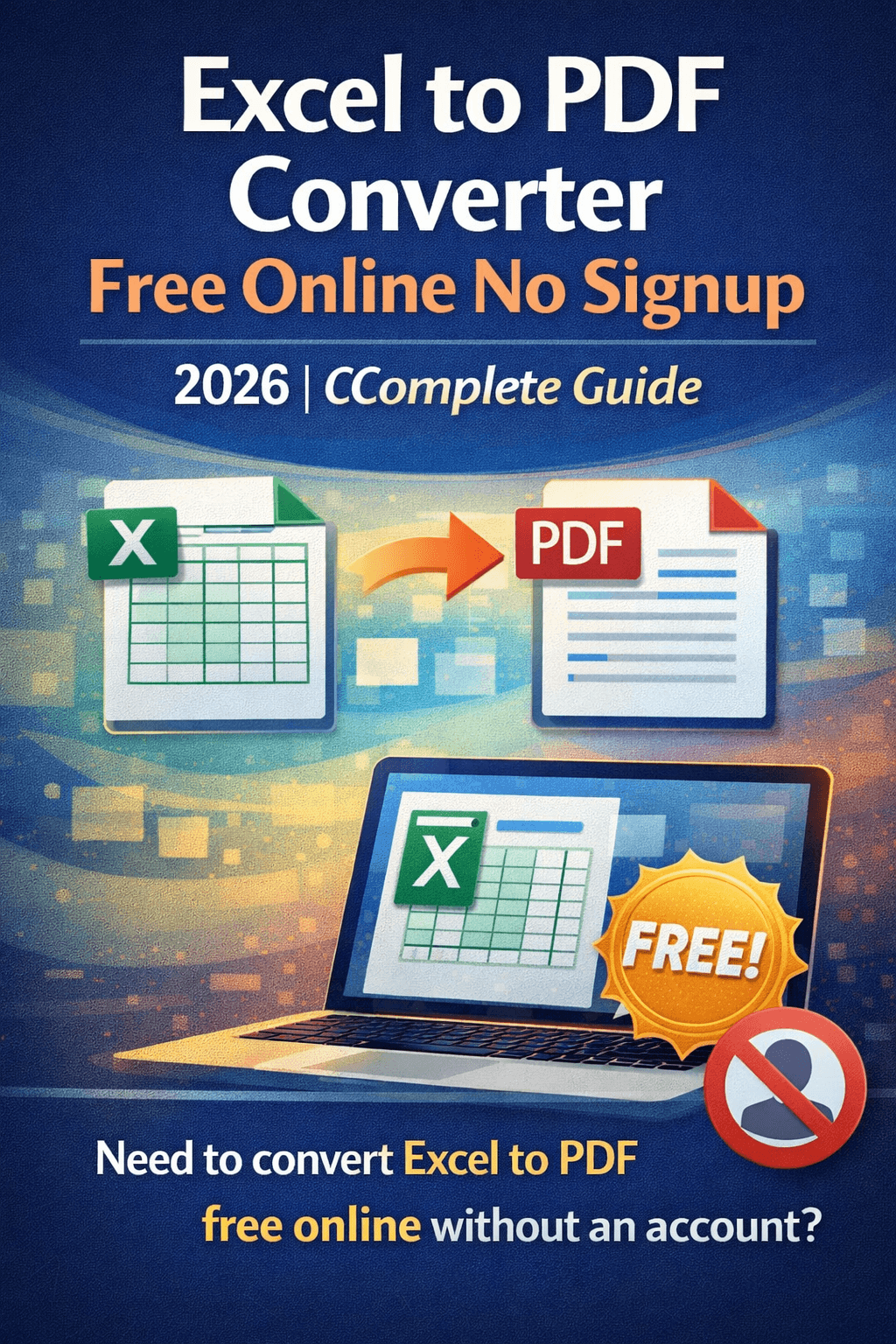
Excel to PDF Converter Free Online No Signup | 2026 Complete Guide
Need to convert Excel to PDF free online without an account? This 2026 guide covers every scenario — saving a single sheet, an entire workbook, fitting to one page, fixing cut-off columns, mail merging from Excel data, attaching PDFs to spreadsheets, and extracting tables back from PDF to Excel. All completely free, no signup needed.
Fastest free method: ComfortablePDF's free Excel to PDF tool — upload .xlsx, convert instantly, download. No watermark. No account.
Why Convert Excel to PDF?
Excel spreadsheets are powerful for data — but PDFs are better for sharing, submitting, and archiving. Here's when you need the conversion:
• Financial reports: Share budgets, P&L statements, or forecasts that recipients can view but not edit
• Invoices and quotes: Lock in figures so numbers can't be accidentally changed by recipients
• Government submissions: Many portals and agencies require PDF format for uploads
• Consistent printing: PDFs have predictable page layouts — Excel's print output can shift unpredictably
• Mail merge output: Generate personalized PDF documents for each row of Excel data
• Long-term archiving: PDFs are self-contained, universally readable, and don't require Excel to open
Method 1: Convert Excel to PDF Free Online — No Signup (Best Method)
Works on: Windows 10, Windows 11, Mac, MacBook Air, iPhone, Android — any browser
Windows and Mac users without Microsoft Excel, and anyone who wants a clean result without account creation, should use the browser-based method.
Step-by-Step: Excel to PDF Free No Signup
1. Go to comfortablepdf.com/excel-to-pdf
2. Click "Upload Excel File" — select your .xls or .xlsx
3. Conversion processes automatically in a few seconds
4. Click "Download PDF" — file saves to your Downloads folder
✓ Free ✓ No signup ✓ No watermark ✓ Preserves formatting ✓ All devices
After downloading, compress the PDF to reduce size before emailing, or merge it with other documents.
Method 2: Save Excel as PDF Using Microsoft Excel (Built-In)
Best for: Users with Microsoft Excel installed on Windows or Mac
How to Save Excel as PDF on Windows
Method A — Save As (simplest):
5. Open your Excel file
6. Go to File → Save As
7. Change file type to PDF (*.pdf)
8. Choose Active Sheet or Entire Workbook, then click Save
Method B — Export (recommended for formatting control):
9. Go to File → Export → Create PDF/XPS
10. In "Publish what", choose Active Sheet, Entire Workbook, or Selection
11. Click Publish
Tip: Use File → Export over Print to PDF — it handles column widths, page scaling, and charts more reliably.
How to Save Excel as PDF on Mac
Target keyword: how to save excel as pdf on mac — KD 19, 70 monthly searches
12. Open your spreadsheet in Excel for Mac
13. Go to File → Save As → set Format to PDF
14. Click Save
Via Print dialog:
15. Press Cmd+P → click the PDF dropdown → Save as PDF
No Excel on Mac? Use Apple Numbers (free): File → Export To → PDF. Or use ComfortablePDF in Safari — no install needed.
How to Save Multiple Excel Sheets as One PDF
Target keyword: how to save multiple excel sheets as one pdf — KD 8, 70 monthly searches
Need all your workbook tabs in one combined PDF instead of separate files?
Method A: Export Entire Workbook (Easiest)
16. Go to File → Export → Create PDF/XPS
17. Set "Publish what" to "Entire Workbook"
18. Click Publish
Result: Every sheet becomes consecutive pages in one PDF.
Method B: Select All Sheets Before Printing
19. Right-click any sheet tab → Select All Sheets
20. Press Ctrl+P → Microsoft Print to PDF → Print
Method C: Convert Individually Then Merge
21. Convert each sheet with comfortablepdf.com/excel-to-pdf
22. Merge all results: comfortablepdf.com/merge-pdf
23. Drag to arrange order and download
How to Save Excel as PDF on One Page (Fit to Page)
Target keywords: how to save excel as pdf on one page (KD 17, 40 vol), how to save excel sheet as pdf in one page (KD 6, 40 vol)
Large spreadsheets split across multiple pages by default. To force everything onto one page:
Scale to Fit Method (Best Control)
24. Go to Page Layout tab → Scale to Fit group
25. Set Width: 1 page and Height: 1 page
26. Export: File → Export → Create PDF/XPS
Via Print Preview
27. Press Ctrl+P (Windows) or Cmd+P (Mac)
28. Find "No Scaling" at the bottom → change to "Fit Sheet on One Page"
29. Print to Microsoft Print to PDF
Warning: Fitting a large spreadsheet on one page shrinks text significantly. Always check Print Preview first to confirm readability.
How to Convert Excel to PDF Without Losing Formatting
Target keyword: how to convert excel to pdf without losing formatting — KD 26, 110 vol
Problem: Columns Cut Off at Page Edge
• Fix: Page Layout → Print Area → Set Print Area to only the data range you need
• Fix: View → Page Break Preview — drag breaks to adjust where pages split
• Fix: Page Layout → Orientation → Landscape for wide sheets
Problem: Data Cuts Off on the Right Side
Target keyword: how to save excel sheet as pdf without cutting off — KD 20, 110 vol
• Fix: Page Layout → Scale to Fit → Width: 1 page (keeps all columns on every page)
• Fix: Page Setup → Margins → reduce Left and Right margins to allow more column space
• Fix: Reduce column widths — select all (Ctrl+A) → right-click → Column Width → reduce
Problem: Gridlines Missing in PDF
• Fix: Page Layout → Sheet Options → check "Print" under Gridlines
Problem: Charts or Images Are Blurry
• Fix: Use File → Export rather than Print to PDF — Export preserves chart quality
Convert to Landscape PDF
Target keyword: how to convert excel to pdf landscape — KD 20, 50 vol
30. Page Layout → Orientation → Landscape
31. Set Scale to Fit → Width: 1 page if needed
32. Export to PDF
How to Mail Merge from Excel to PDF
Target keywords: mail merge excel to pdf (KD 11, 70 vol), mail merge from excel to pdf (KD 6, 70 vol)
Mail merging from Excel to PDF generates personalized PDFs for each row of data — invoices, certificates, offer letters, reports, and more.
Free Method: Word Mail Merge → Print to PDF
What you need: Microsoft Word + your Excel data file + Microsoft Print to PDF (free, built into Windows)
33. Set up Excel data — one row per recipient, column headers matching your merge fields
34. Create a Word template with merge fields where personalized data should appear
35. In Word: Mailings → Start Mail Merge → Letters
36. Connect data: Mailings → Select Recipients → Use an Existing List → browse to your .xlsx file
37. Insert merge fields: Mailings → Insert Merge Field
38. Preview: Mailings → Preview Results
39. Finish: Mailings → Finish & Merge → Print Documents
40. In the Print dialog: select Microsoft Print to PDF — all records produce one multi-page PDF
To get individual PDFs per row: Choose "Edit Individual Documents" to get one Word file with all records. Then convert to PDF and split each page into its own file.
How to Attach or Insert a PDF into an Excel Spreadsheet
Target keywords: how to attach a pdf to an excel spreadsheet (KD 19, 110 vol), how to insert pdf in excel sheet (KD 19, 90 vol), can you attach a pdf to an excel spreadsheet (KD 18, 50 vol)
You can embed a PDF directly inside an Excel workbook as an object that recipients can open from the file.
Embed PDF as Object in Excel
41. Open your Excel workbook and click a cell
42. Go to Insert → Object (in the Text group on the ribbon)
43. Select the "Create from File" tab
44. Click Browse and select your PDF file
45. Check "Display as icon" to show it as a clickable PDF icon
46. Click OK
Note: Embedding increases the Excel file size. For large PDFs, use a hyperlink instead.
Insert PDF as Hyperlink in Excel
47. Click the cell where you want the link
48. Press Ctrl+K (Windows) or Cmd+K (Mac)
49. Browse to the PDF file or paste a URL to an online PDF
50. Click OK
How to Extract Table Data from PDF to Excel
Target keyword: extract table data from pdf to excel — KD 15, 70 monthly searches
The reverse direction: you have a PDF with tables and need that data in Excel for analysis.
Method 1: PDF to Excel Converter (Best for Tables)
51. Go to comfortablepdf.com/pdf-to-excel
52. Upload your PDF — the tool detects table structure automatically
53. Download the converted .xlsx file and open in Excel
Best for: PDFs originally created from Excel or structured data. For scanned PDFs, run OCR first to make text selectable.
Method 2: Copy and Paste from PDF to Excel
Target keyword: how to copy and paste from pdf to excel — KD 19, 110 vol
54. Open the PDF in Chrome, Edge, or Adobe Reader
55. Select the table data by clicking and dragging
56. Press Ctrl+C to copy
57. Open Excel and press Ctrl+V to paste
58. Use Data → Text to Columns if everything pastes into one column
Convert PDF to Excel Using Bluebeam
Target keywords: bluebeam convert pdf to excel (KD 2!), convert pdf to excel bluebeam (KD 6)
59. Open the PDF in Bluebeam Revu
60. Go to File → Export → Excel (.xlsx)
61. Configure export settings and save
No Bluebeam? Use ComfortablePDF's free PDF to Excel tool — same result, zero cost.
How to Convert Excel to a Fillable PDF
Have an Excel form you want recipients to fill in digitally? Convert it to a fillable PDF:
62. Convert Excel to PDF: comfortablepdf.com/excel-to-pdf
63. Open in ComfortablePDF's Fillable PDF tool
64. Add form fields — text boxes, checkboxes, dropdowns, signature boxes over relevant cells
65. Download your fillable PDF
Common uses: expense reports, order forms, surveys, applications — any Excel template turned into an interactive digital form.
After Converting Excel to PDF — What to Do Next
• Compress: Compress PDF — Excel PDFs with charts can be large; compress before emailing
• Merge: Merge PDF — combine with Word or PowerPoint documents into one package
• Protect: Protect PDF — add a password before sharing sensitive financial data
• Watermark: Watermark PDF — add CONFIDENTIAL or DRAFT stamp
• Sign: Sign PDF — add electronic signature to approval documents
• Split: Split PDF — extract specific pages or sections after merging
• Organize: Organize PDF — reorder sheets, delete blanks, rotate landscape pages
Platform Quick Reference
Windows 10 / 11:
• Microsoft Excel: File → Save As → PDF (best quality)
• File → Export → Create PDF/XPS (recommended)
• No Excel: ComfortablePDF in Chrome or Edge
Mac (all models, all macOS versions):
• Excel for Mac: File → Save As → PDF or Cmd+P → Save as PDF
• Apple Numbers (free): File → Export To → PDF
• No software: ComfortablePDF in Safari
iPhone / iPad:
• Excel mobile app: ... → Export → Export as PDF
• No app: ComfortablePDF in Safari
Android:
• Best free method: ComfortablePDF in Chrome
All Free PDF Tools at ComfortablePDF
• Excel to PDF – Convert .xlsx to PDF free, no signup
• PDF to Excel – Extract tables from PDF to .xlsx
• Word to PDF – Convert Word documents to PDF
• Fillable PDF – Add form fields to any PDF
• Merge PDF – Combine multiple PDFs into one
• Compress PDF – Reduce PDF file size
• Split PDF – Extract pages or sections
• Protect PDF – Password protect documents
• Watermark PDF – Add text or logo watermarks
• OCR PDF – Make scanned PDFs searchable before extracting to Excel
Frequently Asked Questions
How do I convert Excel to PDF free without signing up?
Go to comfortablepdf.com/excel-to-pdf, upload your .xlsx, and download. No account, no watermark, completely free.
How do I save an Excel file as a PDF?
In Microsoft Excel: File → Save As → PDF. Or File → Export → Create PDF/XPS → Publish.
How do I save Excel as PDF on Mac?
Excel for Mac: File → Save As → PDF format. Or Cmd+P → PDF dropdown → Save as PDF. No Excel? Use ComfortablePDF in Safari.
How do I save multiple Excel sheets as one PDF?
File → Export → Create PDF/XPS → set "Publish what" to Entire Workbook. Or right-click a sheet tab → Select All Sheets → Ctrl+P → Microsoft Print to PDF.
How do I save an Excel sheet on one page as a PDF?
Page Layout → Scale to Fit → Width: 1 page, Height: 1 page. Then File → Export → Create PDF/XPS. Or use ComfortablePDF's Excel to PDF tool which auto-fits pages.
How do I convert Excel to PDF without losing formatting?
Use File → Export rather than Print to PDF. Set Print Area, check Page Break Preview, use Landscape for wide sheets, and reduce margins if columns cut off.
How do I save Excel as PDF without columns cutting off?
Page Layout → Orientation → Landscape, then Scale to Fit → Width: 1 page. Check Print Preview to confirm all columns fit before converting.
How do I mail merge from Excel to PDF?
Create a Word template, connect your Excel file as the mail merge data source, complete the merge, and print to Microsoft Print to PDF. For individual files per row, use Split PDF after converting.
How do I attach a PDF to an Excel spreadsheet?
Insert → Object → Create from File → Browse to PDF → check "Display as icon" → OK. Or use Ctrl+K to insert a hyperlink to the PDF file instead.
How do I extract table data from a PDF to Excel?
Use ComfortablePDF's PDF to Excel tool — it detects table structure and exports to .xlsx. For scanned PDFs, run OCR first.
How do I convert PDF to Excel using Bluebeam?
Bluebeam Revu: File → Export → Excel (.xlsx). No Bluebeam? Use ComfortablePDF's free PDF to Excel tool.
Final Thoughts
Converting Excel to PDF in 2026 is instant, free, and requires no account — whether you need a single sheet, a full workbook, a one-page fit, a landscape layout, a mail merged batch of personalized PDFs, or tables extracted back from PDF to Excel. Every scenario in this guide is solved with free tools.
For the cleanest, fastest conversion on any device — ComfortablePDF's free Excel to PDF converter handles it in seconds with no watermark, no account, and reliable formatting.
→ Convert Excel to PDF Free Now — No Signup, No Watermark
Upload your .xlsx. Get your PDF. Done in seconds.