How to Protect a PDF with Password Free Online | 2026 Complete Guide
Need to password protect a PDF for free — without paying for Adobe Acrobat? Or maybe you have a password-protected PDF you need to open, edit, or print? Either way, you're in the right place.
This 2026 guide covers everything: how to add a password to a PDF, how to remove password protection from a PDF, how to do it on Mac, Windows, iPhone, and Android, and how to handle locked PDFs you need to edit or print — all for free.
Why Password Protect a PDF?
Encrypting a PDF with a password is one of the simplest ways to control who can open, view, edit, or print your document. Common use cases include:
• Legal documents: Contracts, agreements, and NDAs sent by email
• Financial records: Tax returns, bank statements, invoices
• Medical files: Health records, insurance forms, lab results
• HR documents: Offer letters, payroll info, performance reviews
• Academic work: Research papers, transcripts, certificates
PDF password protection uses AES-256 encryption — the same standard used by banks and governments. A properly protected PDF cannot be opened without the correct password.
How to Password Protect a PDF Free Online
The fastest way to add a password to a PDF in 2026 — works on any device, any browser, no download or signup required.
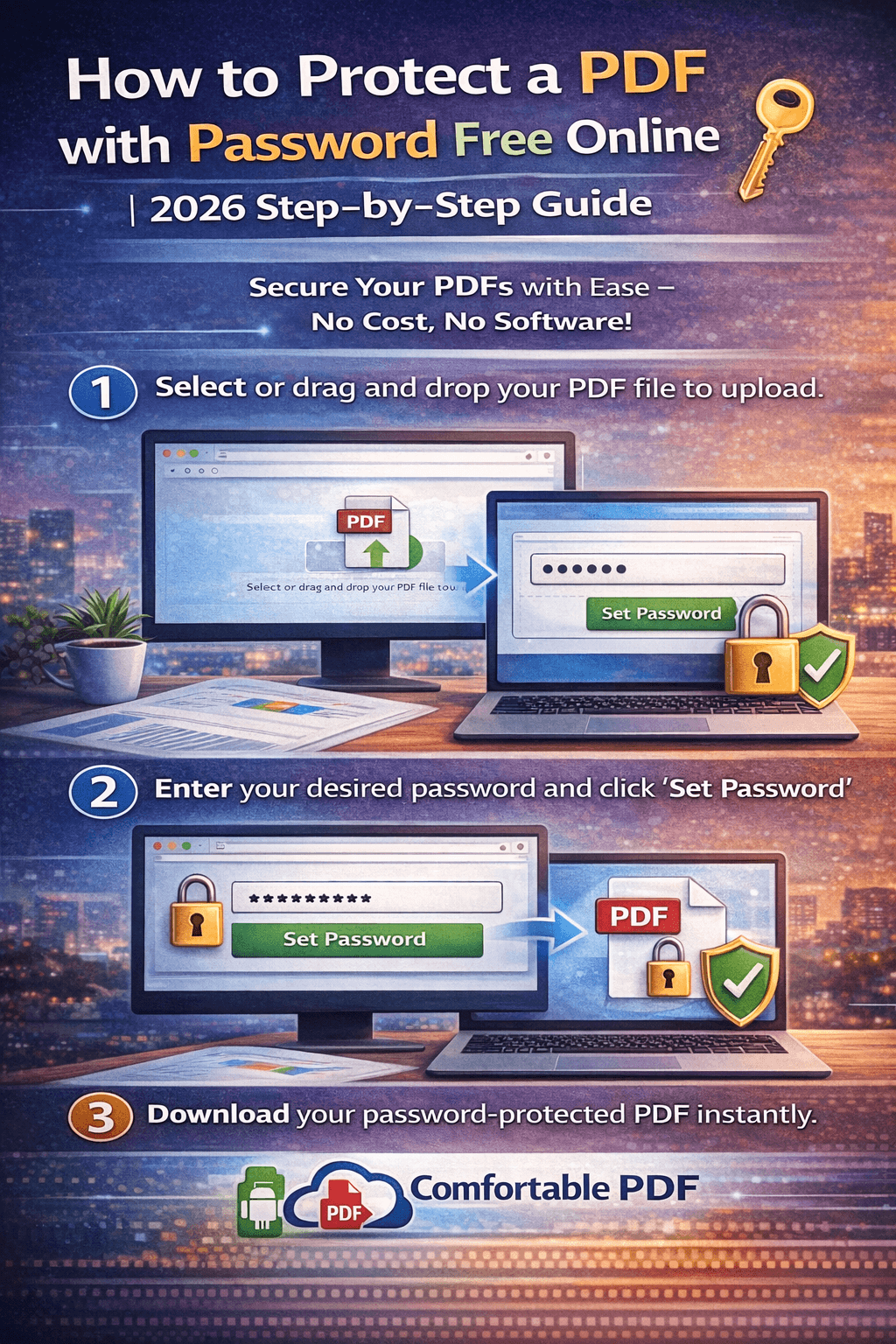
Step-by-Step: Using ComfortablePDF Protect PDF Tool
1. Go to comfortablepdf.com/protect-pdf
2. Click "Upload PDF" and select your file
3. Type your password in the password field (use a strong, memorable password)
4. Click "Protect PDF"
5. Download your password-protected PDF
✓ Free ✓ No signup ✓ No watermark ✓ AES encryption ✓ Works on all devices
Your file is encrypted immediately and deleted from the server after processing. If you also need to compress the PDF before protecting it, do that first — you can't easily reduce file size after encryption.
How to Password Protect a PDF on Mac (Free)
Best for: MacBook Air, MacBook Pro, iMac, Mac Mini users — macOS built-in method
Option A: Use Preview (Built-In — No Download Needed)
Mac's Preview app can password-protect PDFs natively:
6. Open your PDF in Preview
7. Go to File → Export as PDF
8. Click the "Security Options" button
9. Check "Require password to open document"
10. Enter and verify your password
11. Click OK, then Save
Also available in Preview: You can restrict printing and copying separately from the open password — useful when you want someone to read but not edit or print the document.
Option B: Password Protect PDF on Mac via Browser
If you need more control, or you're on a shared Mac without full permissions, visit comfortablepdf.com/protect-pdf in Safari or Chrome. Upload, set your password, download — done in under 30 seconds.
macOS versions supported: Preview's PDF password protection works on macOS Ventura, Sonoma, and Sequoia (macOS 13, 14, 15). The online tool works on any macOS version with a browser.
How to Remove Password Protection from a PDF (Free)
Removing a password from a PDF is just as easy as adding one — as long as you know the current password. Here's how:
Method 1: Remove PDF Password Online (Fastest)
12. Go to comfortablepdf.com/unlock-pdf
13. Upload your password-protected PDF
14. Enter the current password when prompted
15. Click "Unlock PDF"
16. Download the unprotected version — no password required to open
Method 2: Remove PDF Password on Mac (Preview)
17. Open the PDF in Preview and enter the password to access it
18. Go to File → Export as PDF
19. Click "Security Options"
20. Uncheck "Require password to open document"
21. Click OK and save the file
Result: The saved file will open without a password from now on.
Method 3: Print to PDF (Remove Password via Printing)
If you're on Windows or Mac and can open the PDF (you know the password):
22. Open the PDF and enter the password
23. Press Ctrl+P (Windows) or Cmd+P (Mac)
24. Select "Microsoft Print to PDF" (Windows) or "Save as PDF" (Mac)
25. Save — the output PDF has no password
Important: All these methods only work if you know the current password. If the PDF is truly locked and you've lost the password, see the section below.
How to Open a Password Protected PDF Without the Password
This is one of the most searched questions — and the honest answer requires some context. If you legitimately own the document and lost the password, there are some options:
• Check your password manager: If you set the password, it may be saved in Chrome, Safari, 1Password, or Bitwarden
• Contact the sender: If someone sent you a locked PDF (like USCIS forms, parchment transcripts, or bank statements), contact them for the password — many have standard passwords like the last 4 digits of your SSN or date of birth
• Try common patterns: Many institutional PDFs use predictable passwords — your DOB (DDMMYYYY), last name, account number, or a combination
• PDF password recovery tools: Dedicated tools like Passware or PDF Password Remover attempt to crack simple passwords using brute force — these are paid tools and only practical for short or simple passwords
Note on USCIS PDFs: USCIS password-protected PDFs typically use your 9-digit case number or date of birth as the password. Check your official USCIS notice for the correct format.
Note on Parchment transcripts: Parchment-issued PDFs are typically locked for security and can only be shared through official Parchment links. The PDF itself may not be unlockable — use the official Parchment share link instead.
How to Edit a Password Protected PDF
To edit a password-protected PDF, you first need to remove the password protection (assuming you know it), then make your edits.
Step 1: Unlock the PDF
Use the Unlock PDF tool to remove the password. Enter the current password, download the unlocked file.
Step 2: Edit the PDF Content
Convert the unlocked PDF to Word using the PDF to Word tool, make your changes in Word, then convert back to PDF. This is the most reliable way to edit PDF content freely.
Step 3: Re-Protect If Needed
Once your edits are done, re-apply password protection using the Protect PDF tool before sending or sharing.
How to Print a Password Protected PDF
To print a password-protected PDF, you simply need to open it (enter the password), then print normally. However, some PDFs have print restrictions separate from the open password — these require removing the security layer first.
If You Know the Password:
26. Open the PDF and enter the password
27. Press Ctrl+P (Windows) or Cmd+P (Mac)
28. Select your printer and print
If Printing is Restricted (You Can Open But Not Print):
29. Unlock the PDF using comfortablepdf.com/unlock-pdf
30. Enter the open password
31. Download the unlocked version
32. Print normally from the unlocked file
How to Send a Password Protected PDF Safely
Sending a password-protected PDF is a two-step process — sending the file and the password separately:
• Step 1: Protect the PDF with a strong password using ComfortablePDF's Protect tool
• Step 2: Email or share the protected PDF file
• Step 3: Send the password through a different channel — text message, phone call, or a separate email — never in the same message as the PDF
Pro tip: Use a password the recipient will recognize — like the last 4 digits of an account number or a shared phrase — so you don't need to send it at all.
How to Password Protect a PDF Without Adobe Acrobat
Adobe Acrobat Pro costs $19.99/month — far too much just to add a password to a PDF. Here are completely free alternatives:
• ComfortablePDF Protect PDF — Free, online, no signup, AES encryption
• Preview on Mac — Built-in, free, works offline
• LibreOffice (Windows/Mac/Linux) — Free desktop app, File → Export as PDF → Set password
• Google Chrome — Print to PDF can strip passwords (to remove), but not add them
Bottom line: For adding a password to a PDF without Adobe, ComfortablePDF is the easiest option — browser-based, takes under 30 seconds, works on any device.
How to Protect a PDF from Editing Without a Password
Want to prevent edits without requiring a password to open? This is called "permissions password" or "edit restriction" in PDF terminology.
You can set two separate passwords in most PDF tools:
• Open password: Required to view the document
• Permissions password: Required to change security settings, edit, or print — even if the document opens freely
ComfortablePDF's Protect PDF tool lets you set both. Use an open password if you want to restrict viewing, or just a permissions password if you want the document readable but not editable.
Can You Convert a Password Protected PDF to Word?
Yes — but you need to unlock it first. A locked PDF cannot be converted directly.
33. Use comfortablepdf.com/unlock-pdf to remove the password
34. Then use comfortablepdf.com/pdf-to-word to convert the unlocked PDF to Word
35. Edit in Word and re-save as PDF when done
More Free PDF Tools from ComfortablePDF
• Unlock PDF – Remove password protection
• Compress PDF – Reduce file size before sending
• PDF to Word – Make a locked PDF editable
• Watermark PDF – Add 'Confidential' or 'Draft' watermarks
• Sign PDF – Sign documents electronically
• Merge PDF – Combine multiple PDFs into one before protecting
Frequently Asked Questions
How do I password protect a PDF for free?
Go to comfortablepdf.com/protect-pdf, upload your PDF, enter a password, and download the protected file. No signup or payment needed.
How do I remove password protection from a PDF?
Use the Unlock PDF tool — upload the file, enter the current password, and download the unlocked version.
How to password protect a PDF on a Mac?
Open the PDF in Preview, go to File → Export as PDF → Security Options, check 'Require password to open', enter your password, and save.
How to open a password protected PDF without the password?
If you're the document owner, check your password manager or contact the sender. If it's your own PDF and you've genuinely lost the password, dedicated PDF recovery tools may help — but there's no guaranteed free method.
How to edit a password protected PDF?
Unlock it first with the Unlock PDF tool, then convert to Word using the PDF to Word tool, make your edits, and re-protect if needed.
How to print a password protected PDF?
Open the PDF with the password and print normally. If printing is restricted, unlock the PDF first, then print from the unlocked version.
How to password protect a PDF without Adobe Acrobat?
Use ComfortablePDF's free Protect PDF tool online, or use Preview on Mac — both are completely free and don't require Adobe.
How to send a password protected PDF?
Protect the PDF using ComfortablePDF, email the file, then send the password via a separate channel (text message or phone call) — never in the same email.
Can I sign a password protected PDF?
First unlock the PDF using the Unlock PDF tool, then sign it with the Sign PDF tool, then re-protect with a password.
Final Thoughts
Whether you need to add a password to a PDF, remove protection, edit a locked document, or print a secured file — you don't need Adobe Acrobat or any paid software in 2026.
ComfortablePDF's free tools handle every scenario — protecting, unlocking, editing, converting — all from your browser, on any device.
→ Protect Your PDF with a Password Free Now
No account. No watermark. No cost. Encrypted and downloaded in seconds.