How to Merge PDF Files Free Online in 2026
Dealing with multiple PDF files when you only need one is frustrating. Whether you have scanned pages split across several files, a contract in multiple parts, or a set of reports you need to email together — the problem is the same: you need to merge PDF files into one, and most tools want you to pay, sign up, or sit through ads to do it.
The good news is that in 2026 you can merge PDF files free online in under a minute, from any device, with zero signup. No watermark. No Adobe subscription. This guide walks you through the fastest way to combine PDF documents using ComfortablePDF's free Merge PDF tool — plus tips for getting the best results every time.
Try it now: comfortablepdf.com/merge-pdf — free, no signup required.
What You Need
All you need is a web browser (Chrome, Safari, Firefox, or Edge) and the PDF files you want to combine. No software to install, no account to create, and no credit card required.
How to Merge PDF Files Free Online — Step-by-Step
Follow these five steps to combine any number of PDF files into one document in less than 60 seconds:
1. Open the Merge PDF tool. Go to comfortablepdf.com/merge-pdf in any browser on your phone, tablet, or computer. Works on Windows, Mac, iPhone, Android, and Chromebook — no app download needed.
2. Upload your PDF files. Click 'Select PDF Files' or drag and drop your files into the upload area. You can add two files, five files, or twenty — there is no limit on how many PDFs you can merge at once.
3. Arrange the order. Once uploaded, your files appear as a list. Drag each file up or down to set the exact order they will appear in the final merged PDF. The file at the top becomes page 1.
4. Click Merge PDF. Hit the merge button and the tool will combine all your files within seconds. No waiting, no queue, and no page count limit.
5. Download your merged PDF. Click Download to save the finished file to your device. Your uploaded files are automatically deleted from the server once processing is complete — your documents stay private.
Pro Tip: If your merged file is larger than expected, use our free Compress PDF tool at comfortablepdf.com/compress-pdf immediately after merging to reduce the size without losing any quality.
Why Use ComfortablePDF to Merge PDF Files?
There are dozens of online PDF tools, but most come with strings attached — size limits, daily caps, mandatory sign-ups, or watermarks on your finished file. ComfortablePDF was built to fix all of that:
• 100% Free Forever. Merging PDFs at ComfortablePDF costs nothing. No hidden premium tier. No free trial that expires. Every tool on the site stays free.
• No Signup, No Account. You do not need to create an account, verify an email, or hand over any personal information. Open the tool and start merging.
• No Watermark on Your Output. Your merged PDF looks exactly as you expect — clean and professional, with no branding or stamp added by the tool.
• Works on Every Device. Because ComfortablePDF is browser-based, it works on iPhone, Android, Windows, Mac, and Chromebook. No software to install or update.
• Your Files Stay Private. All uploads use HTTPS encryption and files are deleted from the server immediately after your download is ready.
Common Reasons People Merge PDF Files
Here are the most common real-world situations where merging PDFs saves time:
• Combining scanned document pages. Scanners often save each page as a separate PDF. Merging creates one clean file.
• Sending a contract with attachments. Merge the agreement and supporting exhibits into one file for easy email delivery.
• Assembling a portfolio or report. Combine chapters, sections, or appendices from separate files into a single polished document.
• Merging images into one PDF. First convert your images using comfortablepdf.com/jpg-to-pdf, then merge the resulting PDF files.
• Combining Word and Excel exports. Convert using comfortablepdf.com/word-to-pdf or comfortablepdf.com/excel-to-pdf first, then merge all the PDFs into one.
How to Merge PDF Files on Any Device
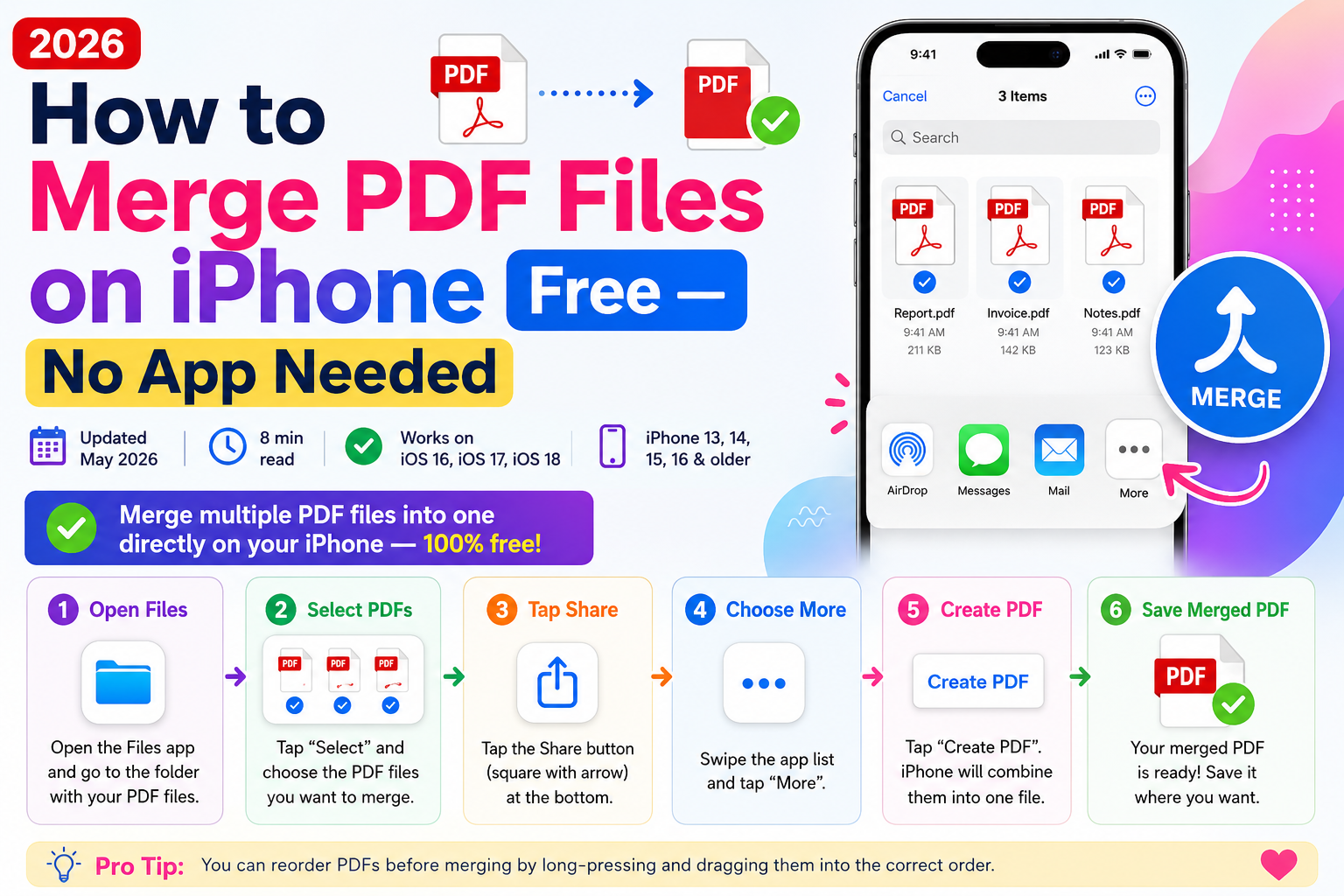
How to Merge PDF Files on iPhone or iPad — Free
Open Safari or Chrome on your iPhone or iPad. Go to comfortablepdf.com/merge-pdf and tap Select PDF Files. Choose your files from the Files app or iCloud Drive, arrange them in order, and tap Merge PDF. Download the result directly to your device. No app required.
How to Merge PDF Files on Android — Free
Open Chrome on your Android phone. Go to comfortablepdf.com/merge-pdf and tap Select PDF Files. Choose files from your Downloads, Google Drive, or internal storage. Tap Merge PDF and download the result. Works on all Android brands — Samsung, Pixel, OnePlus, and more.
How to Merge PDF Files on Chromebook — Free
Chromebook users often struggle with PDF tools because most require Windows or Mac software. ComfortablePDF is entirely web-based so it runs perfectly in Chrome on any Chromebook. Go to comfortablepdf.com/merge-pdf, upload your files, and merge — no extensions or workarounds needed.
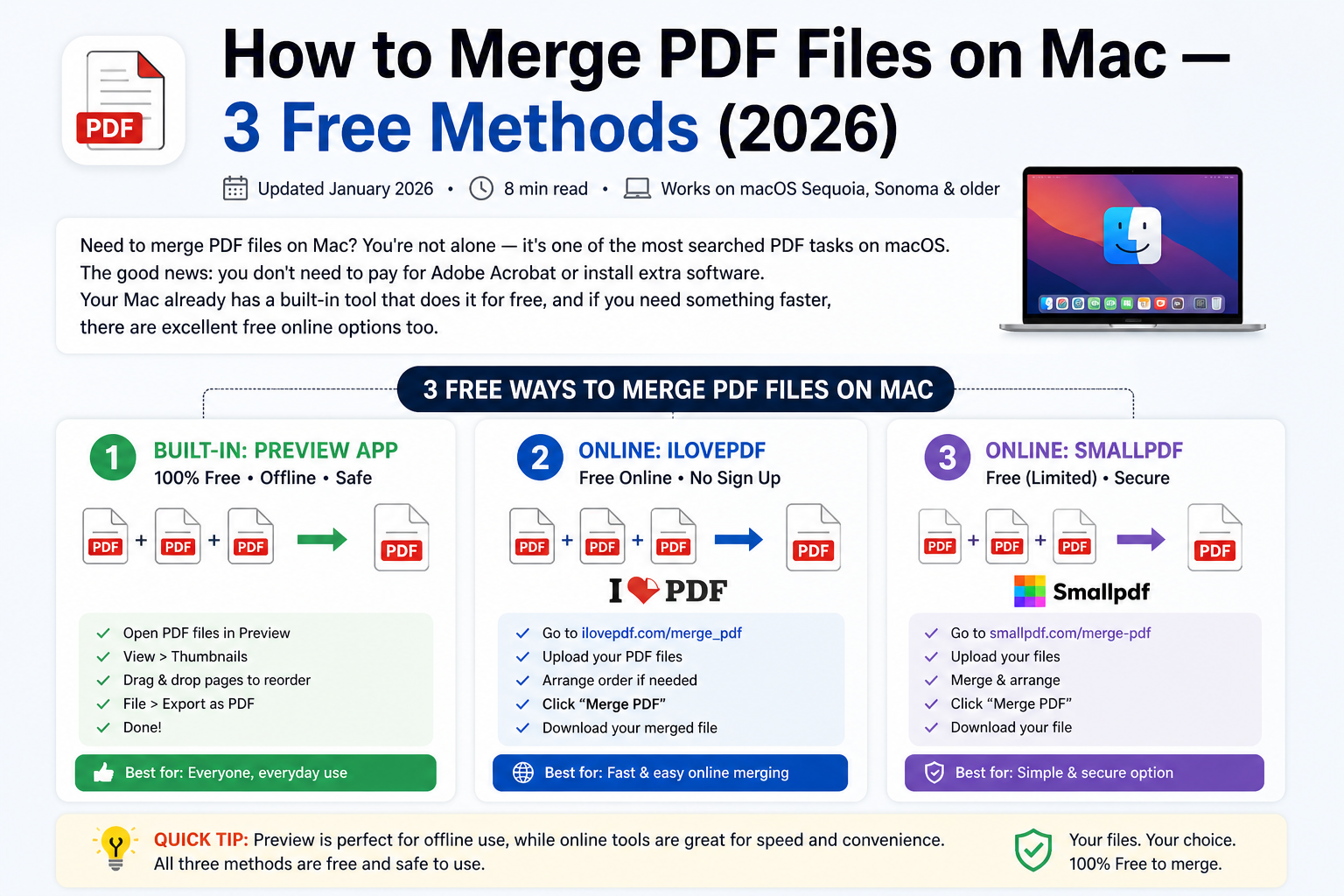
How to Merge PDF Files on Mac — Free Without Preview
While Mac's Preview app can merge PDFs, many users find it slow and unreliable with more than two files. ComfortablePDF gives you a faster, cleaner result. Open comfortablepdf.com/merge-pdf in Safari or Chrome, upload your files, set the order, and click Merge. Done in under a minute.
Tips for Best Results When Merging PDFs
6. Compress large files before merging. Use the free Compress PDF tool at comfortablepdf.com/compress-pdf on each file first, then merge the smaller versions. This gives you the smallest possible final file.
7. Convert other file types to PDF first. If you need to include a Word document, Excel spreadsheet, or PowerPoint, convert it to PDF first using comfortablepdf.com/word-to-pdf, comfortablepdf.com/excel-to-pdf, or comfortablepdf.com/powerpoint-to-pdf — then add the resulting PDFs to the merge tool.
8. Double-check the page order before merging. Drag your files into the exact order you want before clicking Merge. It is faster to arrange them beforehand than to split and re-merge afterward. If you need to re-order pages inside the merged file, use comfortablepdf.com/organize-pdf.
Other Free PDF Tools You Might Need
After merging your PDFs, you may need to take additional steps. ComfortablePDF offers all the tools you need — completely free, no signup:
• Compress PDF — comfortablepdf.com/compress-pdf — Reduce the file size of your merged PDF.
• Split PDF — comfortablepdf.com/split-pdf — Separate a PDF into individual pages or sections.
• Sign PDF — comfortablepdf.com/sign-pdf — Add your electronic signature to any PDF.
• Protect PDF — comfortablepdf.com/protect-pdf — Add a password to your merged file.
• Organize PDF — comfortablepdf.com/organize-pdf — Rearrange or delete pages after merging.
• PDF to Word — comfortablepdf.com/pdf-to-word — Convert your merged PDF into an editable Word document.
• Add Page Numbers — comfortablepdf.com/page-numbers — Insert page numbers into your merged PDF automatically.
View all 24 free PDF tools at: comfortablepdf.com/all-tools
Frequently Asked Questions
Q: Can I merge more than 2 PDF files at once?
A: Yes — there is no limit on the number of files you can combine. Upload 2, 5, 10, or 20 PDF files, arrange them in order, and click Merge. All files are combined into one single PDF in a single step.
Q: Will merging PDFs lose any content or formatting?
A: No. Merging PDFs does not change the content, fonts, images, or layout of any page. Every page from every file is preserved exactly as it appeared in the original. Text remains selectable, hyperlinks stay active, and images keep their full resolution.
Q: Is there a file size limit when merging PDFs online?
A: ComfortablePDF supports large PDF files and allows you to merge multiple documents without a strict file size cap. For very large files, use the free Compress PDF tool at comfortablepdf.com/compress-pdf to reduce each file before merging — this speeds up uploading and produces a smaller merged result.
Q: Is it safe to upload my PDF files to merge them online?
A: Yes. ComfortablePDF uses HTTPS encryption for all file transfers. Your uploaded files are processed on a secure server and automatically deleted once your merged PDF is ready to download. We never store, share, or access your documents.
Q: Can I merge PDF files on my iPhone, Android, or Chromebook?
A: Yes. ComfortablePDF works in any modern web browser on any device — iPhone, iPad, Android, Chromebook, Windows PC, or Mac. No app download is needed. Simply open the browser, go to comfortablepdf.com/merge-pdf, and follow the five steps above.
Conclusion
Merging PDF files online does not need to be complicated or expensive. In 2026 you can merge PDF files free online in five simple steps — no software, no account, no watermark. Whether you are on a Windows PC, Mac, iPhone, Android, or Chromebook, ComfortablePDF works instantly in your browser.
If you found this guide helpful, explore the rest of our free PDF tools: Split PDF, Compress PDF, PDF to Word, and Sign PDF — all free, all with no signup required.
Use the tool now: comfortablepdf.com/merge-pdf