How to Sign a PDF on Android Free | 2026 Step-by-Step Guide
Need to sign a PDF on Android without paying for an app or setting up an account? You're in the right place. Whether you're on a Samsung Galaxy, Google Pixel, OnePlus, or any other Android device — this 2026 guide walks you through the fastest, completely free methods to add your signature to any PDF document.
And if you're also looking for how to sign a PDF on iPhone, Mac, or Windows, we cover those too — skip to the section that matches your device.
Why Sign a PDF Electronically?
Electronic signatures are legally recognized in the US, UK, EU, Canada, and Australia. Signing a PDF digitally means:
• No printing: Sign and return documents without wasting paper
• Faster turnaround: Close contracts, approve forms, sign agreements in seconds
• Works anywhere: Sign from your Android phone during your commute
• Legally valid: E-signatures meet the same legal standard as pen-and-ink in most jurisdictions
• Free: You don't need Adobe Acrobat or DocuSign to sign a basic PDF
Method 1: Sign a PDF on Android Free Online (No App Needed)
The easiest way to sign a PDF on Android in 2026 is using a browser-based tool. No installation. No account. No watermark.
Step-by-Step: Using ComfortablePDF Sign Tool
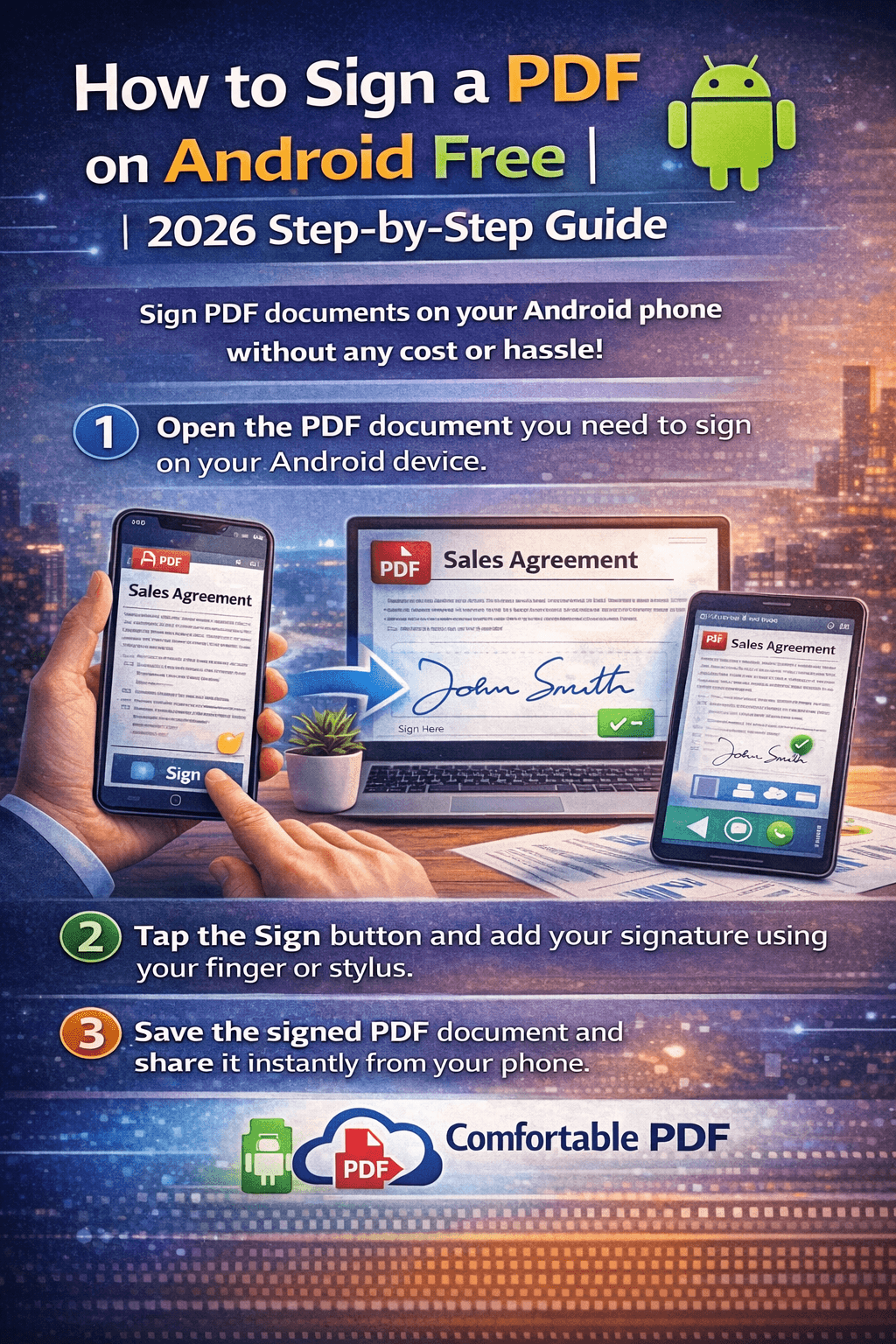
1. Open Chrome on your Android phone
2. Go to comfortablepdf.com/sign-pdf
3. Tap "Upload PDF" and choose your file from local storage or Google Drive
4. Choose your signature method:
• Draw: Sign with your finger directly on the screen
• Type: Type your name and choose a signature style
• Upload: Use an image of your existing signature
5. Drag the signature to the correct position on the document
6. Tap "Download" to save the signed PDF
✓ Free ✓ No signup ✓ No watermark ✓ Works on all Android devices
After signing, if you need to make other changes to the document, use the ComfortablePDF all tools page to compress, merge, or convert your PDF as needed.
Method 2: Sign a PDF on Android Using Google Drive (Built-In)
Best for: Quick signatures when the PDF is already in your Google Drive
Google Drive on Android has a basic annotation feature that lets you draw a signature:
7. Open the Google Drive app on your Android phone
8. Tap the PDF you want to sign
9. Tap the pencil icon (Edit) in the bottom right
10. Select "Draw" from the toolbar
11. Sign with your finger where the signature is needed
12. Tap "Save"
Limitation: Google Drive's drawing tool is basic — it doesn't let you position a clean signature box or use a typed name. For professional-looking signatures, use ComfortablePDF instead.
Method 3: Sign PDF on Android Using Adobe Acrobat (Free Tier)
Best for: Users already in the Adobe ecosystem
Adobe Acrobat Reader for Android offers free e-signing on the free plan with some limitations:
13. Download Adobe Acrobat Reader from the Google Play Store
14. Open your PDF inside the app
15. Tap the "Fill & Sign" icon
16. Tap the signature field or tap where you want to sign
17. Draw or type your signature, then tap "Done"
18. Save and share the signed file
Note: Adobe's free plan limits some features and pushes upgrades frequently. If you just need to sign a PDF quickly and for free, ComfortablePDF's Sign PDF tool has no such restrictions.
How to Sign a PDF on iPhone Free
Best for: iOS users on iPhone or iPad
iPhone users have a few options:
Option A: Use the Files App (Markup Tool)
19. Open the PDF in the Files app
20. Tap the Share icon → "Markup"
21. Tap the + icon → "Signature"
22. Draw your signature with your finger or Apple Pencil
23. Drag and resize it on the document
24. Tap "Done" and save
Option B: Sign a PDF on iPhone Online (No App)
Open Safari on your iPhone, visit comfortablepdf.com/sign-pdf, upload your PDF, draw or type your signature, position it, and download. Works identically to the Android method — no app installation required.
Also see: How to Sign a PDF on Mac Free →
How to Sign a PDF on Mac Free
Best for: macOS users on MacBook Air, MacBook Pro, or iMac
Option A: Use Preview (Built-In Mac App)
25. Open the PDF in Preview
26. Click the Markup toolbar → Signature icon
27. Choose "Create Signature" → use Trackpad, Camera, or iPhone to capture your signature
28. Click the saved signature to insert it
29. Drag and resize it on the page
30. Save with File → Save
Option B: Sign a PDF on Mac via Browser
If you need more control (page selection, typed signature styles, multiple signers), visit comfortablepdf.com/sign-pdf in Safari or Chrome on your Mac — faster and more flexible than Preview for complex documents.
How to Edit a Signed PDF (What You Need to Know)
One of the most common follow-up questions: "How do I edit a PDF that has already been signed?"
Here's the honest answer:
• Digitally certified signatures (like DocuSign): These lock the document to protect integrity. Editing after signing will invalidate the signature — this is by design.
• Simple drawn/image signatures: If the PDF was signed with a drawn or image-based signature (not a digital certificate), the document itself may still be editable depending on the tool used.
Your options if you need to edit a signed PDF:
Option 1: Remove the Signature First
If the signature is just an image overlay (not a certified digital signature), you may be able to edit the PDF and re-sign it afterward. Use ComfortablePDF's suite of tools to modify the document, then apply a fresh signature.
Option 2: Convert to Word, Edit, Then Re-Sign
Convert the PDF to an editable Word document using the PDF to Word tool, make your changes, convert it back to PDF, and sign again. This is the most reliable method when you need to change content.
Option 3: Use the Original Document
If you still have the original unsigned version of the document, make your changes there and sign the updated version. This is always the cleanest approach.
Important: Editing a PDF after it's been signed with a certified digital signature (like a CAC card or DocuSign certificate) and then re-circulating it without disclosure can be considered document fraud. Always be transparent about changes.
How to Sign a PDF with a CAC Card (Military/Government)
A CAC (Common Access Card) is used by US military personnel and government employees to digitally sign PDFs with a verified identity certificate.
What You Need
• A CAC card reader connected to your computer
• Adobe Acrobat Reader DC (free) or a CAC-compatible PDF application
• ActivClient or similar CAC middleware installed
How to CAC Sign a PDF
31. Connect your CAC card reader and insert your CAC
32. Open the PDF in Adobe Acrobat Reader
33. Go to Tools → Certificates → Digitally Sign
34. Draw a signature box on the document
35. Select your CAC certificate from the list
36. Enter your PIN and confirm
37. Save the signed PDF
Note: CAC signing requires desktop software and a physical card reader. It cannot be done through a browser-based tool. For standard (non-government) documents, ComfortablePDF's Sign PDF tool is the simpler alternative.
How to Sign a Locked, Protected, or Secured PDF
Sometimes the PDF you need to sign has security restrictions. Here's how to handle it:
• If the PDF allows signing but not editing: Most good signing tools (including ComfortablePDF) can add a signature even to restricted PDFs. Try uploading it directly.
• If the PDF is fully password-protected: You'll need to unlock it first. Use the Unlock PDF tool — then sign the unlocked version.
• If the form fields are locked: The document creator may have intentionally restricted editing. Contact the sender and ask for an unlocked version.
Sign PDF on Phone — Android vs iPhone Quick Comparison
Android:
• Best free method: ComfortablePDF Sign PDF in Chrome browser
• Also available: Adobe Acrobat Reader, Google Drive markup
• No built-in system-level PDF signing in stock Android
iPhone / iPad:
• Best free method: Files app Markup (built-in, no download)
• Also available: ComfortablePDF in Safari
• Apple Pencil support on iPad for precise signing
Winner for easiest cross-platform signing: ComfortablePDF — works identically on Android, iPhone, Mac, and Windows through the browser.
Other Free PDF Tools You Might Need
After signing your PDF, here are more free tools from ComfortablePDF:
• Compress PDF – Reduce file size before emailing
• Merge PDF – Combine multiple PDFs into one
• PDF to Word – Convert to editable Word format
• Protect PDF – Add a password to your signed document
• Watermark PDF – Add confidential or draft watermarks
• Split PDF – Extract specific pages from a large document
Frequently Asked Questions
How do I sign a PDF on Android for free?
Open Chrome, go to comfortablepdf.com/sign-pdf, upload your PDF, draw or type your signature, position it on the page, and download. No app or signup needed.
Can I sign a PDF on my Android phone without an app?
Yes. ComfortablePDF works entirely in your mobile browser — Chrome, Firefox, or any browser on Android. No installation required.
How to sign a PDF on iPhone free?
Use the Files app Markup feature (built-in) or open ComfortablePDF in Safari — both are completely free.
How to sign a PDF on Mac?
Use the Preview app (built-in on all Macs) or use ComfortablePDF in your browser for more signature options and styles.
How to edit a signed PDF?
If the signature is image-based, you may be able to edit it by converting to Word first via ComfortablePDF's PDF to Word tool, editing, and re-signing. Certified digital signatures (DocuSign, CAC) cannot be edited without invalidating the signature.
How to sign a protected or locked PDF?
First unlock the PDF using the Unlock PDF tool, then upload the unlocked version to the Sign PDF tool.
How to sign a PDF with a CAC card?
You'll need Adobe Acrobat Reader, a physical CAC card reader, and ActivClient middleware on a Windows or Mac computer. CAC signing requires desktop software and cannot be done in a browser.
How to sign a PDF on Android without Adobe?
Use ComfortablePDF's free Sign PDF tool in Chrome — no Adobe account or subscription needed.
Final Thoughts
Signing a PDF on Android in 2026 doesn't require expensive software or a complicated setup. Whether you're using a Samsung, Pixel, or any Android phone — the browser-based approach takes under a minute.
For anything beyond basic signing — editing signed PDFs, handling locked documents, CAC signing, or converting formats — ComfortablePDF has every tool you need, all free.
→ Sign Your PDF Free Now at ComfortablePDF
No account. No watermark. No cost. Just sign and download.