How to Remove Password from PDF Online Free in 2026 | ComfortablePDF
You have a password-protected PDF — a bank statement, a payslip, a contract — and you know the password, but opening it manually every time is frustrating. Or you need to share it with a colleague who does not have the password. Or you want to merge it with other files, but the merge tool cannot process protected PDFs. The obstacle is always the same: the password lock is preventing you from using the file the way you need to.
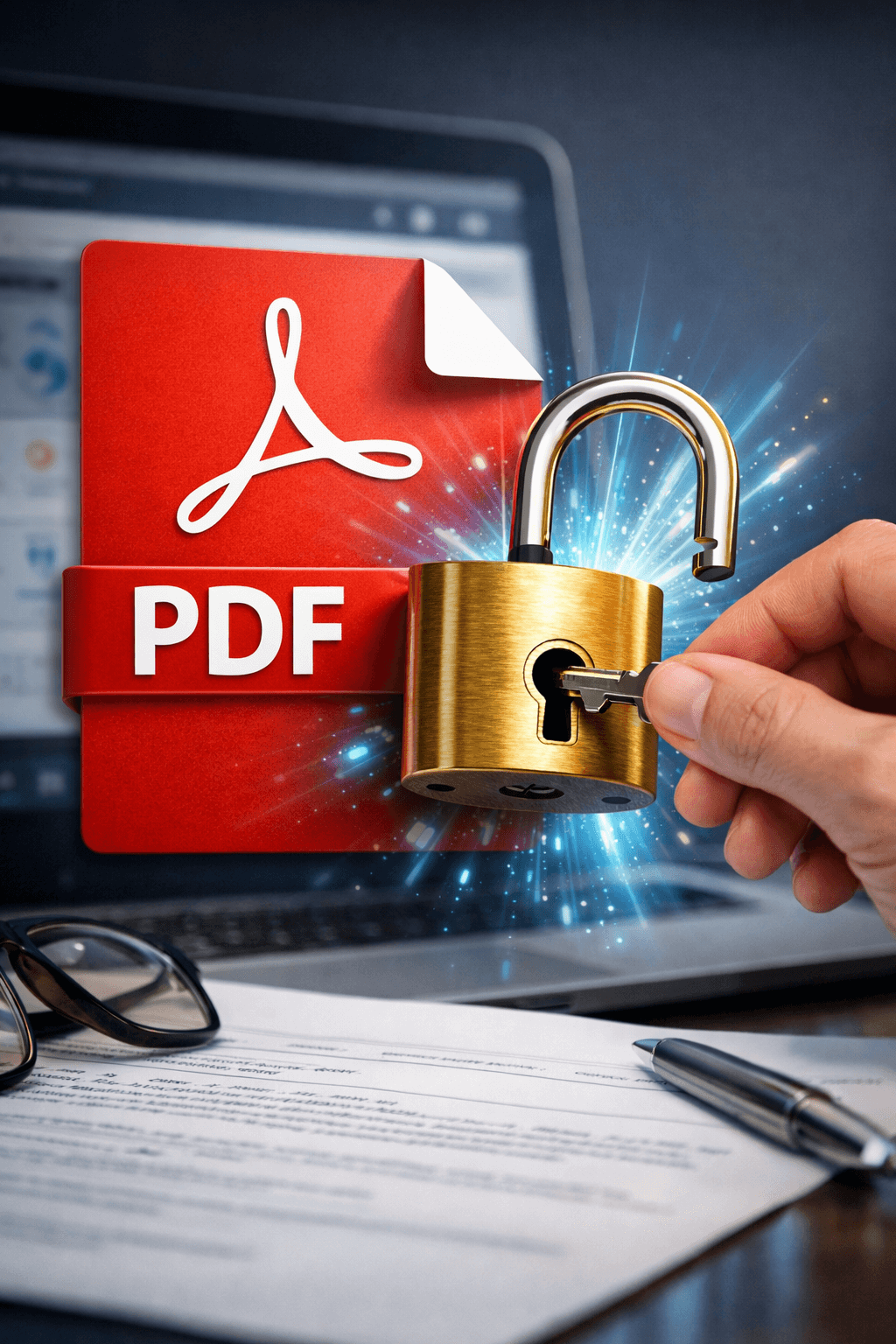
The good news is you can remove a password from a PDF online for free in seconds — as long as you know the original password. ComfortablePDF's free Unlock PDF tool at comfortablepdf.com/unlock-pdf lets you eliminate the password protection from any PDF without installing software and without creating an account. This guide shows you exactly how to do it from any device.
Important note: ComfortablePDF's unlock tool is designed for PDFs where you know and own the password. It is intended to remove protection from your own documents — not to bypass security on files you do not have authorisation to access.
What You Need
Just a web browser — Chrome, Safari, Firefox, or Edge — the password-protected PDF file, and the correct password for that document. No software to install, no account to create, and no email address required. Works on every device: iPhone, Android, Mac, Windows PC, and Chromebook.
How to Remove Password from PDF Online Free — Step-by-Step Guide
Follow these five steps to remove password protection from any PDF for free:
1. Open the Unlock PDF tool. Go to comfortablepdf.com/unlock-pdf in your browser. The tool loads instantly — no download or login required.
2. Upload your password-protected PDF. Click 'Select PDF File' or drag and drop your protected document into the upload area. The tool accepts any PDF that has owner or user password protection applied.
3. Enter the PDF password. Type in the password for your document. This is the password you currently use to open or edit the PDF. ComfortablePDF uses this to verify that you have authorisation to remove the protection.
4. Click 'Unlock PDF' (or 'Remove Password'). The tool processes your PDF, strips the password protection, and creates a clean, unlocked version within seconds.
5. Download your unlocked PDF. Click 'Download' to save the password-free version to your device. Open it to confirm it no longer requires a password — then you can freely merge it, share it, compress it, or convert it without any restrictions.
Remove PDF password now: comfortablepdf.com/unlock-pdf — Free, no signup, no watermark.
Types of PDF Password Protection — Which Can You Remove?
There are two types of PDF password protection, and it is important to understand the difference before you try to unlock a document:
• User Password (Open Password). This type of protection prevents anyone from opening the PDF at all without entering a password. When you try to open the file, a password prompt appears immediately. To remove this type of protection using ComfortablePDF, you must know the open password.
• Owner Password (Permissions Password). This type of protection allows the PDF to be opened freely but restricts what you can do with it — for example, preventing printing, copying text, editing, or merging. The file opens normally but certain operations are blocked. ComfortablePDF can remove owner-level password restrictions so you can use the document without limitations.
Most PDFs from banks, government agencies, and HR departments use owner-level permissions restrictions rather than an open password. If your PDF opens but you cannot print it, copy text from it, or merge it with other files, that is an owner password — and ComfortablePDF can unlock it.
Why Use ComfortablePDF to Remove PDF Password?
• 100% Free — No Subscription. Removing password protection at ComfortablePDF costs nothing. No credits, no trial period, no premium tier. Completely free forever.
• No Signup or Account Required. No registration, email verification, or personal information needed. Open the tool, upload your PDF, enter the password, and download the unlocked file — done in under one minute.
• No Watermark Added. Your unlocked PDF is completely clean — no stamp, branding, or logo added by the tool. The document looks exactly as it did originally, just without the password restriction.
• Works on All Devices. ComfortablePDF runs in any browser — no app installation needed on iPhone, Android, Mac, Windows, or Chromebook.
• Secure File Handling. All uploads use HTTPS encryption. Your PDF is permanently deleted from the server as soon as your unlocked file is ready to download. Your document is never stored or shared.
When Should You Remove Password Protection from a PDF?
Once a PDF is unlocked, you can do far more with it. Here are the most common reasons people need to remove PDF password protection:
• Merging protected PDFs. Most merge tools — including comfortablepdf.com/merge-pdf — cannot process password-protected files. Unlock the PDFs first, then combine them into one document. See: comfortablepdf.com/blog/how-to-merge-pdf-files-free-online-2026
• Splitting a protected PDF. Similarly, comfortablepdf.com/split-pdf requires an unprotected file to extract or divide pages. Unlock first, then split. See: comfortablepdf.com/blog/how-to-split-pdf-into-multiple-files-free
• Printing a PDF that blocks printing. Some PDFs — particularly downloaded documents and reports — have owner-level restrictions that prevent printing. Unlocking removes these restrictions so you can print freely.
• Copying text from a protected PDF. If you need to extract and reuse text or data from a PDF that has copy restrictions enabled, removing the owner password unlocks that ability.
• Sharing a file without requiring a password. If you need to share a document with multiple people and the open password is cumbersome to distribute, removing it creates a freely shareable file.
• Signing or adding annotations. Many signing tools — including comfortablepdf.com/sign-pdf — cannot process protected documents. Unlock the PDF first, sign it, then re-protect it using comfortablepdf.com/protect-pdf if needed.
How to Remove PDF Password on Any Device — Free
How to Remove Password from PDF on iPhone — Free
Open Safari on your iPhone. Go to comfortablepdf.com/unlock-pdf. Tap 'Select PDF File' and choose your protected document from the Files app or iCloud Drive. Enter the PDF password when prompted, then tap 'Unlock PDF'. Download the password-free file directly to your iPhone — no app required, completely free.
How to Remove Password from PDF on Android — Free
Open Chrome on your Android phone. Navigate to comfortablepdf.com/unlock-pdf. Tap 'Select PDF File' and choose your document from Downloads or Google Drive. Enter the password, tap 'Unlock PDF', and download the unlocked version directly to your device.
How to Remove Password from PDF on Mac — Free
Open Safari or Chrome on your Mac. Go to comfortablepdf.com/unlock-pdf, upload your protected PDF, enter the password, and click 'Unlock PDF'. Download the clean file. Mac Preview can also save PDFs without a password, but it requires more steps and does not always handle owner-level permissions restrictions correctly.
How to Remove Password from PDF on Windows — Free
Open Chrome, Edge, or Firefox on your Windows PC. Go to comfortablepdf.com/unlock-pdf, upload your protected PDF, enter your password, click 'Unlock PDF', and download the result. No software to install — works entirely in your browser in seconds.
Tips for Best Results When Removing PDF Passwords
6. Always unlock before merging or splitting. If you need to combine password-protected PDFs into one document, unlock each file individually first using comfortablepdf.com/unlock-pdf. Then merge the unlocked files using comfortablepdf.com/merge-pdf. Trying to merge protected PDFs directly will fail or produce errors.
7. Re-protect after editing if the document is sensitive. If you removed the password to edit, sign, or annotate a document that contains sensitive information, re-apply password protection after you have finished using comfortablepdf.com/protect-pdf. This keeps your document secure while allowing you to make the changes you need.
8. Save your unlocked PDF in a clearly labelled folder. Once you remove the password, the PDF has no built-in protection. Save it in a secure, clearly labelled location on your device — or immediately re-protect it — so you do not accidentally share a sensitive document that should remain restricted.
Removing a PDF Password vs Adding One — What Is the Difference?
ComfortablePDF offers both directions of PDF security management as separate free tools:
• Remove Password (Unlock PDF) — comfortablepdf.com/unlock-pdf — Strips existing password protection from a PDF you own. Use this when you need to edit, merge, print, or share a document without the password restriction getting in the way.
• Add Password (Protect PDF) — comfortablepdf.com/protect-pdf — Adds a new password to any PDF. Use this after editing a sensitive document to re-secure it before sharing, or to protect any PDF you want to restrict access to.
The workflow for secure document management is simple: Unlock → Edit or merge or sign → Re-protect. All three steps are free at ComfortablePDF.
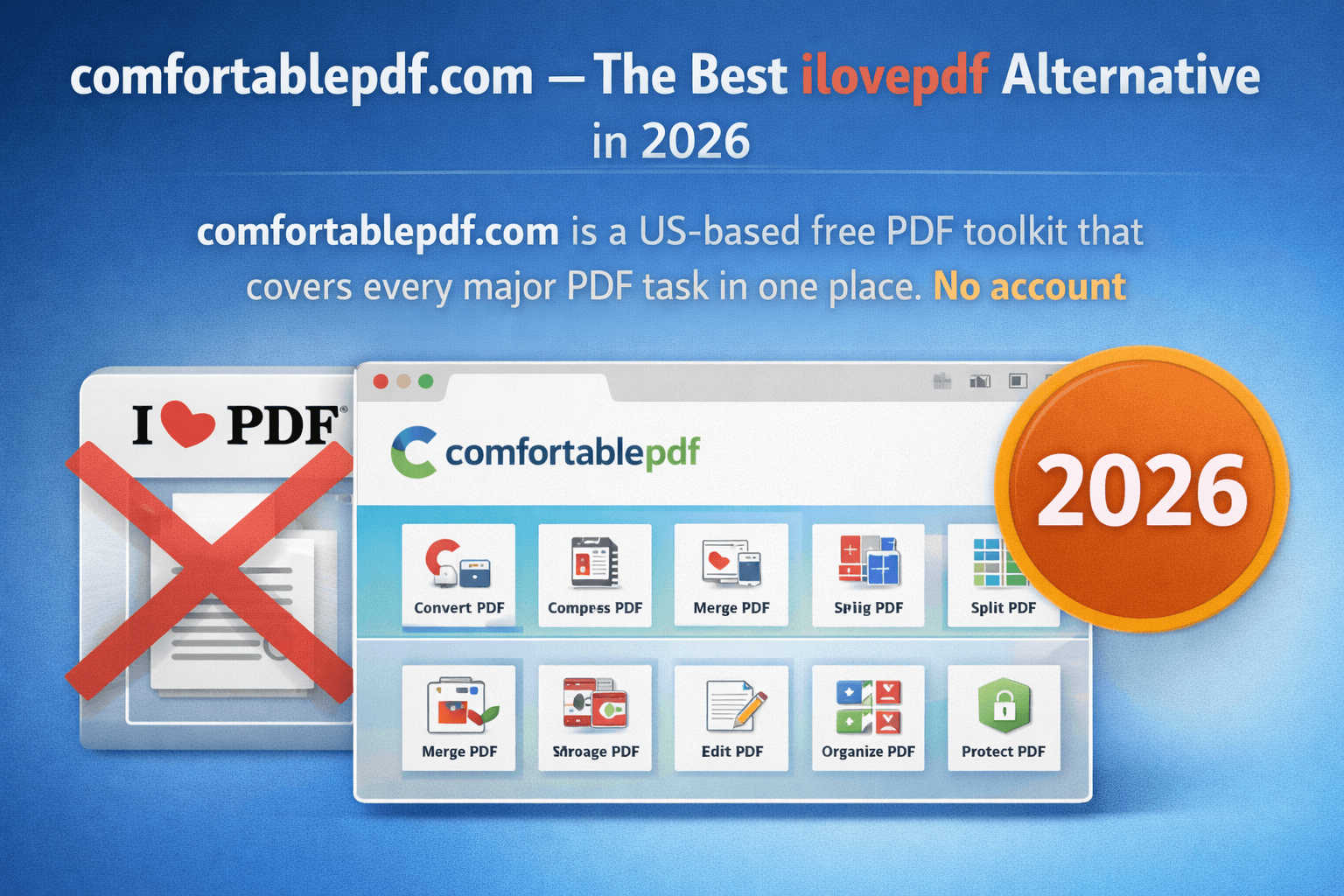
Other Free PDF Tools at ComfortablePDF
After unlocking your PDF, these tools are available free — no signup, no watermark:
• Protect PDF — comfortablepdf.com/protect-pdf — Re-apply password protection after editing.
• Merge PDF — comfortablepdf.com/merge-pdf — Combine your unlocked PDF with other files.
• Split PDF — comfortablepdf.com/split-pdf — Extract specific pages from your now-unlocked document.
• Sign PDF — comfortablepdf.com/sign-pdf — Add your electronic signature to the unlocked document.
• Compress PDF — comfortablepdf.com/compress-pdf — Reduce file size after unlocking for easy email sharing.
• Organize PDF — comfortablepdf.com/organize-pdf — Reorder, rotate, or delete pages from your unlocked PDF.
Browse all 24 free PDF tools: comfortablepdf.com/all-tools
Frequently Asked Questions
Q: Can I remove a password from a PDF without knowing the password?
A: No. ComfortablePDF's Unlock PDF tool requires you to enter the correct password to remove it. This is by design — the tool is intended for removing protection from PDFs you own and have authorisation to unlock. If you have genuinely lost the password to your own document, you may need dedicated password recovery software, which is a different category of tool.
Q: Is it safe to upload a password-protected PDF to unlock it online?
A: Yes. ComfortablePDF uses HTTPS encryption for all file transfers. Your uploaded PDF is processed on a secure server and permanently deleted as soon as your unlocked file is ready to download. The password you enter is used only to process the file and is never stored or logged. ComfortablePDF never stores, views, or shares your documents.
Q: Will removing the password change the content or formatting of my PDF?
A: No. Removing password protection is a security-layer operation only — it does not touch any content, text, images, fonts, or formatting in the document. Your unlocked PDF will be identical to the original in every way except that it no longer requires a password to open or use.
Q: Why can I open my PDF but still cannot print it or copy text from it?
A: This happens when a PDF has owner-level permissions restrictions applied — a separate layer of protection that allows the file to open freely but blocks specific actions like printing, copying text, editing, or merging. ComfortablePDF's unlock tool can remove these owner-level restrictions so you can use the document without limitations.
Q: Can I remove a PDF password on my phone for free?
A: Yes. ComfortablePDF works in any mobile browser — Safari on iPhone or Chrome on Android. Open comfortablepdf.com/unlock-pdf on your phone, upload your protected PDF, enter the password, and download the unlocked file directly to your device. No app download required and completely free.
Conclusion
Removing a password from a PDF in 2026 takes less than 60 seconds using ComfortablePDF's free Unlock PDF tool at comfortablepdf.com/unlock-pdf. As long as you know the original password, you can strip the protection from any PDF instantly — no software to install, no account to create, no watermark added to your file.
Once unlocked, your PDF is ready to merge using comfortablepdf.com/merge-pdf, split using comfortablepdf.com/split-pdf, sign using comfortablepdf.com/sign-pdf, or re-protected with a new password using comfortablepdf.com/protect-pdf. All tools are free, all on one site.
Remove your PDF password now — free, no signup: comfortablepdf.com/unlock-pdf