How to Split PDF into Multiple Files Free in 2026 | ComfortablePDF
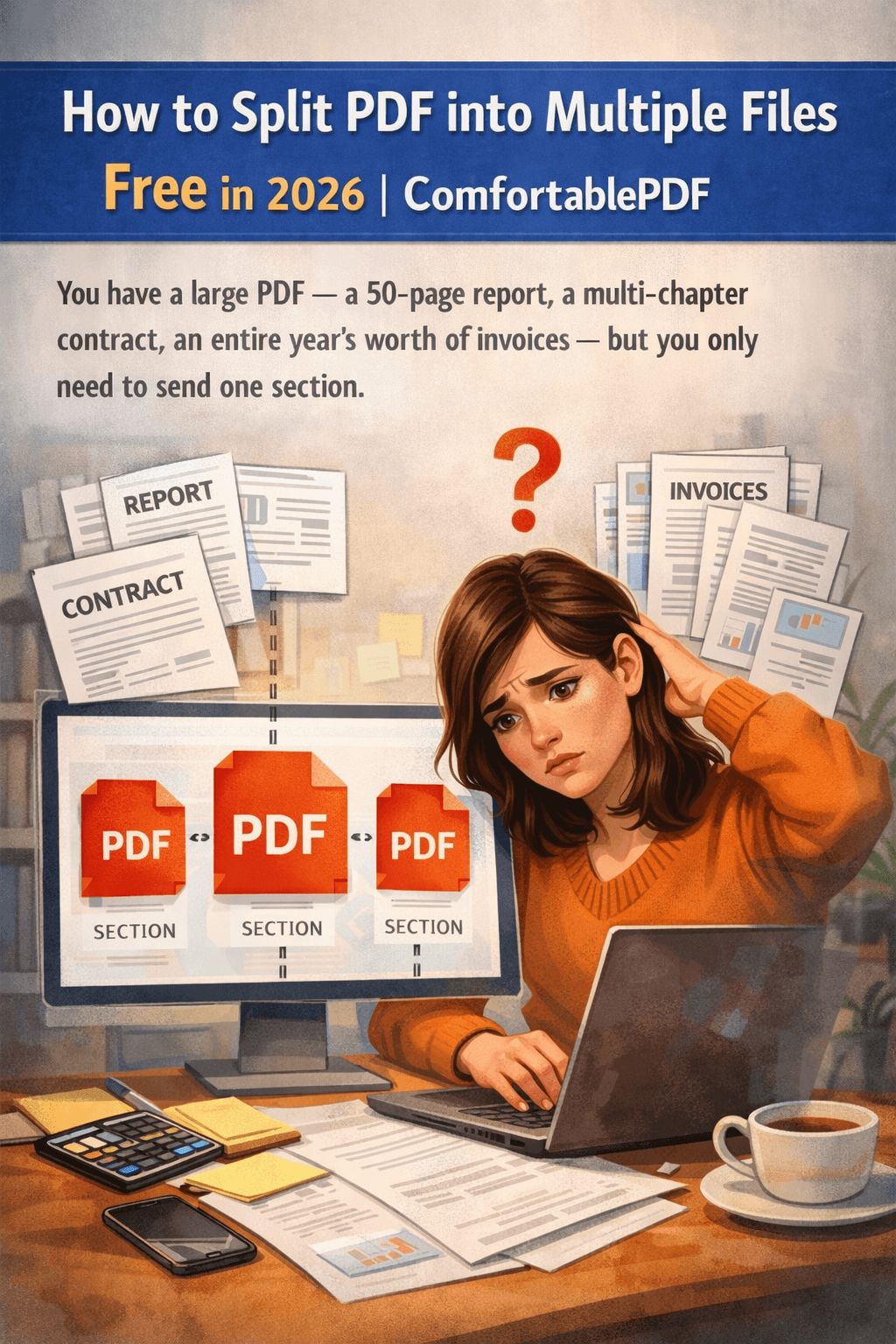
You have a large PDF — a 50-page report, a multi-chapter contract, an entire year's worth of invoices — but you only need to send one section. Or you need to extract specific pages for a colleague without sharing the entire document. The problem is that most tools designed to split PDF into multiple files require a paid Adobe Acrobat subscription or leave a watermark on every page of your extracted file.
There is a faster, completely free solution. ComfortablePDF's free Split PDF tool at comfortablepdf.com/split-pdf lets you divide any PDF into separate files in seconds — by page range, by individual pages, or into equal parts. No software to install, no account to create, no watermark added. This step-by-step guide shows you exactly how to do it from any device in 2026.
What You Need
Just a web browser — Chrome, Safari, Firefox, or Edge — and the PDF file you want to split. No software installation required, no account creation, no email address needed. Works on every device: iPhone, Android, Mac, Windows PC, and Chromebook.
How to Split PDF into Multiple Files Free — Step-by-Step Guide
Follow these five steps to split any PDF into separate files online for free:
1. Open the Split PDF tool. Go to comfortablepdf.com/split-pdf in your browser. The tool loads instantly — no download or login required.
2. Upload your PDF. Click 'Select PDF File' or drag and drop your document into the upload area. ComfortablePDF accepts PDFs of any length, including large multi-hundred-page documents.
3. Choose how you want to split it. You have three main options: (1) Split by page range — enter the start and end pages for each section you want extracted, for example pages 1–10 as one file and pages 11–25 as another; (2) Extract specific pages — select individual page numbers to pull out as separate PDFs; (3) Split into equal parts — divide the document into sections of equal page count automatically.
4. Click 'Split PDF'. The tool processes your document and creates your separate PDF files within seconds. Larger files may take up to 30 seconds to complete.
5. Download your split files. Click 'Download' to save each individual file to your device. All output files are clean, properly formatted PDFs with no watermark and no quality loss.
Try it now: comfortablepdf.com/split-pdf — Free, no signup, no watermark.
Why Use ComfortablePDF to Split PDF Files?
Many free PDF splitters online place restrictions on your files or add watermarks. ComfortablePDF gives you a completely clean split with no restrictions:
• 100% Free — No Subscription Needed. Splitting PDFs at ComfortablePDF is completely free. No credits to buy, no daily limit, no premium tier. Free forever.
• No Signup or Account. No registration, no email verification, no personal data required. Open the tool, upload your PDF, split it, and download your files in under a minute.
• No Watermark on Output Files. Every file you download is completely clean — no stamp, branding, or logo added by the tool. Your extracted PDF looks professional and ready to share.
• Multiple Split Options. Split by exact page range, extract individual pages, or divide into equal sections. Full flexibility to get exactly the output you need.
• Works on Every Device. ComfortablePDF runs in any browser — no app needed on iPhone, Android, Chromebook, Mac, or Windows.
When Should You Split a PDF? Common Use Cases
Splitting a PDF is more useful than most people realize. Here are the situations where the ComfortablePDF split tool saves time every day:
• Sharing specific chapters or sections. You have a 60-page business report but a client only needs pages 12–24. Split those pages out into a separate PDF and send only what is relevant — clean and professional.
• Separating invoices or statements. A downloaded bank statement or invoice batch often arrives as one large PDF covering an entire year. Split it into individual monthly files for accounting or archiving.
• Extracting pages for a presentation. You need to pull three specific diagrams or charts from a technical document to share in a meeting. Extract only those pages as a standalone PDF.
• Dividing a document before converting. Need to convert just one chapter of a large PDF to Word? Use comfortablepdf.com/split-pdf to extract that section first, then convert the smaller file using comfortablepdf.com/pdf-to-word — faster and cleaner results.
• Breaking large files down for email. Email providers often have a 10MB or 25MB attachment limit. Split a large PDF into two or three smaller parts to stay within the limit without compressing and losing quality.
How to Split PDF on Any Device — Free
How to Split PDF on iPhone — Free
Open Safari on your iPhone. Navigate to comfortablepdf.com/split-pdf. Tap 'Select PDF File' and choose your document from the Files app or iCloud Drive. Select your split method — by page range or individual pages — then tap 'Split PDF'. Download each output file directly to your iPhone. No app download needed and completely free.
How to Split PDF on Android — Free
Open Chrome on your Android device. Go to comfortablepdf.com/split-pdf and tap 'Select PDF File'. Choose your PDF from Downloads or Google Drive. Set your page range or select the pages you want to extract, tap 'Split PDF', and download the resulting files straight to your device.
How to Split PDF on Mac — Free (No Adobe Required)
Open Safari or Chrome on your Mac. Go to comfortablepdf.com/split-pdf and upload your PDF. Select your split options — page range or individual page extraction — click 'Split PDF', and download your separate files. No Adobe Acrobat subscription needed. Mac Preview can also split PDFs but the process is more complex and produces less reliable results for large files.
How to Split PDF on MacBook — Free
The process on a MacBook is identical to Mac: open comfortablepdf.com/split-pdf in Chrome or Safari, upload your PDF, set your split preferences, and download the results. Searching 'macbook how to split pdf' often leads people to Preview, but ComfortablePDF gives you more precise page-range control and cleaner output files.
How to Split PDF on Windows — Free
Open Chrome, Edge, or Firefox on your Windows PC. Go to comfortablepdf.com/split-pdf, upload your file, choose your split method, and click 'Split PDF'. Download each file directly to your computer. No software installation needed — works entirely in your browser.
Tips for Best Results When Splitting a PDF
6. Know your page numbers before you upload. Open your PDF in a viewer first and note the exact page numbers you want to extract. This saves time when setting your ranges in the tool — especially for long documents where finding the right pages takes a moment.
7. Split before compressing or converting. If you need to compress a specific section of a large PDF, extract those pages first using comfortablepdf.com/split-pdf, then compress the smaller extracted file using comfortablepdf.com/compress-pdf. This gives you a much smaller final file size than compressing the entire document first.
8. After splitting, add page numbers to each part. If each split section will circulate as a standalone document, add proper page numbering using comfortablepdf.com/page-numbers so recipients can navigate them easily — especially important for contracts, reports, and legal documents.
Other Free PDF Tools at ComfortablePDF
After splitting your PDF, you might also need these free tools — all available at comfortablepdf.com with no signup and no watermark:
• Merge PDF — comfortablepdf.com/merge-pdf — Need to combine files back together? Merge multiple PDFs into one document in seconds. See also: comfortablepdf.com/blog/how-to-merge-pdf-files-free-online-2026
• Compress PDF — comfortablepdf.com/compress-pdf — Reduce the file size of your split PDF before sharing by email or uploading. See also: comfortablepdf.com/blog/how-to-reduce-pdf-file-size-below-100kb-free
• Organize PDF — comfortablepdf.com/organize-pdf — Reorder, rotate, or delete pages from a PDF before splitting.
• Page Numbers — comfortablepdf.com/page-numbers — Add page numbers to your split files to make them easy to navigate.
• PDF to Word — comfortablepdf.com/pdf-to-word — Convert a specific section you've extracted into an editable Word document.
• Rotate PDF — comfortablepdf.com/rotate-pdf — Fix any rotated pages in your extracted PDF before sharing.
• Protect PDF — comfortablepdf.com/protect-pdf — Add a password to your split PDF before sending sensitive sections.
Browse all 24 free PDF tools at: comfortablepdf.com/all-tools
Frequently Asked Questions
Q: How do I split a PDF into multiple files for free?
A: Go to comfortablepdf.com/split-pdf in any web browser. Upload your PDF, choose your split method — by page range, individual pages, or equal sections — click 'Split PDF', and download your separate files. The tool is completely free, requires no account, and adds no watermark to your output files.
Q: Can I split a PDF and choose exactly which pages go into each file?
A: Yes. ComfortablePDF lets you specify exact page ranges for each output file. For example, you can extract pages 1–15 as one file, pages 16–30 as a second file, and pages 31–50 as a third file — all in a single split operation. You can also extract individual pages by entering specific page numbers.
Q: Will splitting a PDF reduce the quality of the pages?
A: No. Splitting a PDF is a structural operation — it divides the document at specific points without re-processing or re-rendering any page content. All text, images, fonts, and formatting in your output files will be identical to the original. There is no quality loss from splitting a PDF.
Q: Is it safe to upload my PDF to split it online?
A: Yes. ComfortablePDF uses HTTPS encryption for all file uploads and transfers. Your PDF is processed on a secure server and permanently deleted as soon as your split files are ready to download. ComfortablePDF never stores, views, or shares your documents.
Q: Can I split a PDF on my phone for free?
A: Yes. ComfortablePDF works in any mobile browser — Safari on iPhone or Chrome on Android. Open comfortablepdf.com/split-pdf on your phone, upload your PDF, set your page ranges or select specific pages, and download the split files directly to your device. No app installation required and completely free.
Conclusion
Splitting a PDF into separate files in 2026 does not require Adobe Acrobat, any paid subscription, or any software installation. ComfortablePDF's free Split PDF tool at comfortablepdf.com/split-pdf gives you complete control — extract any page range, pull out individual pages, or divide a document into equal sections — all for free, with no signup and no watermark on your output files.
Whether you are on a Mac, Windows PC, iPhone, or Android phone, the tool works in your browser in under a minute. After splitting, use comfortablepdf.com/compress-pdf to shrink your extracted files for email, or comfortablepdf.com/merge-pdf to recombine sections if you change your mind.
Split your PDF now — free, no signup: comfortablepdf.com/split-pdf