Merge PDF: The Complete Guide to Combining PDF Files Online in 2026
Nearly 1.5 million people search for ways to merge PDF files every single month. The need is universal: combining separate documents into one cohesive file for easier sharing, printing, or archiving. That contract with multiple attachments. The report assembled from different sources. The portfolio combining various certificates. All requiring seamless combination into a single PDF.
Merge PDF tools transform this tedious task into a simple drag-and-drop operation. Upload your files, arrange the order, click combine—and download a perfectly merged document in seconds. No software installation. No technical expertise. No frustrating workarounds.
But quality varies dramatically between tools. Some add watermarks to your merged files. Others limit page counts or file sizes. Many require account creation or paid subscriptions for basic functionality. The worst offenders produce corrupted outputs or compromise document security.
This comprehensive guide reveals the best methods for merging PDFs in 2026—from online tools to desktop software to mobile solutions. You'll discover which platforms combine files perfectly, which protect your privacy, and which deliver professional results without costing anything.
Why Merge PDF Files?
Understanding common use cases helps select the right approach:
Professional Document Assembly
Business documents often arrive in pieces requiring combination:
- Contracts with attachments — Main agreement plus exhibits and schedules
- Reports from multiple sources — Combining departmental submissions
- Proposals with supporting materials — Cover letter, proposal, and appendices
- Invoice packages — Invoice plus receipts and documentation
- Application materials — Forms, certificates, and supporting documents
Merging creates single files that are easier to send, store, and reference.
Personal Organization
Individuals frequently need to combine PDFs:
- Tax documents — W-2s, 1099s, and deduction records
- Medical records — Test results, prescriptions, and visit summaries
- Travel documents — Itineraries, confirmations, and tickets
- Education materials — Transcripts, certificates, and recommendations
- Legal paperwork — Contracts, agreements, and correspondence
Single files simplify organization and reduce the chance of losing important pages.
Print Optimization
Printing multiple PDFs individually wastes time and resources:
- Batch printing — Print once instead of opening each file
- Booklet creation — Combine pages for professional binding
- Double-sided printing — Continuous documents print efficiently
- Page numbering — Sequential numbers across combined documents
Archive & Backup
Long-term storage benefits from consolidated files:
- Reduced file count — Fewer files to manage and track
- Complete records — All related documents in one place
- Easier backup — Single file ensures nothing gets missed
- Simpler sharing — One attachment instead of many
How to Merge PDF Files: Complete Guide
Method 1: Online PDF Merger (Fastest & Easiest)
Using Comfortable PDF Merge Tool:
Step 1: Access the Tool Visit comfortablepdf.com/merge-pdf in any web browser.
Step 2: Upload Your PDF Files
- Drag and drop multiple PDFs onto the upload area, OR
- Click "Select Files" to browse and choose your documents
- Add as many files as needed—no limits
Step 3: Arrange Page Order
- Drag files to reorder them in your preferred sequence
- Preview thumbnails to verify correct arrangement
- Remove unwanted files if needed
Step 4: Merge Files Click the "Merge PDF" button to combine all files instantly.
Step 5: Download Your Combined PDF
- Click "Download" to save your merged document
- Optionally save directly to Google Drive, Dropbox, or OneDrive
- Share via link if preferred
Why Comfortable PDF Leads:
- ✅ 100% Free — No hidden charges ever
- ✅ No Registration — Start merging immediately
- ✅ No Watermarks — Professional output always
- ✅ No File Limits — Combine as many PDFs as needed
- ✅ Privacy Protected — Files deleted automatically
- ✅ Lightning Fast — Merging completes in seconds
- ✅ All Devices — Works on desktop, tablet, mobile
Method 2: Using Adobe Acrobat
For Adobe Acrobat Pro subscribers:
Step 1: Open Adobe Acrobat
Step 2: Click "Tools" → "Combine Files"
Step 3: Click "Add Files" and select your PDFs
Step 4: Drag to arrange file order
Step 5: Click "Combine" to merge
Step 6: Save the combined PDF
Considerations: Requires paid subscription ($12.99-22.99/month)
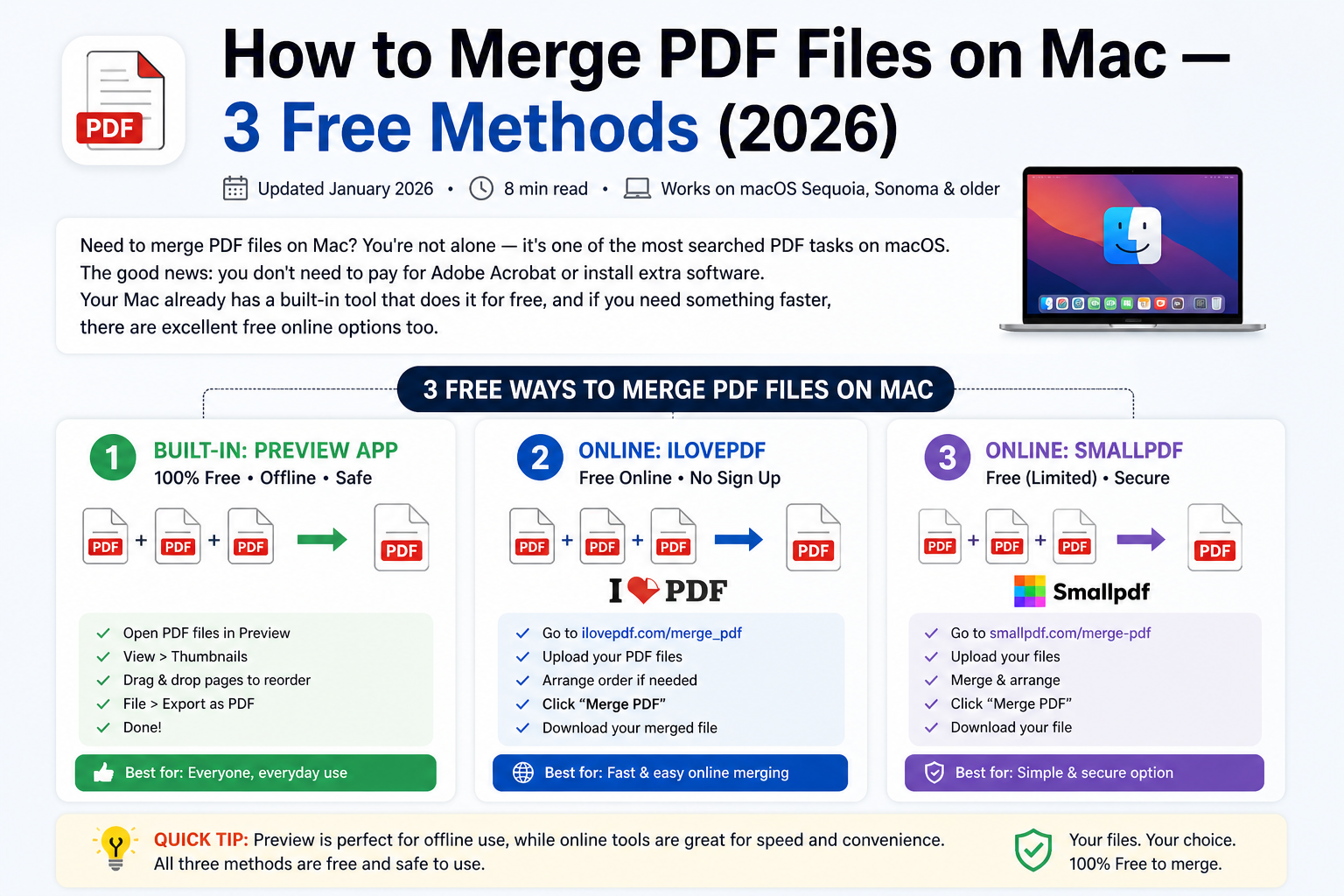
Method 3: Using Preview on Mac
Mac users have a built-in option:
Step 1: Open the first PDF in Preview
Step 2: View → Thumbnails to show sidebar
Step 3: Drag additional PDFs into the thumbnail sidebar
Step 4: Arrange pages as needed
Step 5: File → Export as PDF to save combined file
Considerations: Mac only; limited features compared to dedicated tools
Method 4: Using Microsoft Word
Indirect method using Word:
Step 1: Open Word and create a blank document
Step 2: Insert → Object → Text from File
Step 3: Select your PDF files
Step 4: Arrange content as needed
Step 5: Save/Export as PDF
Considerations: May lose formatting; works better with simple documents
Top 10 PDF Merger Tools 2026
After testing dozens of tools across various scenarios, these solutions deliver the best results:
1. Comfortable PDF — Best Free Online Merger
Rating: ★★★★★ (9.9/10) Best For: Quick, Free, Professional PDF Merging
Comfortable PDF delivers the most reliable PDF merging experience available—completely free with no compromises. The platform handles files of any size, maintains perfect quality, and protects your privacy.
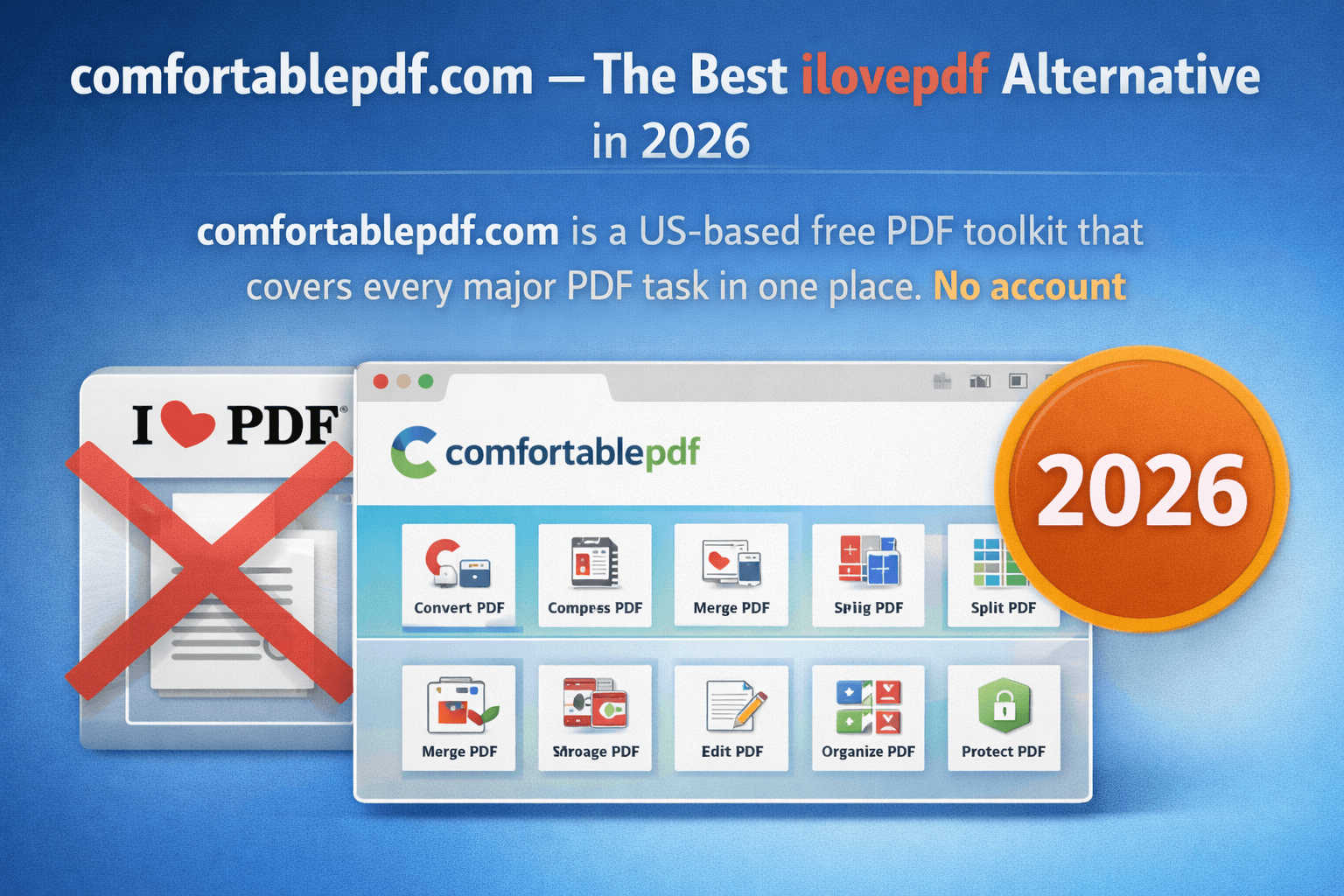
Beyond merging, Comfortable PDF offers a complete suite of PDF tools including:
- Split PDF — Separate pages into multiple files
- Compress PDF — Reduce file size without quality loss
- PDF to Word — Convert to editable Word documents
- PDF to Excel — Extract tables to spreadsheets
- PDF to JPG — Convert pages to images
- JPG to PDF — Create PDFs from images
- Rotate PDF — Fix page orientation
- Protect PDF — Add password security
- Sign PDF — Add electronic signatures
- OCR PDF — Make scanned PDFs searchable
Key Advantages:
- No file size limits
- No page count restrictions
- No daily usage caps
- No account required
- No watermarks added
- Files auto-deleted for privacy
- Works on all devices and browsers
Pricing: 100% Free Website: comfortablepdf.com/merge-pdf
2. Adobe Acrobat — Best for Adobe Users
Rating: ★★★★☆ (8.6/10) Best For: Heavy PDF Users in Adobe Ecosystem
Adobe Acrobat offers comprehensive PDF merging as part of its full editing suite.
Key Strengths:
- Excellent quality and reliability
- Part of complete PDF editing solution
- Desktop and online options
- Enterprise security features
Considerations: Requires subscription; overkill for occasional merging Pricing: $12.99-22.99/month
3. Smallpdf — Best Simple Interface
Rating: ★★★★☆ (8.4/10) Best For: Users Wanting Minimal Complexity
Smallpdf provides straightforward PDF tools with an extremely clean interface.
Key Strengths:
- Very intuitive design
- Multiple PDF tools available
- Cloud storage integration
- Mobile apps available
Considerations: Free tier limited to 2 tasks/day; watermarks on free files Pricing: Free (limited) or $9/month
4. iLovePDF — Best Multi-Tool Platform
Rating: ★★★★☆ (8.3/10) Best For: Users Needing Multiple PDF Operations
iLovePDF combines merging with comprehensive PDF management capabilities.
Key Strengths:
- Many PDF tools in one place
- Reasonable free tier
- Desktop apps available
- API for developers
Considerations: Some features require premium; ads on free version Pricing: Free (limited) or $7/month
5. PDF Merge (pdfmerge.com) — Best Simplicity
Rating: ★★★★☆ (8.1/10) Best For: Quick One-Time Merges
Dedicated single-purpose tool for combining PDFs without extras.
Key Strengths:
- Extremely focused functionality
- No distractions
- Fast processing
- Simple interface
Considerations: Limited to merging only; fewer features Pricing: Free with premium options
6-10. Additional Strong Options
| Rank | Tool | Score | Best For | Price |
|---|---|---|---|---|
| 6 | Sejda PDF | 8.0/10 | Privacy-focused | Free (3/day) |
| 7 | PDF24 | 7.9/10 | German engineering | Free |
| 8 | Soda PDF | 7.7/10 | Feature variety | $4.15/month |
| 9 | PDF Candy | 7.6/10 | Casual users | Free (limited) |
| 10 | Foxit PDF | 7.5/10 | Enterprise needs | $149/year |
Merge PDF: Advanced Techniques
Combining Different File Types
Need to merge Word documents, images, and PDFs together? First convert everything to PDF:
Step 1: Convert non-PDF files:
- Use Word to PDF for documents
- Use Excel to PDF for spreadsheets
- Use PowerPoint to PDF for presentations
- Use JPG to PDF for images
- Use PNG to PDF for graphics
Step 2: Merge all PDFs using Comfortable PDF Merge
Step 3: Download your combined document
Merging Specific Pages
Sometimes you need only certain pages from each document:
Step 1: Use Split PDF to extract needed pages
Step 2: Merge the extracted pages with Merge PDF
Step 3: Use Organize PDF to rearrange if needed
Adding Page Numbers After Merging
For professional documents, sequential page numbers improve navigation:
Step 1: Merge your PDFs at comfortablepdf.com/merge-pdf
Step 2: Add page numbers using Page Numbers tool
Step 3: Download the numbered document
Compressing Large Merged Files
Combined PDFs can become unwieldy. Reduce file size:
Step 1: Merge your PDFs first
Step 2: Use Compress PDF to reduce size
Step 3: Choose compression level based on needs
Compression Results:
| Original | Low Compression | Medium | High |
|---|---|---|---|
| 50 MB | 35 MB | 20 MB | 10 MB |
| 100 MB | 70 MB | 40 MB | 18 MB |
Protecting Merged Documents
Secure sensitive combined documents:
Step 1: Merge your PDFs
Step 2: Use Protect PDF to add password
Step 3: Choose permissions (print, edit, copy restrictions)
Merge PDF for Different Purposes
Merging for Business Documents
Contract Packages:
- Cover letter → First
- Main contract → Middle
- Exhibits/Attachments → End
- Signature page → Last
Use Merge PDF to combine, then Sign PDF to add signatures.
Reports & Proposals:
- Title page
- Executive summary
- Main content sections
- Appendices
- References
Add professional touches with Watermark PDF for branding.
Merging for Personal Use
Tax Document Organization:
- Income statements (W-2s, 1099s)
- Deduction receipts
- Property tax records
- Charitable donation receipts
Keep everything in one searchable PDF using OCR PDF for scanned documents.
Travel Planning:
- Flight confirmations
- Hotel reservations
- Car rental details
- Activity tickets
- Passport copies
Merging for Education
Student Portfolios:
- Resume/CV
- Transcripts
- Certificates
- Work samples
- Letters of recommendation
Research Compilation:
- Article PDFs
- Notes and annotations
- Reference lists
- Data appendices
Merge PDF: Common Issues & Solutions
Problem: Files Won't Upload
Possible Causes:
- File is corrupted
- File is password-protected
- Browser issues
Solutions:
- Try Repair PDF for corrupted files
- Use Unlock PDF for protected files
- Clear browser cache or try different browser
- Check internet connection
Problem: Merged File Too Large
Solutions:
- Use Compress PDF after merging
- Compress individual files before merging
- Remove unnecessary pages with Split PDF
- Use higher compression settings
Problem: Pages in Wrong Order
Solutions:
- Reorder before merging using drag-and-drop
- Use Organize PDF after merging
- Split and re-merge in correct order
Problem: Rotated Pages
Solutions:
- Use Rotate PDF before merging
- Fix orientation in the organize tool
- Correct individual pages as needed
Problem: Need to Remove Pages
Solutions:
- Use Split PDF to extract only needed pages
- Remove pages in organize view before final merge
- Delete unwanted pages from source files first
Merge PDF vs Other Operations
Merge vs Combine vs Join
These terms are essentially synonymous for PDFs:
- Merge PDF = Combine multiple PDFs into one
- Combine PDF = Same as merge
- Join PDF = Same as merge
All accomplish the same result using Comfortable PDF Merge.
Merge vs Split
Opposite operations:
- Merge = Multiple files → One file
- Split = One file → Multiple files
Use Split PDF when you need to separate pages.
Merge vs Compare
Different purposes:
- Merge = Combine into single document
- Compare = Show differences between documents
Use Compare PDF to identify changes between versions.
Mobile PDF Merging
Merge PDFs on iPhone/iPad
Using Comfortable PDF (Recommended):
- Open Safari and go to comfortablepdf.com/merge-pdf
- Tap "Select Files" and choose PDFs from Files app
- Arrange order by dragging thumbnails
- Tap "Merge PDF"
- Save to Files or share directly
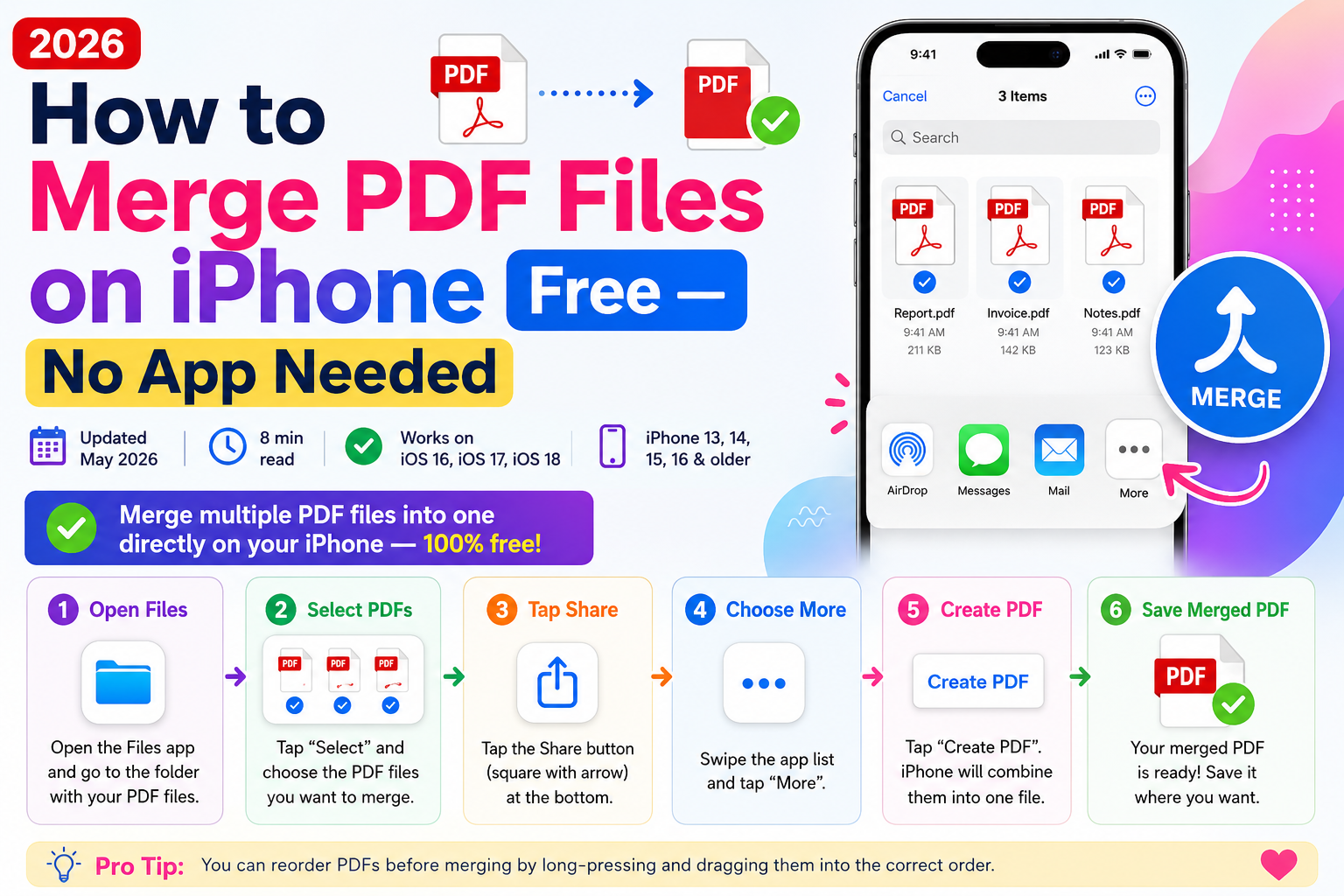
Using Files App (Limited):
- Open Files app
- Select multiple PDFs (long press, then tap others)
- Tap Share → Create PDF
- Basic merge only—limited features
Merge PDFs on Android
Using Comfortable PDF (Recommended):
- Open Chrome and visit comfortablepdf.com/merge-pdf
- Tap "Select Files" and choose from device storage
- Arrange files in preferred order
- Tap "Merge PDF"
- Download to device or save to cloud storage
Security & Privacy Considerations
Why Security Matters
PDF files often contain sensitive information:
- Financial data
- Personal identification
- Business confidential materials
- Legal documents
- Medical records
How Comfortable PDF Protects You
Comfortable PDF prioritizes your security:
- Encrypted connections — SSL/TLS encryption for all file transfers
- Automatic deletion — Files removed from servers after processing
- No storage — Documents not retained beyond session
- No account required — No personal data collected
- GDPR compliant — European privacy standards met
Learn more about security at Comfortable PDF Privacy Policy.
Additional Security Steps
For highly sensitive documents:
- Remove metadata before merging
- Use Protect PDF to add passwords
- Encrypt files before uploading
- Use PDF to PDF/A for archival format
Frequently Asked Questions
How do I merge PDF files for free?
Use Comfortable PDF Merge—upload your PDFs, arrange the order, click merge, and download. Completely free with no registration, watermarks, or limits.
How many PDFs can I merge at once?
Comfortable PDF allows unlimited PDFs to be merged simultaneously. There's no restriction on file count or total size.
Will merging reduce PDF quality?
No. Proper merging tools like Comfortable PDF maintain original quality. The merged file contains exact copies of source pages without compression or quality loss.
Can I merge password-protected PDFs?
You need to unlock protected PDFs first. Use Unlock PDF to remove passwords (you must have authorization), then merge the unlocked files.
Can I reorder pages while merging?
Yes. Before finalizing the merge at comfortablepdf.com/merge-pdf, drag files or pages to arrange them in your preferred order.
Is it safe to merge PDFs online?
Reputable services like Comfortable PDF use encrypted connections and automatically delete files after processing. Review the privacy policy for any service you use.
Can I merge PDFs on my phone?
Yes. Visit comfortablepdf.com/merge-pdf in your mobile browser. The tool works fully on iOS and Android devices.
How do I merge images into a PDF?
First convert images to PDF using JPG to PDF or PNG to PDF, then merge the resulting PDFs.
What if my merged PDF is too large?
Use Compress PDF after merging to reduce file size. Choose compression level based on your quality requirements.
Complete PDF Toolkit
Beyond merging, Comfortable PDF offers everything you need:
Convert PDFs
- PDF to Word — Edit in Microsoft Word
- PDF to Excel — Work with spreadsheets
- PDF to PowerPoint — Create presentations
- PDF to JPG — Extract as images
Create PDFs
- Word to PDF — From Word documents
- Excel to PDF — From spreadsheets
- PowerPoint to PDF — From presentations
- JPG to PDF — From images
Organize PDFs
- Merge PDF — Combine files
- Split PDF — Separate pages
- Rotate PDF — Fix orientation
- Organize PDF — Rearrange pages
- Crop PDF — Trim margins
Optimize PDFs
- Compress PDF — Reduce size
- OCR PDF — Make searchable
- Repair PDF — Fix corrupted files
Secure PDFs
- Protect PDF — Add passwords
- Unlock PDF — Remove restrictions
- Sign PDF — Add signatures
- Watermark PDF — Add branding
Learn more at How It Works or visit our FAQ.
Start Merging PDFs Today
Stop struggling with scattered PDF files. Whether you need to combine contracts, assemble reports, or organize personal documents, Comfortable PDF makes it effortless.
Why Choose Comfortable PDF:
✓ 100% Free — No hidden costs, no premium upsells
✓ No Registration — Start merging immediately
✓ No Watermarks — Professional output always
✓ No File Limits — Merge as many PDFs as needed
✓ Privacy Protected — Files automatically deleted
✓ Lightning Fast — Merging completes in seconds
✓ All Devices — Desktop, tablet, and mobile
✓ Complete Toolkit — 20+ PDF tools available
Merge Your PDFs Free → comfortablepdf.com/merge-pdf
Have questions? Visit our FAQ or Contact Us.