JPG to PDF: The Complete Guide to Converting Images to PDF in 2026
Over 1.6 million people search for "JPG to PDF converter" every single month. The need spans every industry and personal situation: digitizing photo collections, creating professional portfolios, submitting document scans, combining receipts for expense reports, or preparing images for official submissions.
JPG to PDF conversion transforms image files into universally compatible PDF documents. Unlike JPG files that vary in display across devices, PDFs maintain consistent formatting everywhere. Unlike separate image files that scatter across folders, PDFs combine multiple images into single, organized documents.
But not all converters deliver equal results. Some destroy image quality during conversion. Others add intrusive watermarks. Many limit how many images you can convert or force account creation for basic functionality. The worst offenders produce oversized files or corrupt outputs entirely.
This comprehensive guide reveals the best methods for converting JPG to PDF in 2026—from online tools to mobile solutions to bulk conversion techniques. You'll discover which platforms preserve image quality perfectly, which protect your privacy, and which deliver professional results without costing anything.
Why Convert JPG to PDF?
Understanding common use cases helps select the right approach:
Document Submission Requirements
Many institutions specifically require PDF format:
- Job applications — Resumes, cover letters, certificates
- College admissions — Transcripts, recommendation letters, portfolios
- Government forms — ID copies, supporting documents
- Visa applications — Photos, financial statements, travel history
- Insurance claims — Damage photos, receipts, documentation
PDFs ensure documents display correctly regardless of the recipient's device or software.
Professional Presentations
Business contexts benefit from PDF's consistency:
- Client portfolios — Design work, photography samples
- Project documentation — Site photos, progress images
- Proposals — Visual mockups combined with text
- Reports — Charts, graphs, and supporting images
- Marketing materials — Brochures, flyers, visual content
Personal Organization
Individuals convert images to PDF for:
- Photo albums — Digital scrapbooks in shareable format
- Recipe collections — Screenshots and photos organized
- Travel memories — Trip photos compiled chronologically
- Receipt archives — Expense documentation for taxes
- Scanned documents — Physical papers digitized
Multi-Image Combination
Often you need multiple images in one document:
- Before/after comparisons — Renovation, weight loss, repairs
- Step-by-step guides — Instructions with sequential images
- Product catalogs — Multiple items in organized format
- Evidence compilation — Legal, insurance, or warranty purposes
- Multi-page scans — Document pages captured as separate images
How JPG to PDF Conversion Works
The Technical Process
When you convert JPG to PDF, the converter:
- Reads image data — Analyzes pixel information, dimensions, color profile
- Creates PDF container — Generates the PDF file structure
- Embeds image — Places JPG data within PDF wrapper
- Applies settings — Implements orientation, sizing, compression choices
- Generates output — Produces downloadable PDF file
Quality Considerations
Lossless vs. Lossy:
- Lossless conversion — Image quality preserved exactly as original
- Lossy conversion — Some quality sacrificed for smaller file size
Quality converters like Comfortable PDF default to lossless conversion, preserving your original image quality completely.
File Size Factors
Resulting PDF size depends on:
- Original image resolution and dimensions
- Number of images combined
- Compression settings applied
- Color depth (color vs. grayscale)
How to Convert JPG to PDF: Complete Methods
Method 1: Online Converter (Fastest & Easiest)
Using Comfortable PDF JPG to PDF Tool:
Step 1: Access the Tool Visit comfortablepdf.com/jpg-to-pdf in any web browser.
Step 2: Upload Your Images
- Drag and drop JPG files onto the upload area, OR
- Click "Select Files" to browse and choose images
- Add multiple images for combined PDF
Step 3: Arrange Image Order
- Drag images to reorder as desired
- Preview thumbnails to verify arrangement
- Remove unwanted images if needed
Step 4: Adjust Settings (Optional)
- Choose page orientation (portrait/landscape)
- Select page size (A4, Letter, original size)
- Set margins if desired
Step 5: Convert to PDF Click the "Convert to PDF" button.
Step 6: Download Your PDF
- Click "Download" to save your PDF
- Optionally save to Google Drive, Dropbox, or OneDrive
- Share via link if preferred
Why Comfortable PDF Leads:
- ✅ 100% Free — No hidden charges
- ✅ No Registration — Start converting immediately
- ✅ No Watermarks — Clean, professional output
- ✅ Unlimited Images — Combine as many as needed
- ✅ Quality Preserved — Lossless conversion default
- ✅ Privacy Protected — Files auto-deleted
- ✅ All Devices — Works everywhere
Method 2: Using Windows Built-In
Windows 10/11 includes PDF printing:
Step 1: Open image in Photos app
Step 2: Click Print (Ctrl + P)
Step 3: Select "Microsoft Print to PDF" as printer
Step 4: Click Print and choose save location
Step 5: Name your file and save
For Multiple Images:
- Select all images in File Explorer
- Right-click → Print
- Choose "Microsoft Print to PDF"
- Arrange order and print to PDF
Limitations: Basic features only; limited control over output
Method 3: Using Mac Preview
Mac users have built-in options:
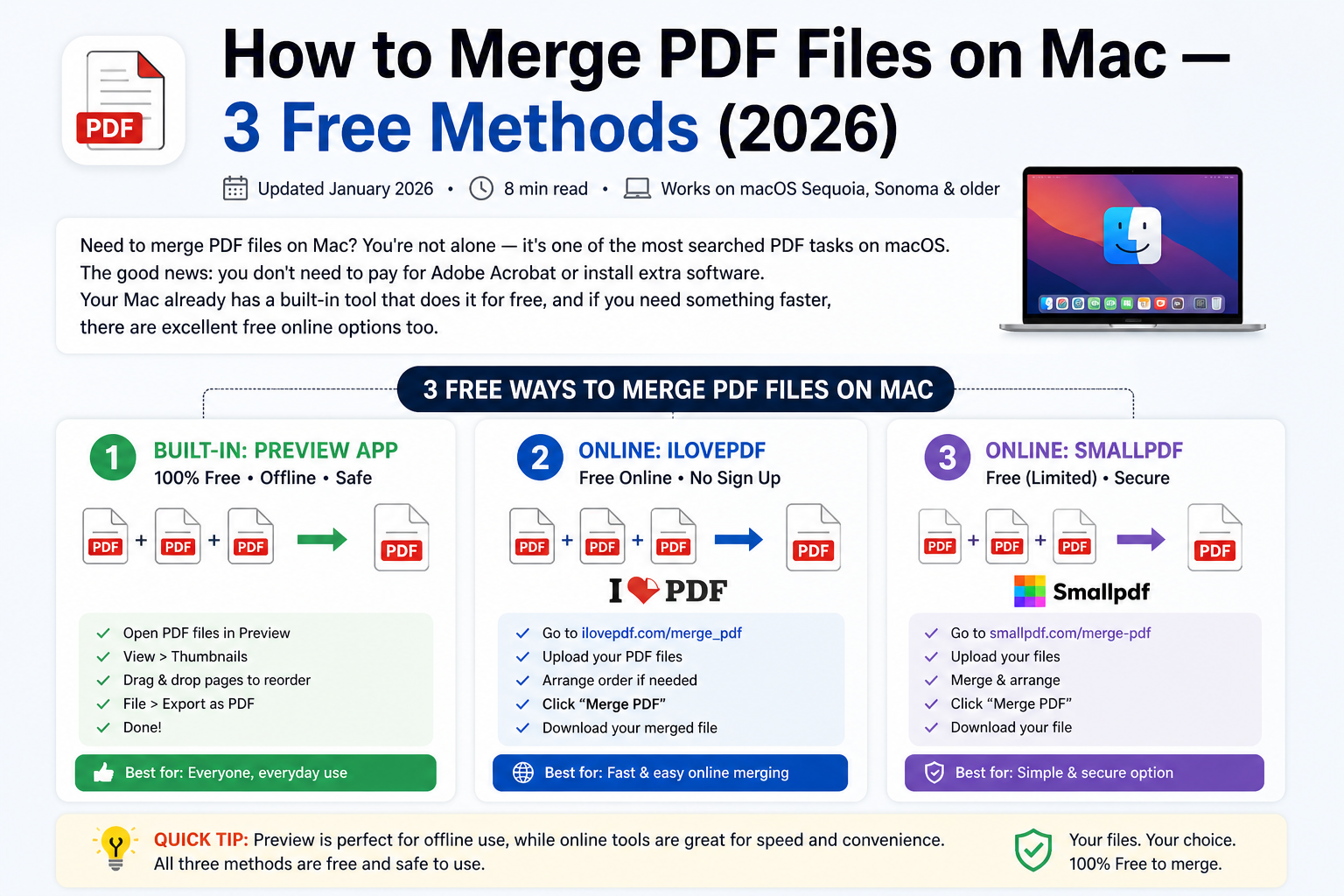
Step 1: Open image(s) in Preview
Step 2: If multiple: View → Thumbnails, drag in additional images
Step 3: File → Export as PDF
Step 4: Choose location and save
Alternative Method:
- Select images in Finder
- Right-click → Quick Actions → Create PDF
Limitations: Less control than dedicated tools
Method 4: Using Adobe Acrobat
For Adobe Acrobat subscribers:
Step 1: Open Adobe Acrobat
Step 2: Tools → Create PDF
Step 3: Select "Multiple Files" for batch conversion
Step 4: Add your JPG files
Step 5: Arrange order if needed
Step 6: Click "Create" to generate PDF
Considerations: Requires paid subscription ($12.99-22.99/month)
Top 10 JPG to PDF Converters 2026
After extensive testing across quality, speed, and features, these tools deliver the best results:
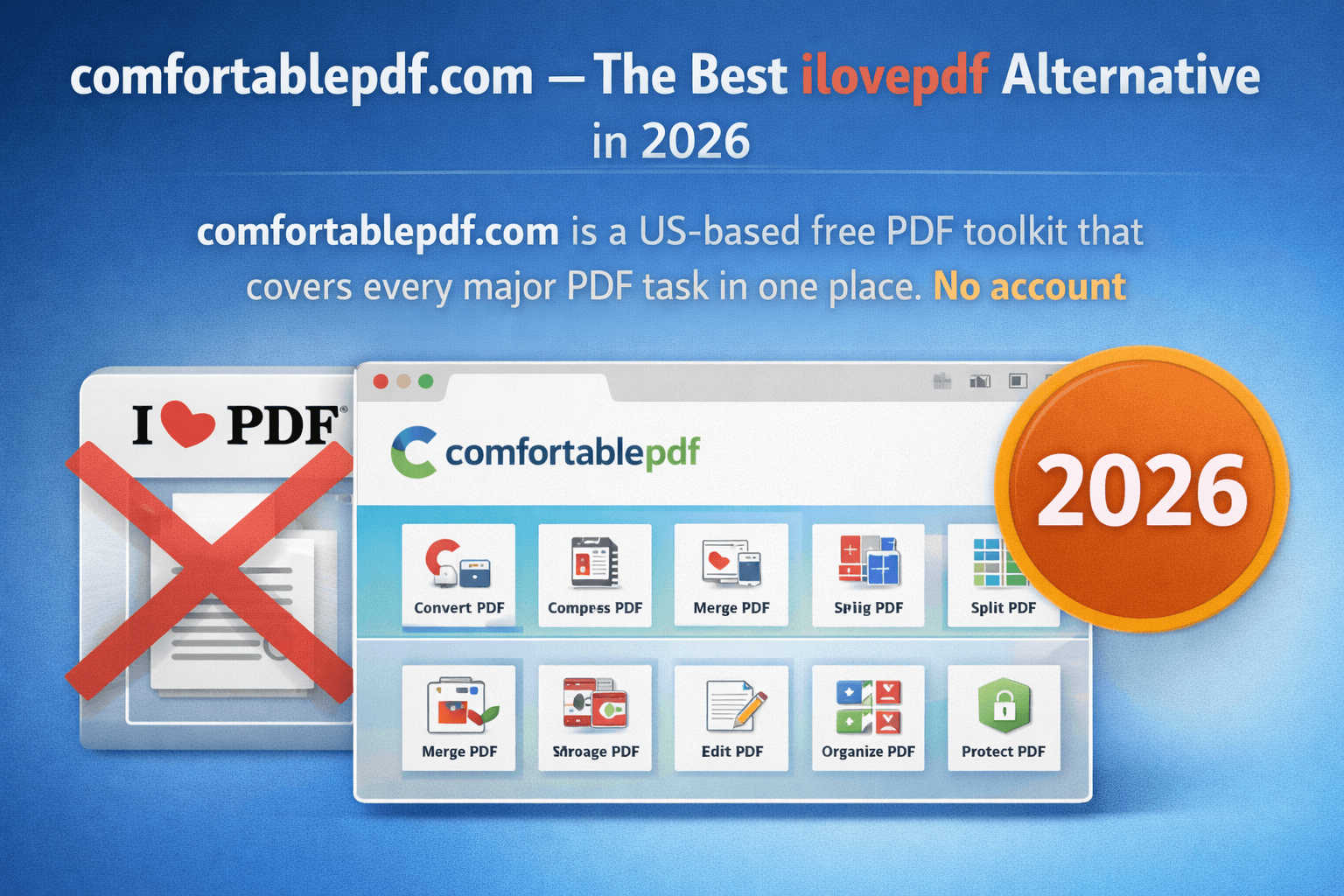
1. Comfortable PDF — Best Free Online Converter
Rating: ★★★★★ (9.9/10) Best For: Quick, Free, High-Quality Conversions
Comfortable PDF delivers the most reliable JPG to PDF conversion available—completely free with no compromises on quality or features.
The platform handles images of any size, preserves original quality, supports unlimited batch conversion, and protects your privacy by automatically deleting files after processing.
Complete Image Conversion Suite:
- JPG to PDF — Convert and combine JPG images
- PNG to PDF — Convert PNG graphics to PDF
- PDF to JPG — Extract images from PDFs
Additional Essential Tools:
- Merge PDF — Combine multiple PDFs
- Compress PDF — Reduce file size
- PDF to Word — Convert to editable documents
- Split PDF — Separate PDF pages
- Rotate PDF — Fix page orientation
- OCR PDF — Make scans searchable
- Protect PDF — Add password security
Key Advantages:
- No file size limits
- No image count restrictions
- No daily usage caps
- Quality preservation guaranteed
- Works on all devices
- Instant processing
Pricing: 100% Free Website: comfortablepdf.com/jpg-to-pdf
2. Adobe Acrobat — Best for Adobe Ecosystem
Rating: ★★★★☆ (8.6/10) Best For: Heavy PDF Users
Adobe Acrobat offers comprehensive image-to-PDF capabilities as part of its full editing suite.
Key Strengths:
- Excellent quality output
- Advanced editing options
- OCR for scanned images
- Part of creative workflow
Considerations: Subscription required; overkill for simple conversions Pricing: $12.99-22.99/month
3. Smallpdf — Best Simple Interface
Rating: ★★★★☆ (8.4/10) Best For: Minimalist Experience
Smallpdf provides straightforward conversion with clean design.
Key Strengths:
- Extremely intuitive
- Cloud storage integration
- Multiple tools available
- Mobile apps
Considerations: Free tier limited to 2 tasks/day Pricing: Free (limited) or $9/month
4. iLovePDF — Best Multi-Tool Platform
Rating: ★★★★☆ (8.3/10) Best For: Multiple PDF Operations
iLovePDF combines JPG conversion with comprehensive PDF tools.
Key Strengths:
- Many tools in one place
- Reasonable free tier
- Desktop apps available
- Good batch processing
Considerations: Ads on free version; some limits Pricing: Free (limited) or $7/month
5. PDF24 — Best German Engineering
Rating: ★★★★☆ (8.1/10) Best For: European Privacy Standards
PDF24 offers reliable conversion with strong privacy focus.
Key Strengths:
- Completely free
- Desktop app available
- Good quality output
- Privacy focused
Considerations: Interface less modern Pricing: Free
6-10. Additional Strong Options
| Rank | Tool | Score | Best For | Price |
|---|---|---|---|---|
| 6 | Sejda PDF | 8.0/10 | Privacy-conscious | Free (3/day) |
| 7 | PDF Candy | 7.8/10 | Casual users | Free (limited) |
| 8 | Img2Go | 7.7/10 | Image focus | Free (limited) |
| 9 | JPG2PDF.com | 7.5/10 | Simple conversion | Free |
| 10 | Convertio | 7.4/10 | Format variety | Free (limited) |
Converting Multiple JPG Files to One PDF
Batch Conversion with Comfortable PDF
Step 1: Visit comfortablepdf.com/jpg-to-pdf
Step 2: Upload all JPG files at once
- Drag multiple images together, OR
- Select multiple files when browsing
- Continue adding more as needed
Step 3: Arrange page order
- Drag thumbnails to reorder
- Verify sequence before converting
- Remove any unwanted images
Step 4: Convert and download
- All images combine into single PDF
- Pages appear in your arranged order
- Download complete document
Tips for Multi-Image PDFs
Naming Convention: Name files sequentially (01.jpg, 02.jpg, etc.) before uploading for automatic ordering.
Consistent Orientation: Ensure all images have same orientation, or use Rotate PDF after conversion.
Quality Matching: Similar resolution images produce more consistent results.
Page Size Options:
- Fit to image — Each page matches image dimensions
- Standard size — All pages uniform (A4, Letter)
- Custom size — Specify exact dimensions
Image to PDF: Beyond JPG
PNG to PDF
PNG to PDF conversion works identically to JPG:
When to use PNG:
- Screenshots with text
- Graphics with transparency
- Images requiring lossless quality
- Digital artwork and designs
Learn more in our PNG to PDF guide.
Other Image Formats
Comfortable PDF also supports:
- JPEG — Standard photo format
- PNG — Graphics with transparency
- GIF — Simple graphics
- BMP — Windows bitmap images
- TIFF — High-quality scans
- WEBP — Modern web format
Combining Different Image Types
You can mix formats in one PDF:
- Upload JPGs, PNGs, and other formats together
- Arrange all images as desired
- Convert to unified PDF document
Optimizing JPG to PDF Results
Maintaining Image Quality
Before Conversion:
- Use original high-resolution images
- Avoid heavily compressed JPGs
- Don't resize images smaller before converting
During Conversion:
- Select "High Quality" or "Lossless" option
- Avoid maximum compression settings
- Preview before finalizing
After Conversion:
- Verify quality meets requirements
- Re-convert with different settings if needed
Reducing PDF File Size
If your converted PDF is too large:
Option 1: Compress After Conversion Use Compress PDF to reduce size while maintaining acceptable quality.
Option 2: Resize Images Before Conversion Reduce image dimensions before converting if extreme resolution isn't needed.
Option 3: Use Compression During Conversion Select medium or high compression if quality requirements allow.
Compression Results Example:
| Original Images | No Compression | Medium | High |
|---|---|---|---|
| 10 MB total | 12 MB PDF | 6 MB | 3 MB |
| 50 MB total | 55 MB PDF | 25 MB | 10 MB |
Page Layout Options
Orientation:
- Portrait — Standard vertical layout
- Landscape — Horizontal layout for wide images
- Auto-detect — Match each image's orientation
Margins:
- No margins — Images fill entire page
- Standard margins — Professional document appearance
- Custom margins — Specific spacing requirements
Multiple Images Per Page: Some converters allow placing several images on each page—useful for contact sheets or catalogs.
Mobile JPG to PDF Conversion
iPhone & iPad
Using Comfortable PDF (Recommended):
- Open Safari and visit comfortablepdf.com/jpg-to-pdf
- Tap "Select Files"
- Choose "Photo Library" or "Files"
- Select your images
- Arrange order if needed
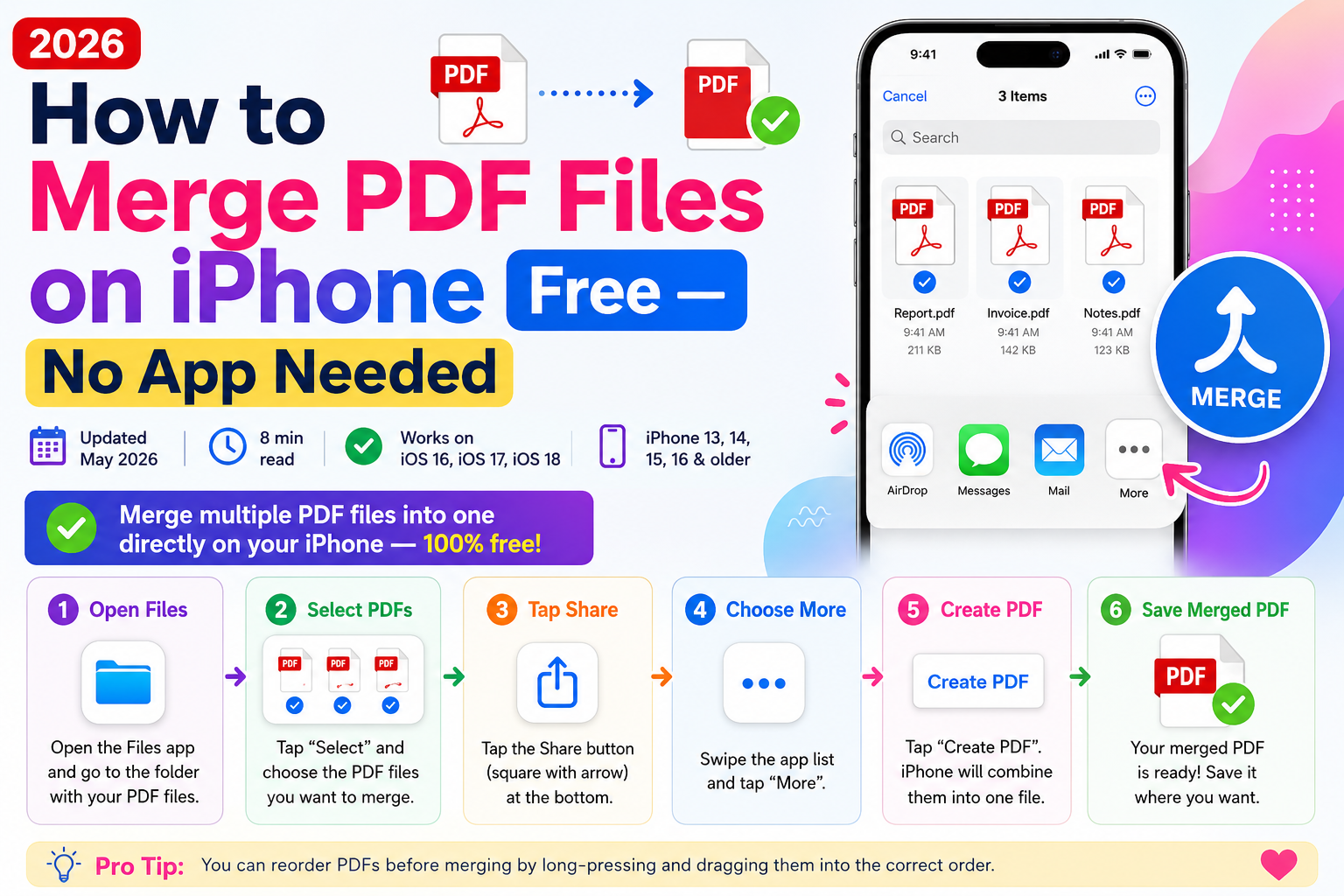
- Tap "Convert to PDF"
- Save to Files or share directly
Using Built-In iOS:
- Open Photos app
- Select images to convert
- Tap Share → Print
- Pinch outward on preview to create PDF
- Share or save the PDF
Android
Using Comfortable PDF (Recommended):
- Open Chrome and visit comfortablepdf.com/jpg-to-pdf
- Tap "Select Files"
- Choose from gallery or file manager
- Select images
- Arrange and convert
- Download to device
Using Google Drive:
- Upload images to Google Drive
- Select images
- Tap ⋮ → Print
- Select "Save as PDF"
JPG to PDF for Specific Purposes
Creating Photo Books
Convert vacation photos, family events, or portfolios:
- Organize photos chronologically
- Use JPG to PDF to combine all images
- Add page numbers for navigation
- Consider watermarking with dates or titles
Document Scanning
Converting scanned document images:
- Scan documents as JPG files
- Convert to PDF using JPG to PDF
- Apply OCR to make text searchable
- Compress for efficient storage
Business Portfolios
Creating professional work samples:
- Prepare high-quality project images
- Combine into single PDF
- Protect with password if confidential
- Add signature or certification
Receipt & Expense Documentation
Organizing financial records:
- Photograph receipts with good lighting
- Convert all to PDF monthly
- Merge with expense reports
- Compress for email submission
The Reverse: PDF to JPG
Sometimes you need to extract images from PDFs:
Using PDF to JPG:
- Upload your PDF file
- Choose output format (JPG, PNG)
- Select quality settings
- Download individual images or ZIP archive
Common Use Cases:
- Extracting photos from documents
- Creating social media posts from PDF content
- Editing images separately then recombining
- Converting PDF presentations to image slides
Troubleshooting Common Issues
Problem: Poor Output Quality
Causes:
- Original image low resolution
- Over-compression applied
- Wrong size settings
Solutions:
- Use higher resolution source images
- Select lossless or high-quality conversion
- Choose "Fit to Image" for original dimensions
Problem: Wrong Page Orientation
Causes:
- Camera rotation metadata
- Mixed portrait/landscape images
Solutions:
- Rotate images before uploading
- Use Rotate PDF after conversion
- Check each page individually
Problem: PDF Too Large
Causes:
- High-resolution images
- Many images combined
- No compression applied
Solutions:
- Use Compress PDF after conversion
- Resize images before converting
- Apply compression during conversion
Problem: Images in Wrong Order
Solutions:
- Name files sequentially before upload
- Drag thumbnails to reorder before converting
- Use Organize PDF to rearrange after
Problem: Upload Fails
Causes:
- File too large
- Corrupted image file
- Network issues
Solutions:
- Try smaller batch of images
- Check image file opens correctly
- Refresh page and retry
- Try different browser
Security & Privacy
Why Privacy Matters
Image files often contain:
- Personal photos
- Financial documents
- Identity information
- Location data (EXIF)
- Business-sensitive content
How Comfortable PDF Protects You
Comfortable PDF prioritizes your security:
- Encrypted connections — SSL/TLS for all transfers
- Automatic deletion — Files removed after processing
- No permanent storage — Documents not retained
- No account required — No personal data collected
- GDPR compliant — European privacy standards
Review our Privacy Policy for complete details.
Complete PDF Toolkit
Beyond JPG conversion, Comfortable PDF offers 20+ tools:
Image Conversions
- JPG to PDF — Images to PDF
- PNG to PDF — Graphics to PDF
- PDF to JPG — PDF to images
Document Conversions
- PDF to Word — Editable documents
- PDF to Excel — Spreadsheets
- PDF to PowerPoint — Presentations
- Word to PDF — From Word
- Excel to PDF — From Excel
- PowerPoint to PDF — From slides
PDF Organization
- Merge PDF — Combine files
- Split PDF — Separate pages
- Rotate PDF — Fix orientation
- Organize PDF — Rearrange pages
- Crop PDF — Trim margins
PDF Enhancement
- Compress PDF — Reduce size
- OCR PDF — Make searchable
- Repair PDF — Fix corrupted
- Page Numbers — Add numbering
PDF Security
- Protect PDF — Password protection
- Unlock PDF — Remove restrictions
- Sign PDF — Electronic signatures
- Watermark PDF — Add branding
Learn more at How It Works or visit our FAQ.
Frequently Asked Questions
How do I convert JPG to PDF for free?
Use Comfortable PDF—upload your JPG images, arrange order if combining multiple, click convert, and download your PDF. Completely free with no registration or watermarks.
Can I combine multiple JPGs into one PDF?
Yes! Comfortable PDF allows unlimited images to be combined into a single PDF. Upload all images, arrange their order, and convert.
Will converting JPG to PDF reduce quality?
Not with quality converters. Comfortable PDF uses lossless conversion by default, preserving your original image quality completely.
How do I convert JPG to PDF on iPhone?
Visit comfortablepdf.com/jpg-to-pdf in Safari, tap "Select Files," choose images from your photo library, and convert. Works fully without any app installation.
What's the difference between JPG and JPEG?
They're the same format—just different file extensions. Both convert identically to PDF.
Can I convert PNG to PDF too?
Yes! Use PNG to PDF for PNG images. You can also mix JPG and PNG files in the same conversion.
How do I reduce the size of my converted PDF?
Use Compress PDF after conversion to reduce file size while maintaining acceptable quality.
Is online JPG to PDF conversion safe?
Reputable services like Comfortable PDF use encrypted connections and automatically delete files. Review our privacy policy for details.
Start Converting JPG to PDF Today
Stop struggling with image files when PDF format is required. Whether you need to convert single photos or combine hundreds of images, Comfortable PDF makes it effortless.
Why Choose Comfortable PDF:
✓ 100% Free — No hidden costs, no premium upsells
✓ No Registration — Start converting immediately
✓ No Watermarks — Professional output always
✓ Unlimited Images — Combine as many as needed
✓ Quality Preserved — Lossless conversion default
✓ Privacy Protected — Files automatically deleted
✓ All Devices — Desktop, tablet, and mobile
✓ Complete Toolkit — 20+ PDF tools available
Convert Your JPGs Free → comfortablepdf.com/jpg-to-pdf
Have questions? Visit our FAQ or Contact Us.