What Does Compressing a PDF Do?
Before jumping into methods, it helps to understand what PDF compression actually does — because 210 people search for "what does compressing a PDF do" every single month in the USA.
When you compress a PDF, you reduce the total file size by removing internal redundancies, optimizing how images are encoded, stripping unused metadata, and downsizing embedded resources. The document's content — text, images, formatting, links — stays intact. A well-compressed PDF looks identical to the original when viewed on screen or printed.
There are two types of compression:
- Lossless compression — removes technical bloat without touching image quality. Your PDF looks 100% the same at a smaller size. This is the default at comfortablepdf.com.
- Lossy compression — reduces image resolution to achieve much greater size reduction. Best for text-heavy documents where visual sharpness is less important.
What is a compressed PDF? It is simply the same document you started with, packaged more efficiently — like vacuum-sealing a bag of clothes. Everything is still inside, just takes up less space.
How to Compress PDF in Google Drive Free
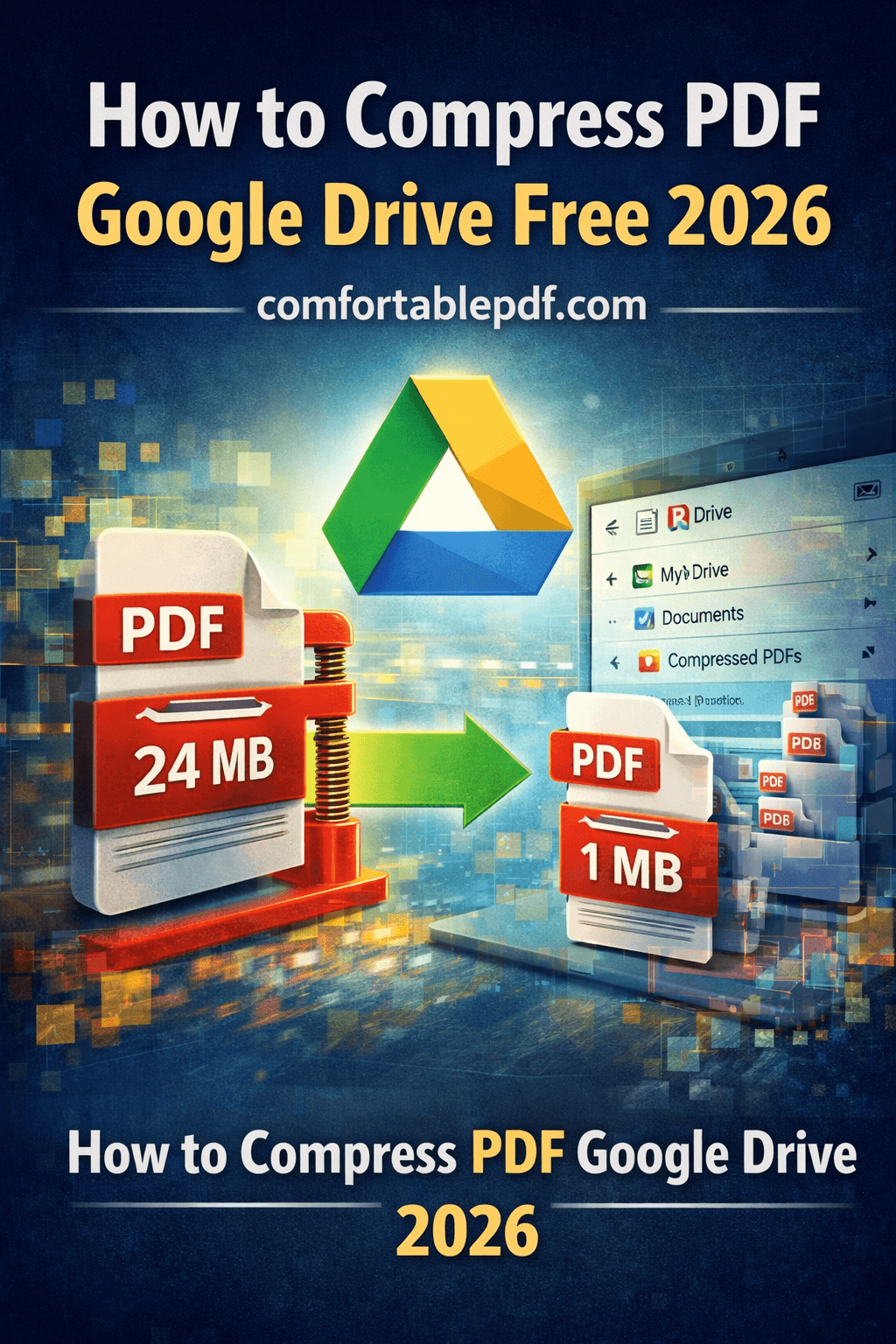
Google Drive does not have a built-in PDF compression tool — it stores your PDFs as-is, at their original file size. But you can compress a PDF before uploading to Google Drive, or compress one that is already stored there. Here are the best methods.
Method 1 — comfortablepdf.com (Best Free Option — Works with Google Drive)
The fastest and most reliable way to compress a PDF connected to Google Drive:
- Go to comfortablepdf.com and open the Compress PDF tool.
- Click Choose File. If your PDF is in Google Drive, select Google Drive from the file picker — it connects directly.
- Choose your compression level: Lossless for quality preservation, or Strong for maximum size reduction.
- Click Compress PDF. Processing takes seconds even for large files.
- Download the compressed file back to your device or save directly to Google Drive.
Best for: Anyone who stores PDFs in Google Drive and needs to reduce file size before sharing, emailing, or freeing up storage space. Cost: Free. Pro plan available for batch compression and larger files. Privacy: Files are processed securely and automatically deleted from servers within one hour — nothing is stored or accessed beyond the compression task.
Method 2 — Google Docs Workaround (Free, No Third-Party Tools)
Google Drive has a free workaround that compresses PDFs without any external tool:
- Upload your PDF to Google Drive.
- Right-click the PDF and select Open with > Google Docs. Google Docs converts the PDF to an editable document.
- Go to File > Download > PDF Document (.pdf).
- Google re-exports the document as a freshly generated PDF, which is often significantly smaller than the original.
Important caveat: This method works best for text-heavy PDFs. Complex layouts, images, custom fonts, and precise formatting may shift or degrade during the Google Docs conversion. Always compare the output to the original before using this method for professional documents.
Best for: Simple text documents, form letters, and basic reports stored in Google Drive where layout precision is not critical. Cost: Free — available with any Google account.
Method 3 — Dropbox Compress PDF
With 30 monthly searches for "Dropbox compress PDF," cloud storage users on Dropbox face the same problem as Google Drive users. Dropbox also has no built-in compressor, but the workflow is identical — use comfortablepdf.com to compress the file, then re-upload to Dropbox. The Pro plan at comfortablepdf.com supports saving directly back to cloud storage after compression.
How to Compress a PDF on iPhone Free
With 170 monthly searches for "how to compress PDF on iPhone" and a CPC of $1.89 — the highest in this dataset — iPhone PDF compression is a high-value topic with real commercial demand.
Using comfortablepdf.com in Safari (Best iPhone Method)
- Open Safari on your iPhone.
- Go to comfortablepdf.com.
- Tap Compress PDF.
- Upload your PDF from Files, iCloud Drive, or Google Drive.
- Select your compression level.
- Tap Compress and download the smaller PDF directly to your iPhone.
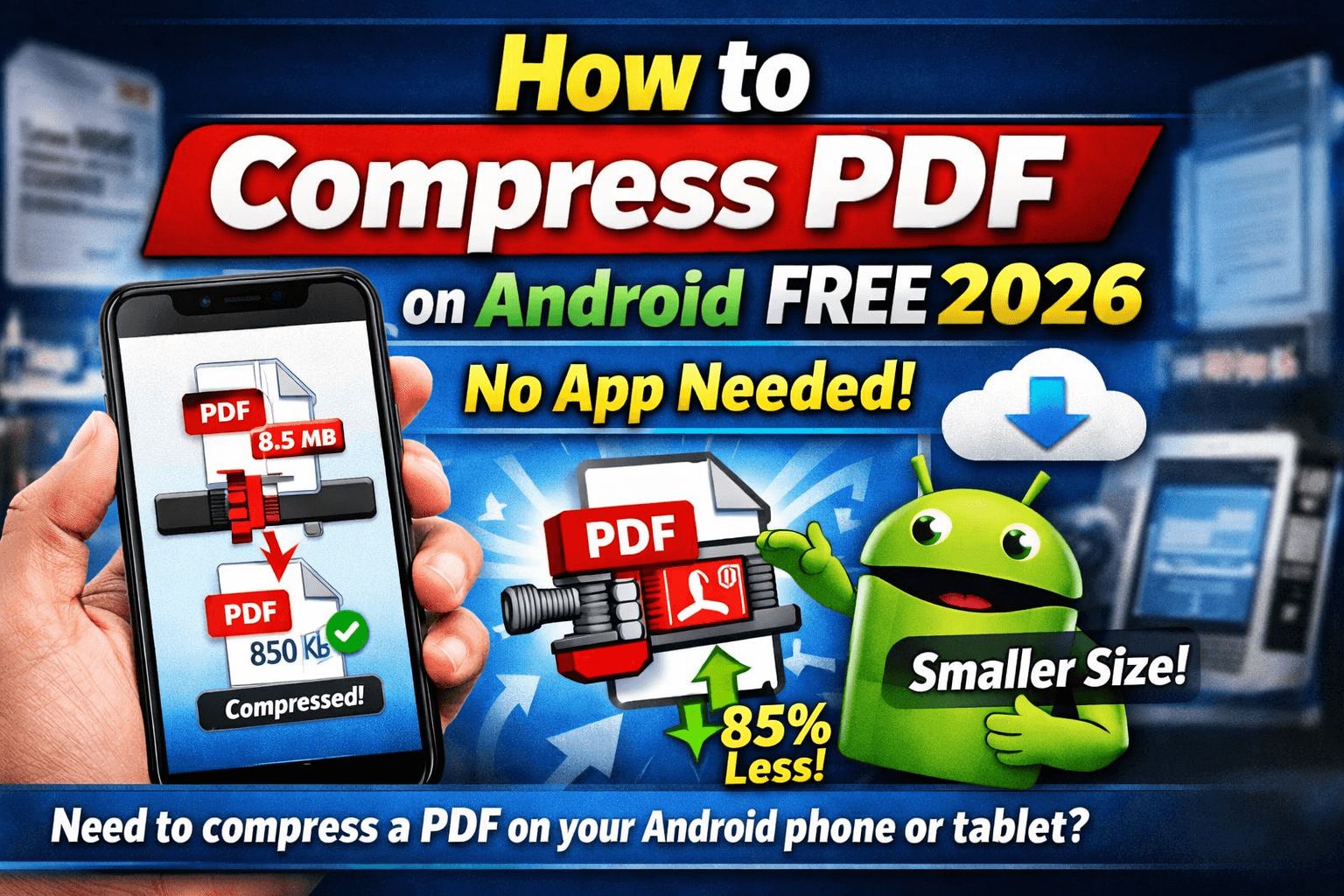
No app installation needed. Works on all iPhone models running iOS 14 and later, including iPhone SE through iPhone 16.
Using the Files App Shortcut on iPhone
For PDFs stored in iCloud Drive, you can share them to any PDF compressor directly from the Files app. Tap and hold your PDF, tap Share, and use the comfortablepdf.com web app from Safari to process and return the compressed file.
Best for: Mobile users who need to compress PDFs before emailing them from their phone — a common need given the 30 monthly searches for "how to compress a PDF file size for email."
How to Compress a PDF on Mac — All Methods
How to Compress a PDF on Mac Using Preview (Free, Built-In)
With 880 monthly searches for "how to compress a PDF on Mac" — the highest volume keyword in the broader dataset — this is the most popular compression question among US users.
Mac's built-in Preview app has a basic compression option via Quartz Filters:
- Open your PDF in Preview.
- Go to File > Export.
- In the Quartz Filter dropdown, select Reduce File Size.
- Click Save.
How to compress a PDF in Preview on Mac — important note: Preview's Reduce File Size filter can be aggressive on image quality, sometimes producing worse-looking results than the original at a barely smaller size. For better results with quality control, use comfortablepdf.com instead.
Compress PDF on macOS using comfortablepdf.com: Open Safari or Chrome on your Mac. Go to comfortablepdf.com. Upload your PDF, choose Lossless or Strong compression, and download the result. Consistently better quality-to-size ratio than Preview's built-in filter.
Compress PDF MacBook — OSX and macOS
With 110 monthly searches for "compress PDF MacBook" and 170 for "compress PDF OSX," MacBook users are among the most active searchers for this topic. The methods above apply to all MacBook models — MacBook Air, MacBook Pro — running macOS Ventura, Sonoma, and Sequoia. For macOS specifically, the comfortablepdf.com method delivers the most consistent results across all macOS versions without relying on Quartz Filter quality inconsistencies.
How to Compress a PDF in Acrobat
With 90 monthly searches for "how to compress a PDF in Acrobat" and 90 for "how to compress PDF in Acrobat," Adobe Acrobat is the professional standard for PDF compression with fine-grained control.
Two methods in Acrobat:
Quick method — Reduce File Size: Open your PDF in Acrobat Pro. Go to File > Save As Other > Reduced Size PDF. Select the Acrobat version compatibility and click OK. This is the fastest one-click compression option in Acrobat.
Advanced method — PDF Optimizer: Go to File > Save As Other > Optimized PDF. The PDF Optimizer dialog opens and gives you full control over:
- Image downsampling (reduce DPI for color, grayscale, and monochrome images)
- Font embedding (subset or remove unused fonts)
- Transparency flattening
- Discard unused objects and metadata
Use the Audit Space Usage button first to see exactly what is taking up space in your PDF before optimizing.
Best for: Design professionals, legal teams, and enterprise users who need precise control over compression output. Cost: Adobe Acrobat Pro at $24.99/month. Also works for: "How to compress PDF with Acrobat" (70 searches/month) and "compress PDF in Adobe Acrobat" (590 searches/month from the broader keyword set).
How to Compress PDF in Bluebeam
With 110 monthly searches for "Bluebeam compress PDF," 110 for "compress PDF Bluebeam," 110 for "compress PDF in Bluebeam," and 90 for "how to compress Bluebeam PDF" — Bluebeam compression is clearly a significant need in the AEC (architecture, engineering, construction) sector.
How to compress a PDF in Bluebeam Revu:
- Open your PDF in Bluebeam Revu.
- Go to File > Reduce File Size.
- The Reduce File Size dialog opens with options for image compression quality and resolution.
- Adjust the image quality slider — lower quality means smaller file size.
- Click OK and save the compressed PDF.
Alternative Bluebeam method: Go to File > Save As. In the Save As dialog, click the Settings button. Enable the optimization options including image compression and metadata removal. Save.
Best for: Engineers, architects, and project managers working with large CAD-exported PDFs, construction drawings, and technical specifications that need to be shared with project teams or submitted through client portals. Cost: Bluebeam Revu subscription required. Tip: Bluebeam PDFs that contain embedded CAD data or large image scans can often be reduced by 50-70% using Bluebeam's built-in compression without any visible quality loss on standard screen viewing.
How to Compress PDF with Foxit
With 110 monthly searches for "compress PDF with Foxit," 90 for "Foxit compress PDF," and 90 for "Foxit Reader compress PDF," Foxit is the second most searched tool-specific compression query after Acrobat.
How to compress a PDF in Foxit PDF Editor:
- Open your PDF in Foxit PDF Editor.
- Go to File > PDF Optimizer.
- The optimization panel shows file size breakdown by component — images, fonts, content streams.
- Adjust image compression settings and disable embedding for unused fonts.
- Click OK and save your optimized PDF.
Note on "compress PDF Foxit is limited": With 260 monthly searches for "compress .pdf Foxit is limited," many users hit Foxit Reader's compression restrictions. Foxit Reader (the free viewer) has limited compression capabilities — for full PDF optimization, you need Foxit PDF Editor Pro. If you are hitting limits in the free version, comfortablepdf.com handles compression without any tier restrictions on the free plan.
Best for: Mid-market businesses and teams using Foxit as their primary PDF platform. Cost: Free trial. Foxit PDF Editor Pro from $14.99/month.
How to Compress PDF on Windows
With 70 monthly searches for "how to compress PDF files Windows," Windows users have multiple free and paid options.
Method 1 — comfortablepdf.com (Best Free Method): Open Chrome or Edge on Windows. Go to comfortablepdf.com. Upload your PDF, choose your compression level, and download. Works on Windows 10 and Windows 11 without any software installation.
Method 2 — Microsoft Print to PDF (Workaround): Open your PDF in any PDF viewer. Press Ctrl+P and select Microsoft Print to PDF as the printer. Print to a new PDF file. This re-renders the document and sometimes reduces file size, but results are inconsistent and complex layouts may shift.
Method 3 — Ghostscript (Free, Command Line): With 50 monthly searches for "Ghostscript compress PDF," this is the go-to free option for Windows power users and developers. Install Ghostscript, then run: gs -dBATCH -dNOPAUSE -sDEVICE=pdfwrite -dCompatibilityLevel=1.4 -dPDFSETTINGS=/ebook -sOutputFile=compressed.pdf input.pdf. Use /screen for maximum compression, /ebook for a good balance, or /prepress for near-original quality.
Compress PDF to Specific File Sizes
Compress PDF to 500KB
With 110 monthly searches for "compress PDF 500KB" and 30 for "compress PDF 500 KB," hitting a specific file size target is a common need for form submissions, job applications, and client portals with upload limits.
How to compress a PDF to 500KB: Upload your PDF to comfortablepdf.com. Select Strong compression mode. Check the resulting file size after the first pass. If still above 500KB, try splitting the PDF into sections and compressing each separately, or reduce embedded image resolution further using the Advanced settings.
Compress PDF to 50KB
With 30 monthly searches for "compress PDF to 50KB," extreme compression is sometimes required for government forms, online applications, or legacy systems with tight upload restrictions.
For very aggressive targets like 50KB, a combination of approaches works best: Strong compression mode on comfortablepdf.com, followed by reducing the number of pages if possible, and ensuring no unnecessary images are embedded in the document.
Enterprise and Developer PDF Compression
Power Automate PDF Compress
With 50 monthly searches for "Power Automate PDF compress," enterprise teams are increasingly automating PDF compression within Microsoft Power Automate workflows. A PDF compression connector or API call can be triggered automatically whenever a new PDF is uploaded to SharePoint or OneDrive, compressing it before distribution without any manual steps.
Compress PDF API
With 70 monthly searches for "compress PDF API" and a CPC of $3.37 — the highest commercial value in this dataset — API-based compression is a high-value developer segment. comfortablepdf.com offers commercial-grade PDF compression API access for businesses processing high document volumes programmatically.
Related high-opportunity keywords with very low KD include "enterprise tools PDF compress encrypt workflows" (KD 2%), "automate PDF compression in workflows" (KD 4%), "compression APIs for PDF workflow integration" (KD 4%), and "PDF compression SDK" (KD 1%) — all near-zero competition targets that are valuable for enterprise content.
Batch Compress PDF
With 30 monthly searches for "batch compress PDF," teams needing to compress dozens or hundreds of PDFs at once should look at the comfortablepdf.com Pro plan for batch processing, or implement API-based automation for fully hands-off batch compression at scale.
Most Efficient PDF Compression Service in 2026
With 140 monthly searches for "most efficient PDF compression service," users are actively comparing tools. Here is the honest comparison:
| Tool | Cost | Lossless Option | Batch | API | Best For |
|---|---|---|---|---|---|
| comfortablepdf.com | Free / Pro | Yes | Pro Plan | Yes | All users, all devices |
| Adobe Acrobat Pro | $24.99/mo | Yes | Yes | Yes | Enterprise, design |
| Foxit PDF Editor | $14.99/mo | Yes | Yes | No | Business teams |
| Bluebeam Revu | Paid | Yes | Yes | No | AEC industry |
| Ghostscript | Free (CLI) | Yes | Yes | No | Developers, Linux |
| Google Docs workaround | Free | No | No | No | Simple text PDFs only |
For most US users in 2026 — including the 880 who search for Mac compression, the 170 searching for iPhone methods, and the thousands more looking for free solutions — comfortablepdf.com remains the strongest all-around choice: free, lossless by default, cross-device, and no sign-up required.
Frequently Asked Questions — Compress PDF
How do I compress a PDF in Google Drive for free? Use comfortablepdf.com — it connects to Google Drive via the file picker. Upload your PDF, compress it, and save back to Drive. Google's own Docs workaround (open PDF in Docs, re-download as PDF) also reduces size for simple text documents.
How do I compress a PDF on iPhone? Open Safari, go to comfortablepdf.com, upload your PDF from Files or iCloud Drive, and download the compressed version. Free, no app required.
How do I compress a PDF on Mac without losing quality? Use comfortablepdf.com for lossless compression that preserves 100% of visual quality. Preview's built-in Quartz Filter works but can reduce image quality unpredictably.
How do I compress a PDF in Bluebeam? Go to File > Reduce File Size in Bluebeam Revu. Adjust image quality settings and click OK. For large technical drawings, this can reduce file size by 50-70%.
How do I compress a PDF to 500KB? Upload to comfortablepdf.com and select Strong compression mode. For PDFs still above 500KB after compression, try splitting the document or reducing embedded image resolutions further.
What does compressing a PDF do? It reduces the file's digital size by removing internal redundancies, optimizing image encoding, and stripping unused data — without changing the visible content of the document.
Final Verdict — Best PDF Compressor in the USA in 2026
Whether you are compressing a PDF stored in Google Drive, reducing a file on your iPhone before emailing it, shrinking a Bluebeam drawing for client submission, or automating compression across hundreds of enterprise documents — the right approach depends on your platform and volume.
For everyday free compression on any device, comfortablepdf.com is the fastest and most reliable solution. For enterprise teams and developers, the PDF compression API and batch processing capabilities scale to meet any volume. For Bluebeam and Foxit users, the built-in compression features cover professional workflows without additional tools.
The key principle is always the same: lossless compression first, lossy only when you need to hit a specific file size target, and always verify your output before sending.
Ready to compress your PDF right now? Try comfortablepdf.com free — no account needed, results in seconds.