How to Edit a PDF Free Online in 2026
By the Comfortable PDF Team · Updated February 28, 2026 · 7 min read
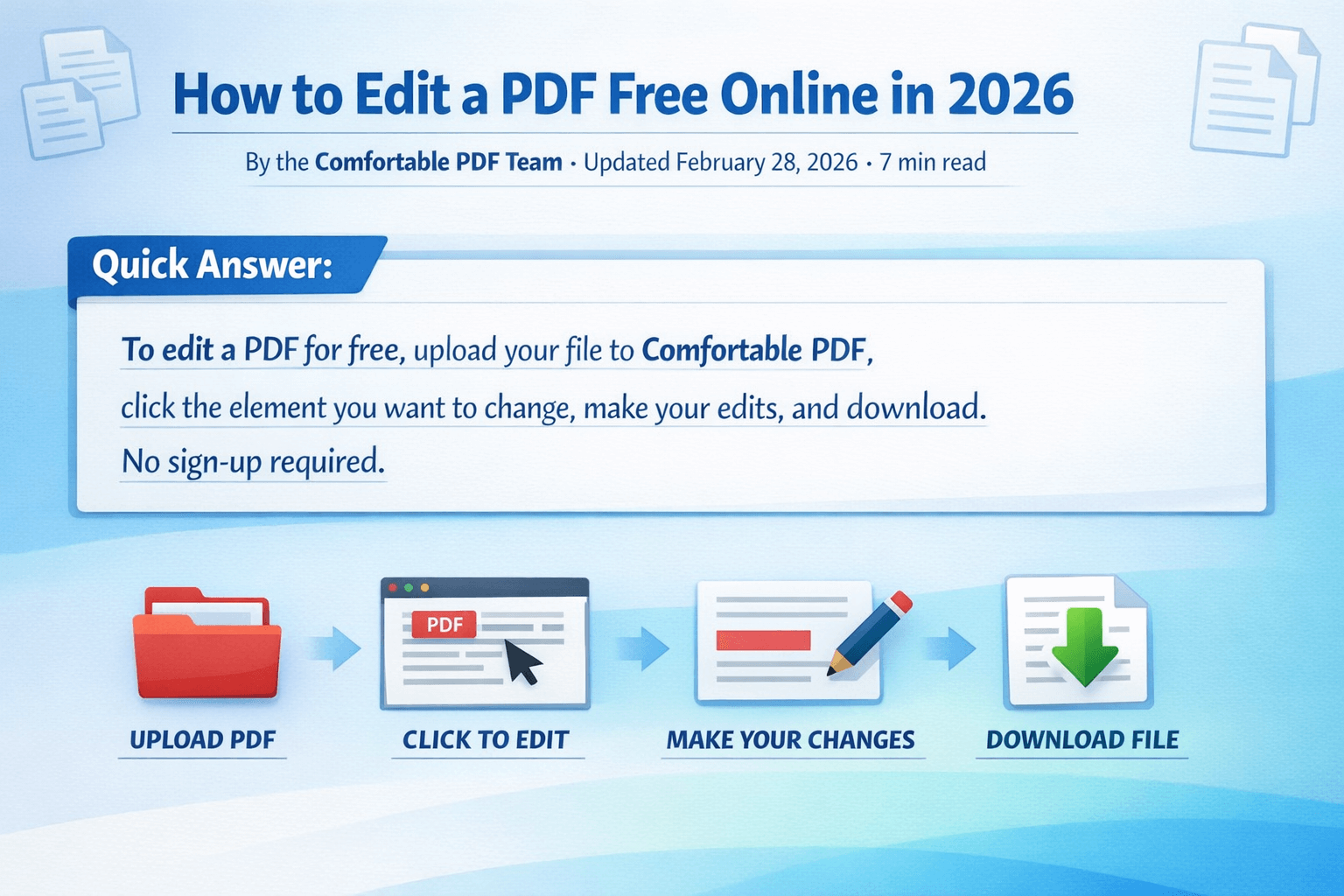
Quick Answer: To edit a PDF for free, upload your file to Comfortable PDF, click the element you want to change, make your edits, and download. No sign-up required.
What Does "Editing a PDF" Actually Mean?
A PDF — short for Portable Document Format — was designed to look the same on every device. That makes it great for sharing but tricky to change. When people ask how to edit a PDF, they usually mean one of a few things: adding text, replacing existing text, inserting images, filling out a form, annotating with highlights or comments, or adding a digital signature.
The good news is that all of these are possible without paying hundreds of dollars for Adobe Acrobat Pro. Modern browser-based PDF editors handle most editing jobs just as well, and in many cases faster.
How to Edit a PDF Step by Step (Free Method)
This method works on Windows, Mac, iPhone, Android — any device with a browser. You do not need to install anything.
Step 1 — Open Comfortable PDF in your browser Go to comfortablepdf.com. No account needed to get started. The tool loads directly in your browser.
Step 2 — Upload your PDF file Click "Choose File" or drag and drop your PDF onto the upload area. Files upload in seconds — even large documents.
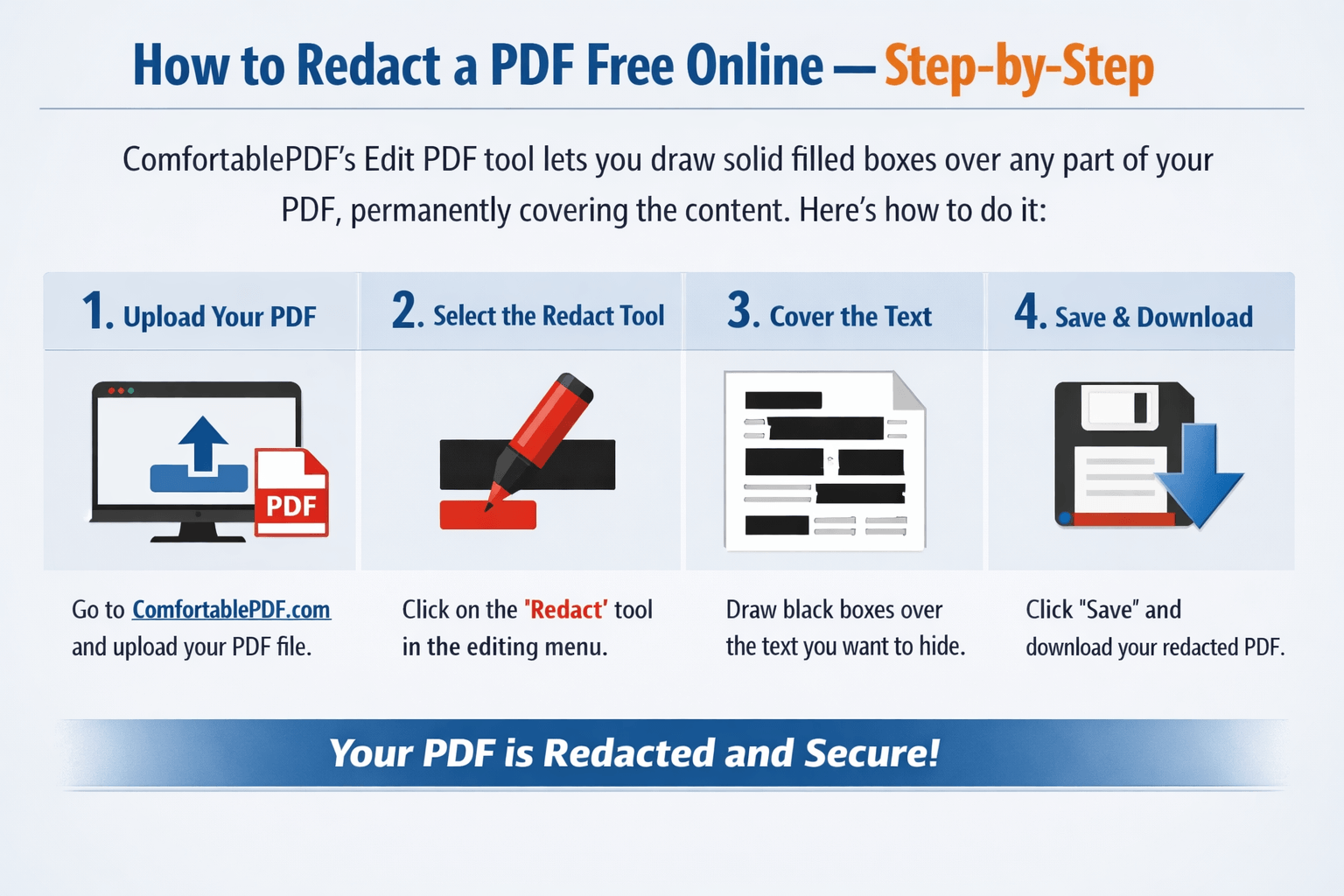
Step 3 — Select what you want to edit Use the toolbar to choose your action: add text, insert an image, highlight, annotate, or add a signature. Click anywhere on the PDF page to place your edit.
Step 4 — Make your changes Type your text, resize images, move elements around the page. Everything updates in real time so you can see exactly how the final document will look.
Step 5 — Download your edited PDF Click "Download" to save the finished file. Your edits are permanently embedded — the PDF will look exactly the same on any device.
🔒 Privacy Note: Your uploaded files are processed securely and automatically deleted after your session. Comfortable PDF does not store your documents.
How to Edit a PDF on a Mac (Without Extra Software)
Mac users often forget they already have a basic PDF editor built in: Preview. Here is how to use it.
Using Mac Preview
Open your PDF in Preview, then click the pencil icon in the toolbar to open the Markup toolbar. From there you can add text boxes, highlight passages, draw shapes, and even add a signature using your trackpad. Preview works well for annotations but falls short if you need to replace existing text or add complex formatting.
Using an Online Editor on Mac
For anything beyond basic annotations — like editing existing text, converting the file, or filling out form fields — open Safari or Chrome and head to Comfortable PDF. It works identically on Mac, and you get a much broader set of tools without any installation.
Can You Edit a PDF Without Adobe Acrobat?
Yes, and honestly you probably should. Adobe Acrobat Pro costs around $19.99 per month. For most people — students, freelancers, small business owners — that is a lot to spend for a task they do a few times a month.
Free alternatives have caught up significantly. Here is how the main options stack up:
| Tool | Cost | Edit Text | Add Images | Sign PDF | No Download |
|---|---|---|---|---|---|
| Comfortable PDF | Free | ✓ | ✓ | ✓ | ✓ |
| Adobe Acrobat Pro | $19.99/mo | ✓ | ✓ | ✓ | ✗ |
| Mac Preview | Free | ✗ | ✓ | ✓ | ✓ |
| Google Docs | Free | ✓ | ✓ | ✗ | ✓ |
| Foxit PDF Editor | $14.99/mo | ✓ | ✓ | ✓ | ✗ |
For the vast majority of everyday PDF editing tasks, a free online tool does everything you need. The paid tools become worth it only if you are editing PDFs professionally every single day and need advanced features like OCR text recognition or batch processing.
How to Type on a PDF (Add or Replace Text)
Typing on a PDF is one of the most common requests, and it is simpler than most people expect. There are two slightly different scenarios.
Adding New Text to a PDF
This is what most people need. Upload your PDF, select the text tool, click anywhere on the page, and start typing. You can choose your font, size, and color. This is perfect for filling in a form that is not interactive, or adding notes and labels to a document.
Replacing Existing PDF Text
This is trickier. PDFs do not store text the same way a Word document does — the text is rendered as a fixed layout. True text replacement (where the document reflows around your change) usually requires a more advanced tool. If you need this, your best options are to convert the PDF to Word first, make edits there, and then export back to PDF — or use Comfortable PDF's editing tools to cover the old text with a white box and type over it.
⚠️ Heads Up: If someone sends you a scanned PDF — a photo of a physical document — the "text" is actually an image. You cannot select or edit it directly. You would need an OCR (optical character recognition) step first to make it editable.
How to Make a PDF Fillable
A fillable PDF is one where readers can click into fields and type their own information, rather than printing it out and filling it in by hand. Think job applications, order forms, consent forms.
Creating one from scratch involves adding form fields to your PDF — text fields, checkboxes, radio buttons, dropdowns, and signature areas. With Comfortable PDF, you can do this by selecting the form field tool and clicking where you want each field to appear. Name your fields, set whether they are required, and save. Recipients can then fill in your form without any special software.
How to Add a Signature to a PDF
Signing a PDF digitally is fast and legally valid in most countries. Here is how to do it on Comfortable PDF.
Upload your document, click the Signature tool in the toolbar, and choose how you want to create your signature: draw it with your mouse or finger, type your name in a signature font, or upload a photo of your handwritten signature. Position it on the page, resize if needed, and download your signed PDF. The whole process takes about 30 seconds.
If you need to collect signatures from other people — for a contract, for example — most online PDF tools also offer a send-for-signature workflow where recipients get an email link and can sign without creating an account.
Bonus: How to Reduce a PDF File Size After Editing
After editing — especially if you have added images — your PDF might be larger than you want. A large file is harder to email or upload to portals with size limits.
Compressing a PDF is straightforward. On Comfortable PDF, look for the "Compress PDF" option in the tools menu. The tool reduces image quality slightly and removes unnecessary metadata, which can shrink file size by 50–80% without any visible change in quality at normal viewing sizes. For a more dramatic reduction, you can also choose between quality levels — high, medium, and low — depending on whether you need print quality or just a web-ready version.
Frequently Asked Questions
Can I edit a PDF for free? Yes. Tools like Comfortable PDF let you edit PDF files online for free, with no software download required. You can add text, images, annotations, and signatures at no cost.
How do I edit a PDF on a Mac? On a Mac, you can use the built-in Preview app for basic annotations. For more advanced editing — like replacing text or adding form fields — use an online tool like Comfortable PDF, which works directly in Safari or Chrome.
Is it possible to edit a PDF without Adobe Acrobat? Absolutely. Free online PDF editors handle most editing tasks just as well as Adobe Acrobat. Comfortable PDF lets you edit, annotate, sign, and convert PDFs in your browser without any subscription.
How do I type text on a PDF? Upload your PDF to Comfortable PDF, select the "Add Text" tool, click anywhere on the page, and type. You can customize the font, size, and color. Download when done.
What is the best free PDF editor in 2026? For most people, Comfortable PDF is the most practical free option because it works on any device, requires no download, and covers the full range of editing tasks: text, images, signatures, compression, and format conversion.
Can I edit a scanned PDF? A scanned PDF is essentially an image, so text is not directly editable. You would need an OCR (optical character recognition) step first to convert the image into selectable text before editing.
Related PDF Guides
Now that you know how to edit a PDF, here are a few other common tasks you might need next:
- How to Convert PNG to PDF
- How to Compress a PDF
- How to Merge PDF Files
- How to Convert PDF to Word
- How to Make a PDF Fillable
- How to Add a Signature to a PDF
Tags: Edit PDF · Free PDF Editor · PDF Tools · Sign PDF · PDF on Mac · Fillable PDF · PDF Guide 2026
© 2026 Comfortable PDF · Free Online PDF Tools