Why Save an Excel File as a PDF?
Before jumping into the how, it is worth understanding why PDF is the right format for sharing spreadsheets:
- Formatting is locked. A PDF looks identical on every device, every screen, every printer. Excel files can shift columns, change fonts, and break layouts depending on who opens them.
- No Excel required. Anyone can open a PDF — no software license needed.
- Professional appearance. PDFs are the standard for invoices, reports, financial statements, and proposals.
- Security. You can password-protect a PDF so recipients can view but not edit your data.
With 1,000 monthly searches for "how to save Excel file in PDF format" alone, this is clearly a task that millions of people need help with every month.
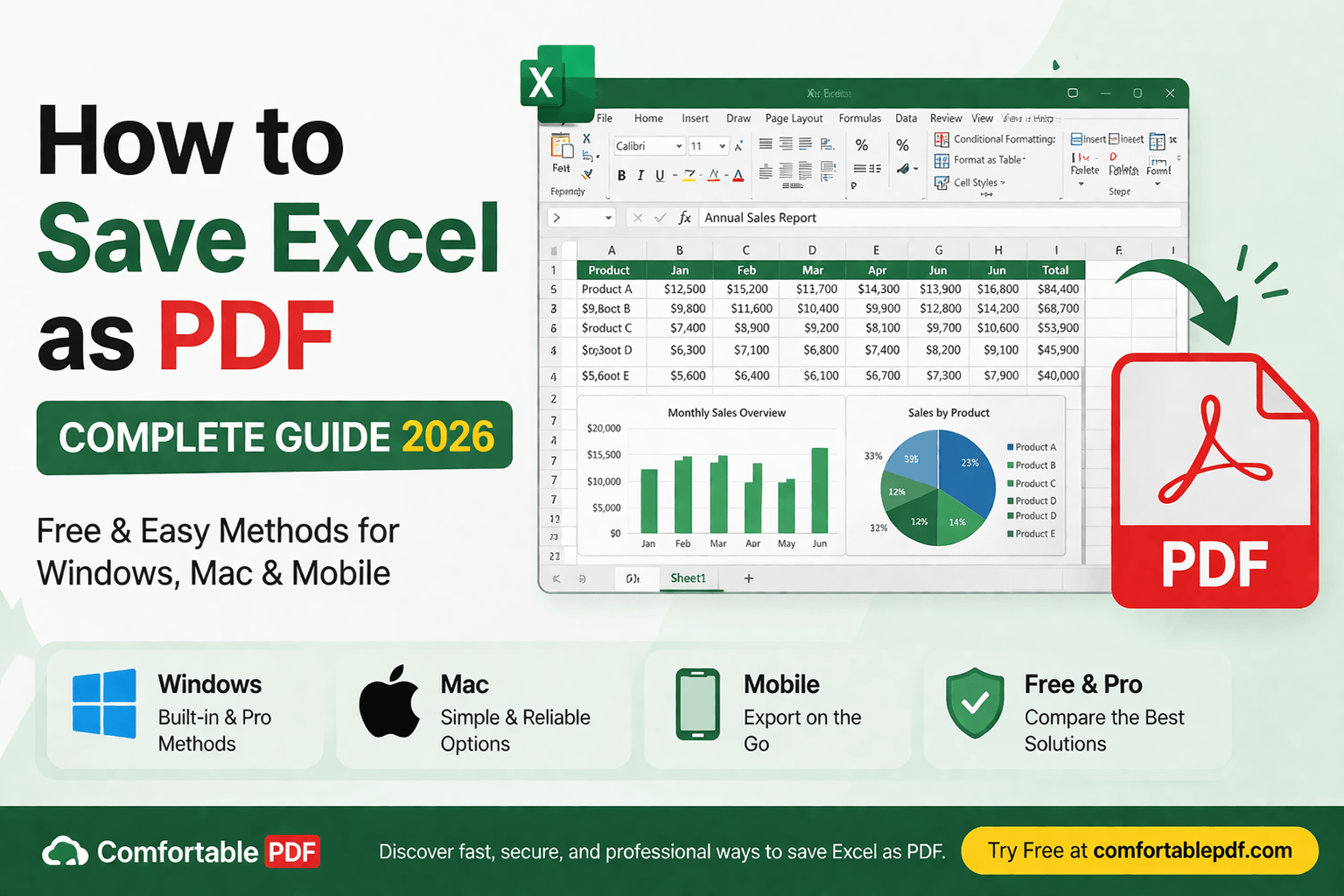
How to Save Excel as PDF — 6 Best Methods in 2026
1. comfortablepdf.com — Best Free Excel to PDF Converter (USA)
The fastest and easiest way to save an Excel file as a PDF in 2026. Upload your Excel file, convert it to PDF instantly, and download the result. No account required, no software to install, works on any device.
Best for: Anyone who wants a clean, properly formatted PDF from their Excel file without dealing with print settings or layout issues. Cost: Free. Pro plan available for batch conversions and larger files. Quality: Preserves your spreadsheet's formatting, column widths, fonts, and data exactly as they appear in Excel.
This is the recommended solution for the 880+ monthly searches for "how to save an Excel file as a PDF" from users who want a reliable, no-fuss result.
2. Save as PDF Directly in Microsoft Excel (Windows)
Excel on Windows has a built-in Save As PDF feature that works without any third-party tools. This is the most common method for Windows users.
How to do it:
- Open your Excel file.
- Go to File > Save As.
- In the Save As dialog, click the Format dropdown and select PDF.
- Choose whether to export the entire workbook or just the active sheet.
- Click Save.
Alternatively, go to File > Export > Create PDF/XPS and click Publish.
Best for: Windows users with Microsoft Excel installed who need a quick, straightforward export. Cost: Included with Microsoft Excel (Microsoft 365 from $6.99/month). Tip: Before saving, go to File > Print Preview to check how your spreadsheet will look across pages. Adjust margins, scaling, and page orientation as needed.
3. How to Save Excel as PDF on Mac
Mac users have two options — Excel for Mac's built-in export, and macOS's universal Print to PDF feature.
Method 1 — Excel for Mac: Open your spreadsheet. Go to File > Save As. Select PDF from the file format dropdown. Choose your options and click Save.
Method 2 — Print to PDF (works without Excel): Open your Excel file in Numbers or any app that can open it. Go to File > Print. In the bottom-left corner of the print dialog, click PDF > Save as PDF. Name your file and save.
How to save Excel as PDF on Mac without cutting off: This is a common frustration — 110 monthly searches confirm it. Before exporting, go to Page Layout in Excel and set the scaling to Fit Sheet on One Page, or adjust column widths so all data fits within the printable area. In the Print dialog, set Paper Size to match your layout and check the preview before saving.
Best for: Mac users on any version of macOS. Cost: Free using the Print to PDF method. Excel for Mac requires a Microsoft 365 subscription.
4. How to Save Excel as PDF in One Page
One of the most common problems when saving Excel as PDF is the spreadsheet splitting across multiple pages in an unreadable way. Here is how to fix it:
In Excel on Windows or Mac: Go to Page Layout > Scale to Fit. Set Width to 1 page and Height to Automatic. This forces Excel to shrink the spreadsheet to fit within a single page width, which usually resolves the cutting-off problem.
Alternatively, go to File > Print. Under Settings, change No Scaling to Fit Sheet on One Page. Check the preview, then export as PDF.
Using comfortablepdf.com: Upload your Excel file and the converter will handle the layout automatically, producing a clean single-page or properly paginated PDF without manual scaling adjustments.
Best for: Reports, invoices, and dashboards that need to look clean and professional on a single page.
5. How to Save Multiple Excel Sheets as One PDF
Saving an entire Excel workbook — multiple sheets — as a single PDF is a common need for reports and financial statements. With 70 monthly searches and a low KD of just 9%, this is an easy ranking opportunity.
In Excel on Windows: Go to File > Save As > PDF. Before saving, in the Options dialog, select Entire Workbook instead of Active Sheet. Click OK and Save. Excel will combine all sheets into one PDF file.
Using comfortablepdf.com: Upload your Excel workbook and select the option to include all sheets. The converter will produce a single PDF containing all your worksheets in order.
Best for: Financial reports, quarterly summaries, multi-sheet dashboards. Cost: Free via comfortablepdf.com. Built-in feature in Excel.
6. How to Save Excel as PDF Landscape
For wide spreadsheets with many columns, landscape orientation often produces a much cleaner PDF than portrait. With 50 monthly searches for "how to convert Excel to PDF landscape," this is a regular need.
In Excel: Go to Page Layout > Orientation > Landscape. Then export as PDF using File > Save As > PDF or File > Export > Create PDF/XPS.
Alternative: Go to File > Print. Change the orientation to Landscape in the print settings. Check the preview and then use Save as PDF to export.
Best for: Wide financial tables, project timelines, Gantt charts, and any spreadsheet with more columns than rows.
How to Insert PDF in Excel and Attach PDF to Excel
Beyond converting Excel to PDF, many users need to go the other direction — embedding or attaching a PDF file inside an Excel spreadsheet. With 880 monthly searches for "how to insert PDF in Excel" and 720 for "how to attach a PDF to Excel," this is equally important.
How to Embed a PDF in Excel
Embedding a PDF places the full document inside your Excel file as an object. Recipients who open the Excel file can double-click the embedded PDF to view it.
Step-by-step:
- Open your Excel spreadsheet.
- Go to Insert > Object.
- In the Object dialog, select Create from File.
- Click Browse and locate your PDF file.
- Check Display as Icon if you want to show an icon rather than the first page of the PDF.
- Click OK.
The PDF is now embedded in your Excel file. Anyone who opens the spreadsheet can access the PDF directly.
Best for: Attaching supporting documentation, source files, or reference materials alongside your Excel data.
How to Attach PDF to Excel as a Hyperlink
If you want to link to a PDF rather than embed the full file, you can create a hyperlink in Excel that opens the PDF when clicked.
Step-by-step:
- Click the cell where you want the hyperlink.
- Go to Insert > Hyperlink (or press Ctrl+K).
- Select Existing File or Web Page.
- Browse to your PDF file or paste a URL.
- Click OK.
Best for: Linking to online PDFs, shared drive documents, or keeping Excel file sizes small by referencing rather than embedding.
How to Convert PDF to Excel — Extract Data from PDF into Excel
Many users also need the reverse: extracting data from a PDF table into Excel. With 320 monthly searches for "extract data from PDF to Excel" and a CPC of $4.32 — one of the highest in this keyword set — this is a high-value task.
Using comfortablepdf.com
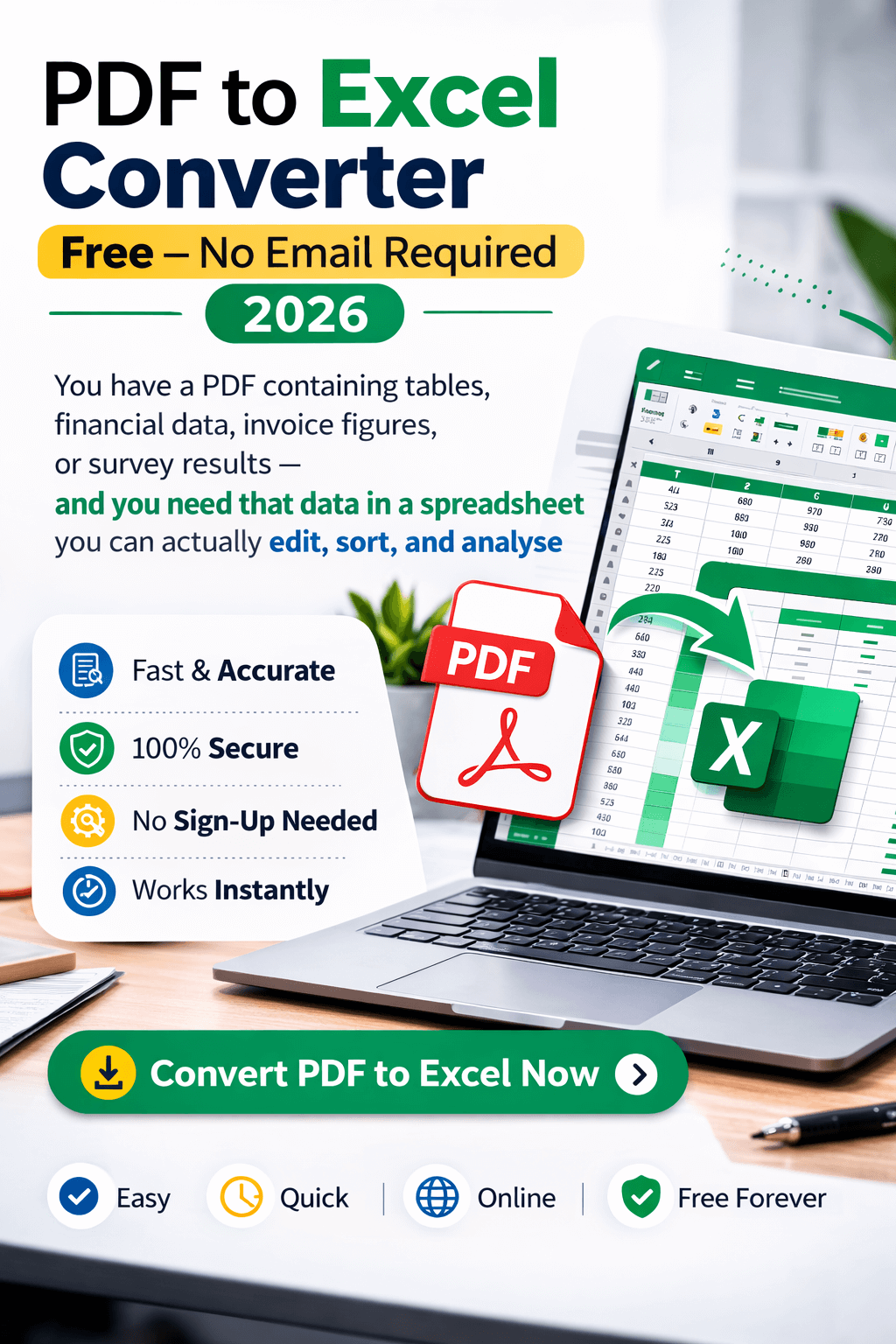
comfortablepdf.com includes a PDF to Excel conversion tool that extracts tables, data, and structured content from PDFs and converts them into an editable Excel spreadsheet. Upload your PDF, select the PDF to Excel tool, and download the result.
Best for: Bank statements, invoices, financial reports, and any PDF containing structured table data.
Copy Table from PDF to Excel
For simple tables, a manual copy-paste approach works:
- Open your PDF in any PDF reader.
- Select the table data — click and drag across the table, or right-click and choose Select All.
- Copy the selection (Ctrl+C or Cmd+C).
- Paste into Excel (Ctrl+V or Cmd+V).
- Excel will attempt to organize the data into columns. Use Data > Text to Columns to clean up the formatting if needed.
Best for: Small tables in simple PDFs where the data copies cleanly.
PDF to Excel Using AI Tools
With 110 monthly searches for "PDF to Excel AI" and a CPC of $6.10 — the highest commercial value in this dataset — AI-powered PDF to Excel conversion is a fast-growing category. Tools that use AI to intelligently recognize table structures, merged cells, and complex layouts produce significantly better results than basic copy-paste or simple converters.
comfortablepdf.com uses intelligent extraction to handle complex PDFs including bank statements (50 monthly searches for "PDF to Excel bank statement"), scanned documents, and multi-column reports.
PDF to Excel on Mac
With 90 monthly searches for "export PDF to Excel Mac" and 70 for "how to convert PDF to Excel on MacBook Air," Mac-specific PDF to Excel conversion is a clear need. The easiest method on Mac is comfortablepdf.com in Safari — upload your PDF, convert to Excel, and download the .xlsx file. No software installation needed on any macOS version.
Convert PDF to Excel Using Python
For developers and data teams, Python offers automated PDF to Excel extraction using libraries like Camelot, Tabula-py, or pdfplumber. With 50 monthly searches for "convert PDF to Excel Python," this is a niche but valuable topic.
Basic example using Camelot: Install with pip install camelot-py. Then use camelot.read_pdf('file.pdf') to extract tables and export them to Excel with .to_excel('output.xlsx').
Best for: Data engineers, analysts, and developers processing large volumes of PDF data automatically.
How to Export Excel to PDF — Advanced Tips
How to Save Excel Workbook as PDF
To save an entire workbook (all sheets) as a single PDF: Go to File > Save As > PDF > Options > Entire Workbook. This is different from saving just the active sheet, which is the default.
How to Save Excel Sheet in PDF Format Without Cutting Off
The most common complaint when exporting Excel to PDF is content getting cut off at page edges. Fix this by:
- Going to Page Layout > Margins and reducing margins to Narrow.
- Setting Scale to Fit to Fit All Columns on One Page.
- Checking the print preview before exporting.
- Using comfortablepdf.com which handles layout automatically.
Excel Mail Merge to PDF
With 70 monthly searches for "Excel mail merge to PDF" and 70 for "mail merge from Excel to PDF," this is a regular workflow for businesses sending personalized documents. The standard approach is to use Excel as the data source for a Word mail merge, then export the merged documents as PDFs. Alternatively, dedicated tools like Adobe Acrobat's mail merge PDF feature can handle this directly.
Convert Excel to Fillable PDF
With 50 monthly searches for "convert Excel to fillable PDF" and 50 for "how to make a fillable PDF from Excel," this is a specific conversion need. The best approach is to export your Excel file as a PDF first, then use a PDF form editor to add fillable fields. comfortablepdf.com offers a fillable PDF tool that lets you add text fields, checkboxes, and dropdown menus to any PDF.
Frequently Asked Questions — Save Excel as PDF
How do I save an Excel file as a PDF? In Excel, go to File > Save As and select PDF from the format dropdown. Or upload your file to comfortablepdf.com and use the Excel to PDF converter for a clean, properly formatted result.
How do I save an Excel file as a PDF without cutting off content? Go to Page Layout > Scale to Fit and set Width to 1 Page. This forces the spreadsheet to fit within the page width before exporting. Alternatively, use comfortablepdf.com which handles layout automatically.
How do I save multiple Excel sheets as one PDF? In Excel, go to File > Save As > PDF > Options > Entire Workbook. This combines all sheets into a single PDF file.
How do I save Excel as PDF on Mac? Open your file in Excel for Mac and go to File > Save As > PDF. Or use File > Print > PDF > Save as PDF using macOS's built-in print-to-PDF feature — no Excel license required.
Can I convert a PDF back to Excel? Yes. Use comfortablepdf.com's PDF to Excel tool to extract tables and data from any PDF into an editable spreadsheet. This works for bank statements, invoices, financial reports, and structured data tables.
How do I embed a PDF in Excel? Go to Insert > Object > Create from File, browse to your PDF, and click OK. The PDF will be embedded inside your Excel file as a clickable object.
How do I convert PDF to Excel on a Mac? Go to comfortablepdf.com in Safari, upload your PDF, select PDF to Excel, and download the .xlsx file. Works on all Mac models including MacBook Air and MacBook Pro.
What is the best way to convert PDF to Excel? For most users, comfortablepdf.com offers the best combination of accuracy, speed, and cost — free, no account required, and handles complex tables including bank statements and financial reports. For developers, Python libraries like Camelot offer automated extraction at scale.