Why Merge PDF Files?
Before jumping into the methods, here is why merging PDFs matters in a real workflow:
- One file is easier to share. Sending a single PDF to a client, colleague, or regulator is cleaner than attaching five separate files.
- Page order stays correct. A merged PDF preserves the exact sequence you choose — no confusion about which file comes first.
- Smaller total footprint. A single merged PDF is often easier to compress, archive, and manage than a folder of individual files.
- Professional presentation. Combined reports, proposals, and portfolios look polished and intentional.
With 480 monthly searches for "how to merge PDF files on Mac" and growing volume across iPad, Linux, and Chromebook, this is a task that spans every device and every type of user.
How to Merge PDF Files Free — 7 Best Methods in 2026
1. comfortablepdf.com — Best Free Online PDF Merger (USA)
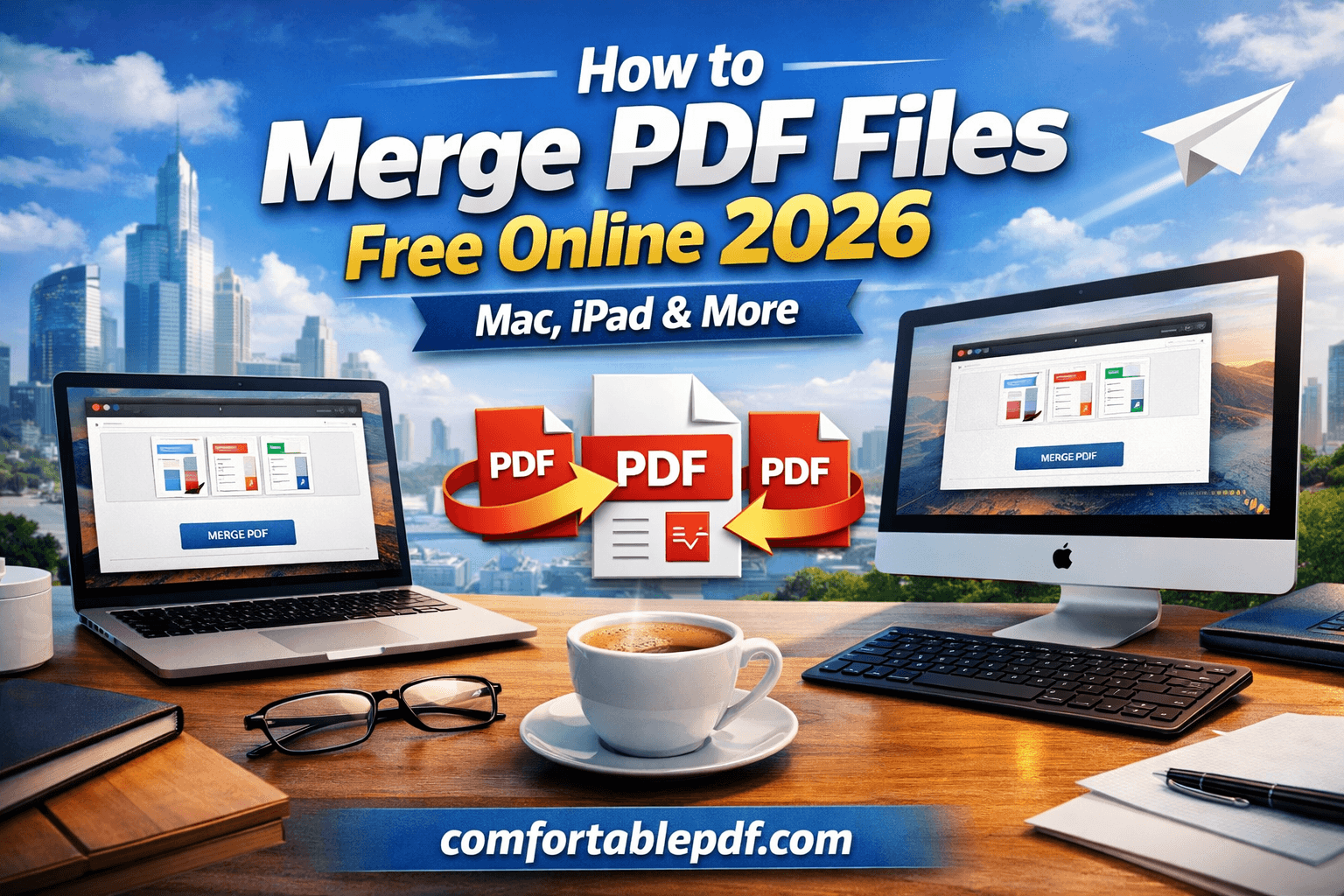
The fastest way to merge PDF files online for free in 2026. No account required, no software to install, works on every device — Mac, Windows, iPad, iPhone, Chromebook, and Linux.
How to use it:
- Go to comfortablepdf.com and open the Merge PDF tool.
- Upload your PDF files — drag and drop them in the order you want, or click to browse.
- Rearrange files if needed by dragging them into the correct sequence.
- Click Merge PDF.
- Download your single combined PDF instantly.
Best for: Anyone who needs to merge PDF files quickly on any device without installing software. Cost: Free. Pro plan available for batch merging, larger files, and priority processing. Privacy: All uploaded files are automatically deleted from servers within one hour.
This is the recommended solution for the thousands of US users searching "how to merge PDF files" every month who want a clean, reliable result without technical friction.
2. How to Merge PDF Files on Mac — Using Preview (Free, Built-In)
Mac users have a powerful built-in PDF merger hiding inside Preview. No downloads, no subscriptions — this is available on every Mac running macOS.
How to merge PDF files in Preview:
- Open the first PDF in Preview.
- Go to View > Thumbnails to show the page panel on the left.
- Open your second PDF in a separate Finder window.
- Drag the second PDF's icon directly into the thumbnail panel of the first PDF — drop it where you want it to appear.
- Repeat for any additional PDFs.
- Go to File > Export as PDF and save your merged document.
How to merge PDF files on Mac using the Finder shortcut: Select all the PDF files you want to merge in Finder. Right-click and choose Quick Actions > Create PDF. macOS will combine them into one PDF automatically.
Best for: Mac users on macOS Mojave and later who want a completely free, no-install solution. Cost: Free — built into every Mac. Tip: With 170 monthly searches for "how to merge PDF files in Preview" and 140 for "how to merge PDF files on Mac," this is one of the most searched methods in the USA. The Finder Quick Actions method is the fastest for simple merges.
3. How to Merge PDF Files on iPad Free
With 30 monthly searches specifically for "merge PDF iPad," mobile PDF merging is a real and growing need. Here are the two best methods for iPad in 2026.
Method 1 — comfortablepdf.com in Safari (Recommended): Open Safari on your iPad. Go to comfortablepdf.com. Tap the Merge PDF tool. Upload your PDF files from Files, iCloud Drive, or Google Drive. Arrange them in order and tap Merge PDF. Download the combined file directly to your iPad. No app installation needed, works on all iPad models including iPad Pro, iPad Air, and iPad Mini.
Method 2 — Files App Shortcut: On iPads running iPadOS 15 or later, you can merge PDFs directly in the Files app. Select multiple PDF files by tapping and holding the first, then tapping the others. Tap the Share button and look for Create PDF or use the Print option to combine them. This method works for simple merges but gives you less control over page order.
Best for: iPad users who need to merge PDFs on the go — students, professionals, and business users working away from a desk. Cost: Free via comfortablepdf.com.
4. How to Merge PDF Files on Linux
With 210 monthly searches for "Linux merge PDF" and strong volume across related terms, Linux users are an underserved audience for this topic. Here are the three most reliable methods.
Method 1 — PDFtk (Command Line): PDFtk is the most popular command-line PDF tool on Linux. Install with sudo apt install pdftk on Ubuntu/Debian. Then run: pdftk file1.pdf file2.pdf file3.pdf cat output merged.pdf. This combines all listed files into merged.pdf in exact order.
Method 2 — Ghostscript: Ghostscript is available on virtually every Linux distribution. Run: gs -dBATCH -dNOPAUSE -sDEVICE=pdfwrite -sOutputFile=merged.pdf file1.pdf file2.pdf file3.pdf. This is fast, reliable, and handles large files well.
Method 3 — comfortablepdf.com in Browser: For Linux users who prefer a GUI, comfortablepdf.com works perfectly in Firefox, Chromium, and any Linux browser. Upload your PDFs, arrange them, and download the merged result — no terminal required.
Method 4 — Python: With 90 monthly searches for "merge PDF Python," developers often prefer a scripted approach. Using PyPDF2: pip install pypdf2, then use PdfMerger() to append and write your merged output. The pikepdf library is also excellent for production-grade PDF merging.
Best for: Developers, system administrators, and power users on Ubuntu, Debian, Fedora, and other Linux distributions. Cost: All methods above are free.
5. How to Merge PDF Files in Foxit Reader
With 210 monthly searches for "Foxit merge PDF," 110 for "how to merge PDF files in Foxit Reader," and 110 for "how to merge PDF in Foxit Reader," Foxit is clearly a major player for PDF merging in the US market.
How to merge PDFs in Foxit PDF Editor:
- Open Foxit PDF Editor.
- Go to File > Create > Combine Files.
- Click Add Files and select all the PDFs you want to merge.
- Drag and drop files to arrange them in the correct order.
- Click Combine and save the merged PDF.
Alternative method in Foxit: You can also right-click any PDF in Foxit and choose Combine Files from the context menu to launch the combine dialog directly.
Best for: Business users and teams already using Foxit as their primary PDF editor. Cost: Free trial. Foxit PDF Editor Pro from $14.99/month.
6. How to Merge PDFs on Chromebook
With 90 monthly searches for "Chromebook merge PDF," Chromebook users have a specific need that the built-in Chrome OS tools do not address well out of the box.
Best methods for Chromebook:
Method 1 — comfortablepdf.com (Best option): Open Chrome on your Chromebook. Go to comfortablepdf.com. Use the Merge PDF tool to upload, arrange, and combine your files. Download the merged PDF. This is the most reliable method on Chromebook since most desktop PDF software does not run on Chrome OS.
Method 2 — Google Drive + Docs workaround: Upload your PDFs to Google Drive. Open each one in Google Docs, copy the content, and paste into a single Google Doc. Export as PDF. Note: this method only works well for text-based PDFs — complex layouts, images, and forms will not transfer cleanly.
Best for: Chromebook users in schools, offices, and businesses who need a reliable, no-install PDF merging solution. Cost: Free via comfortablepdf.com.
7. Merge PDF Using PDFGear
With 880 monthly searches — the highest volume in this keyword dataset — PDFGear is clearly a widely searched PDF tool. PDFGear is a free desktop PDF application for Windows and Mac that includes a merge PDF feature.
How to merge PDFs in PDFGear:
- Open PDFGear on your computer.
- Click the Merge PDF option from the home screen.
- Add your PDF files using the Add Files button.
- Arrange them in the desired order.
- Click Merge and save the output.
PDFGear is a solid free option for desktop users who prefer installed software. For users who need to merge PDFs across devices — including iPad and Chromebook — comfortablepdf.com remains the more flexible choice since it requires no installation.
Best for: Windows and Mac users who prefer a free desktop app over browser-based tools. Cost: Free.
How to Merge PDF Files — Step by Step for Any Device
If you are unsure which method suits your situation, this simple decision guide covers every scenario:
- On a Mac? → Use Preview's thumbnail drag-and-drop (free, built-in) or comfortablepdf.com for larger or more complex merges.
- On an iPad? → Use comfortablepdf.com in Safari. It is the most reliable free option on iPadOS.
- On Linux? → Use PDFtk or Ghostscript from the terminal, or comfortablepdf.com in your browser.
- On a Chromebook? → Use comfortablepdf.com in Chrome. It is the best option for Chrome OS.
- On Windows? → Use comfortablepdf.com, PDFGear, or Adobe Acrobat.
- Using Foxit? → Use File > Create > Combine Files inside Foxit PDF Editor.
- Need to merge images into PDF too? → comfortablepdf.com supports merging JPGs, PNGs, and PDFs together in a single merge operation.
Merge Images into One PDF — JPG, PNG, and Screenshots
Beyond merging PDF files with other PDFs, many users need to combine images into a single PDF document. This covers scanned documents, photos, and screenshots.
With 260 monthly searches for "merge multiple images into one PDF" and 70 for "merge JPG files in one PDF," this is a high-value use case.
Using comfortablepdf.com: The Merge PDF tool on comfortablepdf.com accepts JPG, PNG, and PDF files in the same upload session. Simply add your images alongside your PDFs, arrange them in order, and the tool converts and merges everything into a single clean PDF.
On Mac using Preview: Open all your images in Preview. Select all pages in the thumbnail panel. Go to File > Export as PDF. This converts and combines all selected images into one PDF file.
Merging screenshots into one PDF: With 30 monthly searches for "how to merge screenshots into one PDF," this is a specific need for people documenting processes, building manuals, or archiving screen captures. The fastest method is comfortablepdf.com — drag your screenshots into the tool alongside any existing PDFs and merge them all at once.
PDF Mail Merge — Merge Data from Excel into PDF Documents
A different but related topic with significant search volume is PDF mail merge — the process of automatically generating multiple personalized PDF documents from a data source like Excel.
With 210 monthly searches for "mail merge PDF document," 210 for "PDF mail merge software," 70 for "mail merge from Excel to PDF," and 70 for "Excel mail merge to PDF," this is a clear content opportunity.
What is PDF mail merge? PDF mail merge lets you take a template PDF (such as a certificate, letter, or invoice) and automatically fill in variable data from an Excel spreadsheet or database — generating one personalized PDF for each row of data. The result is hundreds of individually addressed documents produced in minutes instead of hours.
How to do a mail merge to PDF: The standard workflow in 2026 is to use Microsoft Word's mail merge feature with an Excel data source, then export the merged output as PDF. For more advanced automation — merging directly from Excel to PDF without Word — dedicated PDF mail merge software or a PDF API integration is required.
Best tools for PDF mail merge: PDF mail merge tools range from Word + Adobe Acrobat combinations for manual workflows to dedicated platforms and PDF API services for automated, high-volume generation. The CPC of $5.58 for "mail merge PDF Excel" confirms this is a commercially valuable segment.
Merge PDF API — For Developers and Enterprise Teams
With 70 monthly searches for "merge PDF API" and 40 for "PDF merge API," developer-focused PDF merging is a growing commercial segment. A PDF merge API lets you combine PDFs programmatically as part of a larger application or automated workflow — no manual uploads required.
Common use cases include automatically merging generated invoices, combining report sections from different data sources, and bundling supporting documents for compliance workflows.
comfortablepdf.com offers API access for PDF merging. This is also relevant for Power Automate users — with 40 monthly searches for "Power Automate PDF merge," automation platforms are increasingly being used to trigger PDF merges as part of business process workflows.
Frequently Asked Questions — Merge PDF Files
How do I merge PDF files for free? Go to comfortablepdf.com, open the Merge PDF tool, upload your files, arrange them in order, and download the merged PDF. It is completely free with no account required.
How do I merge PDF files on a Mac? Use Preview's thumbnail panel to drag PDFs together, or use the Finder Quick Actions > Create PDF shortcut. For more control, comfortablepdf.com works in Safari on any Mac.
How do I merge PDF files on an iPad? Open Safari on your iPad, go to comfortablepdf.com, upload your PDFs from Files or iCloud Drive, arrange them, and download the merged file. No app installation needed.
How do I merge PDF files on Linux? Use pdftk file1.pdf file2.pdf cat output merged.pdf from the terminal, or use Ghostscript. For a no-terminal option, comfortablepdf.com works in any Linux browser.
How do I merge PDF files in Foxit? Open Foxit PDF Editor. Go to File > Create > Combine Files. Add your PDFs, arrange them, and click Combine.
Is it safe to merge PDFs online? With 50 monthly searches for "is merged PDF safe," this is a common concern. comfortablepdf.com processes files securely using encrypted connections and automatically deletes all uploaded files from servers within one hour. Your documents are never stored or shared.
Can I merge images and PDFs together? Yes. comfortablepdf.com's Merge PDF tool accepts JPG, PNG, and PDF files in the same session — combine images and PDFs freely in any order.