How to Watermark a PDF for Free Online in 2026 | ComfortablePDF
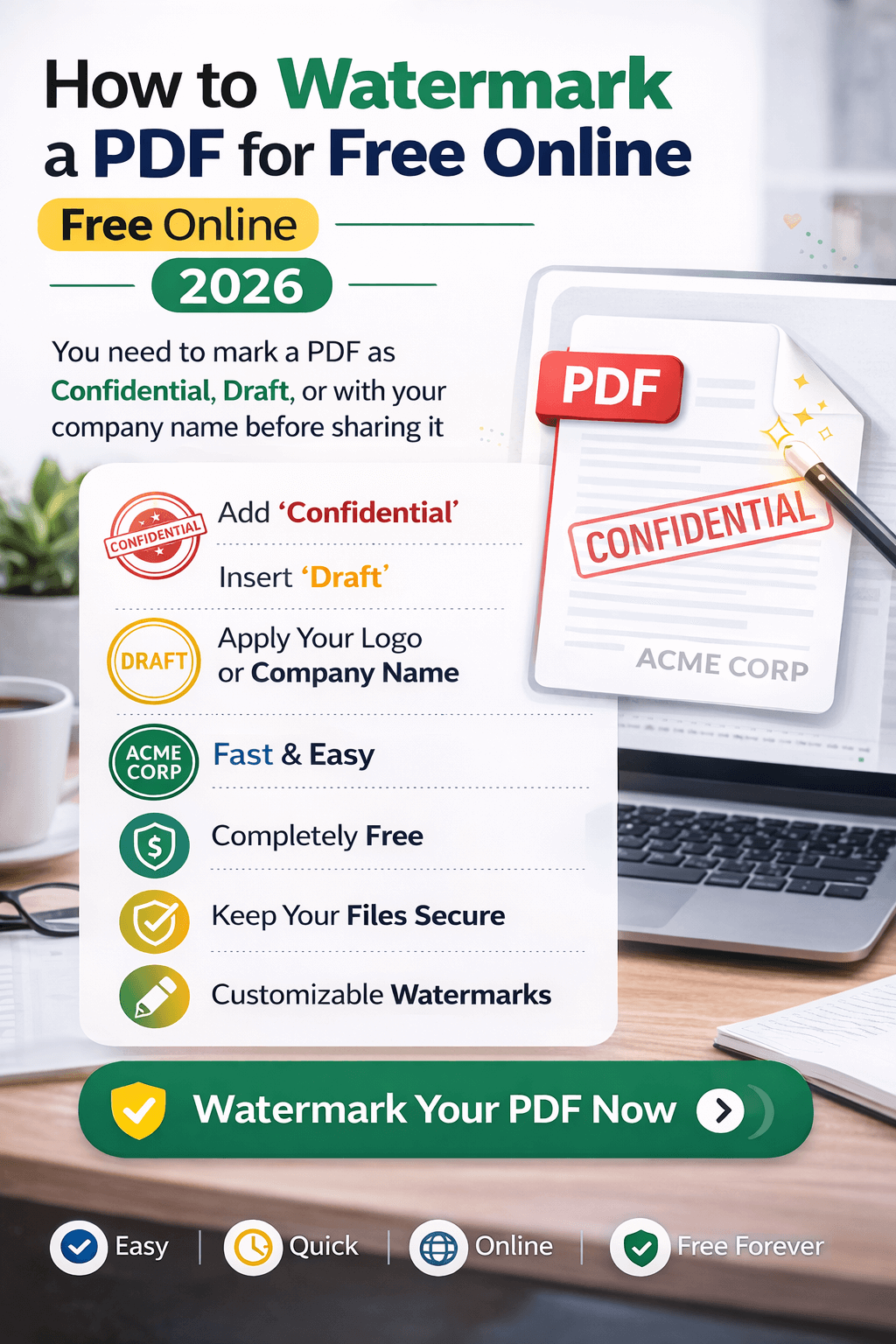
You need to mark a PDF as Confidential, Draft, or with your company name before sharing it — but Adobe Acrobat charges a monthly subscription just to add a watermark. Other free tools either apply a watermark to your watermark (ironic but common) or force you to create an account before you can use the feature. Neither is acceptable when you just need to stamp a document quickly and professionally.
ComfortablePDF's free Watermark PDF tool at comfortablepdf.com/watermark-pdf lets you add any text or image watermark to a PDF in seconds — completely free, with no signup, no account, and no added branding on your output file. You can customize the watermark text, colour, opacity, size, and position. This guide shows you exactly how to do it from any device in 2026.
What You Need
Just a web browser — Chrome, Safari, Firefox, or Edge — and the PDF file you want to watermark. No software to install, no account to create, no email address required. Works on every device: iPhone, Android, Mac, Windows PC, and Chromebook.
How to Add a Watermark to a PDF Free — Step-by-Step Guide
Follow these five steps to put a watermark on any PDF online for free:
1. Open the Watermark PDF tool. Go to comfortablepdf.com/watermark-pdf in your browser. The tool loads instantly with no download or login required.
2. Upload your PDF. Click 'Select PDF File' or drag and drop your document into the upload area. The tool accepts any PDF regardless of page count — from a single-page flyer to a 200-page report. Every page of your PDF will receive the watermark automatically.
3. Configure your watermark settings. Enter your watermark text — such as 'CONFIDENTIAL', 'DRAFT', 'DO NOT COPY', your company name, or any custom text you choose. Set the font size, colour, opacity (transparency level), rotation angle, and position. A diagonal centre watermark at 30–50% opacity is the most professional and widely-used style for business documents.
4. Preview and apply. Check that your watermark looks exactly right — text, size, position, and transparency — then click 'Add Watermark'. The tool applies your watermark to every page of the PDF simultaneously within seconds.
5. Download your watermarked PDF. Click 'Download' to save the finished file to your device. The watermark is embedded into the PDF — it appears on every page, on screen, and when printed. Your original file is unchanged; the download is a new watermarked copy.
Add a watermark to your PDF now — free, no signup: comfortablepdf.com/watermark-pdf
Why Use ComfortablePDF to Watermark a PDF?
Adding a watermark sounds simple, but most tools complicate it unnecessarily. ComfortablePDF keeps it clean and completely free:
• 100% Free — No Subscription or Credits. Adding a watermark at ComfortablePDF costs nothing — ever. No trial limits, no daily cap, no premium tier required for custom watermarks. Every feature is free.
• No Signup or Email Address Required. No registration form, no account, no email verification. Open the tool, upload your PDF, configure your watermark, and download the result. Done in under two minutes from any device.
• No Watermark Added to Your Watermark. Competing free tools frequently add their own branding to your document — which defeats the entire purpose. ComfortablePDF adds only your watermark text to your file. Nothing else.
• Full Watermark Customisation. Choose text, font size, colour, opacity, rotation angle, and position. Create professional CONFIDENTIAL stamps, DRAFT labels, company name branding, or copyright notices exactly the way you need them.
• Watermark Applied to Every Page Automatically. Every page of your PDF — whether it has 1 page or 500 — receives the same watermark in a single operation. No manual page-by-page work required.
What Type of Watermark Should You Use?
The right watermark depends on why you are adding it. Here are the most common use cases and the settings that work best for each:
• CONFIDENTIAL — For internal documents, HR files, legal contracts, and financial reports that should not be shared publicly. Use diagonal text at 30–40% opacity in red or dark grey. This is visible enough to be a clear warning but light enough that the underlying document text remains easy to read.
• DRAFT — For documents that are still being reviewed or have not been finalised. Use diagonal text at 25–35% opacity. The watermark signals to recipients that the content is preliminary and subject to change. Particularly useful for proposals, reports, and agreements shared during negotiation.
• DO NOT COPY or SAMPLE — For previews, templates, or portfolio pieces shared for review. Use diagonal text at 35–50% opacity to make the restriction clearly visible. Higher opacity is appropriate here since the goal is to actively discourage unauthorised reproduction.
• Company Name or Logo — For branded documents, proposals, and client deliverables. Use a light opacity (15–25%) to add subtle branding without obscuring content. Centre positioning works well for company watermarks — either horizontal or diagonal.
• Copyright Notice — For creative work, reports, research, and published documents. Use horizontal text at the bottom of each page at 20–30% opacity — similar to a footer, but embedded as a permanent watermark rather than editable text.
How to Watermark a PDF on Any Device — Free
Add Watermark to PDF on iPhone — Free
Open Safari on your iPhone. Go to comfortablepdf.com/watermark-pdf. Tap 'Select PDF File' and choose your document from the Files app or iCloud Drive. Enter your watermark text and adjust the opacity, size, and position settings. Tap 'Add Watermark' and download the watermarked PDF directly to your iPhone. No app download needed, completely free.
Add Watermark to PDF on Android — Free
Open Chrome on your Android device. Navigate to comfortablepdf.com/watermark-pdf. Tap 'Select PDF File' and select your PDF from Downloads or Google Drive. Set your watermark text and customise the appearance settings, then tap 'Add Watermark'. Download the finished file directly to your Android device.
Add Watermark to PDF on Mac — Free (No Adobe Required)
Open Safari or Chrome on your Mac. Go to comfortablepdf.com/watermark-pdf, upload your PDF, configure your watermark settings, and click 'Add Watermark'. Download the result. No Adobe Acrobat subscription needed — the entire process takes under two minutes in your browser.
Add Watermark to PDF on Windows — Free
Open Chrome, Edge, or Firefox on your Windows PC. Go to comfortablepdf.com/watermark-pdf, upload your document, set your watermark text and appearance options, click 'Add Watermark', and download the watermarked PDF. No software installation required.
Watermarking vs Password Protecting a PDF — What Is the Difference?
A watermark and a password are two different layers of document security, and many situations call for both:
• Watermark (comfortablepdf.com/watermark-pdf) — A visible text or image overlay that appears on every page. It communicates the document's status (DRAFT, CONFIDENTIAL, SAMPLE) or ownership (your company name). A watermark is a visual deterrent and identifier — it does not technically prevent copying or printing, but it makes unauthorised use clearly visible.
• Password Protection (comfortablepdf.com/protect-pdf) — An encryption layer that prevents the PDF from being opened, edited, printed, or copied without the correct password. Password protection is a technical control that actively restricts access.
For maximum document security — for example, a confidential contract or a sensitive financial report — use both: watermark the document first using comfortablepdf.com/watermark-pdf, then add a password using comfortablepdf.com/protect-pdf. This gives you both visible branding and technical access control.
Tips for the Best Watermark Results
6. Use 30–45% opacity for most business documents. A watermark that is too dark obscures the content and makes the document hard to read — which defeats the purpose. A watermark that is too light is easy to miss when printing. The 30–45% opacity range is the professional standard for CONFIDENTIAL and DRAFT stamps that are clearly visible without affecting readability.
7. Merge your document before watermarking. If your final PDF is made up of multiple files — a report with separate cover page, body, and appendix, for example — combine everything first using comfortablepdf.com/merge-pdf. Then apply the watermark to the complete merged document in one step. This ensures consistent watermark placement across all pages.
8. Add page numbers before or after watermarking. If your document also needs page numbers, add them using comfortablepdf.com/page-numbers either before or after watermarking — both sequences work fine. However, applying page numbers and watermarks in separate steps (rather than trying to do both at once in third-party tools) gives you better control over the appearance of each element.
Other Free PDF Tools at ComfortablePDF
After watermarking your PDF, these free tools are available — no signup, no watermark added by us:
• Protect PDF — comfortablepdf.com/protect-pdf — Add a password alongside your watermark for maximum document security.
• Sign PDF — comfortablepdf.com/sign-pdf — Add your electronic signature to a watermarked document before sending.
• Page Numbers — comfortablepdf.com/page-numbers — Insert page numbers into your document before or after watermarking.
• Merge PDF — comfortablepdf.com/merge-pdf — Combine multiple PDFs into one complete document before watermarking.
• Split PDF — comfortablepdf.com/split-pdf — Extract specific sections from a large PDF before applying a watermark.
• Compress PDF — comfortablepdf.com/compress-pdf — Reduce file size after watermarking for easy email delivery.
• Unlock PDF — comfortablepdf.com/unlock-pdf — Remove password protection from a PDF before watermarking. See also: comfortablepdf.com/blog/how-to-remove-password-from-pdf-online-free
Browse all 24 free PDF tools: comfortablepdf.com/all-tools
Frequently Asked Questions
Q: Can I add a watermark to a PDF without Adobe Acrobat?
A: Yes. ComfortablePDF's free Watermark PDF tool at comfortablepdf.com/watermark-pdf lets you add any text watermark to a PDF directly in your browser — no Adobe Acrobat subscription required. You can customise the text, colour, opacity, size, rotation, and position. The tool is completely free and works on iPhone, Android, Mac, and Windows.
Q: Will the watermark appear when the PDF is printed?
A: Yes. ComfortablePDF embeds the watermark directly into the PDF file structure, not as an on-screen overlay. This means the watermark appears on every page both on screen and in print. Recipients cannot remove the watermark by printing to a new PDF — it is permanently part of the document.
Q: Can I add a CONFIDENTIAL or DRAFT watermark to a PDF for free?
A: Yes. Enter 'CONFIDENTIAL', 'DRAFT', 'DO NOT COPY', 'SAMPLE', or any custom text in the watermark field at comfortablepdf.com/watermark-pdf. You can set the colour to red or grey, adjust the opacity so it is clearly visible but does not obscure the underlying text, and rotate it diagonally for the standard professional look. All of this is completely free with no signup required.
Q: Can I watermark multiple pages at once, or do I have to do each page separately?
A: ComfortablePDF applies your watermark to every page of your PDF simultaneously in a single operation — no matter how many pages the document has. Upload your PDF, set your watermark options once, click 'Add Watermark', and the tool stamps every page at the same position and opacity automatically. There is no need to process pages individually.
Q: Is it safe to upload a confidential document to add a watermark online?
A: Yes. ComfortablePDF uses HTTPS encryption for all file transfers. Your uploaded PDF is processed on a secure server and permanently deleted as soon as your watermarked file is ready to download. ComfortablePDF never stores, views, or shares your documents. This applies to confidential business documents, legal files, and any other sensitive PDFs you upload.
Conclusion
Adding a watermark to a PDF in 2026 takes under two minutes with ComfortablePDF's free Watermark PDF tool at comfortablepdf.com/watermark-pdf. You get full control over text, colour, opacity, size, rotation, and position — completely free, with no signup, no email, and no added branding on your output file.
For complete document security, combine watermarking with password protection using comfortablepdf.com/protect-pdf. Or if your PDF is made up of multiple files, merge them first at comfortablepdf.com/merge-pdf so your watermark applies consistently across the entire document.
Watermark your PDF now — free, no signup: comfortablepdf.com/watermark-pdf