PNG to PDF: How to Convert for Free Online in 2026
By the Comfortable PDF Team · Updated February 28, 2026 · 8 min read
|
Quick Answer: To convert PNG to PDF free, upload your PNG image to Comfortable PDF, click Convert, and download your PDF. Works on any device — no software needed. |
Why Convert PNG to PDF?
PNG is a great image format — it supports transparency, produces sharp graphics, and is widely supported across every device. But it comes with real limitations when you need to share, print, or archive files professionally.
A PDF keeps your image looking exactly the same on every screen and printer. It protects the layout, allows multiple images in one file, reduces email attachment headaches, and is the standard format requested by employers, schools, governments, and clients worldwide.
Here are the most common reasons people convert PNG to PDF:
• Sending scanned documents, receipts, or ID photos professionally
• Combining multiple PNG screenshots into one report
• Submitting images to portals that only accept PDF files
• Compressing and archiving image collections
• Adding pages to an existing PDF document
How to Convert PNG to PDF Free — Step by Step
This method works on Windows, Mac, iPhone, and Android. No account or software needed.
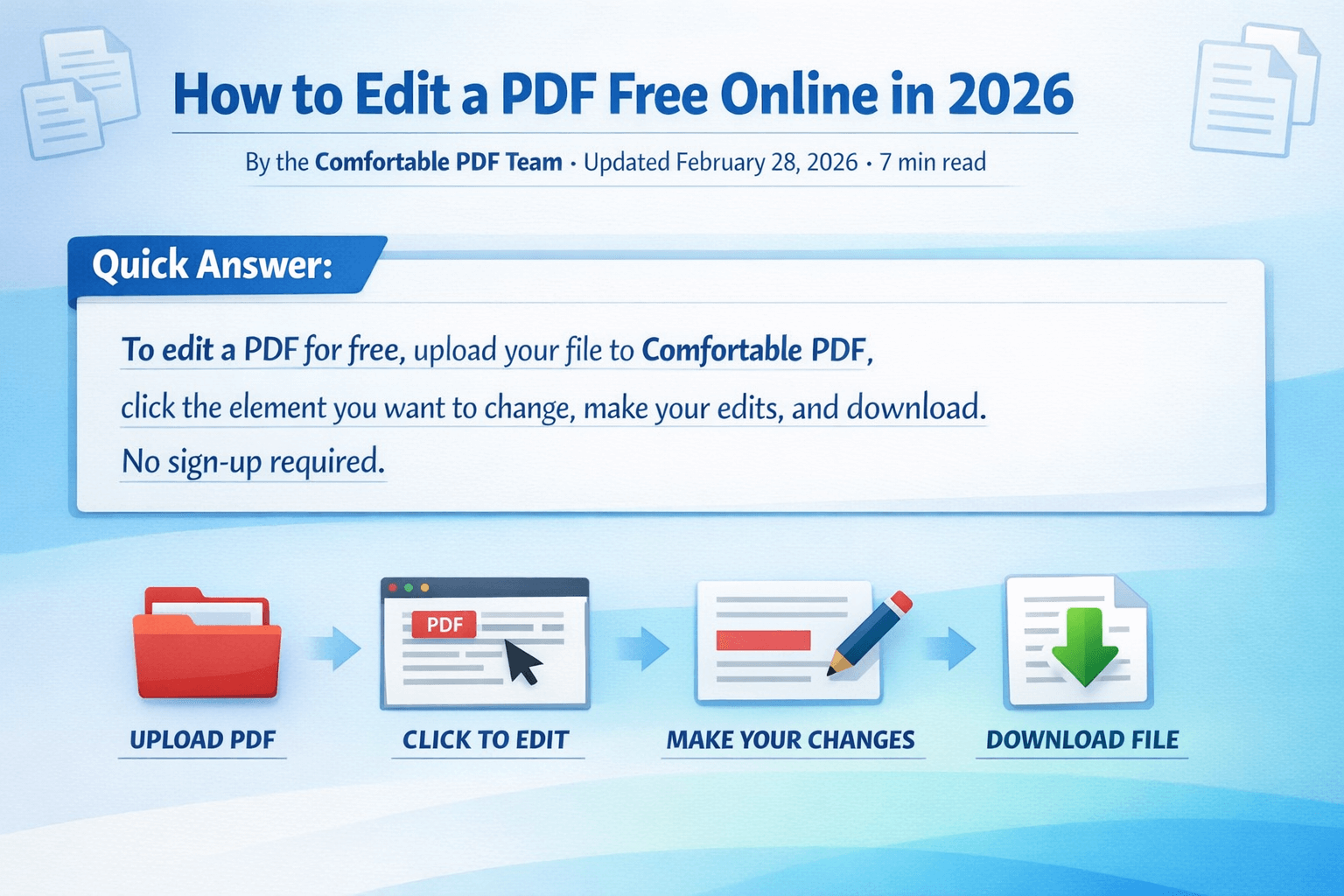
1. Open the PNG to PDF tool — Go to comfortablepdf.com/png-to-pdf. The converter loads instantly in your browser.
2. Upload your PNG file — Click "Choose File" or drag your PNG image directly onto the upload area. You can add multiple PNG files if you want to merge them into one PDF.
3. Arrange your images — If you uploaded multiple PNGs, drag them into the order you want. Each image becomes one page in the final PDF.
4. Set page options (optional) — Choose paper size (A4 or Letter), orientation (portrait or landscape), and whether to fit the image to the page or keep original dimensions.
5. Click Convert — The tool processes your PNG and generates the PDF in seconds. Even high-resolution images convert quickly.
6. Download your PDF — Click Download to save the file. Your PNG content is perfectly preserved — same colours, same sharpness, same transparency handling.
|
Privacy Note: Your uploaded PNG files are processed securely and deleted automatically after your session. Comfortable PDF never stores your images. |
How to Convert PNG to PDF on iPhone or Android
You do not need an app. Open Safari or Chrome on your phone, visit comfortablepdf.com/png-to-pdf, and the process is identical to desktop. Tap Choose File, select your PNG from your Photos or Files app, and download the finished PDF straight to your device.
On iPhone, the PDF saves to your Files app under Downloads. On Android, it goes to your Downloads folder. From there you can share it directly to email, WhatsApp, or any other app.
iPhone Shortcut: Use the Share Sheet
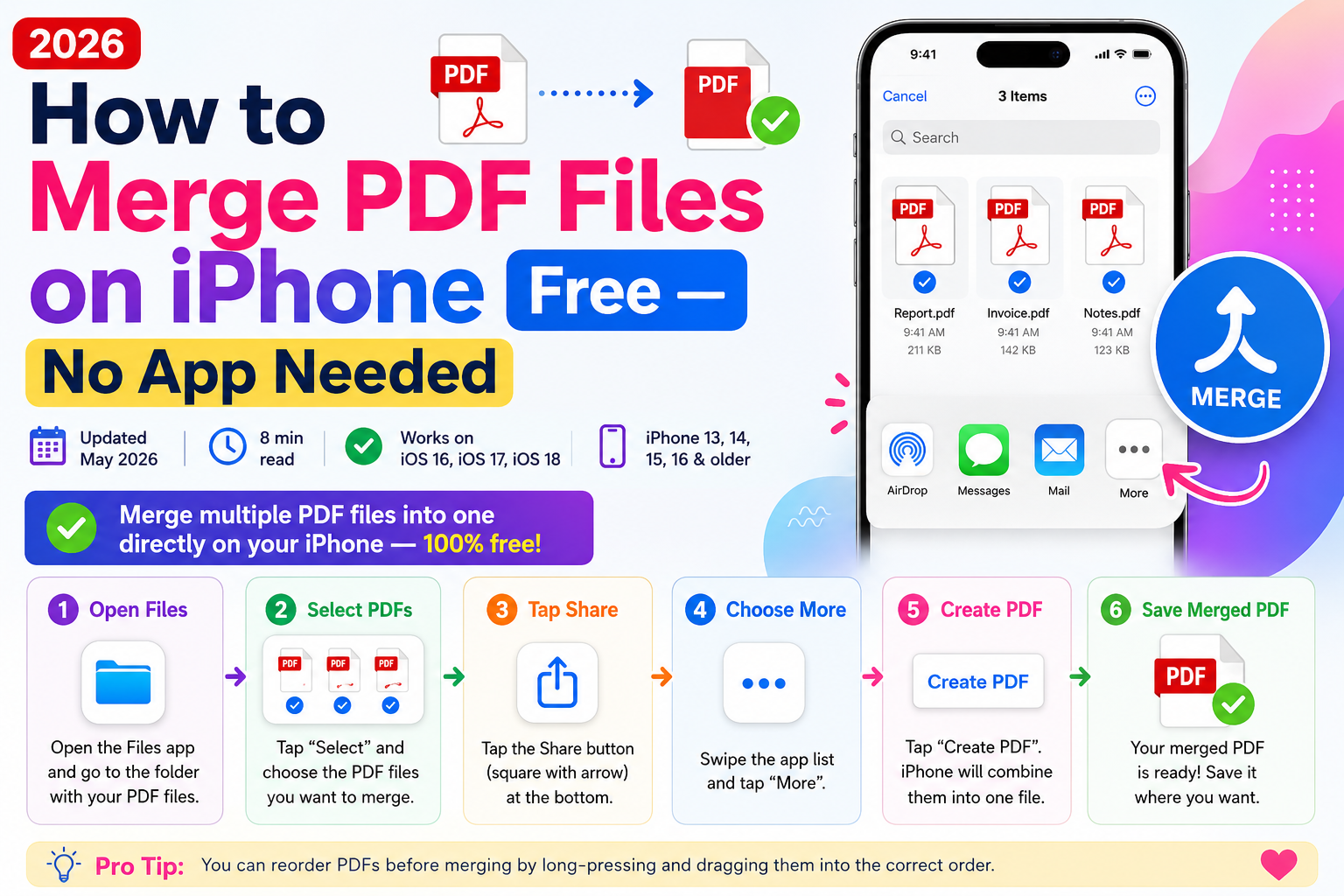
On iOS, you can also convert a PNG to PDF directly from your Photos app. Open the image, tap the Share button, scroll down and tap Print. On the Print preview screen, pinch outward with two fingers on the preview — this creates a PDF which you can then share via the Share Sheet. It is a hidden trick that works without any extra app or website.
How to Convert Multiple PNG Files to One PDF
This is one of the most useful features of an online PNG to PDF converter. Instead of ending up with separate PDF files for each image, you can merge all your PNGs into a single multi-page PDF document.
On Comfortable PDF, simply upload all your PNG files at once by selecting multiple files in the file picker. Once uploaded, drag and drop to reorder them — each PNG becomes one page in the order you set. Then click Convert and download your combined PDF.
This is ideal for:
• Creating a photo portfolio as a single PDF
• Submitting multiple screenshots in one document
• Combining pages of a scanned document photographed as separate images
• Building a simple image-based report or presentation
PNG to PDF Tools Compared: Which Is Best in 2026?
There are plenty of tools that claim to convert PNG to PDF. Here is how the main options compare:
|
Tool |
Cost |
Batch Convert |
No Download |
Free Forever |
Speed |
|
Comfortable PDF |
Free |
Yes |
Yes |
Yes |
Very Fast |
|
Adobe Acrobat Pro |
$19.99/mo |
Yes |
No |
No |
Fast |
|
Canva |
Freemium |
Limited |
Yes |
Limited |
Medium |
|
SmallPDF |
Freemium |
Limited |
Yes |
No |
Fast |
|
Microsoft Print to PDF |
Free (Windows) |
No |
No |
Yes |
Medium |
For most people, Comfortable PDF is the best choice because it is completely free with no daily limits, works on every device, and requires no account or software installation.
How to Convert PNG to PDF on a Mac (3 Methods)
Method 1: Use Comfortable PDF (Fastest)
Open comfortablepdf.com/png-to-pdf in Safari or Chrome, upload your PNG, and download the PDF. Done in under 30 seconds.
Method 2: Use Mac Preview
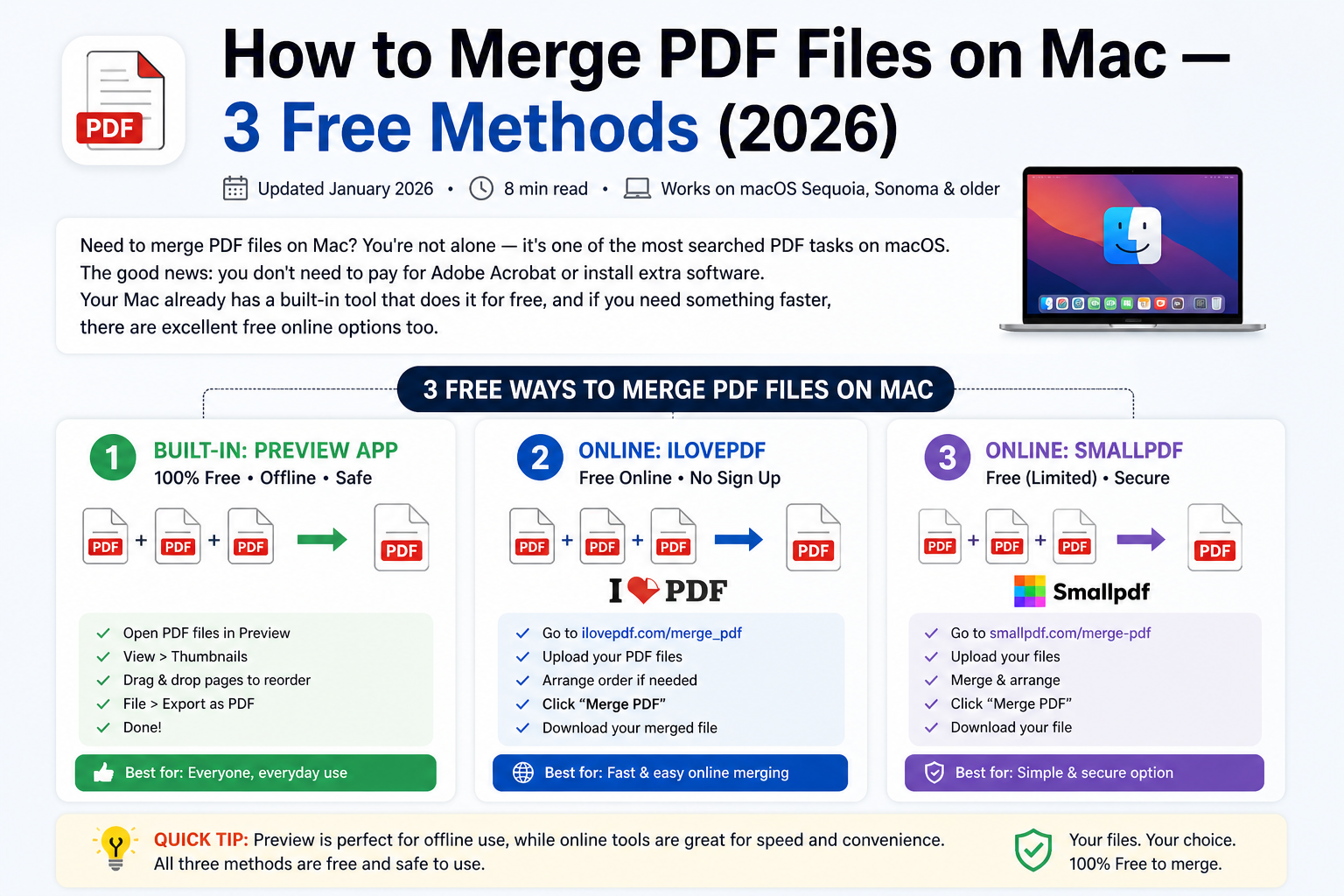
Open your PNG in Preview. Go to File > Export as PDF. Choose a save location and click Save. Simple and built-in, but limited to one image at a time and no page size control.
Method 3: Print to PDF
Open your PNG in Preview or any app. Press Command + P to open Print. Click the PDF dropdown at the bottom left and choose Save as PDF. This works with any image but gives you less control over page margins and sizing.
PNG vs PDF: What Is the Difference?
PNG (Portable Network Graphics) is a raster image format. It stores pixel data and is best for photographs, screenshots, and graphics with transparent backgrounds. It is not searchable, not easily printable across different page sizes, and cannot contain multiple pages.
PDF (Portable Document Format) is a document format that can contain images, text, vector graphics, and interactive elements. It looks the same on every device and printer, supports multiple pages, and is the global standard for professional document sharing.
When you convert a PNG to PDF, the image itself does not change — it is simply wrapped inside a PDF container that gives it document properties: a fixed page size, printability, and compatibility with any PDF viewer in the world.
Does Converting PNG to PDF Reduce Quality?
No — not with a good converter. When you use Comfortable PDF, your image is embedded in the PDF at full resolution. There is no compression or quality loss during the conversion itself.
The only time quality can look different is if you choose a page size much smaller than your image, causing it to be scaled down to fit. To avoid this, choose a page size that matches your image dimensions, or select the option to keep original image size.
If your final PDF file size is too large (especially with high-resolution PNG files), you can use the compress PDF tool afterwards to reduce it without visible quality loss for on-screen viewing.
|
Convert Your PNG to PDF — Free, Right Now No sign-up. No software. No limits. Works on any device. |
Frequently Asked Questions
Is it free to convert PNG to PDF?
Yes. Comfortable PDF is completely free with no daily conversion limits. Upload your PNG, convert, and download with no account required.
Can I convert multiple PNG files to one PDF?
Yes. Upload multiple PNG files at once to Comfortable PDF, arrange them in the order you want, and they will be combined into a single multi-page PDF.
Does PNG to PDF conversion affect image quality?
No. The PNG is embedded at full resolution inside the PDF. Quality only changes if you scale the image down to fit a smaller page size — which you can control in the settings.
How do I convert a PNG to PDF on my iPhone?
Open comfortablepdf.com/png-to-pdf in Safari, upload your PNG from Photos or Files, and download the PDF. You can also use the hidden Print > Pinch to PDF trick in the iOS Photos app.
Can I convert a PNG with a transparent background to PDF?
Yes. Comfortable PDF handles PNG transparency correctly. The transparent areas appear white in the PDF, which is standard for document printing.
What is the difference between PNG and PDF?
PNG is an image format — it stores pixel data and is best for single images. PDF is a document format that can hold multiple pages, text, and images, and looks the same on every device and printer.
Related PDF Tools & Guides
Now that you know how to convert PNG to PDF, here are other tools and guides you might find useful:
• JPG to PDF Converter — Convert JPEG photos to PDF free
• PDF to JPG Converter — Convert PDF pages to image files
• Compress PDF — Reduce PDF file size after converting
• Merge PDF — Combine multiple PDFs into one file
• How to Edit a PDF Free Online — Add text, images, and signatures to any PDF
• All PDF Tools — View every free tool available on Comfortable PDF