Compress PDF Without Losing Quality Online Free 2026 | ComfortablePDF
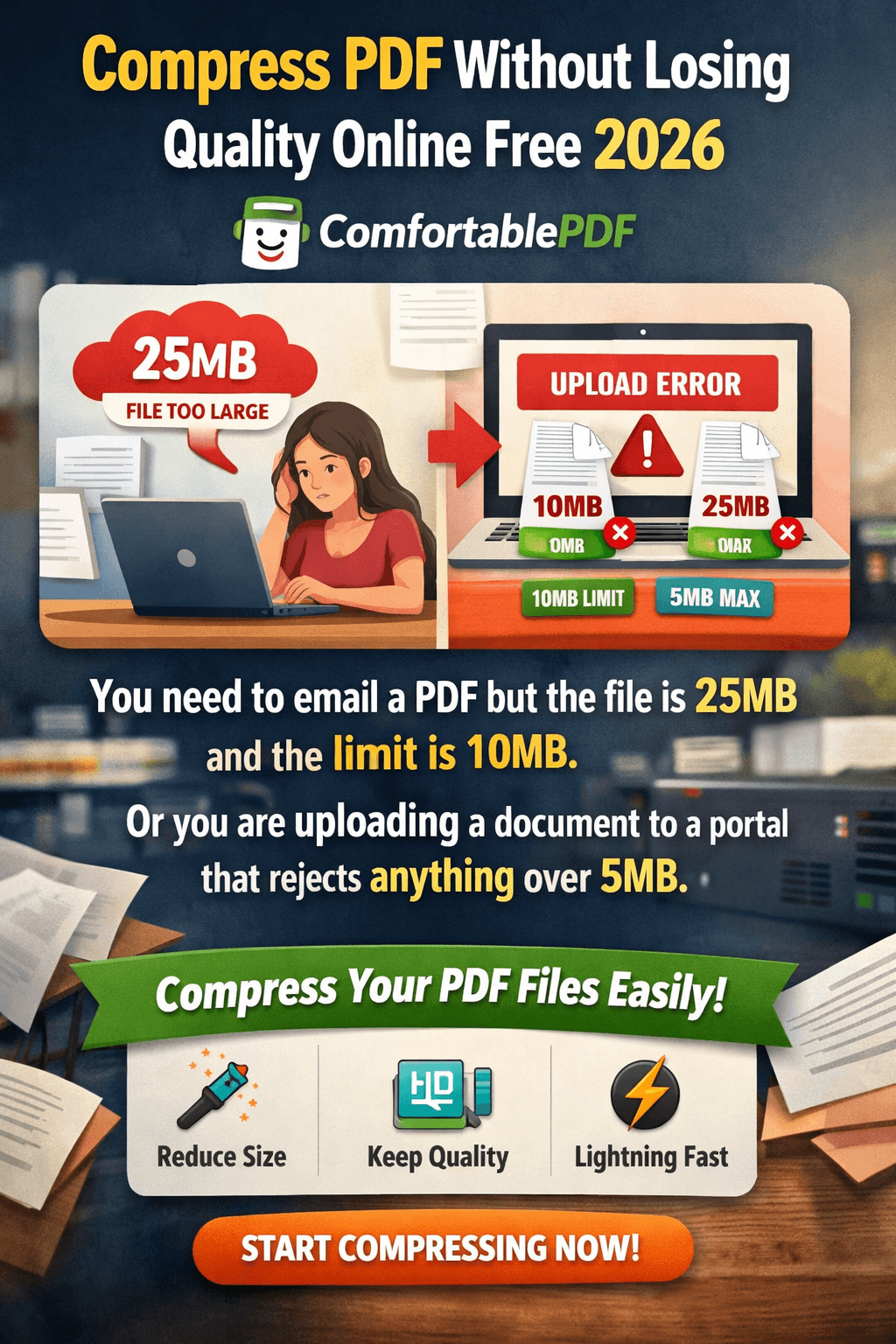
You need to email a PDF but the file is 25MB and the limit is 10MB. Or you are uploading a document to a portal that rejects anything over 5MB. Or your client says the PDF is too large to open on their phone. The instinct is to just compress it and hope for the best — but every tool you try either adds a watermark, demands a subscription, or crushes the quality so badly that the text becomes blurry and the images pixelate.
Compressing a PDF without losing quality is entirely achievable when you use the right tool with the right settings. ComfortablePDF's free Compress PDF tool at comfortablepdf.com/compress-pdf reduces PDF file size significantly — often by 60–80% — while keeping your text sharp, your images clear, and your formatting intact. No signup, no watermark, no subscription. This guide explains exactly how to do it in 2026.
What You Need
Just a web browser — Chrome, Safari, Firefox, or Edge — and the oversized PDF you need to shrink. No software to install, no account to create, and no email address required. Works on every device: iPhone, Android, Mac, Windows, and Chromebook.
What Does Compressing a PDF Actually Do?
Understanding what compression does helps you get the best result — and explains why quality does not have to suffer. When you compress a PDF, the tool does one or more of the following:
• Downsizes embedded images. Images are usually the biggest contributor to PDF file size. Compression reduces the resolution of embedded images to a level that still looks sharp on screen and in print but takes up far less storage space. For most documents — reports, proposals, presentations — a slight reduction in image resolution is completely unnoticeable.
• Removes redundant data. PDFs often contain hidden metadata, embedded font subsets, duplicate objects, and leftover data from previous edits. Compression strips this invisible overhead without affecting any visible content.
• Re-optimises the file structure. The internal structure of a PDF can accumulate inefficiencies over time — especially if the document has been edited multiple times. Compression reorganises this structure to make the file as lean as possible.
Text in a PDF is stored as vector data — it is not an image — so text sharpness is never affected by PDF compression. Your headings, body text, and captions will look identical before and after compression. Only embedded image resolution may change slightly, and for most real-world documents this difference is invisible at normal reading size.
How to Compress a PDF Without Losing Quality — Step-by-Step Guide
Follow these five steps to shrink any PDF file size for free while keeping quality intact:
1. Open the Compress PDF tool. Go to comfortablepdf.com/compress-pdf in your browser. No download, login, or email address required.
2. Upload your PDF. Click 'Select PDF File' or drag and drop your large PDF into the upload area. ComfortablePDF accepts PDFs of any size — whether your document is 5MB, 50MB, or larger.
3. Select your compression level. ComfortablePDF offers compression settings ranging from light (minimal quality impact, moderate size reduction) to strong (maximum size reduction, slight image quality reduction). For most business documents — reports, invoices, proposals — the medium or recommended setting delivers the best balance: significant file size reduction with no noticeable quality loss.
4. Click 'Compress PDF'. The tool processes your file, applies the compression algorithm, and prepares your reduced-size PDF. Processing time depends on the original file size — typically 5 to 30 seconds.
5. Download your compressed PDF. Click 'Download' and save the smaller file. The tool shows you the original size and the new compressed size so you can see exactly how much space was saved. If the result is not small enough, try a higher compression level.
Compress your PDF now — free, no signup, no watermark: comfortablepdf.com/compress-pdf
Why Use ComfortablePDF to Compress a PDF?
• 100% Free — No Subscription Required. Compressing PDFs at ComfortablePDF is permanently free. No daily file limit, no credit system, no premium tier required. Compress as many PDFs as you need, as often as you need.
• No Signup or Email Address. No registration form, no account required. Open the tool, upload your PDF, compress it, and download the result in under a minute. Your privacy is protected — no data collected.
• No Watermark Added to Your Compressed PDF. Your compressed file is completely clean — no branding, logo, or promotional text inserted by the tool. The output file is identical to your original in every way except file size.
• Smart Compression — Text Always Stays Sharp. ComfortablePDF's compression engine preserves vector text at full quality regardless of the compression level selected. Only image data is selectively optimised, and only at levels that keep images looking clean at normal reading size.
• Works on Every Device. ComfortablePDF runs in any browser — no app needed on iPhone, Android, Chromebook, Mac, or Windows PC.
How Much Can You Reduce PDF File Size? Realistic Expectations
The amount of compression you achieve depends heavily on what your PDF contains:
• PDF with many high-resolution images (photos, diagrams, scans): 60–85% file size reduction is typical. A 20MB photo-heavy brochure can realistically compress to 3–5MB with no visible quality loss at standard reading resolution.
• PDF with mixed content (text, charts, some images): 40–70% reduction. A 10MB annual report with graphs and some photos might compress to 3–5MB reliably.
• PDF that is mostly text (reports, contracts, invoices): 10–40% reduction. Text-only PDFs are already relatively compact — compression removes overhead and optimises structure but cannot dramatically shrink a document that has very little image data to start with.
• Already-compressed PDFs: Minimal or no reduction. If a PDF was previously compressed or exported at a low quality setting, there is little further room to reduce it. Attempting to compress an already-compressed PDF typically produces a file that is the same size or only marginally smaller.
Pro tip: If your PDF is still too large after compression, try splitting it first. Use comfortablepdf.com/split-pdf to extract only the pages you actually need to send, then compress the smaller extracted file. See: comfortablepdf.com/blog/how-to-split-pdf-into-multiple-files-free
How to Compress a PDF on Any Device — Free
Compress PDF on iPhone — Free
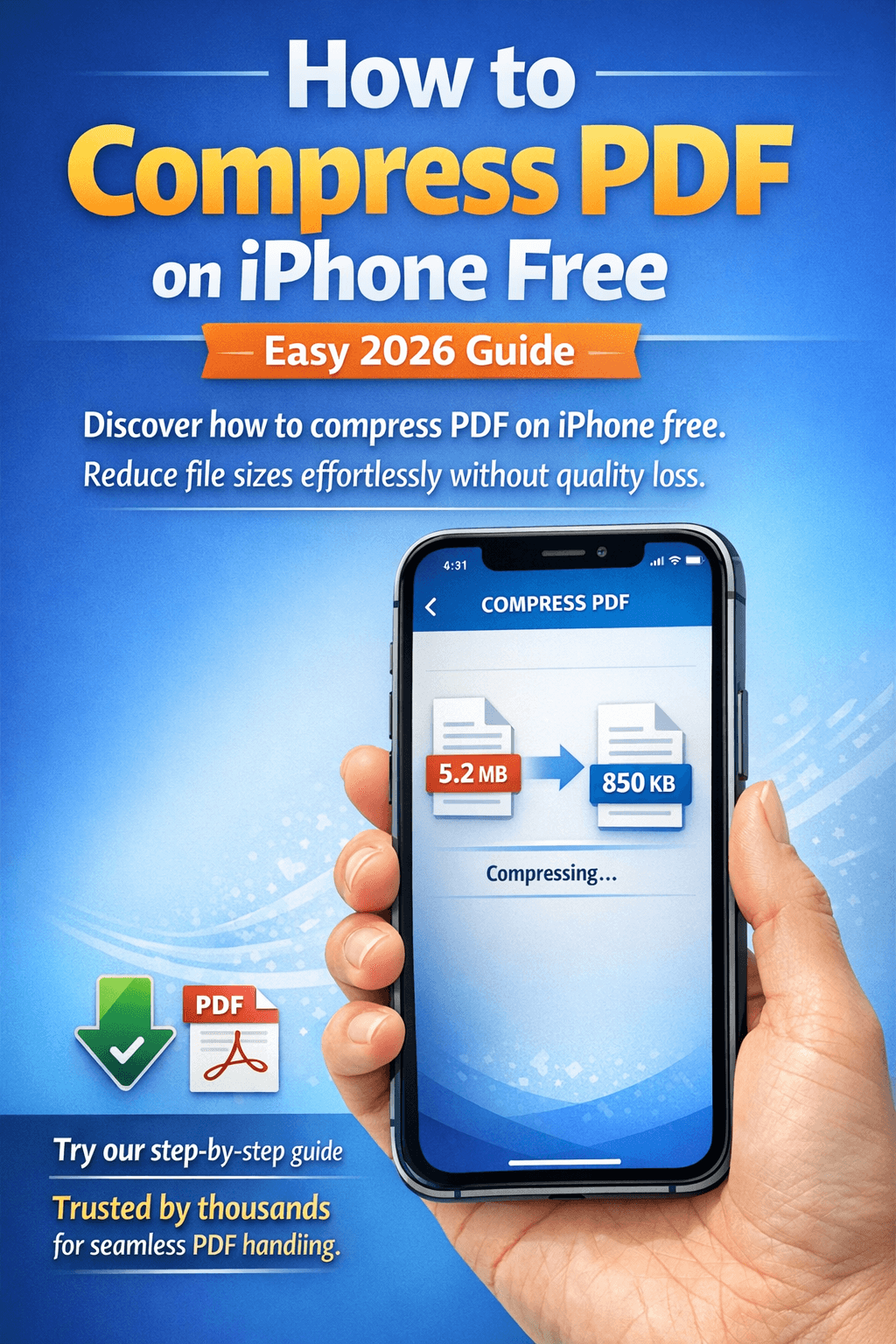
Open Safari on your iPhone. Go to comfortablepdf.com/compress-pdf. Tap 'Select PDF File' and choose your document from the Files app or iCloud Drive. Select your compression level, tap 'Compress PDF', and download the smaller file directly to your iPhone. No app download needed, completely free. The tool also links to a dedicated guide for iPhone compression at: comfortablepdf.com/blog/how-to-compress-pdf-on-iphone-free
Compress PDF on Mac — Free (No Adobe Required)
Open Safari or Chrome on your Mac. Navigate to comfortablepdf.com/compress-pdf, upload your PDF, select your compression strength, and click 'Compress PDF'. Download the reduced file — no Adobe Acrobat subscription needed. Mac Preview also offers a compression option via 'Export as PDF' with Quartz filters, but the results are inconsistent and often degrade quality more than necessary. ComfortablePDF gives you controlled, predictable results.
Compress PDF on Windows — Free
Open Chrome, Edge, or Firefox on your Windows PC. Go to comfortablepdf.com/compress-pdf, upload your large PDF, choose your compression level, click 'Compress PDF', and download the result. No software installation needed — the entire process runs in your browser.
Compress PDF on Android — Free
Open Chrome on your Android device. Go to comfortablepdf.com/compress-pdf and tap 'Select PDF File'. Choose your PDF from Downloads or Google Drive. Select compression strength, tap 'Compress PDF', and download the compressed file directly to your Android device.
Tips for Compressing a PDF Without Losing Quality
6. Split before you compress — always. This is the single most effective strategy for reducing PDF file size. If you only need to email pages 5–20 of a 60-page report, extract those pages first using comfortablepdf.com/split-pdf. You are then compressing a 16-page document instead of a 60-page one — the size reduction is proportional and the quality impact is the same. See: comfortablepdf.com/blog/how-to-split-pdf-into-multiple-files-free
7. Use the recommended compression level first, then go stronger if needed. Start with the default or recommended setting before trying maximum compression. For most documents, the recommended setting achieves 50–70% size reduction with no noticeable quality loss. Only move to the strongest setting if you need the file under a specific size limit (such as a 1MB portal upload limit) and the recommended setting did not get you there.
8. Reduce file size before adding page numbers or watermarks. If your workflow involves compressing a PDF and then adding page numbers or watermarks, compress first. Adding visual elements after compression avoids the risk of re-compressing a file that was already processed — which rarely achieves further size reduction and can degrade quality unnecessarily. Use comfortablepdf.com/page-numbers or comfortablepdf.com/watermark-pdf after compression.
Other Free PDF Tools at ComfortablePDF
These free tools work alongside compression for a complete PDF workflow — all free, no signup:
• Split PDF — comfortablepdf.com/split-pdf — Extract only the pages you need before compressing to achieve maximum size reduction. See: comfortablepdf.com/blog/how-to-split-pdf-into-multiple-files-free
• Merge PDF — comfortablepdf.com/merge-pdf — Combine multiple PDFs into one document, then compress the merged file in a single step.
• PDF to Word — comfortablepdf.com/pdf-to-word — Convert a compressed PDF to an editable Word document if you need to make further edits.
• Page Numbers — comfortablepdf.com/page-numbers — Add page numbers to your document after compression.
• Watermark PDF — comfortablepdf.com/watermark-pdf — Apply a CONFIDENTIAL or DRAFT stamp to your compressed PDF before sharing.
• Protect PDF — comfortablepdf.com/protect-pdf — Add a password to your compressed PDF before sending sensitive documents by email.
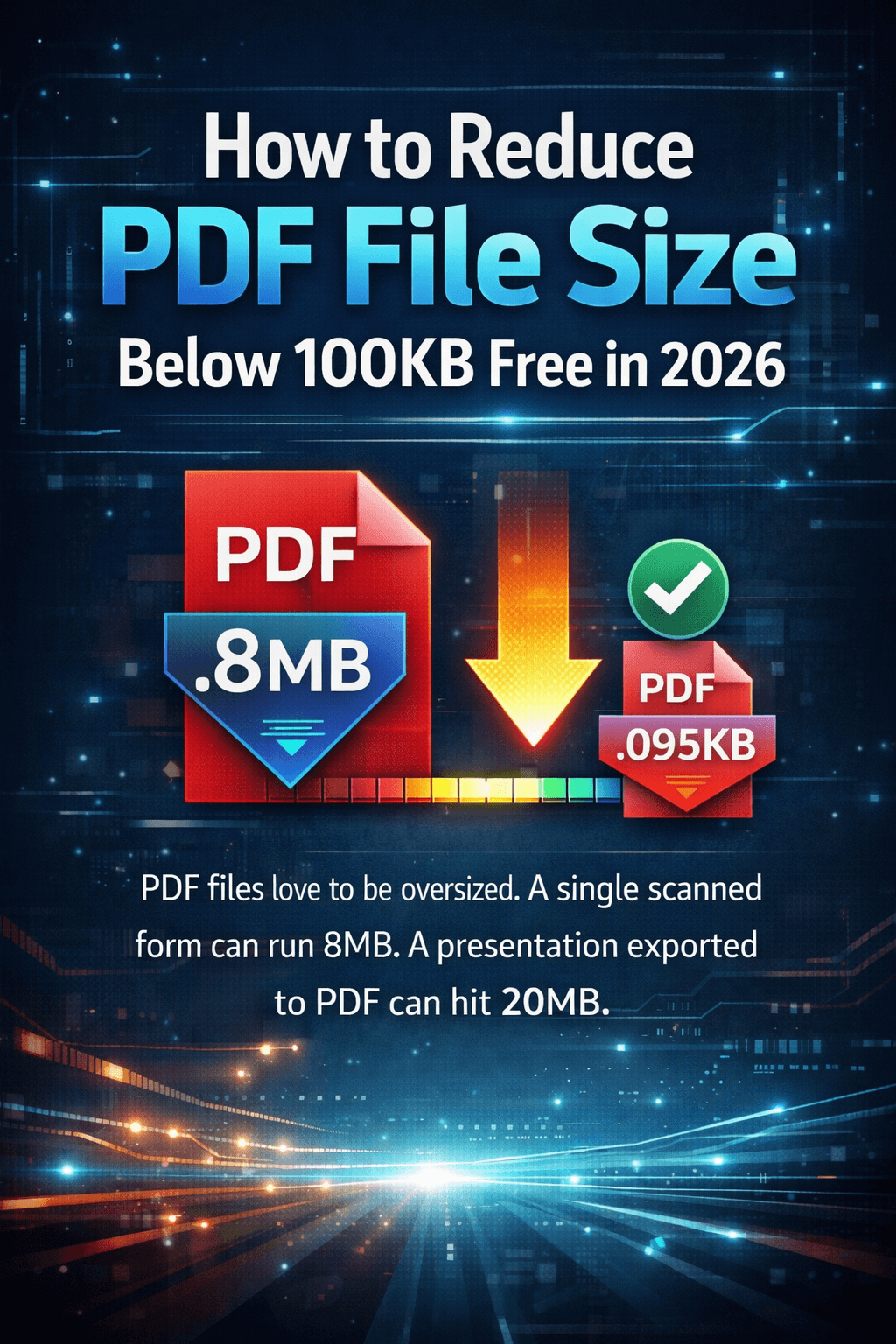
Also see our detailed guide: comfortablepdf.com/blog/how-to-reduce-pdf-file-size-below-100kb-free
Browse all 24 free PDF tools: comfortablepdf.com/all-tools
Frequently Asked Questions
Q: Does compressing a PDF reduce quality?
A: Not noticeably for most documents when you use the right compression level. Text in a PDF is vector-based and is never affected by compression — it remains perfectly sharp regardless of settings. Embedded images may have their resolution slightly reduced, but for standard reading sizes on screen and in print, this difference is invisible. ComfortablePDF's recommended compression setting is specifically calibrated to maximise file size reduction while keeping visual quality indistinguishable from the original.
Q: What is the maximum file size I can compress with ComfortablePDF?
A: ComfortablePDF accepts PDFs of any size for compression — there is no maximum file size limit imposed by the tool. Very large files (50MB or more) may take slightly longer to process, but the tool handles them without restriction. Upload your file regardless of size and let the compression run — most files complete within 30 seconds.
Q: Is it safe to compress a PDF online?
A: Yes. ComfortablePDF uses HTTPS encryption for all file uploads and transfers. Your PDF is processed on a secure server and permanently deleted as soon as your compressed file is ready to download. ComfortablePDF never stores, views, or shares your documents. This applies whether your PDF contains personal, financial, legal, or confidential business content.
Q: Why is my compressed PDF still too large?
A: This usually happens when the PDF contains very high-resolution images or was previously compressed at a low setting. Try these solutions in order: (1) Use a higher compression strength setting in ComfortablePDF. (2) Split the PDF using comfortablepdf.com/split-pdf to extract only the pages you need to send, then compress the smaller extracted file. (3) If the PDF is mostly scanned images at very high resolution, the compression will be more aggressive — try the maximum setting and review the quality of the output before sending.
Q: Can I compress a PDF on my phone for free?
A: Yes. ComfortablePDF works in any mobile browser — Safari on iPhone or Chrome on Android. Open comfortablepdf.com/compress-pdf on your phone, upload your large PDF, select your compression level, and download the reduced file directly to your device. No app installation required and completely free with no email or signup needed.
Conclusion
Compressing a PDF without losing quality in 2026 is straightforward when you use ComfortablePDF's free Compress PDF tool at comfortablepdf.com/compress-pdf. The tool reduces file size by 60–80% for image-heavy documents, keeps all text perfectly sharp, and delivers a clean output file with no watermark and no account required.
For the best results: split out only the pages you need first using comfortablepdf.com/split-pdf, then compress the extracted file. This two-step approach consistently produces the smallest possible file size with the least quality impact — and both tools are completely free.
See also our complete guide: comfortablepdf.com/blog/how-to-reduce-pdf-file-size-below-100kb-free
Compress your PDF now — free, no signup: comfortablepdf.com/compress-pdf