PDF to Excel Converter Free No Email Required 2026 | ComfortablePDF
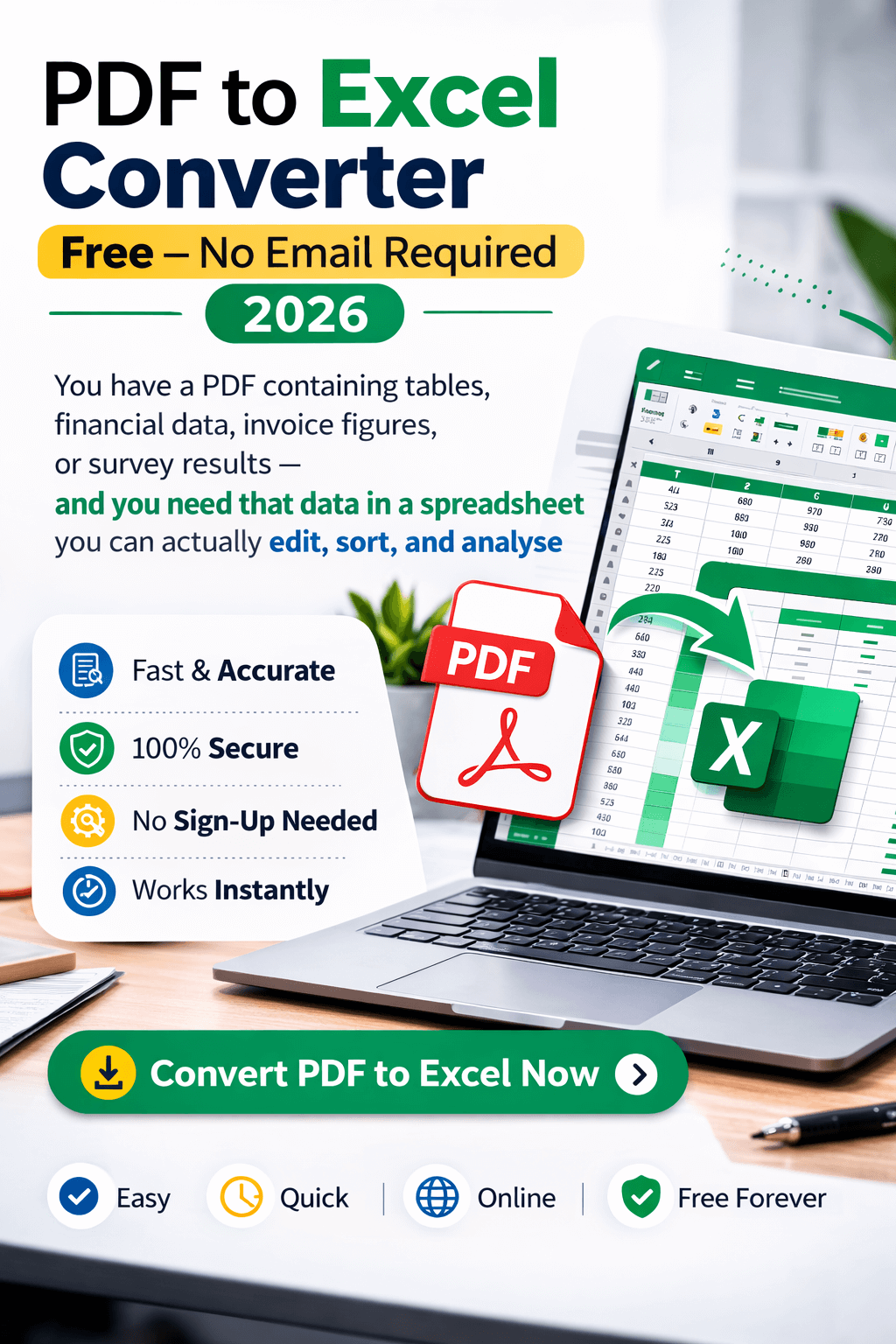
You have a PDF containing tables, financial data, invoice figures, or survey results — and you need that data in a spreadsheet you can actually edit, sort, and analyse. The old way meant either retyping everything manually (slow and error-prone) or paying for Adobe Acrobat Pro or a subscription-based converter. The new frustration is online tools that force you to hand over your email address before they will convert even a single file.
ComfortablePDF's free PDF to Excel converter at comfortablepdf.com/pdf-to-excel requires no email, no account, and no subscription. Upload your PDF, click convert, and download your editable Excel spreadsheet in seconds. It works on every device — iPhone, Android, Mac, Windows, and Chromebook — completely free in 2026. This guide shows you exactly how.
What You Need
Just a web browser — Chrome, Safari, Firefox, or Edge — and the PDF file containing the table or data you want to extract to Excel. No software to install, no account to create, and absolutely no email address required. Works on every device.
How to Convert PDF to Excel Free — Step-by-Step Guide
Follow these five steps to convert any PDF to an Excel spreadsheet for free with no email:
1. Open the PDF to Excel tool. Go to comfortablepdf.com/pdf-to-excel in your browser. The converter loads instantly — no login, no email prompt, no account creation required.
2. Upload your PDF. Click 'Select PDF File' or drag and drop your PDF into the upload area. The tool accepts any PDF — single-page or multi-page — regardless of whether it contains one table or dozens of data tables across multiple pages.
3. Click 'Convert to Excel'. The tool analyses your PDF's structure, identifies tables and data, and converts them into a properly formatted Excel (.xlsx) file. This usually takes between 5 and 30 seconds depending on file complexity.
4. Review the conversion preview if available. Some tables may require minor cleanup after conversion — especially if the original PDF had unusual formatting or merged cells. The preview lets you check the output before downloading.
5. Download your Excel file. Click 'Download' to save the .xlsx file to your device. Open it in Microsoft Excel, Google Sheets, or any spreadsheet application to edit, analyse, or reformat your data freely — no restrictions.
Convert your PDF to Excel now — free, no email: comfortablepdf.com/pdf-to-excel
Why Use ComfortablePDF PDF to Excel Converter?
Most free PDF to Excel tools online either watermark your output, limit how many files you can convert, or — most frustratingly — demand your email address before you can even try the tool. ComfortablePDF does none of these things:
• 100% Free — No Subscription, No Credits. Converting PDF to Excel at ComfortablePDF is permanently free. No credit system, no daily file limit, no premium paywall. Free for every conversion, every time.
• No Email Address or Account Required. Open the tool, upload your PDF, and download your Excel file — that is the entire process. No registration form, no email verification, no personal data collected. Your data stays private.
• No Watermark on Output Files. Your converted Excel spreadsheet is completely clean — no branding, no locked cells, no promotional text inserted by the tool. The file is ready to use immediately.
• Works on Every Device. ComfortablePDF runs in any web browser — no app installation needed on iPhone, Android, Chromebook, Mac, or Windows.
• Secure File Handling. All uploads use HTTPS encryption. Your PDF is permanently deleted from the server as soon as your Excel file is ready to download. Your data is never stored, shared, or used for any other purpose.
What Types of PDF Data Convert Best to Excel?
Not all PDFs convert equally well to spreadsheets. Understanding what works best helps you get the cleanest results:
• Digitally created PDFs with clean tables. PDFs exported from Word, accounting software, ERP systems, or reporting tools typically contain well-structured table data that converts to Excel with high accuracy. Rows and columns map cleanly to cells with minimal cleanup needed.
• Financial statements and invoices. Bank statements, profit and loss reports, balance sheets, and invoice batches are among the most common PDF-to-Excel conversion use cases. ComfortablePDF handles these formats reliably, preserving numerical values and column structure.
• Survey results and data exports. PDFs generated from survey tools or database reports often contain rows of structured data that extract cleanly into Excel rows and columns.
• Scanned PDFs with tables. Scanned PDFs — physical documents that were photographed or scanned — require OCR (optical character recognition) processing to read the text before it can be placed in a spreadsheet. For scanned PDFs, run the document through comfortablepdf.com/ocr-pdf first to make the text machine-readable, then convert to Excel for the best results.
Quick tip: If your PDF is password-protected, unlock it first using comfortablepdf.com/unlock-pdf before converting. Protected PDFs cannot be processed by the converter directly.
How to Convert PDF to Excel Free on Any Device
Convert PDF to Excel on iPhone — Free, No Email
Open Safari on your iPhone. Navigate to comfortablepdf.com/pdf-to-excel. Tap 'Select PDF File' and choose your document from the Files app or iCloud Drive. Tap 'Convert to Excel' and wait for the conversion to complete. Download the .xlsx file directly to your iPhone — open it in the Numbers app or any spreadsheet viewer. No email required, completely free.
Convert PDF to Excel on Android — Free, No Email
Open Chrome on your Android phone or tablet. Go to comfortablepdf.com/pdf-to-excel and tap 'Select PDF File'. Choose your PDF from Downloads or Google Drive. Tap 'Convert to Excel', wait for processing, and download the Excel file directly to your device. Open it in Google Sheets or Excel for Android — no email, no signup, no charge.
Convert PDF to Excel on Mac — Free, No Email
Open Safari or Chrome on your Mac. Go to comfortablepdf.com/pdf-to-excel, upload your PDF, and click 'Convert to Excel'. Download the .xlsx file and open it in Microsoft Excel or Apple Numbers. No Adobe Acrobat subscription needed. For large financial PDFs with many pages, this is significantly faster than any manual re-entry approach.
Convert PDF to Excel on Windows — Free, No Email
Open Chrome, Edge, or Firefox on your Windows PC. Navigate to comfortablepdf.com/pdf-to-excel, upload your PDF, click 'Convert to Excel', and download the output file. Open it directly in Microsoft Excel. Works with any PDF regardless of size — completely free with no email required.
Tips for the Best PDF to Excel Conversion Results
6. Split large PDFs before converting. If you have a 200-page financial report but only need the data from pages 40–55, use comfortablepdf.com/split-pdf to extract those pages first. Converting a smaller, targeted PDF is faster and gives you a cleaner, more focused spreadsheet with less post-conversion cleanup needed.
7. Use OCR for scanned documents first. If your PDF is a scanned image of a physical document — such as a printed bank statement that was scanned in — it will not convert accurately without OCR processing. Go to comfortablepdf.com/ocr-pdf first to make the text searchable and machine-readable, then convert to Excel. This two-step process produces dramatically better results for scanned documents.
8. Check merged cells and headers after conversion. Complex tables with merged cells, multi-row headers, or unusual column spans may need minor manual adjustment in Excel after conversion. This is normal behaviour with any PDF-to-Excel converter — the conversion captures the data values accurately, but merged cell formatting sometimes needs a quick fix. Budget a few minutes for review on complex documents.
Other Free PDF Tools at ComfortablePDF
After converting your PDF to Excel, these free tools are available with no signup and no watermark:
• PDF to Word — comfortablepdf.com/pdf-to-word — Convert PDF to an editable Word document instead of a spreadsheet. See also: comfortablepdf.com/blog/how-to-convert-pdf-to-word-on-mobile-free
• OCR PDF — comfortablepdf.com/ocr-pdf — Make scanned PDFs searchable and machine-readable before converting to Excel.
• Split PDF — comfortablepdf.com/split-pdf — Extract the specific pages you need before converting. See also: comfortablepdf.com/blog/how-to-split-pdf-into-multiple-files-free
• Unlock PDF — comfortablepdf.com/unlock-pdf — Remove password protection from a PDF before converting to Excel.
• Compress PDF — comfortablepdf.com/compress-pdf — Reduce the file size of large PDFs before uploading for conversion.
• Merge PDF — comfortablepdf.com/merge-pdf — Combine multiple PDF reports into one file before extraction.
Browse all 24 free PDF tools at: comfortablepdf.com/all-tools
Frequently Asked Questions
Q: Can I convert a PDF to Excel for free without giving my email address?
A: Yes. ComfortablePDF's PDF to Excel converter at comfortablepdf.com/pdf-to-excel requires no email address, no account registration, and no personal information of any kind. Open the tool in your browser, upload your PDF, click convert, and download your Excel file. The entire process takes under a minute and is completely free.
Q: Will the tables in my PDF convert accurately to Excel rows and columns?
A: For digitally created PDFs with well-structured tables — such as financial reports, invoices, and data exports from software systems — the conversion accuracy is high. Rows and columns map cleanly to Excel cells. Complex tables with merged cells or unusual formatting may need minor cleanup in Excel after conversion. Scanned PDFs should be processed with comfortablepdf.com/ocr-pdf first for the best results.
Q: Can I convert a scanned PDF to Excel?
A: Yes, but scanned PDFs require an additional step. Because a scanned PDF is essentially a photograph of a page rather than a machine-readable document, the text needs to be extracted via OCR first. Run your scanned PDF through comfortablepdf.com/ocr-pdf to make it searchable, then convert the OCR-processed file to Excel using comfortablepdf.com/pdf-to-excel for the best accuracy.
Q: Is it safe to upload a PDF containing financial data to convert it online?
A: Yes. ComfortablePDF uses HTTPS encryption for all file transfers. Your uploaded PDF is processed on a secure server and permanently deleted as soon as your Excel file is ready to download. ComfortablePDF never stores, views, analyses, or shares your documents. Your financial data is not retained after conversion.
Q: What file format does the converted Excel file use — .xlsx or .csv?
A: ComfortablePDF converts your PDF to the standard .xlsx format — the modern Excel format used by Microsoft Excel 2007 and later, Google Sheets, Apple Numbers, and all major spreadsheet applications. The .xlsx format preserves table structure, cell formatting, and numerical values more reliably than .csv, which is a plain-text format with no formatting support.
Conclusion
Converting a PDF to Excel in 2026 does not require a paid subscription, Adobe Acrobat, or handing over your email address. ComfortablePDF's free PDF to Excel converter at comfortablepdf.com/pdf-to-excel gives you a clean, editable .xlsx file in seconds — no email, no signup, no watermark, and no file size restrictions.
For best results with large reports, split out the pages you need first using comfortablepdf.com/split-pdf. For scanned documents, run OCR first at comfortablepdf.com/ocr-pdf. And if your PDF is password-protected, unlock it at comfortablepdf.com/unlock-pdf before converting. All three tools are completely free.
Convert your PDF to Excel now — free, no email required: comfortablepdf.com/pdf-to-excel