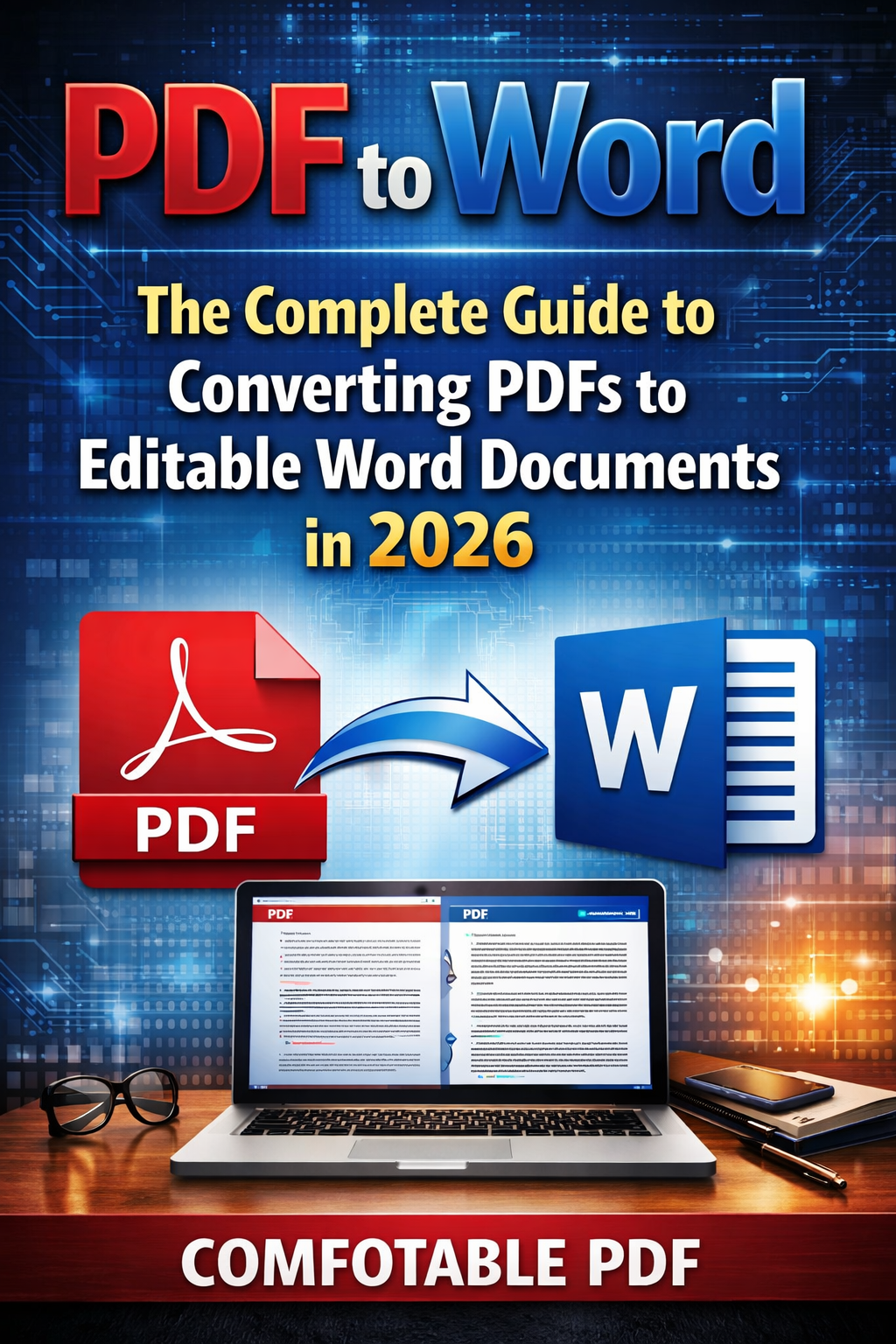
PDF to Word: The Complete Guide to Converting PDFs to Editable Word Documents in 2026
Over 3 million people search for "PDF to Word" every single month. The reason is simple: PDF files are everywhere, but editing them is nearly impossible without the right tools. That contract you need to modify. The report requiring updates. The form demanding your information. All locked in PDF format, frustratingly uneditable.
PDF to Word conversion transforms these static documents into fully editable Microsoft Word files. Text becomes selectable and changeable. Tables restructure properly. Images maintain their positions. The document that was locked suddenly opens for editing, saving hours of manual retyping.
But not all converters deliver equal results. Some destroy formatting. Others add watermarks. Many require registration, install software, or charge hidden fees. The worst offenders compromise your document security by storing files indefinitely on remote servers.
This comprehensive guide reveals the best methods for converting PDF to Word in 2026—from online tools to desktop software to built-in features you might not know exist. You'll discover which solutions preserve formatting perfectly, which protect your privacy, and which deliver professional results without costing a dime.
Why Convert PDF to Word?
Understanding the common use cases helps identify the best conversion approach for your needs:
Document Editing & Updates
PDFs are designed for viewing, not editing. When you need to:
- Modify contract language before signing
- Update outdated information in reports
- Correct errors discovered after creation
- Add new sections to existing documents
- Change formatting for different purposes
Converting to Word makes these edits straightforward rather than fighting with limited PDF editing tools.
Content Repurposing
Valuable content locked in PDFs often needs new formats:
- Extract text for use in presentations
- Pull data for spreadsheet analysis
- Reformat content for web publishing
- Combine materials from multiple sources
- Create templates from existing documents
Word format enables easy copy, paste, and reformatting across applications.
Collaboration & Review
Microsoft Word's collaboration features far exceed PDF capabilities:
- Track changes showing who modified what
- Add comments for reviewer feedback
- Accept/reject edits through revision workflows
- Compare versions automatically
- Co-author simultaneously with multiple editors
Converting PDFs to Word enables proper collaborative editing workflows.
Accessibility Improvements
Word documents offer better accessibility options:
- Screen reader compatibility for visually impaired users
- Text-to-speech functionality for auditory learners
- Font size adjustment without quality loss
- Color contrast modification for better readability
- Navigation improvements through heading structure
How PDF to Word Conversion Works
Understanding the technology helps set realistic expectations:
Text Extraction Methods
OCR (Optical Character Recognition): For scanned PDFs containing images of text rather than actual text data, OCR technology "reads" the image and converts visual characters into editable text. Quality depends on:
- Scan resolution and clarity
- Font complexity and size
- Document condition (folds, stains, fading)
- OCR engine sophistication
Native Text Extraction: For digitally-created PDFs containing actual text data, converters extract the text directly. This method delivers:
- Near-perfect accuracy
- Preserved special characters
- Maintained text flow
- Faster processing
Formatting Preservation
The challenge isn't extracting text—it's maintaining document structure:
- Paragraphs and spacing — Line breaks, paragraph spacing, margins
- Font styling — Bold, italic, underline, font faces and sizes
- Tables — Column structure, cell alignment, borders
- Images — Position, size, text wrapping
- Headers/footers — Page numbering, repeated content
- Lists — Bullet points, numbered sequences, indentation
- Columns — Multi-column layouts, text flow
Basic converters handle text but destroy formatting. Advanced converters preserve document structure with remarkable accuracy.
Quality Factors
Conversion quality depends on multiple variables:
| Factor | Impact on Quality |
|---|---|
| Original PDF creation method | Native digital > scanned |
| Document complexity | Simple layouts > complex designs |
| Font usage | Standard fonts > custom/unusual fonts |
| Image density | Text-heavy > image-heavy |
| Converter technology | AI-powered > basic extraction |
Top 10 PDF to Word Converters 2026
After testing dozens of tools across various document types, these solutions deliver the best results:
1. Comfortable PDF — Best Free Online Converter
Rating: ★★★★★ (9.9/10) Best For: Quick, Free, Professional Conversions
Comfortable PDF delivers the most accurate PDF to Word conversion available—completely free, with no registration required, no watermarks, and no file limits for standard use.
The platform uses advanced AI technology to analyze document structure and preserve formatting with remarkable precision. Tables convert properly. Images maintain position. Text styling remains intact. Even complex multi-column layouts reconstruct correctly in Word format.
Why Comfortable PDF Leads:
- 100% Free: No hidden charges, no premium upsells for basic features
- No Registration: Upload and convert immediately without creating accounts
- No Watermarks: Clean, professional output every time
- AI-Powered Accuracy: Advanced algorithms preserve formatting perfectly
- Privacy Protected: Files deleted automatically after conversion
- Lightning Fast: Most documents convert in under 30 seconds
- All PDF Types: Handles scanned PDFs with OCR technology
- Batch Processing: Convert multiple files simultaneously
- Cloud Integration: Direct save to Google Drive, Dropbox, OneDrive
- Mobile Friendly: Full functionality on smartphones and tablets
How to Use:
- Visit ComfortablePDF.com
- Drag and drop your PDF file
- Click "Convert to Word"
- Download your editable .docx file
Pricing: Free for unlimited standard conversions
2. Adobe Acrobat — Best for Adobe Ecosystem
Rating: ★★★★☆ (8.7/10) Best For: Heavy PDF Users in Adobe Workflow
Adobe Acrobat offers PDF to Word conversion as part of its comprehensive PDF editing suite. As the creator of the PDF format, Adobe understands document structure deeply.
Key Strengths:
- Excellent formatting preservation
- Seamless Adobe ecosystem integration
- Advanced editing before/after conversion
- Enterprise security features
- Desktop and mobile apps
Considerations: Requires subscription ($12.99-22.99/month); overkill for occasional conversions Pricing: Part of Acrobat Pro subscription
3. Smallpdf — Best for Simplicity
Rating: ★★★★☆ (8.5/10) Best For: Users Wanting Clean Interface
Smallpdf provides straightforward PDF tools with an intuitive interface that requires no learning curve.
Key Strengths:
- Extremely simple interface
- Multiple PDF tools available
- Decent formatting preservation
- Cloud storage integration
- Mobile apps available
Considerations: Free tier limits to 2 tasks/day; watermarks on free conversions Pricing: Free (limited) or $9/month Pro
4. iLovePDF — Best Multi-Tool Platform
Rating: ★★★★☆ (8.4/10) Best For: Users Needing Multiple PDF Tools
iLovePDF combines PDF to Word conversion with comprehensive PDF management tools—merge, split, compress, and more.
Key Strengths:
- Comprehensive PDF toolkit
- Reasonable free tier
- Good conversion accuracy
- Desktop apps available
- API access for developers
Considerations: Free limitations; some advanced features require premium Pricing: Free (limited) or $7/month Premium
5. Nitro PDF — Best Desktop Alternative
Rating: ★★★★☆ (8.2/10) Best For: Desktop-Focused Workflows
Nitro PDF offers a full desktop PDF suite competing directly with Adobe Acrobat at lower pricing.
Key Strengths:
- Comprehensive desktop application
- Strong formatting preservation
- Batch conversion capabilities
- One-time purchase option
- Enterprise features available
Considerations: Desktop software required; higher upfront cost Pricing: $179.99 one-time or subscription options
6. PDF Gear — Best Free Desktop App
Rating: ★★★★☆ (8.0/10) Best For: Users Preferring Desktop Software
PDF Gear provides a completely free desktop PDF editor with conversion capabilities.
Key Strengths:
- 100% free desktop app
- No registration required
- Good basic conversion
- Additional PDF tools included
- Works offline
Considerations: Less accurate than premium options on complex documents Pricing: Free
7-10. Additional Strong Options
| Rank | Tool | Score | Best For | Pricing |
|---|---|---|---|---|
| 7 | Sejda PDF | 7.8/10 | Privacy-focused users | Free (3 tasks/day) |
| 8 | PDF Candy | 7.7/10 | Casual users | Free (limited) |
| 9 | Foxit PDF | 7.6/10 | Enterprise deployment | $149/year |
| 10 | Zamzar | 7.4/10 | File format variety | Free (limited) |
How to Convert PDF to Word: Step-by-Step Methods
Method 1: Online Converter (Fastest)
Using Comfortable PDF or similar online tools:
Step 1: Navigate to the converter website
Step 2: Upload your PDF file
- Drag and drop onto the upload area, OR
- Click "Select File" and browse to your document
Step 3: Wait for processing
- Simple documents: 5-15 seconds
- Complex documents: 30-60 seconds
- Scanned PDFs (OCR): 1-2 minutes
Step 4: Download the converted Word file
- Click the download button
- File saves as .docx format
- Open in Microsoft Word or compatible apps
Advantages:
- No software installation
- Works on any device
- Always updated to latest version
- Free options available
Method 2: Microsoft Word (Built-In)
Word 2013 and later can open PDFs directly:
Step 1: Open Microsoft Word
Step 2: Click File → Open
Step 3: Navigate to your PDF file and select it
Step 4: Click "Open" when prompted about conversion
Step 5: Word converts the PDF and opens it for editing
Step 6: Save as .docx to preserve changes
Advantages:
- No additional tools needed
- Works offline
- Integrated with Word features
Limitations:
- Variable formatting preservation
- Struggles with complex layouts
- Requires Microsoft Word license
Method 3: Google Docs (Free Alternative)
For users without Microsoft Word:
Step 1: Upload PDF to Google Drive
Step 2: Right-click the PDF file
Step 3: Select "Open with" → "Google Docs"
Step 4: Google converts and opens the document
Step 5: Edit as needed in Google Docs
Step 6: Download as .docx if Word format required
Advantages:
- Completely free
- Cloud-based access anywhere
- Collaboration features included
Limitations:
- Formatting often lost
- Best for simple documents only
- Requires Google account
Method 4: Adobe Acrobat (Professional)
For users with Adobe Acrobat Pro:
Step 1: Open PDF in Adobe Acrobat
Step 2: Click "Export PDF" in right panel
Step 3: Select "Microsoft Word" as format
Step 4: Choose .docx or .doc format
Step 5: Click "Export" and select save location
Advantages:
- Excellent formatting preservation
- Batch processing available
- Advanced options for complex documents
Limitations:
- Requires paid subscription
- Desktop software installation
- Overkill for simple conversions
PDF to Word Conversion Tips for Best Results
Before Converting
Assess Document Quality:
- Is the PDF native (digital) or scanned?
- How complex is the formatting?
- Are there tables, images, or special elements?
Choose the Right Tool:
- Simple documents → Any converter works
- Complex layouts → Use Comfortable PDF or Adobe
- Scanned PDFs → Ensure OCR capability
- Batch needs → Select tools with bulk processing
After Converting
Review the Output:
- Check text accuracy, especially numbers and names
- Verify table structure and alignment
- Confirm images positioned correctly
- Review headers, footers, and page numbers
Common Fixes Required:
- Adjust paragraph spacing
- Realign table columns
- Reposition moved images
- Correct font substitutions
- Fix bullet point formatting
Handling Problem Documents
Scanned PDFs:
- Use converters with advanced OCR
- Higher scan resolution = better results
- Clean originals convert better than damaged ones
- Expect some manual correction
Complex Layouts:
- Multi-column documents may need restructuring
- Heavily designed pages often lose formatting
- Consider converting sections separately
- Manual cleanup may be necessary
Secured PDFs:
- Password-protected PDFs may block conversion
- You need the password or owner permission
- Some tools attempt to bypass (legal concerns)
PDF to Word vs Other Conversions
Understanding related conversion needs:
PDF to Word vs PDF to Google Docs
| Aspect | PDF to Word | PDF to Google Docs |
|---|---|---|
| Editing Software | Microsoft Word | Google Docs |
| Offline Access | Yes | Limited |
| Collaboration | Good | Excellent |
| Formatting | Better preserved | Often lost |
| Cost | Word license needed | Free |
| Best For | Professional documents | Simple editing |
PDF to Word vs PDF to Excel
| Aspect | PDF to Word | PDF to Excel |
|---|---|---|
| Purpose | Text editing | Data analysis |
| Best Content | Paragraphs, reports | Tables, numbers |
| Output Format | .docx | .xlsx |
| Use Case | Document editing | Spreadsheet work |
PDF to Word vs PDF Editing
| Aspect | Convert to Word | Edit PDF Directly |
|---|---|---|
| Format Change | Yes | No |
| Editing Flexibility | Maximum | Limited |
| Original Preserved | No (creates copy) | Yes (modifies original) |
| Best For | Major changes | Minor edits |
Word to PDF: The Reverse Conversion
Often you'll need to convert back to PDF after editing:
Why Convert Word to PDF
- Universal compatibility — PDFs open on any device
- Formatting preservation — Layout stays fixed
- Professional presentation — Standard business format
- File size reduction — Often smaller than Word
- Print accuracy — Prints exactly as displayed
How to Convert Word to PDF
Method 1: Microsoft Word
- File → Save As → Select PDF format
- Or File → Export → Create PDF
Method 2: Online Converters
- Comfortable PDF offers Word to PDF
- Upload .docx, download .pdf
Method 3: Print to PDF
- Print → Select "Microsoft Print to PDF" (Windows)
- Print → Select "Save as PDF" (Mac)
Free PDF Editor Options
Beyond conversion, you may need PDF editing capabilities:
Best Free PDF Editors 2026
1. Comfortable PDF Editor
- Online, no installation
- Text editing and annotation
- Form filling capabilities
- Image insertion
- Free for standard use
2. PDF Gear
- Desktop application
- Comprehensive editing tools
- 100% free forever
- Works offline
3. Sejda PDF Editor
- Online and desktop options
- Good free tier
- Privacy-focused
- Multiple tools included
4. Canva PDF Editor
- Design-focused editing
- Template integration
- Collaborative features
- Free basic tier
What Free Editors Can Do
- Add, edit, and delete text
- Insert images and shapes
- Fill out forms
- Add signatures
- Annotate and highlight
- Merge and split pages
- Compress file size
Limitations of Free Editors
- Complex formatting changes difficult
- Batch processing often limited
- Some features require premium
- OCR may be restricted
Compress PDF: Reducing File Size
Large PDFs often need compression before sharing:
Why Compress PDFs
- Email attachment limits — Most cap at 25MB
- Faster uploads/downloads — Smaller = quicker
- Storage savings — Reduce cloud storage usage
- Website performance — Faster page loads
- Mobile accessibility — Less data consumption
How to Compress PDF
Using Comfortable PDF:
- Select "Compress PDF" tool
- Upload your PDF file
- Choose compression level (low/medium/high)
- Download compressed file
Compression Levels:
- Low compression: Minimal quality loss, modest size reduction
- Medium compression: Balanced quality and size
- High compression: Maximum reduction, some quality impact
Compression Results
| Original Size | Low | Medium | High |
|---|---|---|---|
| 10 MB | 7 MB | 4 MB | 2 MB |
| 50 MB | 35 MB | 20 MB | 8 MB |
| 100 MB | 70 MB | 40 MB | 15 MB |
Actual results vary based on content type
Merge PDF & Split PDF
Combining Multiple PDFs
When to Merge:
- Combining chapters into complete document
- Assembling reports from multiple sources
- Creating portfolios from separate files
- Organizing related documents
How to Merge with Comfortable PDF:
- Select "Merge PDF" tool
- Upload all PDF files to combine
- Drag to arrange page order
- Click "Merge"
- Download combined PDF
Separating PDF Pages
When to Split:
- Extracting specific pages
- Breaking large documents into sections
- Removing unwanted pages
- Creating separate files from combined document
How to Split with Comfortable PDF:
- Select "Split PDF" tool
- Upload your PDF
- Select pages to extract or split points
- Click "Split"
- Download separated files
Frequently Asked Questions
How do I convert a PDF to Word for free?
Use Comfortable PDF at ComfortablePDF.com—upload your PDF, click convert, and download the Word file. No registration, no watermarks, completely free.
Can I convert PDF to Word without losing formatting?
Yes, advanced converters like Comfortable PDF use AI technology to preserve formatting including tables, images, fonts, and layout. Simple converters often lose formatting; choose quality tools for important documents.
How do I convert a scanned PDF to Word?
Use a converter with OCR (Optical Character Recognition) capability. Comfortable PDF automatically detects scanned documents and applies OCR to convert images of text into editable text.
Is it safe to convert PDF to Word online?
Reputable services like Comfortable PDF delete files automatically after conversion and use encrypted connections. Avoid unknown sites that may store your documents or install malware.
Why does my converted Word document look different from the PDF?
Complex formatting sometimes shifts during conversion. Tables may need adjustment, images might move, and fonts may substitute if originals aren't available. Advanced converters minimize these issues.
Can I convert password-protected PDFs to Word?
You need the document password to convert protected PDFs. Converters cannot legally bypass security without authorization.
How do I convert PDF to Word on iPhone or Android?
Use Comfortable PDF through your mobile browser—no app installation required. The site works fully on all mobile devices.
Start Converting PDFs Today
Stop struggling with uneditable PDF documents. Whether you need to modify a contract, update a report, or extract content for other uses, PDF to Word conversion makes it possible in seconds.
Comfortable PDF delivers everything you need:
✓ 100% Free — No hidden costs or premium upsells
✓ No Registration — Convert immediately without accounts
✓ No Watermarks — Clean, professional output always
✓ AI-Powered Accuracy — Formatting preserved perfectly
✓ Privacy Protected — Files deleted after conversion
✓ All Devices — Works on desktop, tablet, and mobile
✓ OCR Included — Converts scanned documents too
✓ Fast Processing — Most files ready in seconds
✓ Batch Support — Convert multiple files at once
Convert Your First PDF Free → www.ComfortablePDF.com