How to Reduce PDF File Size Below 100KB Free in 2026
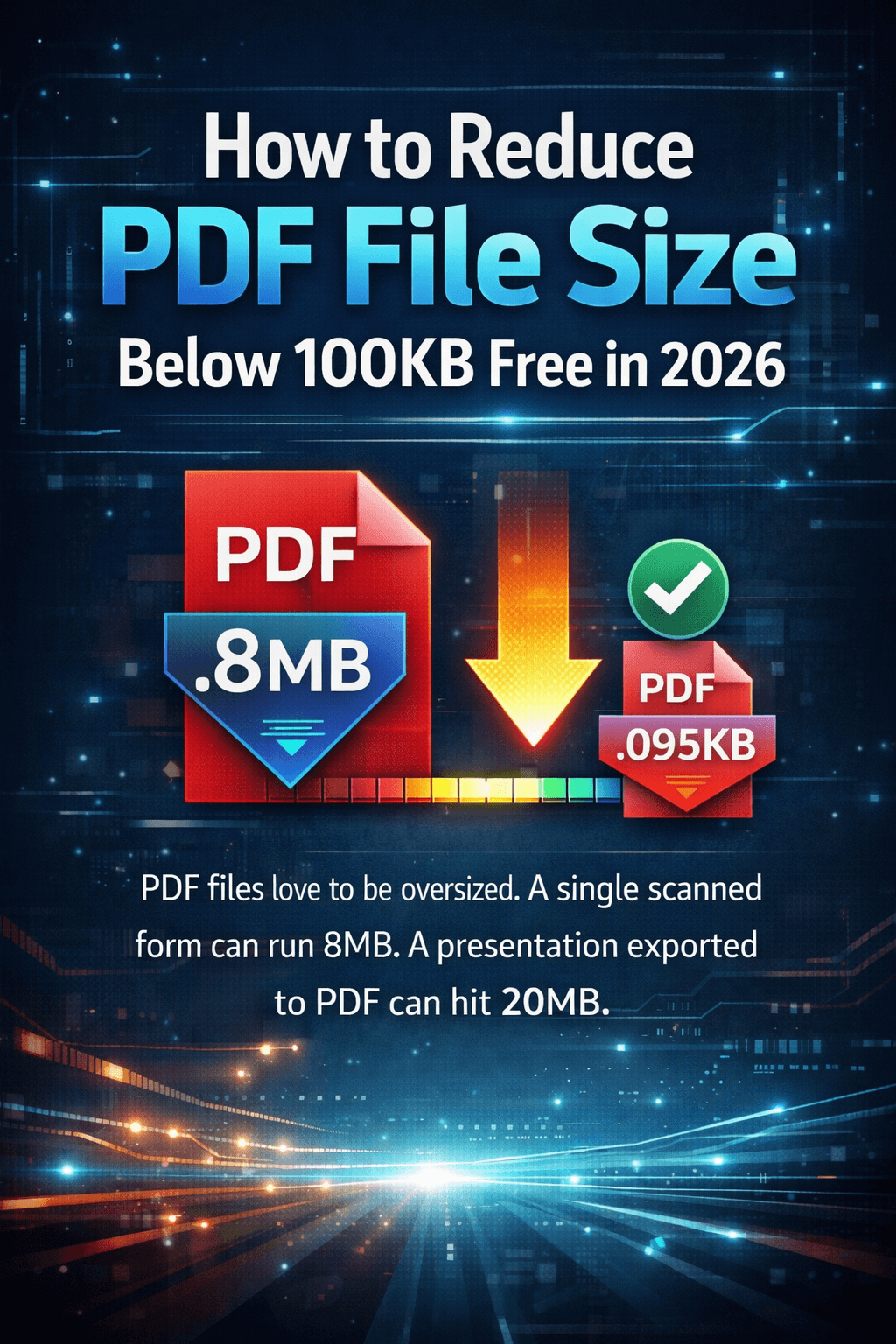
PDF files love to be oversized. A single scanned form can run 8MB. A presentation exported to PDF can hit 20MB. And the moment you try to email it or upload it to a portal, you hit the wall: maximum file size 1MB, or 500KB, or even 100KB.
If you need to reduce PDF file size below 100KB free — without paying for Adobe Acrobat, without installing anything, and without creating an account — you are in the right place. This guide shows you the fastest way to compress any PDF to your target size using ComfortablePDF's free online Compress PDF tool, plus the exact tips that get you the smallest file possible without destroying quality.
Try it now: comfortablepdf.com/compress-pdf — 100% free, no signup, no watermark.
What You Need
Just a web browser — Chrome, Safari, Firefox, or Edge — and the PDF file you want to compress. No software to install, no account to create, and no credit card needed. Works on every device.
How to Reduce PDF File Size Below 100KB — Step-by-Step Guide
Follow these five steps to compress your PDF for free in under 60 seconds:
1. Open the free Compress PDF tool. Go to comfortablepdf.com/compress-pdf in your browser. No download or login required — the tool runs entirely online.
2. Upload your PDF. Click 'Select PDF File' or drag and drop your PDF into the upload box. The tool accepts files of any size — large or small.
3. Select Strong compression. For reducing a PDF below 100KB, always choose the Strong compression setting. This removes embedded metadata, downsizes images within the PDF, and strips all unnecessary internal data to shrink the file as much as possible.
4. Click 'Compress PDF'. The tool processes your file within seconds. Strong compression typically reduces PDF file size by 60 to 90 percent — a 5MB file can become 400KB or less in one click.
5. Download your compressed PDF. Click Download and save the file. Check the new file size. If it is still above 100KB, upload the compressed version again and run it through Strong compression a second time for further reduction.
Pro Tip: If your PDF has many pages and is still too large after two compressions, try removing unnecessary pages first at comfortablepdf.com/organize-pdf — then compress the trimmed version. Fewer pages always means a smaller final file.
Why Use ComfortablePDF to Compress PDF Files?
Most online PDF compression tools look free but have daily limits, file size caps, or stamp a watermark on your output file. ComfortablePDF has none of that:
• 100% Free — No Hidden Costs. Compressing PDFs at ComfortablePDF is completely free. No credits, no daily limit, no premium plan required. Use it as many times as you need.
• No Signup Required. No account, no email verification, no personal information needed. Open the tool, upload your file, compress, and download. That is it.
• No Watermark Added. Your compressed PDF is clean and professional — no stamp, logo, or branding is ever added to your output file.
• Files Stay Private. All uploads are encrypted with HTTPS and your files are permanently deleted from the server the moment your compressed PDF is ready. Nobody can access your documents.
• Works on Every Device. ComfortablePDF runs in any browser — works perfectly on iPhone, Android, Mac, Windows PC, and Chromebook with no app needed.
How Much Can You Actually Shrink a PDF File Size?
The compression you can achieve depends entirely on what is inside your PDF. Here is a realistic breakdown:
• Scanned documents and image-heavy PDFs (brochures, photo portfolios, scanned forms): Strong compression reduces these by 70 to 90 percent. A 10MB scanned document can often reach below 1MB — and sometimes below 100KB — in a single pass.
• Text-based PDFs (contracts, reports, ebooks, invoices): These compress less dramatically, typically 20 to 50 percent. A 400KB text document might compress to 200 to 300KB. Getting a clean text PDF below 100KB may require removing pages first.
• Already-optimised PDFs: If your file was already exported at a small size or previously compressed, further compression will have minimal effect. In this case, consider splitting the PDF at comfortablepdf.com/split-pdf and working with individual sections.
How to Compress PDF on Any Device — Free
How to Compress a PDF on iPhone — Free
Open Safari or Chrome on your iPhone. Go to comfortablepdf.com/compress-pdf and tap Select PDF File. Pick your file from the Files app or iCloud Drive. Choose Strong compression and tap Compress PDF. Download the result straight to your phone. No app installation needed.
How to Compress a PDF on Mac — Free Without Preview
Mac's built-in Preview app does have a compression option, but it is unreliable — results vary widely and you cannot target a specific file size. For consistent results, open comfortablepdf.com/compress-pdf in Safari or Chrome on your Mac, upload your PDF, choose Strong compression, and download. Faster and more predictable than Preview every time.
How to Compress a PDF on Windows — Free
Open Chrome, Edge, or Firefox on your Windows PC. Navigate to comfortablepdf.com/compress-pdf, upload your PDF, select your compression level, and click Compress PDF. Download the compressed file. No Adobe Acrobat subscription or software installation required.
How to Compress a PDF on Android — Free
Open Chrome on your Android phone or tablet. Go to comfortablepdf.com/compress-pdf and tap Select PDF File. Choose your PDF from Downloads or Google Drive. Select Strong compression, tap Compress PDF, and save the result. Works on all Android brands — Samsung, Pixel, OnePlus, and more.
Tips for Best Results When Reducing PDF File Size
6. Always start with Strong compression. You can always re-download the original file and try a lighter setting if quality is not acceptable. In practice, Strong compression is perfectly readable for contracts, forms, and text documents.
7. Remove unnecessary pages before compressing. Use the free Organize PDF tool at comfortablepdf.com/organize-pdf to delete pages you do not need, then compress the trimmed file. Removing even a few image-heavy pages can cut the size dramatically.
8. Compress, then merge — not the other way around. If you need to combine multiple PDFs, compress each one individually first at comfortablepdf.com/compress-pdf, then combine the already-small files using comfortablepdf.com/merge-pdf. This produces a much smaller merged result than compressing the combined file afterward.
Other Free PDF Tools You Might Need
ComfortablePDF provides every tool you need to manage your PDF files — all completely free with no signup:
• Merge PDF — comfortablepdf.com/merge-pdf — Combine multiple PDFs into one file after compressing each individually.
• Split PDF — comfortablepdf.com/split-pdf — Divide a large PDF into smaller sections, then compress each part.
• Organize PDF — comfortablepdf.com/organize-pdf — Delete unwanted pages before compressing to achieve the smallest file size.
• Protect PDF — comfortablepdf.com/protect-pdf — Add a password to your compressed PDF before sharing it.
• PDF to Word — comfortablepdf.com/pdf-to-word — Convert your PDF into a fully editable Word document.
• Rotate PDF — comfortablepdf.com/rotate-pdf — Fix page orientation on scanned documents after compressing.
See all 24 free PDF tools at: comfortablepdf.com/all-tools
Frequently Asked Questions
Q: Is it safe to compress a PDF file online?
A: Yes. ComfortablePDF uses HTTPS encryption for all file transfers. Your PDF is processed on a secure server and permanently deleted as soon as your compressed file is ready to download. We never store, view, or share your documents. Your files remain completely private.
Q: Does compressing a PDF reduce quality?
A: It depends on the content of your PDF and the compression level you choose. For text-based documents — contracts, reports, invoices, forms — Strong compression has virtually no visible effect on readability. For image-heavy PDFs, Strong compression lowers image resolution slightly, which may be noticeable if you zoom in close. If quality is a concern, use Medium compression and compare the result with your original.
Q: What is the maximum file size I can compress with ComfortablePDF?
A: ComfortablePDF has no strict individual file size cap. You can compress small PDFs and very large multi-hundred-megabyte PDFs alike. The tool handles files of all sizes — larger files simply take a few extra seconds to process.
Q: Can I compress a PDF to an exact target size like 100KB or 200KB?
A: The tool compresses to the smallest achievable size at your chosen compression level rather than an exact target. To get below 100KB, use Strong compression. If one pass does not reach your target, run the compressed file through the tool a second time. For very large image-heavy PDFs, removing unnecessary pages at comfortablepdf.com/organize-pdf before compressing gives you the best chance of hitting a low target size.
Q: Can I compress a PDF on my phone for free?
A: Yes. ComfortablePDF works in any mobile browser on iPhone, iPad, and Android. Go to comfortablepdf.com/compress-pdf in Safari or Chrome on your phone, upload your PDF, choose your compression level, and download the result. No app download is required and it is completely free with no signup.
Conclusion
Reducing PDF file size below 100KB does not require expensive software or a subscription. In 2026, you can compress any PDF free online in five steps — no signup, no watermark, no quality loss for text documents. Whether you need to meet an email attachment limit, satisfy a portal upload restriction, or simply save storage space, ComfortablePDF's free Compress PDF tool at comfortablepdf.com/compress-pdf gets it done on any device in under a minute.
If your PDF is still too large after compression, combine two steps: delete unneeded pages at comfortablepdf.com/organize-pdf first, then compress the trimmed file. That combination brings almost any PDF well below 100KB.
Start compressing now: comfortablepdf.com/compress-pdf