What Does Redacting a PDF Actually Mean?
Redacting a PDF means permanently hiding or removing specific text, numbers, or images so they cannot be read, copied, or recovered. It's different from simply highlighting text in black — a true redaction removes the underlying data, not just the visual appearance.
Why this matters: If you draw a black box over text using a basic drawing tool, the original text is often still in the PDF's data layer. Anyone who copies and pastes from the document, or opens it in a different reader, can still see it. Proper redaction replaces the content entirely.
The most common things people redact from PDFs:
- Social Security numbers and National Insurance numbers
- Bank account numbers and credit card details
- Home addresses and personal contact information
- Salary figures and financial data in contracts
- Confidential business information before sharing drafts
- Names and identifying details in legal or medical documents
How to Redact a PDF Free Online — Step-by-Step
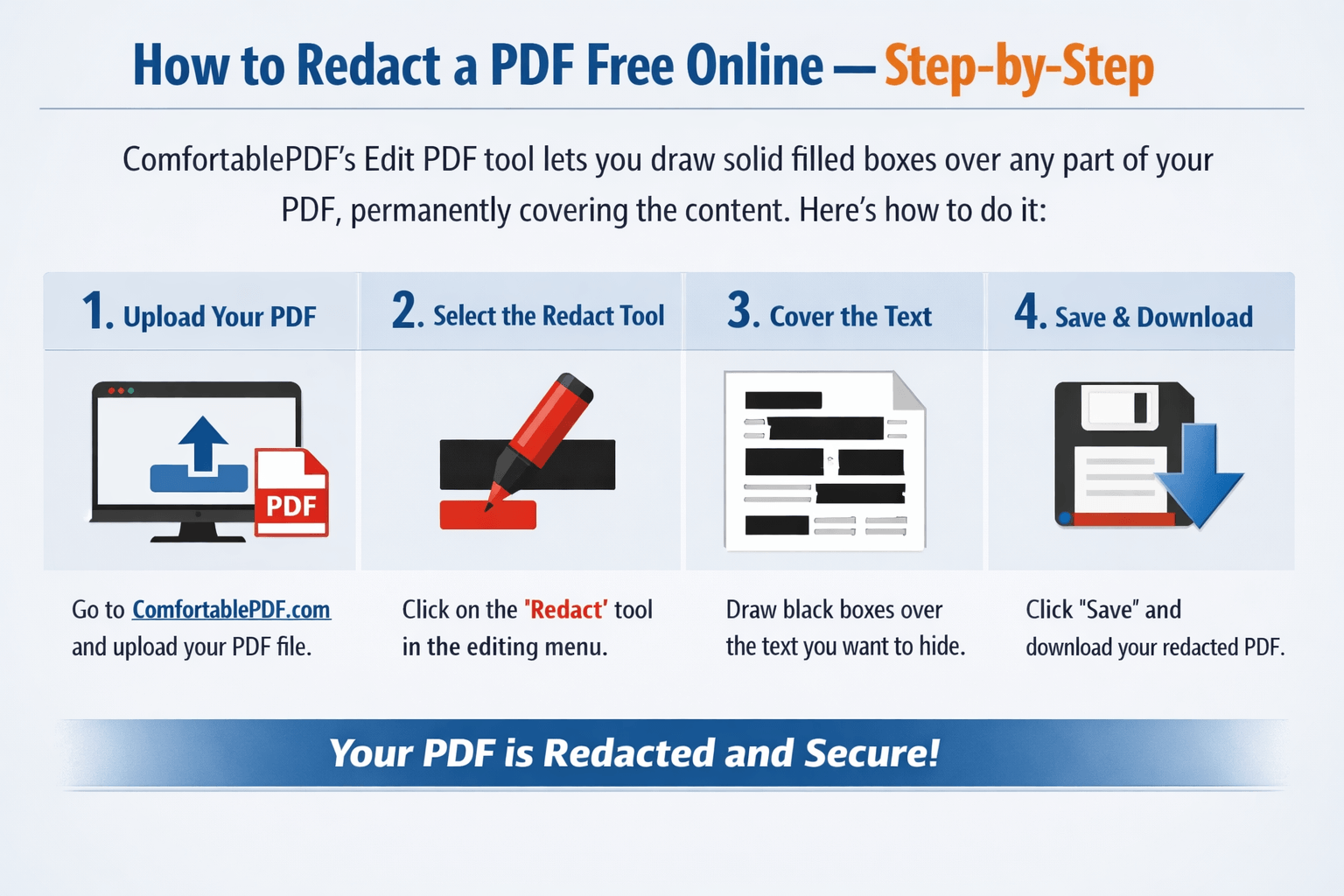
ComfortablePDF's Edit PDF tool lets you draw solid filled boxes over any part of your PDF, permanently covering the content. Here's how to do it:
Step 1: Open the Edit PDF tool
Go to comfortablepdf.com/edit-pdf in any browser. No download, no login, no email address required.
Step 2: Upload your PDF
Click "Choose PDF File" or drag and drop your document into the upload area. The PDF opens instantly in the editor.
Step 3: Select the Shape tool
In the toolbar at the top, click the Shapes tool (rectangle icon). This lets you draw a filled rectangle over any part of the page.
Step 4: Set the fill color to black
Before drawing, make sure the fill color is set to black (or dark). Click the fill color selector in the toolbar and choose black (#000000). This is what creates the redaction effect.
Step 5: Draw a rectangle over the text you want to redact
Click and drag to draw a solid black rectangle directly over the sensitive information. Cover the entire area — numbers, names, or any content you want to hide.
Step 6: Repeat for each section to redact
Draw additional rectangles over every piece of information you need to remove. You can cover multiple areas on the same page or across different pages.
Step 7: Save and download
Click "Save" to apply all edits and download your redacted PDF. The black boxes are permanently embedded in the file.
Try it free now: comfortablepdf.com/edit-pdf
How to Redact a PDF on Mac — Free (No Adobe)
Mac users have a built-in option for basic redaction using Preview, but it has an important limitation worth knowing about.
Method 1: Use ComfortablePDF (Recommended)
Open Safari or Chrome on your Mac. Go to comfortablepdf.com/edit-pdf, upload your PDF, and use the Shapes tool to draw black filled rectangles over sensitive text. Download the result. This works on any Mac — MacBook Air, MacBook Pro, or iMac — with no software needed.
Method 2: Redact a PDF in Preview (Mac built-in)
macOS Preview has a redaction feature, but it's only available on macOS Monterey 12.0 and later:
- Open your PDF in Preview
- Go to Tools → Redact
- Click and drag over the text you want to redact
- The selected areas are highlighted in red
- Click "Apply Redactions" to permanently remove them
- Save the document
Important limitation: The Preview redaction tool permanently removes text from the PDF data layer, but it doesn't let you review exactly what's being removed before applying. Use it carefully and always keep a backup of the original.
Redact a PDF in Preview on Older Macs
If your Mac runs macOS Big Sur (11) or earlier, the Redact tool isn't available in Preview. Use ComfortablePDF instead — it works in any browser regardless of macOS version.
How to Redact a PDF on iPhone — Free
- Open Safari on your iPhone
- Go to comfortablepdf.com/edit-pdf
- Tap "Choose PDF File" and select your document from the Files app or iCloud Drive
- Tap the Shapes tool in the toolbar
- Set the fill color to black
- Tap and drag to draw a black rectangle over the sensitive content
- Tap Save and download the redacted file directly to your iPhone
No app download required. Works on iPhone 12, 13, 14, 15, and all iPad models.
How to Redact a PDF on Android — Free
- Open Chrome on your Android phone
- Go to comfortablepdf.com/edit-pdf
- Tap "Choose PDF File" and select your PDF from Downloads or Google Drive
- Use the Shapes tool to draw black filled boxes over sensitive content
- Tap Save and download the redacted PDF to your Android device
Works on Samsung Galaxy, Google Pixel, and all Android devices running Chrome.
How to Redact a PDF on Windows — Free (No Software)
- Open Chrome, Edge, or Firefox on your Windows PC
- Go to comfortablepdf.com/edit-pdf
- Upload your PDF
- Select the Shapes tool and set fill to black
- Draw black rectangles over everything you want to redact
- Save and download
No Adobe Acrobat needed. No installation. Works on Windows 10 and Windows 11.
How to Redact a Signed PDF
A signed PDF has a digital signature applied to it, which means making edits will invalidate the signature. If you redact a signed PDF and then re-sign it, the original signature is no longer valid.
What to do:
If you need to redact a signed PDF:
- Redact the document using comfortablepdf.com/edit-pdf
- The original digital signature will be invalidated — this is expected
- After redacting, apply a new signature to the redacted version using comfortablepdf.com/sign-pdf
If the document must remain signed without modification, redact a copy rather than the original and keep the original signed version on file.
How to Redact Information on a PDF vs. Just Blacking It Out
There's an important distinction between:
True redaction: The underlying text data is permanently removed from the PDF. Even if someone tries to copy and paste the redacted area, nothing appears. The data is gone.
Drawing a black box: A visual layer is placed over the text, but the original data remains in the file. This looks redacted but isn't — the text can often still be found by searching the document, copying all text, or extracting the PDF's content layer.
For sensitive documents — legal files, medical records, financial data — always use a proper redaction method that removes the underlying data, not just a drawing layer.
ComfortablePDF's approach covers content with a filled shape in the saved PDF. For government or legal redaction requirements, verify that the output file meets your jurisdiction's specific standards before submitting.
Other Free PDF Tools You Might Need
After redacting your document, you may want to:
- Protect it with a password before sharing: comfortablepdf.com/protect-pdf
- Compress the file if it's too large to email: comfortablepdf.com/compress-pdf
- Add a watermark (e.g. CONFIDENTIAL): comfortablepdf.com/watermark-pdf
- Sign the redacted document: comfortablepdf.com/sign-pdf
All tools are 100% free with no signup required.
Frequently Asked Questions
Can I redact a PDF without Adobe Acrobat?
Yes. ComfortablePDF's free Edit PDF tool at comfortablepdf.com/edit-pdf lets you cover sensitive information with solid black shapes without any Adobe software. It works in any browser on any device, completely free.
How do I permanently remove text from a PDF?
Use the Edit PDF tool at comfortablepdf.com/edit-pdf. Draw a black filled rectangle over the text you want to remove, then save the file. The covered area is permanently embedded in the downloaded PDF.
Is it safe to redact a PDF online?
ComfortablePDF uses HTTPS encryption for all uploads. Your file is processed on a secure server and automatically deleted after 2 hours. No one at ComfortablePDF views or stores your documents.
How do I redact a PDF on Mac without Adobe?
On macOS Monterey (12) and later, you can use Preview's built-in Redact tool under Tools → Redact. On any Mac, you can also use comfortablepdf.com/edit-pdf in Safari — no software installation needed.
Can I redact a PDF on my iPhone for free?
Yes. Open comfortablepdf.com/edit-pdf in Safari on your iPhone, upload your PDF, use the Shapes tool to draw black boxes over sensitive content, and download the result. No app required.
What is the difference between redacting and deleting text in a PDF?
Redacting covers or removes specific portions of a PDF while keeping the rest intact. Deleting text edits the document's content directly. For privacy purposes, redaction (covering with a black box) is the standard approach used in legal, medical, and business contexts.
Summary
Redacting a PDF in 2026 doesn't require Adobe Acrobat Pro or any paid software. ComfortablePDF's free Edit PDF tool at comfortablepdf.com/edit-pdf lets you draw permanent black boxes over any sensitive information — Social Security numbers, bank details, addresses, salary data — in under two minutes. It works on iPhone, Android, Mac, Windows, and Chromebook with no signup required.
Redact your PDF now — free, no account needed: comfortablepdf.com/edit-pdf