How to Make a PDF Fillable for Free Online | 2026 Complete Guide
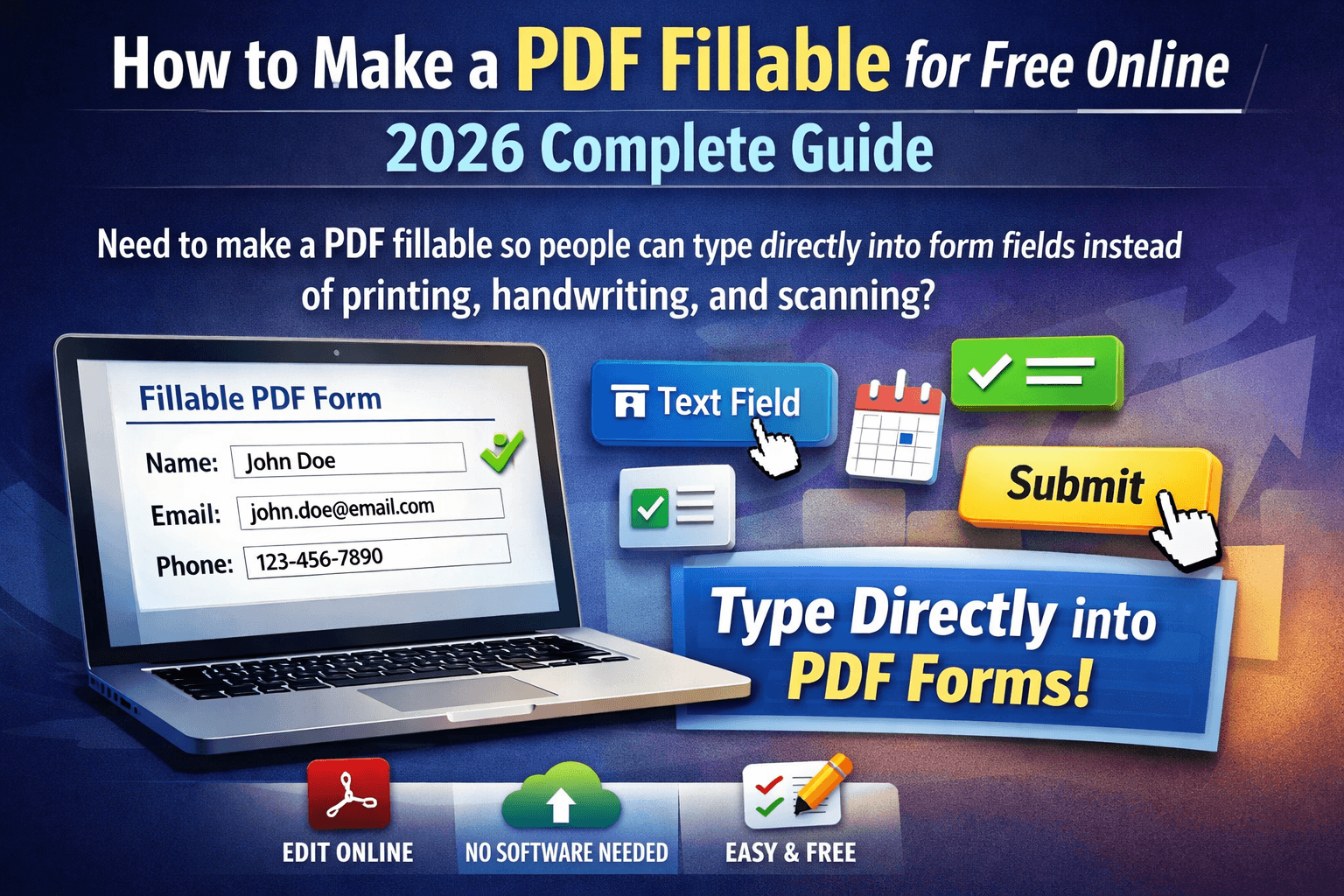
Need to make a PDF fillable so people can type directly into form fields instead of printing, handwriting, and scanning? This 2026 guide covers every free method — creating fillable PDFs online, from Word, from Excel, on Mac, and saving or sending them correctly. No Adobe Acrobat needed.
Fastest free method: ComfortablePDF's free Fillable PDF tool — upload any PDF, add text boxes, checkboxes, date pickers, and signature fields, then download. No signup. No watermark.
What Is a Fillable PDF and When Do You Need One?
A fillable PDF is a PDF document with interactive form fields — text boxes, checkboxes, radio buttons, dropdown menus, date pickers, and signature fields — that recipients can fill in digitally without printing the document.
Common use cases for fillable PDFs:
• HR and employment: Job applications, offer letters, onboarding forms, tax forms (W-4, I-9)
• Legal and contracts: NDAs, service agreements, liability waivers with signature fields
• Healthcare: Patient intake forms, consent forms, insurance claim forms
• Education: Enrollment forms, permission slips, quiz and assessment PDFs
• Real estate: Lease agreements, property inspection reports, disclosure forms
• Insurance: ACORD forms, certificate of liability, claim forms
• Government: Military forms (DA forms), immigration documents, contractor forms (WH-347)
The key difference from a regular PDF: with a fillable PDF, the document doesn't need to be printed — recipients fill it in on their computer, phone, or tablet and send it back digitally.
Method 1: Make Any PDF Fillable Free Online (No Software)
Best for: Any existing PDF — scanned forms, downloaded templates, converted Word or Excel files. Works on Windows, Mac, iPhone, and Android.
Step-by-Step: Add Form Fields to Any PDF Free
1. Go to comfortablepdf.com/sign-pdf
2. Click "Upload PDF" and choose the PDF you want to make fillable
3. The document opens in the form editor — your PDF pages are visible
4. Click anywhere to add a text field — drag to resize and position
5. Add checkboxes, date pickers, dropdown menus, or signature fields as needed
6. Label each field so recipients know what to enter
7. Click Download to save your fillable PDF
✓ Free ✓ No signup ✓ No watermark ✓ Works on all devices
How to Make a Fillable PDF in Word (Free)
Target keywords: how to make a fillable pdf in word (KD 19, 1,300 vol), create fillable pdf from word (KD 12, 390 vol), how to create a fillable pdf in word (KD 18, 320 vol)
The most popular approach: design your form layout in Microsoft Word, then convert it to a fillable PDF. Here are the two main methods:
Method A: Convert Word to PDF, Then Add Fields (Recommended)
This is the cleanest approach — design the visual layout in Word, convert to PDF, then add interactive fields:
8. Design your form in Microsoft Word — use tables, text labels, and formatting to create the visual layout
9. Convert to PDF: comfortablepdf.com/word-to-pdf — free, no watermark
10. Open the converted PDF in ComfortablePDF's Fillable PDF tool
11. Click on each area where you want a form field and add text boxes, checkboxes, or signature fields
12. Download the finished fillable PDF
Why this works best: Word handles visual design beautifully (tables, headers, logos), and the fillable tool adds the interactivity after conversion. You get the best of both.
Method B: Use Word's Developer Tab to Create Form Fields
Microsoft Word has a built-in form creator using the Developer tab. While this approach works, the resulting interactive fields only work properly when the file is opened in Word — when exported to PDF, they may become static.
13. Enable Developer tab: File → Options → Customize Ribbon → check "Developer"
14. Place your cursor where you want a field, then use Developer → Controls
15. Insert Text Box, Check Box, or Drop-Down List as needed
16. Protect the form: Developer → Restrict Editing → Allow only filling in forms
17. Save as PDF: File → Save As → PDF
Limitation: Word's Content Controls export as flat, non-interactive elements in most PDF viewers. For truly interactive fillable PDFs, use the convert-then-add-fields method described in Method A above.
How to Convert a Word Document to a Fillable PDF
Target keywords: how to convert a word document to a fillable pdf (KD 17, 260 vol), how to convert word doc to fillable pdf (KD 13, 260 vol), how to turn a word document into a fillable pdf (KD 18, 210 vol)
18. Upload your .docx to comfortablepdf.com/word-to-pdf → download the PDF
19. Open the PDF at comfortablepdf.com/sign-pdf
20. Click to add text fields over each blank area in the form layout
21. Add any checkboxes, dates, or signatures needed
22. Download the completed fillable PDF
Works for: Word documents (.doc, .docx), templates, business forms, HR documents, contracts, application forms
How to Create a Fillable PDF from Excel
Target keywords: create fillable pdf from excel (KD 19, 50 vol), how to make a fillable pdf from excel (KD 14, 50 vol), make fillable pdf from excel (KD 13, 50 vol)
Excel's grid structure makes it ideal for designing data-entry forms — budgets, inventory sheets, order forms, and tracking tables. Converting to a fillable PDF follows the same two-step process:
23. Convert your Excel spreadsheet to PDF: comfortablepdf.com/excel-to-pdf
24. Open the PDF in ComfortablePDF's Fillable PDF tool
25. Add text fields over each cell where recipients need to enter data
26. Add checkboxes or dropdowns for selection fields
27. Download the fillable PDF
How to Create a Fillable PDF on Mac Free
Target keywords: create fillable pdf mac (KD 14, 50 vol), how to make a pdf fillable on mac (KD 5, 50 vol), how to create a fillable pdf on mac (KD 15, 50 vol)
Best for: MacBook Air, MacBook Pro, iMac — all macOS versions
Option A: ComfortablePDF in Safari (Free, No Software)
28. Open Safari on your Mac
29. Go to comfortablepdf.com/sign-pdf
30. Upload your PDF and add form fields
31. Download the fillable PDF
✓ No Adobe Acrobat needed ✓ Works on all Mac models ✓ Free
Option B: Mac Preview (Limited — Text Annotations Only)
Preview on Mac lets you add text by clicking Tools → Annotate → Text, but this creates static text overlays — not interactive form fields. Recipients cannot tab between fields or submit the form digitally. Preview is useful for filling in a form yourself but not for creating a form others can fill in.
Option C: Adobe Acrobat Pro on Mac (Paid)
Adobe Acrobat Pro ($19.99/month) offers the most powerful form creation on Mac — automated field detection, form validation, and submission buttons. But for most use cases, ComfortablePDF's free tool achieves the same result at zero cost.
How to Add a Fillable Text Box in a PDF
Target keyword: how to add fillable text box in pdf — KD 16, 140 monthly searches
Adding a text box to a PDF is the core action in creating a fillable form. In ComfortablePDF's Fillable PDF tool, here's exactly how it works:
32. Upload your PDF and open it in the form editor
33. Click the "Text Field" button in the toolbar
34. Click anywhere on the page where you want the input box to appear
35. Drag the corners to resize the field to match your form's space
36. In the field settings panel, set: placeholder text ("Enter your name..."), font size, and whether the field is required
37. Repeat for each field in your form
38. Download the completed fillable PDF
Field types you can add: text input, multi-line text area, checkbox, radio button, dropdown menu, date picker, signature field, initial field
How to Change Font Size in a Fillable PDF Form
Target keywords: how to change font size in pdf fillable form (KD 17, 210 vol), how to change font size in a fillable pdf (KD 18, 110 vol), how to change font size in fillable pdf (KD 19, 110 vol), how to change font size on a fillable pdf form (KD 15, 110 vol)
Font size in fillable PDF fields affects readability and how much text fits in each field. Here's how to control it:
Set Font Size in ComfortablePDF Fillable PDF Tool
39. Open your PDF in the form editor
40. Click on any text field to select it
41. In the field properties panel on the right, find the Font Size setting
42. Set a specific size (e.g., 10pt, 12pt, 14pt) or choose "Auto" to automatically fit text to the field size
43. Apply the same font size to all fields for consistency
Font Size in Adobe Acrobat Fillable PDFs
44. Open the PDF in Acrobat Pro
45. Right-click any form field → Properties
46. Go to the Appearance tab
47. Set Font Size — choose "Auto" for fields where the amount of input varies, or a fixed size for uniform forms
Best practice: Use 12pt for standard form fields (comfortable reading size), 10pt for compact forms with many fields, and "Auto" for address fields and text areas where input length varies.
How to Save a Fillable PDF (And Keep It Fillable)
Target keywords: how do i save a fillable pdf (KD 19, 140 vol), how do you save a fillable pdf (KD 11, 140 vol), how do i save a fillable pdf form (KD 19, 70 vol)
Saving a fillable PDF correctly is critical — there are two very different things you might want to do:
Save the Fillable PDF Template (Empty, for Distribution)
After creating your form in ComfortablePDF's Fillable PDF tool, click Download — the downloaded file is your empty fillable template. Send this to recipients. They open it, fill in the fields, and save their completed version.
Save a Completed Fillable PDF (After Filling In)
When a recipient fills in a fillable PDF and wants to save their answers:
• Adobe Reader: File → Save As → saves a copy with the filled-in values
• Chrome browser: Open the PDF → fill in fields → press Ctrl+S (Windows) or Cmd+S (Mac) to save
• Preview on Mac: File → Export as PDF after filling in the fields
• On iPhone/Android: Use Files app or browser → tap Share → Save to Files
How to Save a Fillable PDF as Non-Fillable (Flatten)
Target keyword: how to save a fillable pdf as non fillable — KD 19, 90 monthly searches
"Flattening" a PDF means permanently merging the form field values into the document — the fields become uneditable text. Use this when:
• You want to archive a completed form that can't be changed
• You're sending a completed form and don't want the recipient to alter the values
• You want to reduce file size after all fields are filled
How to flatten in Acrobat: Print → PDF (this creates a static copy where the field values are embedded as regular text). Or: File → Print → Microsoft Print to PDF.
How to flatten in Chrome: Open the filled PDF in Chrome → Ctrl+P → Save as PDF → the output has all values baked in as flat text.
How to Remove Fillable Fields from a PDF
Target keywords: how to remove fillable fields in pdf (KD 5 — very low!), remove fillable fields from pdf (KD 10, 110 vol)
Need to remove the interactive fields from a fillable PDF and turn it into a plain, static document? This is called flattening, and it's quick:
Remove Fillable Fields by Flattening (Printing to PDF)
48. Open the fillable PDF in Chrome, Edge, or Adobe Reader
49. Press Ctrl+P (Windows) or Cmd+P (Mac) to open Print
50. Select "Save as PDF" (Mac) or "Microsoft Print to PDF" (Windows) as the printer
51. Save the file — the output is a static PDF with no form fields
Remove Fields in Adobe Acrobat
52. Open the PDF in Acrobat Pro → go to Tools → Prepare Form
53. Select all fields (Ctrl+A) → press Delete
54. Save — the PDF now has no form fields
Note: Removing fields in Acrobat deletes them permanently — any values that were filled in will also be removed. Flatten (print to PDF) if you want to keep the filled-in values as static text.
How to Send a Fillable PDF by Email
Target keyword: how to send a fillable pdf by email — KD 17, 50 monthly searches
Sending a fillable PDF by email is simple — but there's one important decision to make first: do you want to send the empty template for the recipient to fill in, or a completed, filled-in copy?
Send the Empty Fillable Template
55. Create your fillable PDF using ComfortablePDF and download it
56. Compose your email in Gmail, Outlook, or Apple Mail
57. Attach the fillable PDF file
58. Send — recipients open the PDF, fill in the fields, and send their completed copy back to you
File size tip: Fillable PDFs are often larger than static PDFs due to the embedded field data. If the file is too large to attach, compress it first — most fillable PDFs compress 30–60% without affecting the form fields.
Send a Completed Fillable PDF
If you've already filled in the form and want to send the completed copy, flatten it first (print to PDF) to lock in your answers before emailing. This prevents the recipient from accidentally changing your responses.
How to Create a Fillable PDF from Google Docs
Target keyword: how to create a fillable pdf from google docs — KD 18, 40 monthly searches
Google Docs doesn't have a native fillable PDF creator, but you can use this two-step process:
59. In Google Docs, go to File → Download → PDF Document (.pdf)
60. Open the downloaded PDF in ComfortablePDF's Fillable PDF tool
61. Add form fields, text boxes, checkboxes, and signature fields
62. Download the completed fillable PDF
Works for all Google Docs types: Documents, Sheets, and Slides — export to PDF first, then add fields.
How to Add a Fillable PDF to WordPress
Target keyword: fillable pdf wordpress (KD 9, 50 vol) / wordpress fillable pdf (KD 15, 40 vol)
Two approaches for embedding fillable PDFs on a WordPress site:
• Embed as a file download: Upload the fillable PDF to your WordPress media library → link it from a page → visitors download, fill, and return it by email
• Embed with a PDF viewer plugin: Use plugins like PDF.js Viewer, WP PDF Viewer, or Embed PDF Viewer to display the PDF inline on a page — visitors fill and download from within the page
For data collection: If you want form submissions to come directly to you (without email), consider converting your form to an HTML or WordPress form instead of PDF — plugins like WPForms or Gravity Forms handle this natively.
How to Save a Fillable PDF as Read-Only
Target keyword: how to save a fillable pdf as read only — KD 15, 50 monthly searches
Saving a fillable PDF as read-only means recipients can view and print it but cannot fill in the fields or edit any content. This is useful for distributing final versions of documents.
Method A: Password-Protect to Restrict Editing
Use ComfortablePDF's Protect PDF tool to add a permissions password that prevents editing. The document opens freely but fields cannot be filled in or content changed without the password.
Method B: Flatten the PDF (Remove Fields Entirely)
Print the fillable PDF to PDF (Ctrl+P → Save as PDF) to flatten all fields into static text. The result is a completely non-interactive PDF — no fields, no editing possible.
Common Fillable PDF Forms — Free Downloads and Templates
Many commonly needed fillable PDF forms are available free. Here's a guide to the most searched:
ACORD Forms (Insurance)
ACORD 25 (Certificate of Liability Insurance): Available free from ACORD's website and most insurance agency management systems. A fillable version lets you customize the certificate for each client.
ACORD 125 (Commercial Insurance Application), ACORD 126, ACORD 130, ACORD 80: Available through ACORD's online library — some require free registration to download the official fillable versions.
DA Forms (US Military)
DA Form 2823 (Sworn Statement), DA Form 638 (Recommendation for Award), DA Form 2062 (Hand Receipt): Available free from the US Army Publishing Directorate (armypubs.army.mil). Download the official fillable PDF — no third-party tool needed for these official forms.
Government and Standard Forms
WH-347 (Certified Payroll — US Dept of Labor): Available free at dol.gov in fillable PDF format.
Personal Financial Statement: Available free from the SBA or your bank — most banks provide their own fillable version.
Certificate of Liability Insurance: Standard ACORD 25 form — fillable versions widely available through insurance agencies.
After Creating Your Fillable PDF — Next Steps
• Protect with password: Protect PDF — prevent unauthorized access to sensitive forms
• Sign the document: Sign PDF — add your own signature before distributing
• Compress before sending: Compress PDF — reduce file size for email attachments
• Add watermark: Watermark PDF — mark as DRAFT during review
• Merge with other documents: Merge PDF — combine the fillable form with instructions or cover sheets
All Free PDF Tools at ComfortablePDF
• Sign PDF / Fillable PDF – Add form fields, text boxes, and signatures
• Word to PDF – Convert .docx to PDF before adding fields
• Excel to PDF – Convert .xlsx to PDF before adding fields
• PDF to Word – Edit PDF content before making it fillable
• Compress PDF – Reduce fillable PDF file size
• Protect PDF – Password protect fillable forms
• Merge PDF – Combine fillable forms with other documents
• Watermark PDF – Mark forms as DRAFT or CONFIDENTIAL
• Organize PDF – Reorder pages in your form
• Split PDF – Extract specific pages from a form
Frequently Asked Questions
How do I make a PDF fillable for free online?
Go to comfortablepdf.com/sign-pdf, upload your PDF, add text fields, checkboxes, and signature areas, then download. No signup, no watermark, completely free.
How do I make a fillable PDF in Word?
Design your form in Microsoft Word, convert it to PDF using ComfortablePDF's Word to PDF tool, then open the PDF in ComfortablePDF's Fillable PDF tool to add interactive text boxes and form fields.
How do I create a fillable PDF from a Word document?
Upload your .docx to comfortablepdf.com/word-to-pdf, download the PDF, then open it in comfortablepdf.com/sign-pdf to add form fields.
How do I change the font size in a fillable PDF?
In ComfortablePDF's form editor, click any text field to select it, then use the font size control in the field properties panel. Set a specific point size (10pt, 12pt) or choose "Auto" to auto-fit text.
How do I save a fillable PDF?
After creating the form in ComfortablePDF, click Download — the file saves as a fillable PDF. Recipients open it, fill in their answers, and save their own copy (Ctrl+S in their browser or PDF viewer).
How do I save a fillable PDF as non-fillable?
Print the filled PDF to PDF (Ctrl+P → Save as PDF) — this flattens all form fields into static text. The result is a regular PDF with no interactive fields.
How do I remove fillable fields from a PDF?
Open the PDF in Chrome → Ctrl+P → Save as PDF. This prints the document without the form fields, creating a static flat PDF.
How do I send a fillable PDF by email?
Attach the fillable PDF file to your email normally. If it's too large, compress it first. Recipients open it, fill in the fields in their PDF viewer, and return it to you by email.
How do I create a fillable PDF on Mac?
Open Safari, go to comfortablepdf.com/sign-pdf, upload your PDF, add form fields, and download. No software needed — works on all Mac models.
How do I make a fillable PDF from Excel?
Convert your Excel file to PDF at comfortablepdf.com/excel-to-pdf, then open the PDF in ComfortablePDF's Fillable PDF tool to add interactive text fields over your spreadsheet cells.
How do I create a fillable PDF from Google Docs?
Download your Google Doc as PDF (File → Download → PDF), then open it in comfortablepdf.com/sign-pdf to add interactive form fields.
Final Thoughts
Making a PDF fillable in 2026 is completely free and takes just a few minutes — whether you're starting from a Word document, Excel spreadsheet, Google Doc, scanned paper form, or existing PDF. No Adobe Acrobat subscription required.
For the fastest, cleanest result on any device — Windows, Mac, iPhone, or Android — ComfortablePDF's free Fillable PDF tool lets you add text fields, checkboxes, date pickers, and signature fields to any PDF in minutes.
→ Make Your PDF Fillable Free Now — ComfortablePDF
Upload your PDF. Add fields. Download. Done — no Adobe, no signup, no cost.