Business Productivity

How to Compress PDF on Mac Free Without Software | 2026 Guide – Comfortable PDF

By Sarah Patel · March 24, 2026 · 5 min read · 4 views
How to Compress PDF on Mac Free Without Software | 2026 Guide – Comfortable PDF

How to Compress PDF on Mac Free Without Software | 2026 Complete Guide

Need to compress a PDF on your Mac without downloading software or paying for Adobe Acrobat? This 2026 guide covers every free method — using Mac's built-in Preview app, a browser-based tool, and what to watch out for so you don't accidentally destroy your document quality.


Fastest free method on any Mac: ComfortablePDF's free Compress PDF tool — open in Safari, upload, compress, and download. No signup, no watermark, no software install.


What Does Compressing a PDF Do?

Target keyword: what does compressing a pdf do — KD 17, 210 monthly searches


Before choosing a method, it helps to understand exactly what compression does to your PDF — because different tools handle it very differently.


When you compress a PDF, the tool reduces file size by doing one or more of these things:

        Downsampling images: Photos embedded in the PDF are reduced from high-resolution (300 DPI, print quality) to screen resolution (72–150 DPI). They still look fine on screen but are much smaller in file size

        Stripping unused data: Hidden metadata, unused embedded fonts, redundant objects, and form data that take up space but aren't visible are removed

        Re-encoding content: Text and vector graphics are rewritten using more efficient compression algorithms (like ZIP or JBIG2)

        Flattening layers: Transparent overlays and annotation layers are merged into flat content, reducing complexity


The result: The same readable document at a fraction of the original file size — typically 40–80% smaller for image-heavy PDFs, and 10–30% smaller for text-only documents.


Quality vs. size tradeoff: More aggressive compression = smaller file but lower image quality. Smart tools (like ComfortablePDF) find the right balance automatically. Mac Preview's Quartz filter is often too aggressive for image-heavy documents.


Method 1: Compress PDF on Mac Free Online (Best Quality, No Software)

Best for: All Mac models — MacBook Air, MacBook Pro, iMac, Mac Mini. Works on macOS Ventura, Sonoma, and Sequoia.


The fastest and most reliable way to compress a PDF on Mac in 2026 — no software to install, works in Safari or Chrome, preserves your document quality better than Preview's built-in Quartz filter.


Step-by-Step: Compress PDF on Mac Without Software

1.     Open Safari or Chrome on your Mac

2.     Go to comfortablepdf.com/compress-pdf

3.     Click "Upload PDF" and choose your file from your Mac (or drag it onto the page)

4.     The tool processes and compresses the PDF automatically

5.     Click "Download" to save the compressed file


✓ Free  ✓ No software download  ✓ No signup  ✓ No watermark  ✓ Works on all Mac models and macOS versions


The compressed file is saved to your Downloads folder. From there you can email it, upload it to a portal, or save it to iCloud Drive.


Method 2: Compress PDF on Mac Using Preview (Built-In, No Download)

Best for: Quick compression of text-heavy PDFs — free and offline


Mac's Preview app has a built-in compression feature through its Quartz Filter system. It's the most commonly mentioned Mac PDF compression method — but it comes with important caveats you need to know first.


How to Compress a PDF in Preview on Mac

6.     Find your PDF in Finder and open it in Preview (double-click, or right-click → Open With → Preview)

7.     Go to File → Export as PDF (NOT File → Save — that just overwrites the original)

8.     In the Export dialog, click the "Quartz Filter" dropdown menu

9.     Select "Reduce File Size" from the dropdown

10. Choose a name and location for the new file

11. Click Save


What to expect: For a text-heavy PDF (contracts, reports, plain documents), this will reduce file size noticeably with minimal quality impact. For scanned documents or PDFs with photos, the result can be extremely blurry — sometimes worse than the original.


The Problem With Preview's Quartz Filter

Preview's "Reduce File Size" Quartz filter was designed for an older era. It applies maximum compression indiscriminately — and for PDFs with high-quality images, the result is often unacceptably blurry.


Here's when Preview works well and when it doesn't:

        ✓ Good for: Text-only PDFs, Word-converted PDFs, simple reports with no images

        ✗ Bad for: Scanned documents, PDFs with photos, design files, forms with logos

        ✗ Bad for: Documents where image quality matters — medical records, architectural drawings, photography


The better alternative: For any image-heavy PDF, use ComfortablePDF's Compress tool which applies intelligent compression that reduces size without making your document unreadable.


How to Compress a PDF in Preview Without Losing Quality

The honest answer: Preview's Quartz filter doesn't have a quality setting — it's all or nothing. To compress without visible quality loss on a Mac:

12. Use comfortablepdf.com/compress-pdf in Safari — smart compression that prioritizes readability

13. Check the output file — open it and visually compare it to the original before sending

14. If quality isn't acceptable, the file may simply be too large to compress further without visible loss


How to Compress a PDF with Foxit on Mac

Target keywords: compress pdf with foxit (KD 19, 110 vol), foxit reader compress pdf (KD 19, 90 vol), compress pdf foxit (KD 19, 30 vol)


Foxit PDF Editor is a popular Adobe Acrobat alternative. Here's what you need to know about compressing PDFs with Foxit on Mac:


Foxit PDF Editor Mac — Compress PDF

Foxit PDF Editor for Mac includes a "Reduce File Size" option under the File menu. It offers more control than Preview's Quartz filter:

15. Open your PDF in Foxit PDF Editor

16. Go to File → Reduce File Size (or File → PDF Optimizer in newer versions)

17. Choose your compatibility version and compression options

18. Save the optimized file


Important: Foxit PDF Editor is a paid application (subscription required). The free Foxit Reader does not include compression. If you're looking for a truly free option, ComfortablePDF's Compress tool achieves comparable results at zero cost.


How to Compress a PDF in Bluebeam

Target keywords: compress pdf in bluebeam (KD 7 — very low!), compress pdf bluebeam (KD 9), how to compress pdf in bluebeam (KD 7), how to compress bluebeam pdf (KD 10)


Bluebeam Revu is widely used in architecture, engineering, and construction (AEC) industries. If you're working with Bluebeam and need to reduce PDF file size:


Compress PDF in Bluebeam Revu

19. Open your PDF in Bluebeam Revu

20. Go to Document → Reduce File Size (in some versions it's under File)

21. Choose your settings — Bluebeam lets you control image resolution, color mode, and which elements to strip

22. Click OK and save


Bluebeam-specific tip: Bluebeam PDFs often contain high-resolution scans of drawings. Use the "Color Images" downsampling setting to reduce DPI from 300 to 150 — this typically halves the file size with minimal visual impact on technical drawings.


No Bluebeam subscription? Use ComfortablePDF's free Compress tool — it handles Bluebeam-generated PDFs just as effectively.


How to Compress a PDF with Adobe Acrobat on Mac

Target keyword: how to compress pdf with acrobat — KD 14, 70 monthly searches


Adobe Acrobat Pro offers the most control over PDF compression on Mac, but it comes at a cost. Here's how it works and what your free alternatives are.


Compress PDF in Adobe Acrobat Pro (Mac)

23. Open the PDF in Adobe Acrobat Pro

24. Go to File → Save As → Reduced Size PDF for a quick one-click compression

25. Or for advanced control: File → Save As → Optimized PDF — this opens the PDF Optimizer

26. In PDF Optimizer, adjust Images, Fonts, Transparency and Discard Objects settings

27. Click OK and save your compressed file


Free vs Paid: Adobe Acrobat Pro costs $19.99/month. Adobe Acrobat Reader (free) does not include compression — it's a Pro-only feature. If you don't have a subscription, ComfortablePDF is the free alternative.


How to Compress a PDF to a Specific Size on Mac

Target keyword: compress pdf to 50kb (KD 19, 30 vol)


Many upload forms and email systems have strict file size limits — 50KB, 100KB, 200KB, 1MB, 2MB. Here's how to get your PDF under a specific target:


Getting a PDF Under 1MB or 2MB (Standard Email Limit)

For most PDFs, a single pass through ComfortablePDF's Compress tool will bring the file well under email attachment limits. Upload, compress, check the output size, download.


Getting a PDF Under 200KB or 50KB (Government/Portal Upload Limits)

This is more challenging, especially for image-heavy PDFs. The strategies:

        Text PDFs: Usually compress to well under 100KB — use ComfortablePDF's Compress tool

        Scanned documents: Start with compression, then if still too large, split the PDF and submit only the relevant pages — use the Split PDF tool

        Image-heavy PDFs: Consider converting images to grayscale before creating the PDF, reducing the image count, or downsampling source images before creating the PDF

        Still too large? Check if the portal accepts a link to the document (Google Drive, Dropbox) instead of a direct file upload


Compress PDF on Mac — macOS Ventura, Sonoma & Sequoia

The methods above work on all current macOS versions. Here's a quick breakdown by OS:


        macOS Sequoia (15): Preview Quartz filter works. Browser-based tools work in Safari 18. Recommended: ComfortablePDF in Safari

        macOS Sonoma (14): Same as above — Preview and browser methods both work

        macOS Ventura (13): Full support for all methods

        macOS Monterey (12) and earlier: Preview Quartz filter works. Browser methods work in any updated browser


Note on Apple Silicon (M1, M2, M3, M4 Macs): All browser-based tools including ComfortablePDF run natively in Safari on Apple Silicon. No compatibility issues.


Compress PDF on Mac Without Losing Quality — Best Practices

Here's a checklist for getting the best results when compressing PDFs on Mac:


28. Always keep the original: Before compressing, duplicate your file (Cmd+D in Finder). Compression can't be undone

29. Check the output: Open the compressed file and scroll through every page before sending. Look for blurry text or degraded images

30. Use the right tool for the content: Text PDFs → Preview or ComfortablePDF works great. Image PDFs → use ComfortablePDF only

31. Compress before encrypting: If you're also going to password-protect the PDF, compress first — encrypted PDFs can't be compressed as efficiently

32. Compress before merging: If combining multiple PDFs, compress each one individually first, then merge them, rather than compressing the giant merged file


Compress PDF on iPhone and Windows (Same Free Tool)

The same browser-based method that works on Mac also works everywhere else — no device-specific apps needed.


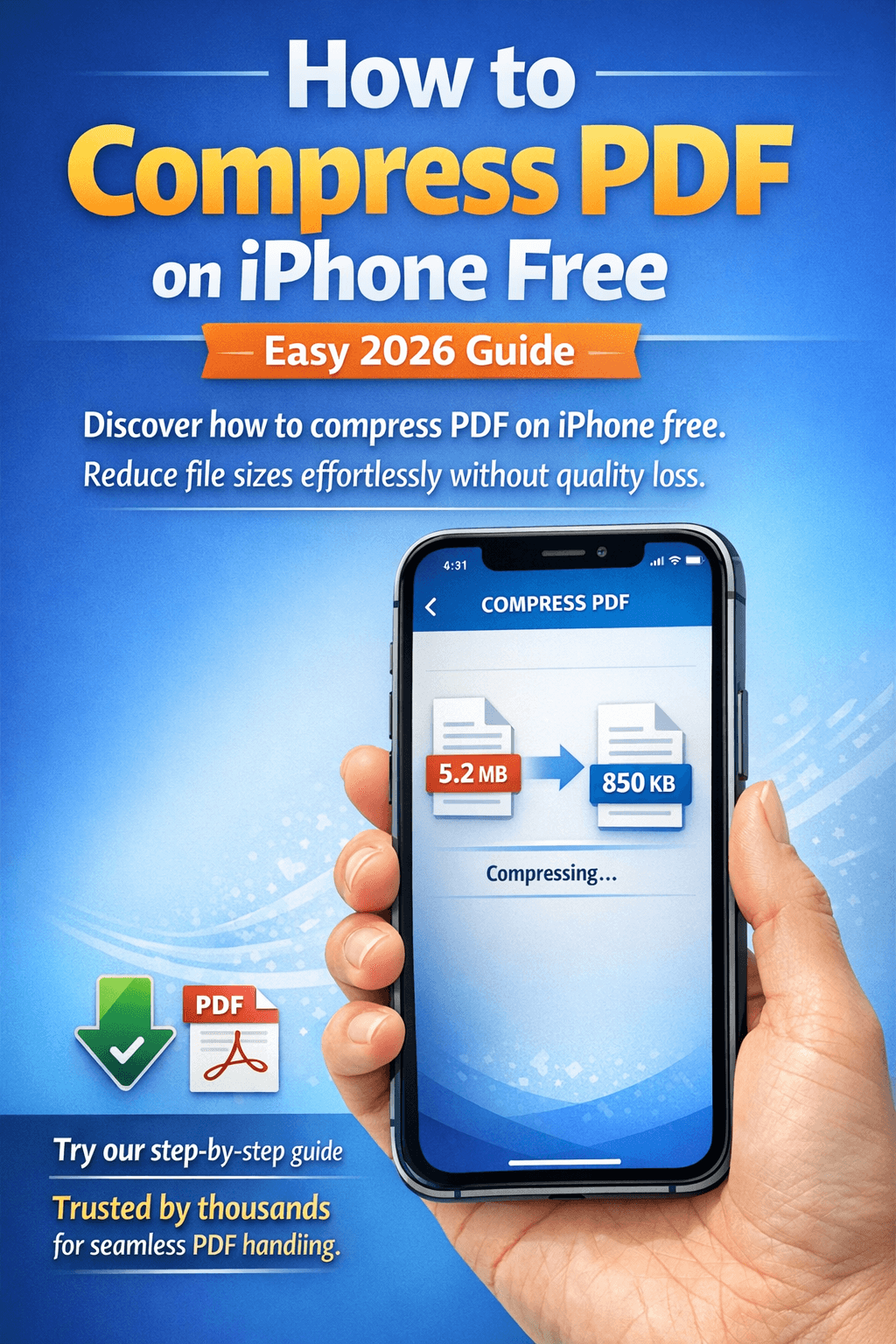
Compress PDF on iPhone (Free)

33. Open Safari on your iPhone

34. Go to comfortablepdf.com/compress-pdf

35. Tap Upload and select your PDF from Files or iCloud Drive

36. Download the compressed result


Compress PDF on Windows 10 / 11 (Free)

37. Open Chrome or Edge on your Windows PC

38. Go to comfortablepdf.com/compress-pdf

39. Upload your PDF, compress, and download


Windows has no built-in PDF compressor — the browser-based method is the standard free solution on Windows 10 and 11.


After Compressing Your PDF — What to Do Next

        Merge multiple PDFs: Merge PDF — combine compressed files into one final document

        Organize pages: Organize PDF — reorder, delete, or rotate pages

        Password protect: Protect PDF — add a password before sharing sensitive files

        Add a watermark: Watermark PDF — mark as DRAFT or CONFIDENTIAL

        Split if still too large: Split PDF — extract just the pages you need to share

        Convert to Word for editing: PDF to Word — make the compressed PDF editable


Free Methods to Compress PDF on Mac — Quick Comparison

ComfortablePDF (Browser, Free):

        Best quality-to-size ratio

        Works on all Mac models and macOS versions

        No software install, no signup, no watermark

        Best for: image PDFs, scanned documents, mixed content


Mac Preview (Built-In, Free):

        No install needed — always available on Mac

        Works offline

        Best for: text-only PDFs, simple documents without images

        Avoid for: scanned documents, PDFs with photos — quality loss is severe


Adobe Acrobat Pro ($19.99/mo):

        Most control over compression settings

        Best for: enterprise users with high-volume needs

        Not needed for basic compression — ComfortablePDF does this for free


Foxit PDF Editor (Paid subscription):

        Solid compression with good control

        Popular in Windows/enterprise environments

        Mac version available but Foxit Reader (free) does not compress


Bluebeam Revu (Paid, AEC industry):

        Best for architecture/engineering drawing PDFs

        Fine-grained control over image DPI and color settings

        Subscription required — not a free option


All Free PDF Tools at ComfortablePDF

        Compress PDF – Reduce file size on Mac, Windows, iPhone, or Android

        Merge PDF – Combine multiple PDFs into one

        Split PDF – Extract specific pages

        Organize PDF – Reorder, delete, rotate pages

        PDF to Word – Convert to editable Word format

        Protect PDF – Password protect before sharing

        Unlock PDF – Remove password protection

        Watermark PDF – Add text or image watermarks

        Sign PDF – Electronically sign documents

        OCR PDF – Make scanned PDFs text-searchable


Frequently Asked Questions

How do I compress a PDF on Mac for free without software?

Open Safari on your Mac and go to comfortablepdf.com/compress-pdf. Upload your PDF, compress, and download. No software install, no signup — works on all Mac models.


What does compressing a PDF do?

Compression reduces the file size by downsampling embedded images, removing unused metadata and fonts, and re-encoding content with more efficient algorithms. The document remains readable but occupies much less disk space.


How do I compress a PDF in Preview on Mac?

Open the PDF in Preview, go to File → Export as PDF, click the Quartz Filter dropdown, select "Reduce File Size", and save. Note: this can significantly reduce image quality for scanned documents.


How do I compress a PDF without losing quality on Mac?

Use ComfortablePDF's Compress tool in Safari — it applies smart compression that balances file size reduction with visual quality. Avoid Preview's Quartz filter for image-heavy PDFs.


How do I compress a PDF with Foxit on Mac?

Open your PDF in Foxit PDF Editor (paid), go to File → Reduce File Size or File → PDF Optimizer, set your options, and save. Note: Foxit Reader (free version) does not include compression.


How do I compress a PDF in Bluebeam?

Open the PDF in Bluebeam Revu, go to Document → Reduce File Size, adjust image downsampling settings, and save. Bluebeam is a paid subscription product.


How do I compress a PDF to 50KB on Mac?

Use ComfortablePDF's Compress tool and check the output file size. Text-only PDFs typically compress to well under 50KB. For image-heavy PDFs, try also splitting the document and sharing only the relevant pages.


Does Mac have a built-in PDF compressor?

Yes — Preview's Quartz Filter (File → Export as PDF → Reduce File Size) is built into macOS. However, it can be too aggressive for image-heavy PDFs. For better quality control, use ComfortablePDF in Safari.


How do I compress a PDF on a MacBook Air?

The same as any other Mac — open Safari, go to comfortablepdf.com/compress-pdf, upload your PDF, compress, and download. Works on all MacBook Air models including M1, M2, M3, and M4.


Can I compress a PDF on Mac without Adobe Acrobat?

Yes. Adobe Acrobat Pro is not needed for PDF compression. ComfortablePDF is completely free, works in your browser, and produces comparable compression results.


Final Thoughts

Compressing a PDF on Mac in 2026 is free and takes under a minute. Whether you're on a MacBook Air, MacBook Pro, or iMac — running Ventura, Sonoma, or Sequoia — the browser-based method is the fastest, cleanest, and most quality-preserving option available.


Use Mac's built-in Preview only for text-heavy documents where image quality doesn't matter. For everything else — scanned documents, design files, PDFs with photos — ComfortablePDF's Compress tool gives you a better result at the same zero cost.


→ Compress Your PDF on Mac Free Now — ComfortablePDF


No account. No watermark. No software. Compressed and downloaded in seconds.

Share This Article