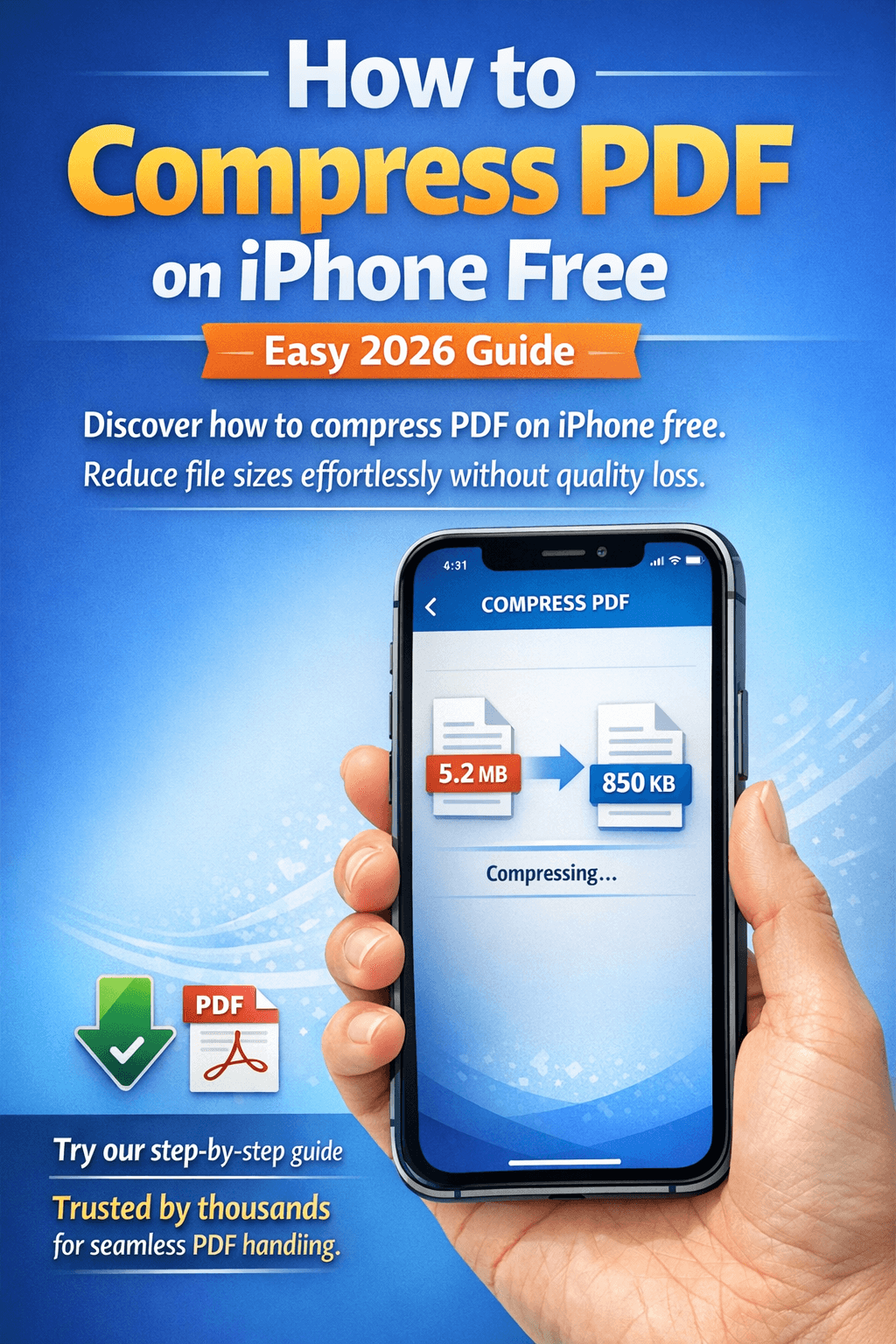
How to Compress PDF on iPhone Free 2026 | Complete Guide
Trying to compress a PDF on your iPhone to send it via email, upload it to a portal, or just free up storage space? You're in the right place. This 2026 guide covers the fastest, completely free methods — no app download required, works on iPhone and iPad — plus how to compress on Mac, Windows, and Android too.
The fastest method for any device: ComfortablePDF's free Compress PDF tool — open it in Safari on your iPhone, upload, compress, and download in under 30 seconds. No signup. No watermark.
What Does Compressing a PDF Actually Do?
Before jumping into the how-to, it's worth understanding what PDF compression actually does — because not all compression is the same.
When you compress a PDF, the tool reduces file size by:
• Downsampling images: Reducing the resolution of embedded images from 300 DPI (print quality) to 150 or 72 DPI (screen quality)
• Removing embedded data: Stripping unused fonts, metadata, form data, and hidden layers that add file size but aren't visible
• Re-encoding content: Applying more efficient compression algorithms to text and vector graphics
• Flattening transparency: Collapsing transparent layers into flat content that takes less space
The goal: make the file small enough to email (usually under 10MB or 25MB limits), upload to a portal, share on WhatsApp, or store without taking up excessive space — all while keeping the document readable.
How to Compress a PDF on iPhone Free (No App Needed)
Best for: All iPhone and iPad models — works in Safari, Chrome, or any browser
This is the fastest and most reliable method for compressing a PDF on iPhone in 2026. No app installation, no account, completely free.
Step-by-Step: Compress PDF on iPhone in Safari
1. Open Safari on your iPhone (Chrome works too)
2. Go to comfortablepdf.com/compress-pdf
3. Tap "Upload PDF" — choose your file from Files app, iCloud Drive, or your downloads
4. The tool automatically compresses your PDF using smart compression
5. Tap "Download" to save the smaller file to your iPhone
✓ Free ✓ No signup ✓ No watermark ✓ Works on iPhone 12, 13, 14, 15, 16 and all iPad models
After downloading, the compressed PDF is saved to your Files app — from there you can share it via email, WhatsApp, AirDrop, or upload it anywhere.
How to Save the Compressed PDF to iPhone
After tapping Download in Safari:
6. The file opens in a Safari preview — tap the Share icon (box with arrow)
7. Select "Save to Files" and choose a folder
8. Or tap "AirDrop", "Mail", or any other share option to send it directly
Can You Compress a PDF on iPhone Without Any Website?
The honest answer: iOS does not have a built-in PDF compressor in the Files app or any native Apple app. Unlike Mac's Preview app, iPhone doesn't include a compression tool. There is no way to reduce PDF size directly on iPhone without either:
• Using a browser-based tool (recommended — ComfortablePDF, free, no install)
• Downloading a third-party app from the App Store (most have in-app purchases or ads)
The browser-based method is always the fastest and cleanest — no storage used by apps, no in-app purchase prompts, and no accounts to manage.
How to Compress a PDF on iPhone Without Losing Quality
"Without losing quality" means keeping the document visually sharp and readable after compression. The key is using smart compression rather than aggressive downsizing.
Here's how ComfortablePDF handles quality:
• Text PDFs: Text-heavy documents (contracts, reports, forms) compress dramatically — often 60–80% size reduction — with zero visible quality loss because text compresses differently than images
• Image-heavy PDFs: Scanned documents or PDFs with photos will have some image quality reduction, but the tool optimizes for minimal visible degradation at maximum compression
• Scanned documents: These are image PDFs — compression removes some scan clarity, but the text remains readable
Pro tip: If quality after compression isn't acceptable, download the file, check if it's readable, and if not — use a lighter compression setting. ComfortablePDF's Compress tool is optimized to preserve readability while maximizing size reduction.
How to Compress a PDF to a Specific Size (200KB, 1MB, etc.)
Many upload forms and email systems have size limits — 200KB, 1MB, 2MB, 5MB. Here's how to get your PDF under a specific size limit:
Compress PDF to Under 200KB:
This is achievable for most text-based PDFs but challenging for image-heavy documents. Use ComfortablePDF's Compress PDF tool and check the output size. If still over 200KB, consider also:
• Splitting the PDF into smaller sections using the Split PDF tool and sharing only the relevant pages
• Removing images or high-resolution content from the document before compressing
• Converting to grayscale if the document has color images
Compress PDF for Email (Under 10MB or 25MB):
Most email providers (Gmail, Outlook, Apple Mail) have a 25MB attachment limit. If your PDF is over this limit, compression usually solves it. Use comfortablepdf.com/compress-pdf to reduce the size before attaching.
If the PDF is still too large after compression — for example, a very long scanned document — consider splitting it into smaller parts and sending each part separately.
How to Compress a PDF on Mac Free
Best for: MacBook Air, MacBook Pro, iMac, Mac Mini — macOS Ventura, Sonoma, Sequoia
Option A: Compress PDF on Mac Using ComfortablePDF (Best Quality)
9. Open Safari or Chrome on your Mac
10. Go to comfortablepdf.com/compress-pdf
11. Upload your PDF and download the compressed version
Why this is better than Preview: ComfortablePDF uses intelligent compression that preserves readability. Preview's Quartz filter is overly aggressive and can make scanned PDFs look blurry.
Option B: Compress PDF in Preview on Mac
12. Open your PDF in Preview
13. Go to File → Export as PDF
14. Click the Quartz Filter dropdown and select "Reduce File Size"
15. Click Save
Warning: Preview's "Reduce File Size" filter can severely reduce image quality — sometimes making scanned text blurry and unreadable. Always check the output before sharing. For scanned documents, use ComfortablePDF instead.
How to Compress a PDF in Preview Without Losing Quality:
Preview's Quartz filter doesn't have a quality setting — it applies maximum compression. The only way to compress a PDF in Preview without major quality loss is to use it only on text-heavy PDFs (not scanned images). For image-heavy PDFs on Mac, always use ComfortablePDF for better results.
How to Compress a PDF on Windows Free
Best for: Windows 10 and Windows 11 — no built-in compressor, browser method required
Windows does not include a native PDF compressor. The best free option on any Windows PC is the browser-based method:
16. Open Chrome, Edge, or Firefox on your Windows PC
17. Go to comfortablepdf.com/compress-pdf
18. Upload your PDF file
19. Download the compressed result
This works on Windows 10 and Windows 11, takes under 30 seconds, and produces better compression than most desktop Windows apps.
How to Compress a PDF File for Email on Windows:
If you're compressing specifically to email a PDF, the ComfortablePDF Compress tool reduces most PDFs to well under 10MB. After downloading, attach directly to your email in Outlook or Gmail.
How to Compress a PDF in Adobe Acrobat
Best for: Users who already have an Adobe Acrobat Pro subscription
Compress PDF in Adobe Acrobat Pro:
20. Open the PDF in Adobe Acrobat Pro
21. Go to File → Reduce File Size (basic) or File → Save As → Optimized PDF (advanced)
22. In PDF Optimizer, adjust settings for Images, Fonts, Transparency and Discard Objects
23. Choose your compatibility version (Acrobat 9+ for broadest support)
24. Click OK and save
Note: Adobe Acrobat Pro costs $19.99/month. If you don't already have it, ComfortablePDF's free Compress tool achieves comparable results at zero cost.
Compress PDF in Adobe Acrobat Reader (Free Version):
Adobe Acrobat Reader (the free version) does not include a compress function — that feature is locked behind Acrobat Pro. If you're using Acrobat Reader and need to compress, use ComfortablePDF instead.
Compress PDF with Foxit, Bluebeam & Other Desktop Tools
Compress PDF with Foxit PDF Editor:
Foxit PDF Editor includes a PDF Optimizer (similar to Acrobat's). Go to File → PDF Optimizer → Reduce File Size. Foxit's compression is solid, but the full optimizer is a paid feature. The free Foxit Reader does not compress PDFs.
Compress PDF in Bluebeam Revu:
Bluebeam Revu (popular in architecture and construction) compresses PDFs via File → Reduce File Size. It gives you options for image resolution and data reduction. Bluebeam is a paid subscription product — if you don't have it, ComfortablePDF is a free browser alternative.
Compress PDF on Linux (GhostScript):
On Linux, GhostScript is the standard command-line tool for PDF compression:
gs -sDEVICE=pdfwrite -dCompatibilityLevel=1.4 -dPDFSETTINGS=/ebook -dNOPAUSE -dQUIET -dBATCH -sOutputFile=output.pdf input.pdf
Settings: /screen (smallest, lowest quality), /ebook (balanced — good for most uses), /printer (larger, print quality), /prepress (largest, professional print)
How to Compress PDF Documents for Email
Emailing PDFs that are too large is one of the most common frustrations. Email attachment limits are typically:
• Gmail: 25MB per email
• Outlook/Hotmail: 20MB per email
• Apple Mail (iCloud): 20MB via standard email, up to 5GB via Mail Drop
• Yahoo Mail: 25MB per email
To compress a PDF for email quickly on any device — including iPhone, Android, Mac, or Windows — use comfortablepdf.com/compress-pdf. Most PDFs compress to well under 10MB, resolving email attachment issues instantly.
If still too large after compression: Use the Split PDF tool to break the document into smaller sections and send as multiple emails, or upload to Google Drive / Dropbox and share the link instead of attaching.
Related Free PDF Tools from ComfortablePDF
• Compress PDF – Reduce PDF file size on any device
• Split PDF – Break large PDFs into smaller files
• Merge PDF – Combine multiple PDFs into one
• Organize PDF – Reorder, delete, and rotate pages
• PDF to Word – Convert PDF to an editable Word document
• Protect PDF – Password-protect before sharing
• Watermark PDF – Add confidential or draft watermarks
• Rotate PDF – Fix sideways or upside-down pages
Platform Quick Reference: Compress PDF on Any Device
iPhone / iPad:
• Best method: ComfortablePDF in Safari — free, no app needed
• No built-in iOS compression tool exists
Mac (macOS):
• Best method: ComfortablePDF in browser — best quality preservation
• Built-in alternative: Preview → Export as PDF → Quartz Filter (aggressive quality loss)
Windows 10 / 11:
• Best method: ComfortablePDF in Chrome or Edge — no software needed
• No native Windows compressor exists
Android:
• Best method: ComfortablePDF in Chrome — same as iPhone, works in browser
Linux:
• Command line: GhostScript with /ebook setting
• Browser method: ComfortablePDF in Firefox or Chrome
Frequently Asked Questions
How do I compress a PDF on my iPhone for free?
Open Safari on your iPhone and go to comfortablepdf.com/compress-pdf. Upload your PDF, compress, and download. No app install or signup needed.
Does iPhone have a built-in PDF compressor?
No. iOS does not include a native PDF compression tool. The best free method is using a browser-based tool like ComfortablePDF in Safari.
How do I compress a PDF without losing quality?
Use ComfortablePDF's Compress tool which applies smart compression — reducing file size while preserving readability. Avoid Preview's Quartz filter on Mac for image-heavy PDFs.
How do I compress a PDF on a Mac?
The best method is ComfortablePDF in your browser. Alternatively, use Preview → File → Export as PDF → Quartz Filter → Reduce File Size (may reduce image quality).
How do I compress a PDF in Preview on Mac?
Open the PDF in Preview, go to File → Export as PDF, click the Quartz Filter dropdown, select "Reduce File Size", and save. Note: this can degrade image quality significantly for scanned documents.
How do I compress a PDF on Windows?
Windows has no built-in PDF compressor. Use comfortablepdf.com/compress-pdf in Chrome or Edge — free, instant, works on Windows 10 and 11.
How do I compress a PDF in Adobe Acrobat?
In Acrobat Pro, go to File → Save As → Optimized PDF and adjust compression settings. Note: Acrobat Reader (free) does not include compression — it's an Acrobat Pro-only feature.
How do I compress a PDF for email?
Upload to comfortablepdf.com/compress-pdf, compress, and download. Most PDFs will be reduced well under email attachment limits. If still too large, split the PDF using the Split PDF tool.
What does compressing a PDF do?
It reduces the file's size by downsampling images, removing unused fonts and metadata, and applying more efficient encoding — making it smaller to email, upload, or store, while keeping the content readable.
How do I compress a PDF to 200KB?
Use ComfortablePDF's Compress tool and check the output size. For very small targets like 200KB, text-only PDFs will compress easily. Image-heavy documents may also need pages removed or images reduced before compressing.
Final Thoughts
Compressing a PDF on your iPhone, Mac, Windows, or Android in 2026 doesn't require any paid software or app downloads. Whether you need to reduce a PDF to send by email, hit an upload size limit, or just save storage space — the browser-based method works on every device in under 30 seconds.
For the best balance of size reduction and quality preservation on any device, ComfortablePDF's free Compress PDF tool is the fastest, cleanest solution available.
→ Compress Your PDF Free Now — ComfortablePDF
No account. No watermark. Compressed and downloaded in seconds — on iPhone, Mac, or Windows.